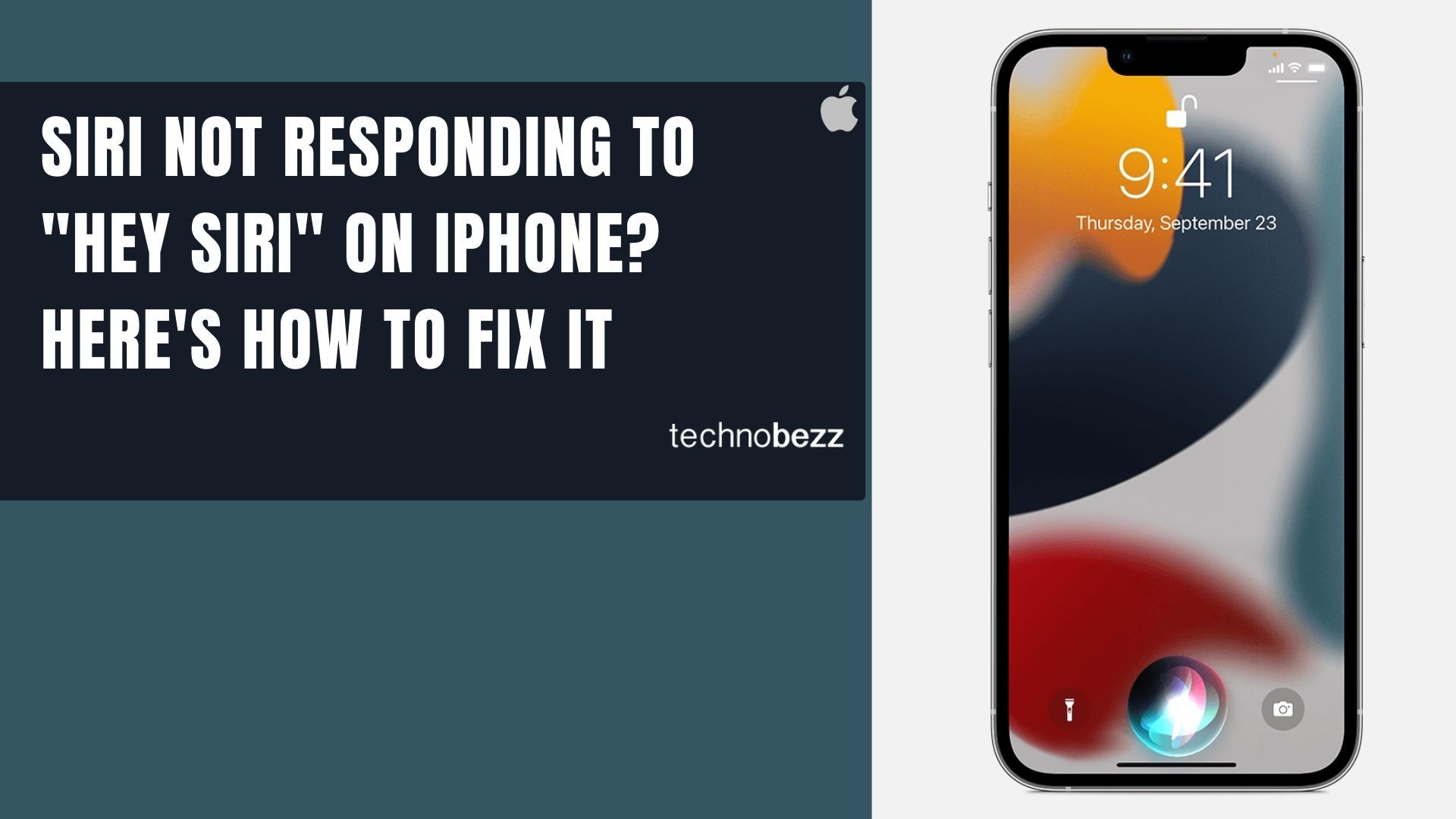
When you say "Hey Siri" and nothing happens, the assistant that is supposed to save you time becomes the thing wasting it. The good news is that the cause is almost always a setting, a blocked microphone, or a small software glitch, and all of those are fixable in minutes.
Before changing any settings, it helps to know whether the microphone registers anything at all. Run a quick quick mic test in your browser, speak normally, and watch the level meter. If it moves, the hardware works and the fixes below will take care of the rest.
This guide walks through 14 fixes in order, from the fastest toggles to a full restore as a last resort. Start at the top and stop as soon as Siri answers you again.
Quick Fixes to Try First
Most "Hey Siri" failures are solved by one of the checks below. Run through them before moving on to the deeper steps.
| Symptom | Try this first |
|---|---|
| Siri ignores your voice entirely | Confirm voice activation is on under Talk & Type to Siri |
| Siri hears you but stays silent | Set Siri Responses to Prefer Spoken Responses and raise the volume |
| Siri only works sometimes | Retrain your voice and clean the microphones |
| Siri stopped after an update | Restart the iPhone, then install the newest iOS |
| Siri menu vanished from Settings | Check for a VPN profile blocking it |
Confirm Siri Is Actually Turned On
The most common reason "Hey Siri" stops working is that voice activation got switched off, sometimes by an update or by accident. Checking it takes seconds.
The Siri menu is named differently depending on your iPhone. Newer models that support Apple Intelligence show it as Apple Intelligence & Siri, while older models show Siri & Search.
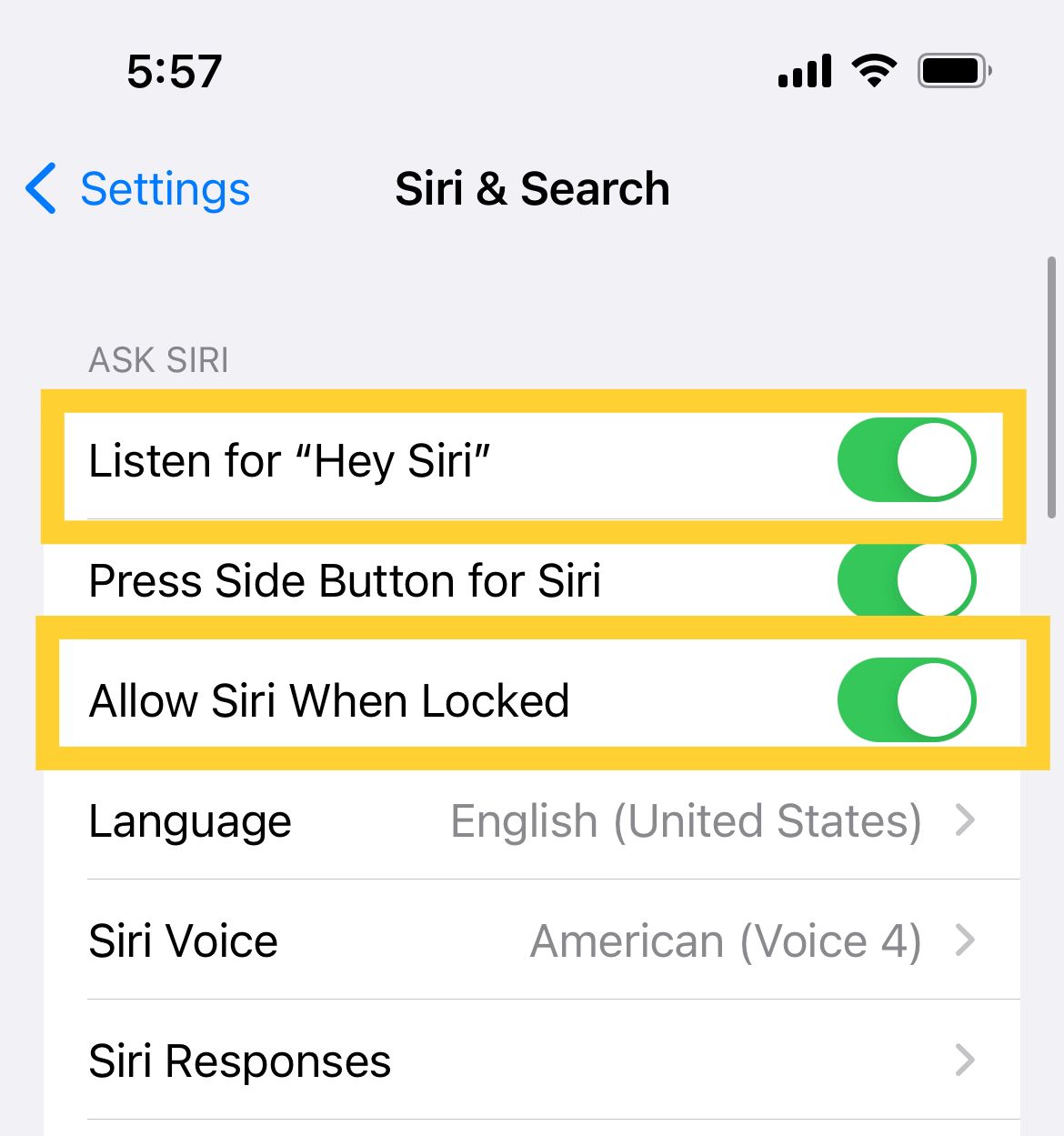
Settings > Apple Intelligence & Siri > Talk & Type to Siri
Make sure Listen for "Siri" or "Hey Siri" is enabled. If you want Siri to answer with the screen locked, also enable the option that allows Siri when locked. If voice activation is already on, toggle it off, wait a few seconds, and turn it back on.
Set Siri Responses So You Can Hear It
If Siri is clearly listening but you never hear it speak, the problem is the response setting rather than the microphone. Recent iOS versions can keep Siri silent when you are looking at the screen or when the phone is in Silent Mode.
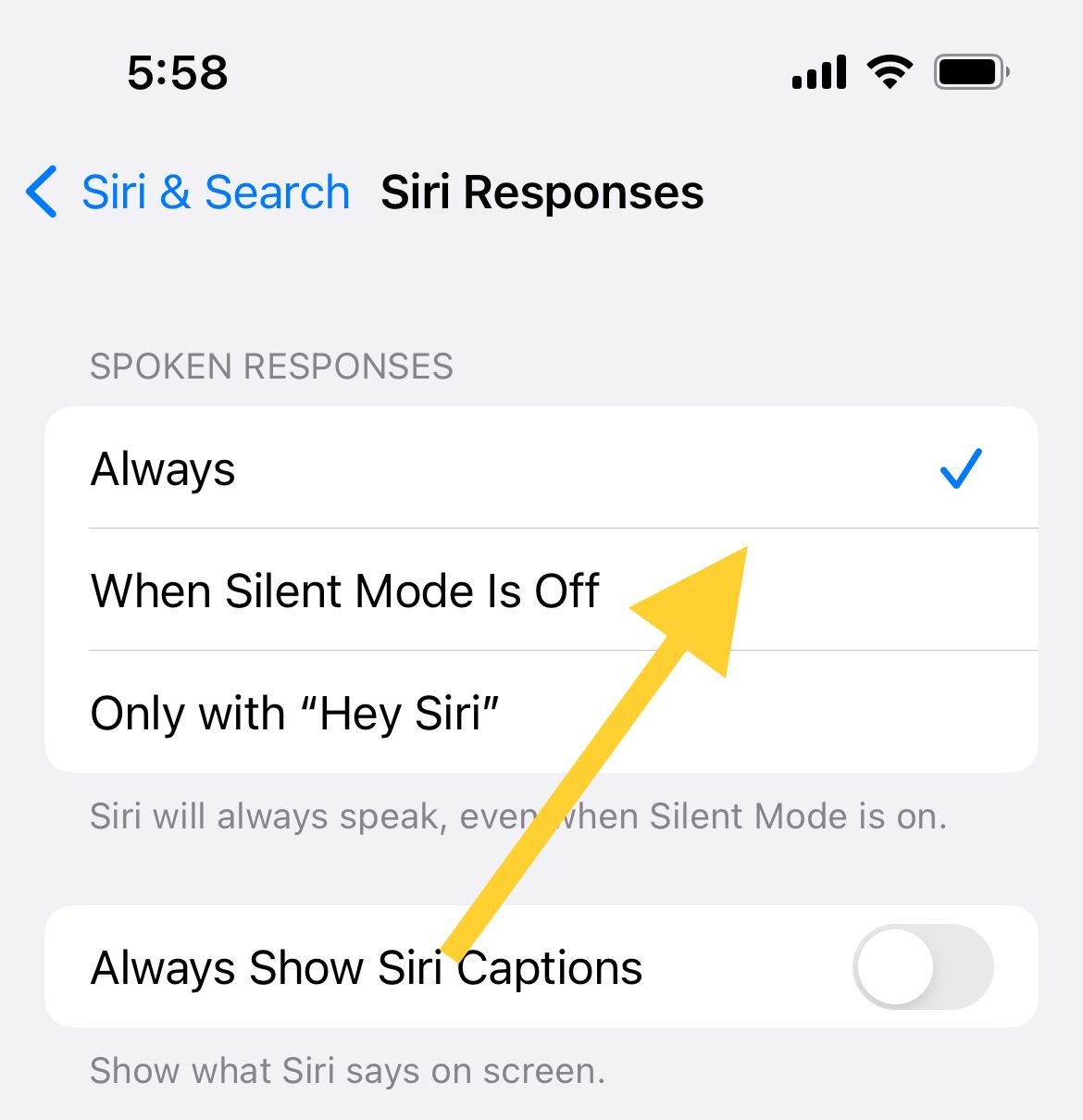
Settings > Apple Intelligence & Siri > Siri Responses
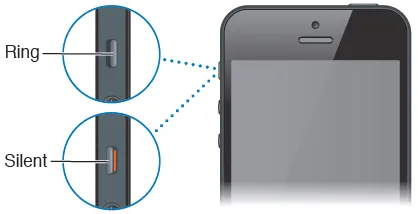
Choose Prefer Spoken Responses so Siri talks out loud, including when the ringer switch is set to silent. This single change fixes a lot of "Siri is broken" complaints that are really just a quiet response.
Check the Volume and Audio Output
You only hear Siri through the iPhone speaker or through a connected audio device, so muted or low volume can make Siri seem dead. Press the volume up button a few times while Siri is active and listen again.
Also make sure audio is not being routed somewhere you cannot hear it, such as a paired speaker or car system in another room. If Siri responds normally once the volume is up, the assistant was working all along.
Disconnect Bluetooth Headphones and AirPods
Siri should work fine through AirPods or headphones, but a paired device can capture the microphone or send Siri's voice to an earpiece you are not wearing. This is a frequent cause of Siri seeming unresponsive on the phone itself.
Open Control Center and turn Bluetooth off, or go to Settings > Bluetooth and disconnect the specific device, then test "Hey Siri" again. If your iPhone is connected to a car through CarPlay, disconnect from the vehicle as well, since CarPlay can redirect Siri's input and output.
Turn Off Focus and Do Not Disturb
A Focus mode, including Do Not Disturb, can silence or limit how Siri responds. If you have a Focus running, it may be the reason Siri stays quiet.
Open Control Center, tap the Focus button, and switch off any active mode. Then ask Siri something to confirm it answers normally with no Focus enabled.
Check Your Network Connection
Some Siri tasks run on the device, but anything that needs the internet, such as web searches, weather, or sending messages, requires a working connection. If Siri opens but says it is having trouble or cannot help right now, the network is a likely cause.
Test your Wi-Fi or cellular data by loading a web page, and toggle Airplane Mode on and off to reset the radios. If your connection is fine elsewhere but Siri still fails, move on to the next step.
Look for a VPN That Is Blocking Siri
A VPN or a configuration profile can interfere with Siri, and in some cases the Siri menu disappears from Settings entirely after a restart. If you have a VPN installed, this is worth ruling out.
Settings > General > VPN & Device Management
Turn the VPN off temporarily, or remove a profile you no longer recognize, then restart the iPhone and try Siri again. If Siri returns, the VPN or profile was the cause, and you can switch to a different provider if needed.
Make Sure Screen Time Is Not Restricting Siri
If Screen Time restrictions are turned on, Siri can be blocked at the system level, which is easy to overlook on a phone set up with parental controls.
Settings > Screen Time > Content & Privacy Restrictions > Allowed Apps & Features
Confirm Siri & Dictation is allowed. On devices with Apple Intelligence, you may instead find these controls under an Intelligence & Siri entry inside Content & Privacy Restrictions. Enable Siri there if it has been switched off.
Clean the Microphones and Remove Obstructions
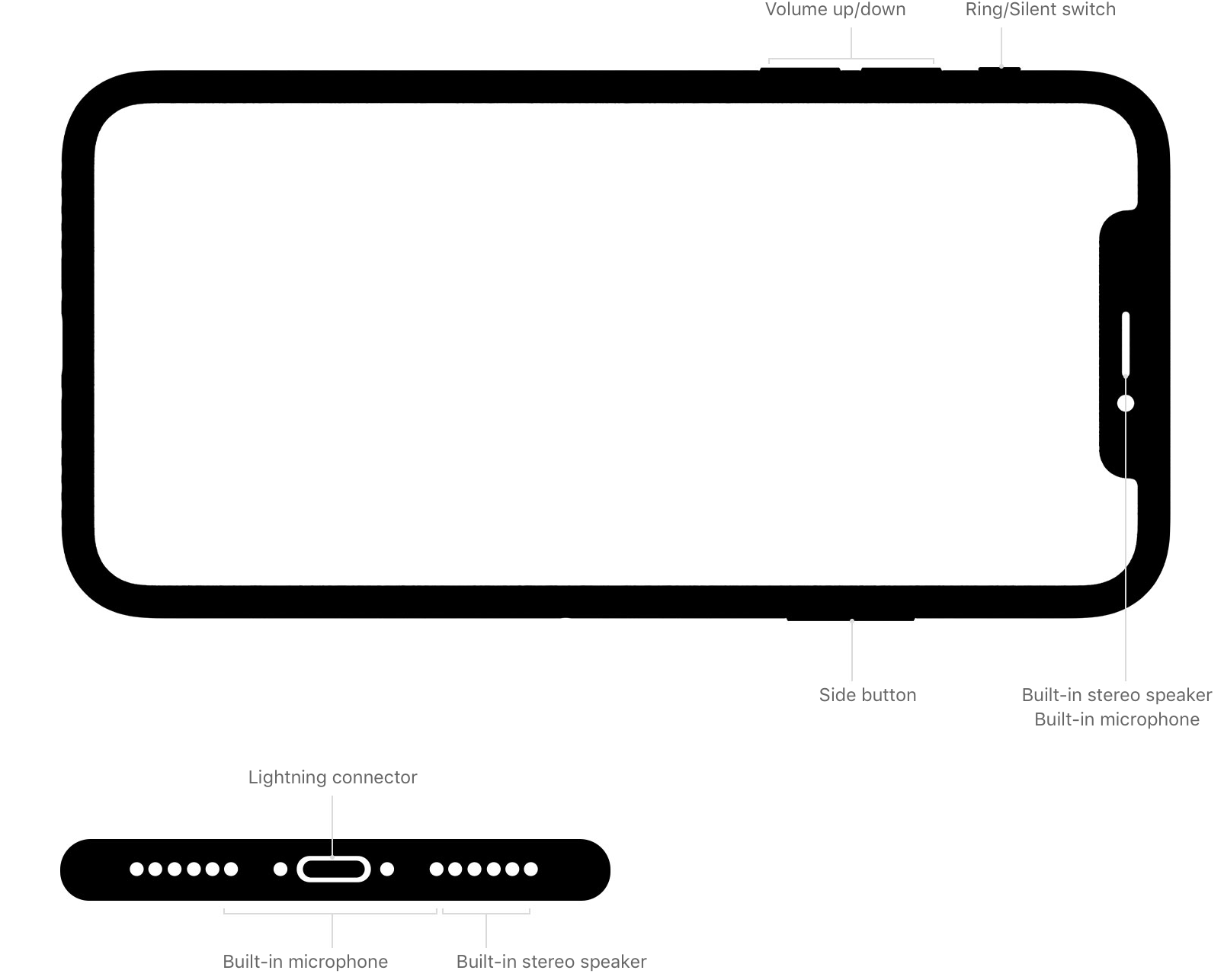
Your iPhone uses more than one microphone, and if any of them is blocked, Siri cannot hear "Hey Siri" clearly. This is a leading hardware cause of intermittent recognition.
Check for dust in the microphone ports, a case or screen protector overlapping a mic, or visible damage near the speaker and camera areas. Gently clear any debris with a soft, dry brush, and avoid sharp objects or liquids that could damage the openings.
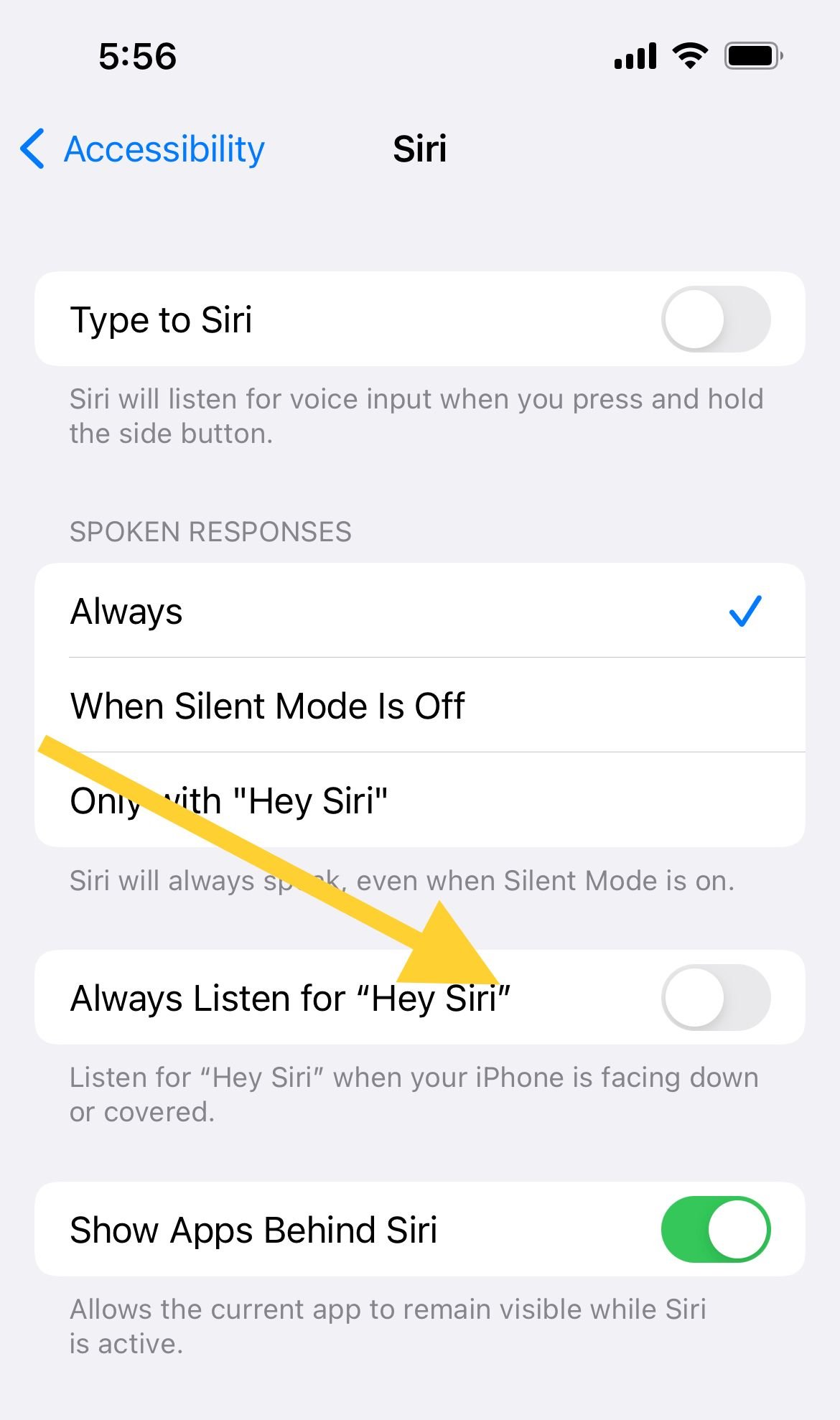
If Siri is face down on a desk or covered, it may not respond by default. You can adjust this behavior under Settings > Accessibility > Siri using the always-listen option, so Siri keeps listening even when the screen is not visible.
Retrain Siri to Recognize Your Voice
If Siri responds to other people but not to you, or stopped recognizing you after an update, its voice profile may need rebuilding. Retraining is quick and often fixes recognition problems on its own.
Settings > Apple Intelligence & Siri > Talk & Type to Siri
Turn off Listen for "Siri" or "Hey Siri", then turn it back on. Follow the on-screen setup, speaking each phrase as prompted, and tap Done when the wizard finishes. Doing this in a quiet room gives Siri the cleanest sample of your voice.
Restart Your iPhone
A restart clears temporary glitches that no single setting will fix, and it is one of the most reliable cures for Siri acting up after an update. It takes under a minute.
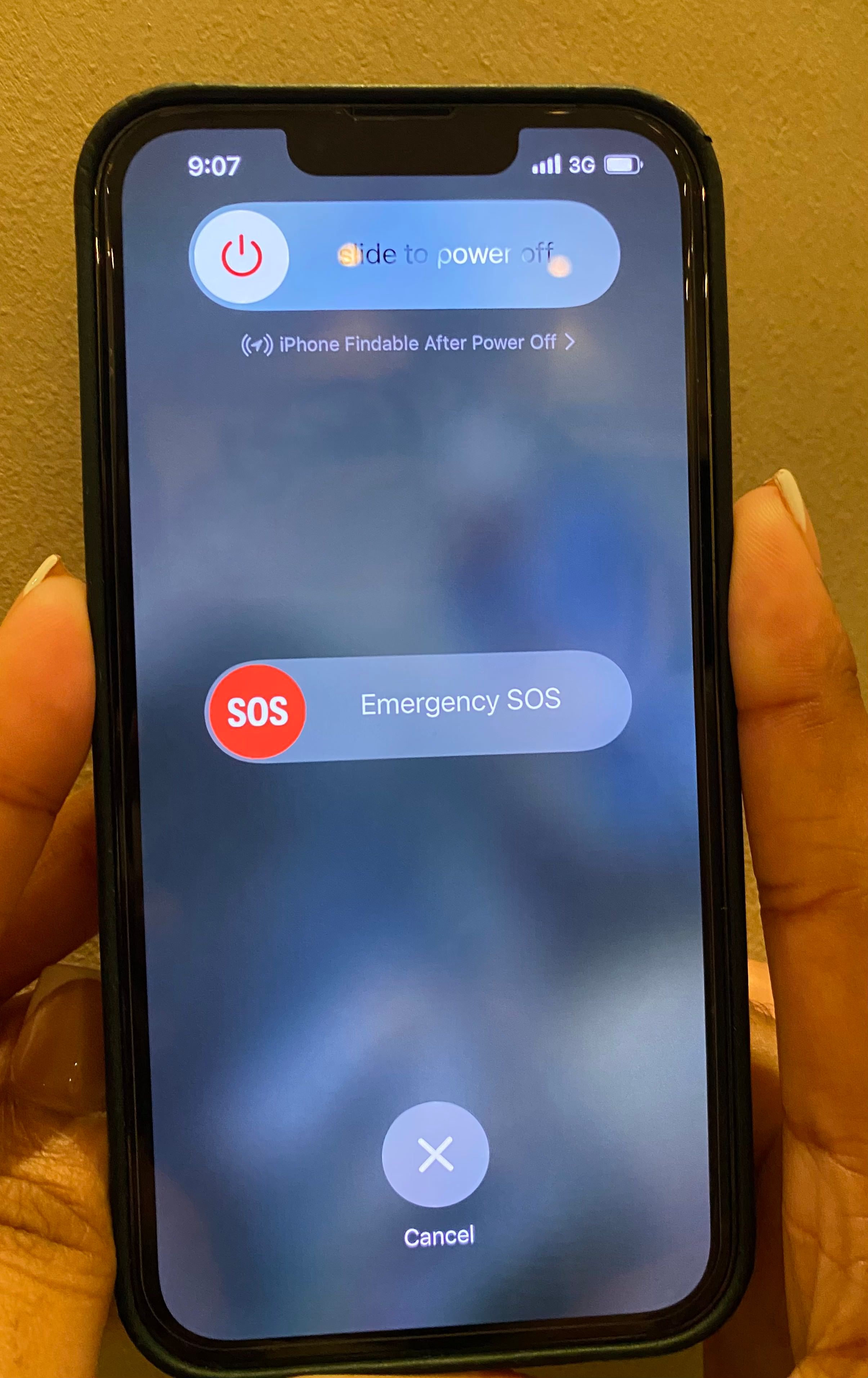
On models with Face ID, press and hold the side button together with either volume button, then drag the slider to power off. On models with a Home button, hold the side button instead. Wait a few seconds, then power the iPhone back on and try Siri.
Update to the Latest iOS
Apple regularly patches Siri bugs, so running an outdated version of iOS is a surprisingly common reason Siri stays broken. Installing the newest release can resolve issues that no toggle will.
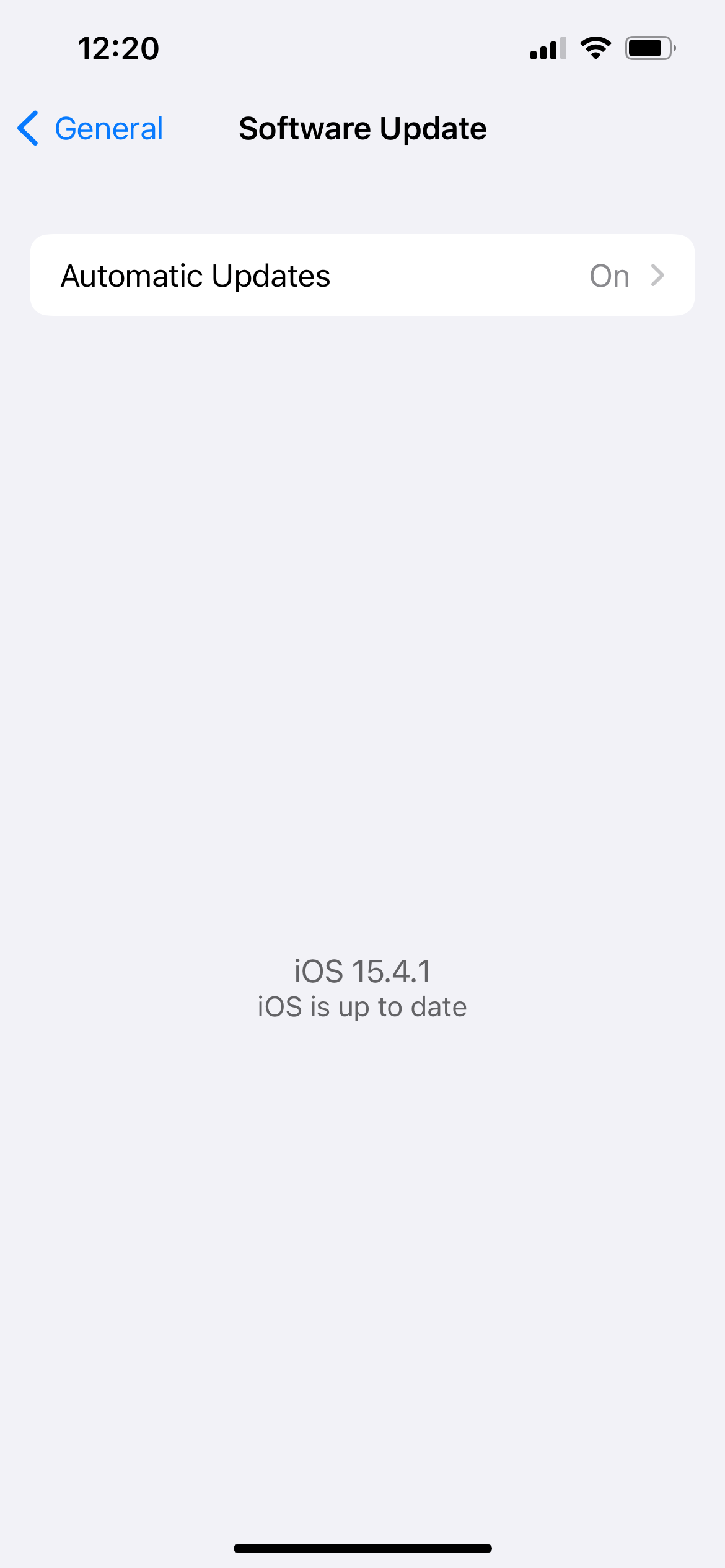
Settings > General > Software Update
Download and install any update that appears, keeping the iPhone connected to power and Wi-Fi until it finishes. After it restarts, confirm that voice activation is still enabled, since major updates occasionally reset Siri preferences.
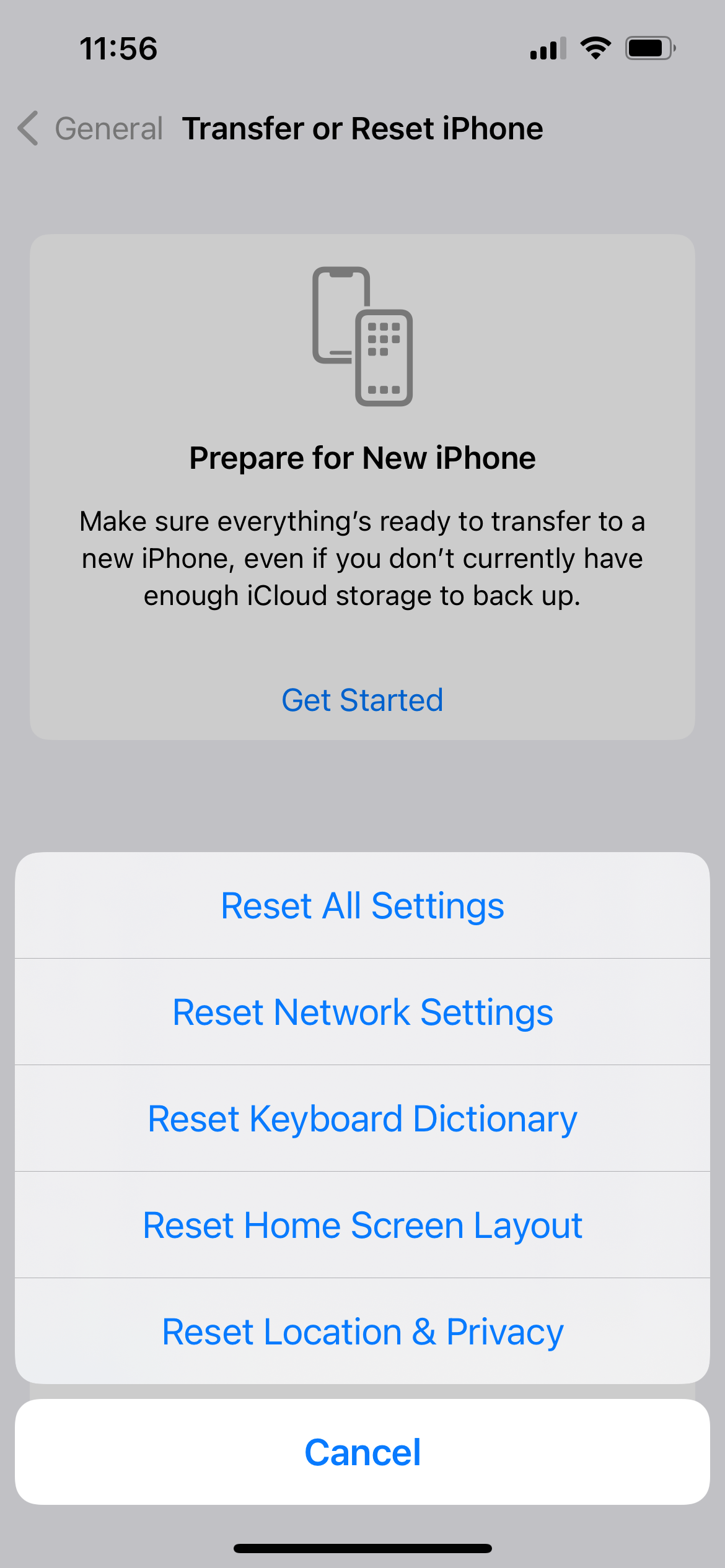
Reset All Settings
If Siri still will not respond, a deeper configuration conflict may be to blame. Resetting settings clears those conflicts without deleting your photos, apps, or messages.
Settings > General > Transfer or Reset iPhone > Reset > Reset All Settings
This returns network, privacy, and system preferences to their defaults, so you will need to reconnect Wi-Fi and re-enable a few options afterward. Once it completes, set up "Hey Siri" again and test it.
Restore the iPhone as a Last Resort
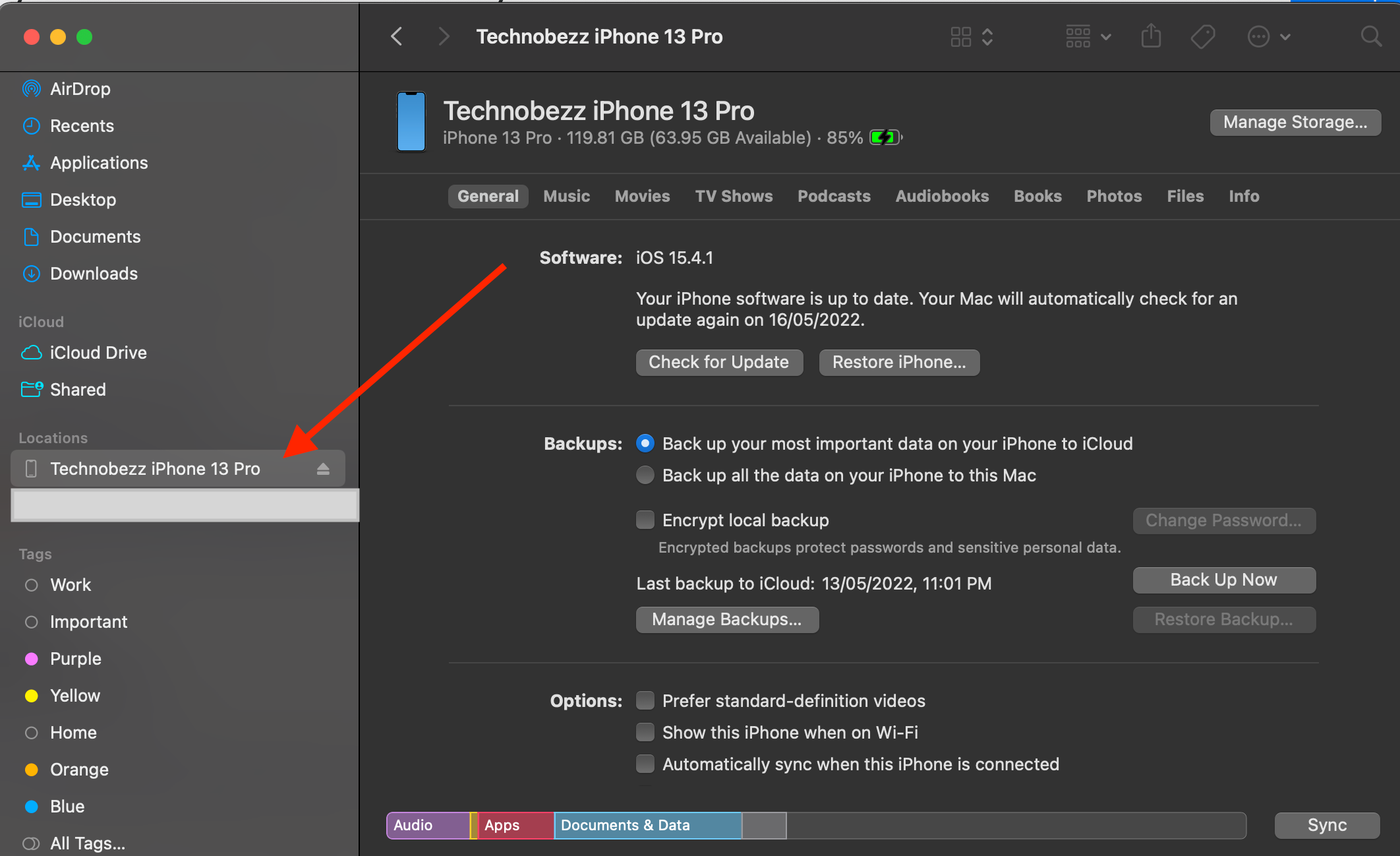
When nothing above works and Siri is the only feature failing, a full restore reinstalls iOS and rules out deep software corruption. Because this erases everything, back up your iPhone first.
Connect the iPhone to a computer and open Finder on a Mac, or the Apple Devices app on a PC. Select your device and choose Restore iPhone, then follow the prompts and restore from your backup when it finishes. On much older systems, iTunes performs the same restore.
If Siri still fails after a clean restore, the microphones or another component may have a hardware fault, and it is worth contacting Apple Support to have the device checked.
Frequently Asked Questions
Why does Hey Siri stop working after an iOS update
Updates can reset Siri preferences or change defaults, so voice activation or spoken responses may switch off. Reopen Talk & Type to Siri, confirm Listen for "Siri" or "Hey Siri" is on, and retrain your voice if needed.
Why won't Hey Siri respond when my iPhone is locked or face down
By default Siri may not answer when the screen is covered, and the option allowing Siri when locked may be off. Enable that option under Talk & Type to Siri, and use the always-listen setting in Settings > Accessibility > Siri for face-down listening.
Why can Siri hear me but never speaks back
That is usually a response setting rather than a fault. Set Siri Responses to Prefer Spoken Responses and raise the volume, since Siri only plays audio through the speaker or a connected device.
Can a case or screen protector stop Hey Siri from working
Yes. If a case, screen protector, or debris covers one of the microphones, Siri may not hear you clearly. Remove the case, clean the mic openings, and test again.
Does Hey Siri need an internet connection
Some requests run on the device, but searches, weather, messaging, and many other tasks need the internet. If Siri says it cannot help right now, check your Wi-Fi or cellular connection first.
What if I cannot use my voice at all
You can use Type to Siri instead. Enable it under Talk & Type to Siri on Apple Intelligence devices, or under Settings > Accessibility > Siri on older models, then type your request after activating Siri.
First published October 13, 2025. Last updated June 4, 2026.