
When your iPhone 14 microphone stops picking up your voice, it can turn simple phone calls, FaceTime chats, or asking Siri a question into a frustrating experience. The issue might be with one specific microphone or all of them, and it's a good idea to start by figuring out which one is affected.
It is worth running a quick mic test before working through the steps below. The live waveform makes it obvious whether the microphone is picking up sound at all.
Test Which Microphone Isn't Working
Your iPhone 14 has three main microphones. One is at the bottom next to the Lightning port, another is at the top near the front-facing camera, and the third is on the back near the camera lenses. The quickest way to test them is with the Voice Memos app.
Open Voice Memos and record a short clip while speaking normally. Then, play it back. If the audio is muffled or silent, you've confirmed a problem. For a more targeted test, try making a regular phone call on speakerphone, which uses the bottom mic, and then a FaceTime audio call, which typically uses the top mic.
You can also ask Siri, "What time is it?" If she doesn't respond or consistently mishears you, that's another strong indicator. I'd start with these simple tests before moving on to fixes.
Remove the Case and Check for Blockages
This is the most common quick fix. Some iPhone 14 cases, especially rugged ones with thick borders, can partially cover the microphone grilles. Take the case off completely and test your microphone again in a call or with Voice Memos.
Next, take a close look at the microphone openings. The one at the bottom, right next to the Lightning port, is particularly prone to collecting pocket lint and dust. Use a dry, soft-bristled brush or a wooden toothpick to gently clear any debris you see.
Be very careful not to push anything further into the opening. A can of compressed air held upright can also help blow loose particles out. Check the top earpiece grille and the rear microphone near the camera lenses as well.
Disconnect Bluetooth Accessories
If you have AirPods or any other Bluetooth headphones paired, your iPhone 14 might be routing all audio through them, even if they're in their case. This can make it seem like the built-in mics are dead.
Swipe down from the top-right corner to open Control Center. Tap the Bluetooth icon to turn it off temporarily, then try your microphone again. Alternatively, go to Settings > Bluetooth, tap the info icon (i) next to your connected device, and choose "Disconnect."
Restart and Force Restart Your iPhone 14
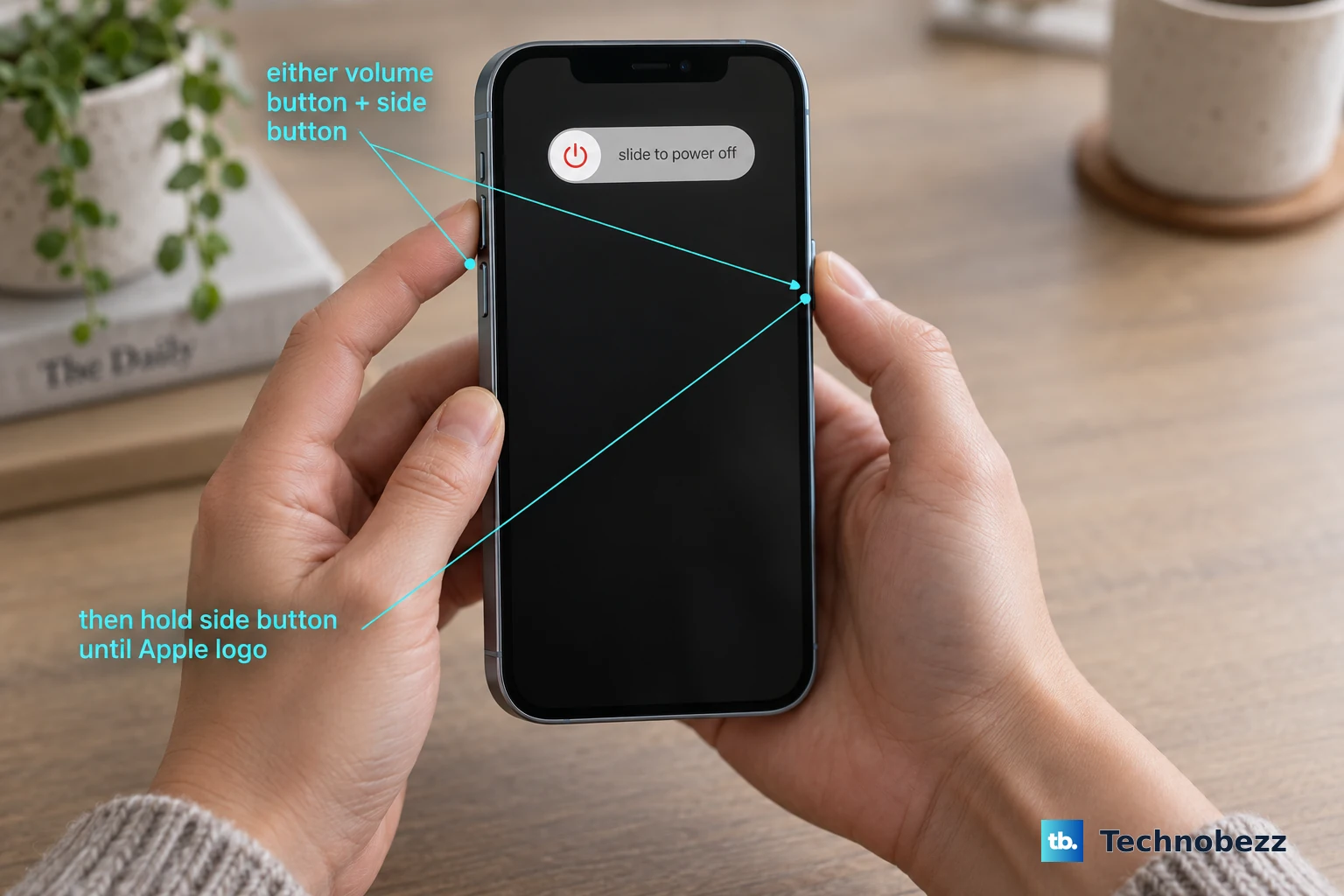
A standard restart clears out minor software glitches that can affect hardware. Press and hold the Side button and either Volume button until the power off slider appears. Slide it, wait 30 seconds, then press the Side button to turn it back on.
If that doesn't help, try a force restart. This doesn't erase any data. Quickly press and release the Volume Up button, then quickly press and release the Volume Down button. Finally, press and hold the Side button until you see the Apple logo appear, then release.
Check App Permissions in Settings
If the microphone only fails in specific apps like Zoom, WhatsApp, or Instagram, the app likely lost its permission. iOS manages this separately for each application.
Go to Settings > Privacy & Security > Microphone. You'll see a list of all apps that have requested microphone access. Make sure the toggle is switched on (green) for the app giving you trouble. If it's off, turn it on, then force close and reopen the app.
Update to the Latest Version of iOS
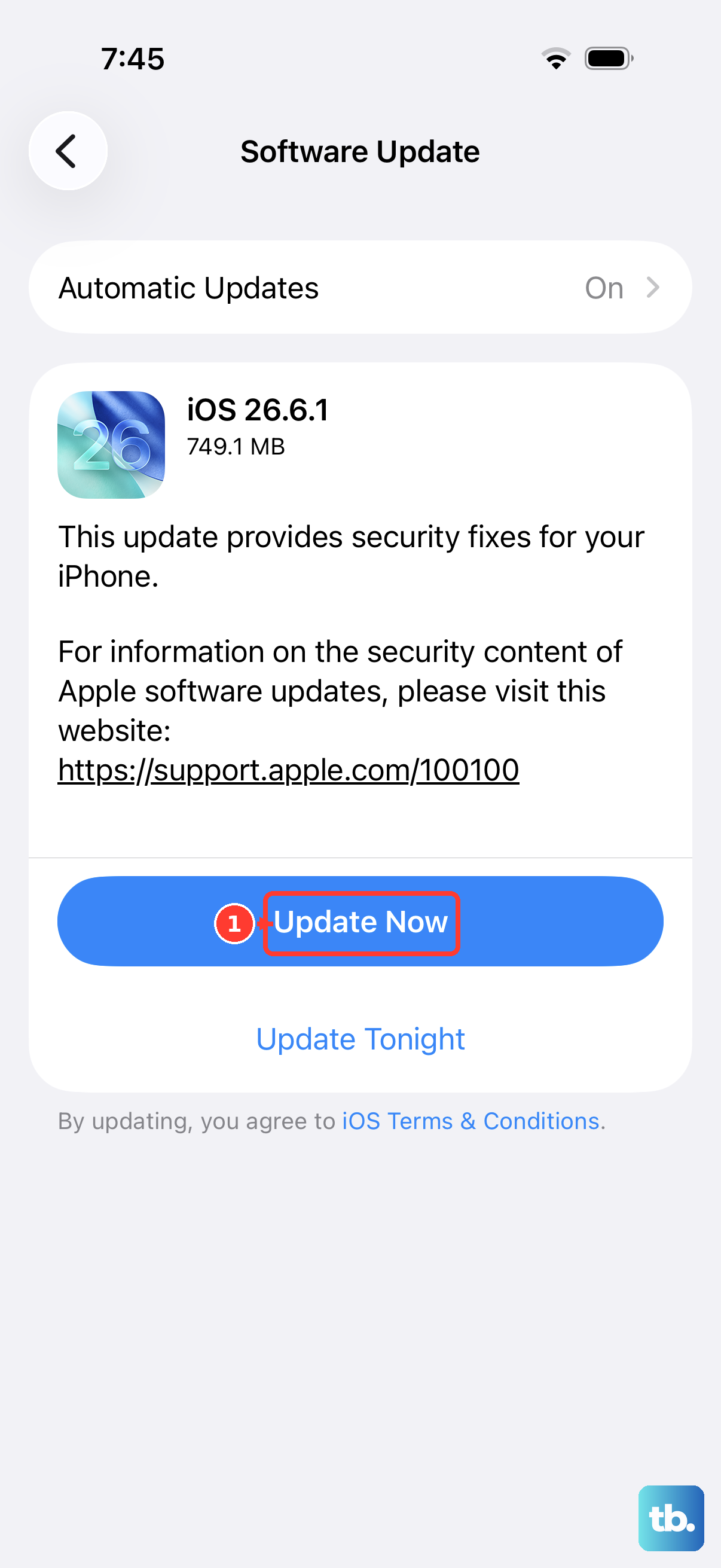
Software bugs can occasionally cause microphone problems, and Apple addresses these in updates. Since your iPhone 14 launched, there have been several iOS versions that included audio-related fixes.
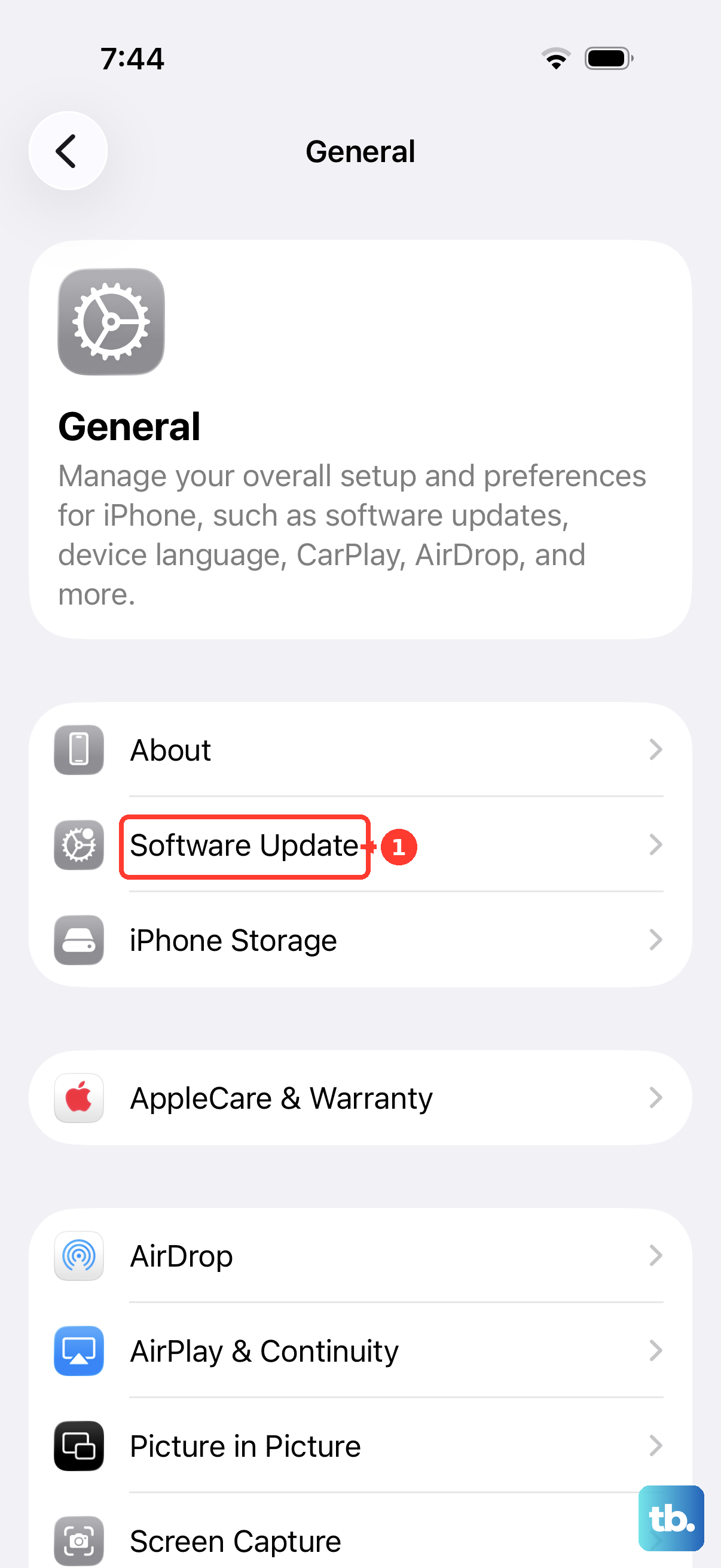
Navigate to Settings > General > Software Update. If an update is available, tap "Download and Install." Make sure your phone is connected to Wi-Fi and has at least 50% battery or is plugged into a charger. I've seen pending updates resolve microphone issues more often than you'd think.
Reset All Settings on Your iPhone
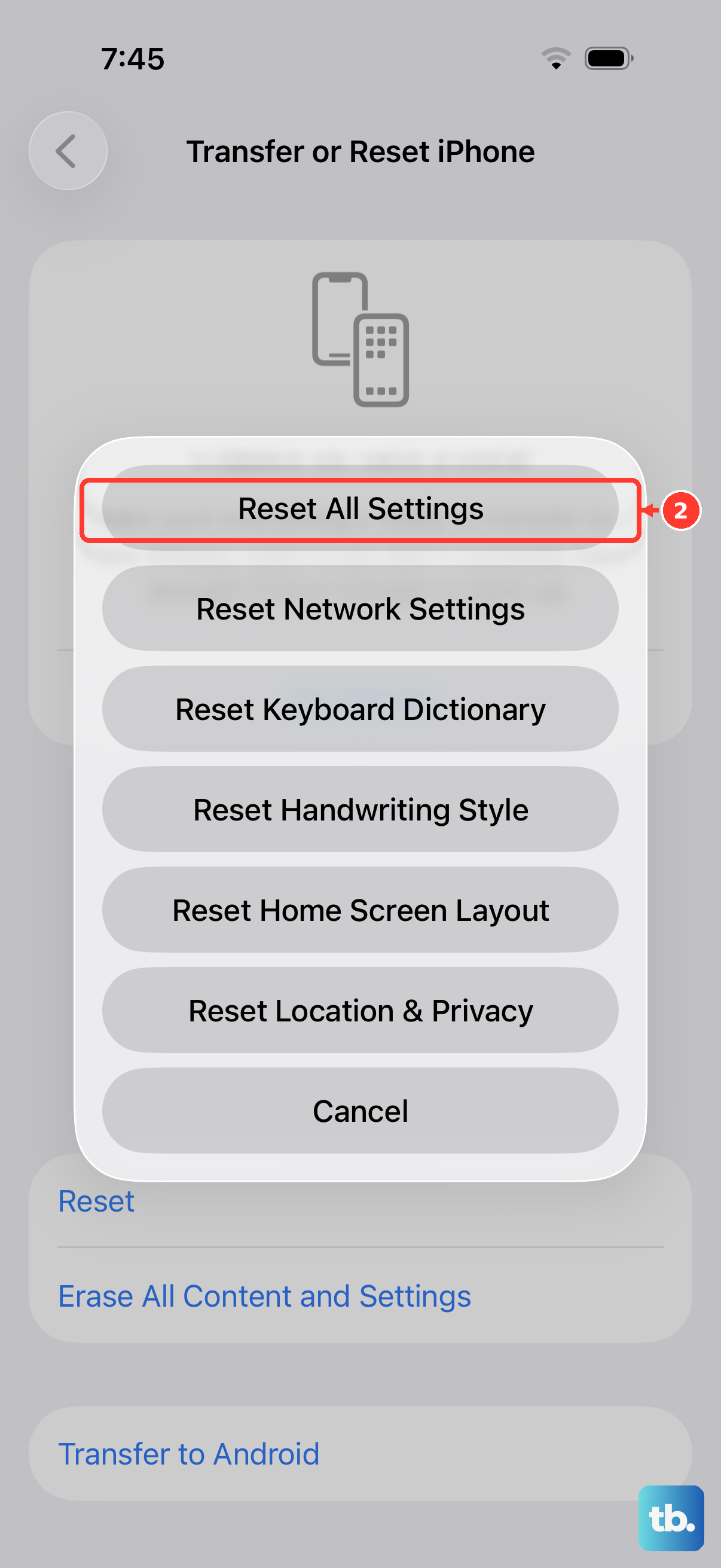
This is a stronger step that resets every system setting, like Wi-Fi passwords, wallpaper, and privacy permissions, back to factory defaults. Your personal data, photos, and apps remain untouched, but you will have to re-enter saved passwords and reconfigure some preferences.
To do this, go to Settings > General > Transfer or Reset iPhone. Tap "Reset" at the bottom, then choose "Reset All Settings." Enter your passcode and confirm. After the phone reboots, test the microphone immediately before restoring any custom configurations.
Clean the Lightning Port Carefully
While the Lightning port itself isn't a microphone, severe corrosion or debris inside it can interfere with nearby components. This is a known issue if the phone has been exposed to moisture. The bottom microphone is located right next to this port.
Power off your iPhone 14 first. Using a bright light, look inside the Lightning port for any packed-in lint, dirt, or signs of green/white corrosion. Gently use a wooden or plastic toothpick to scrape along the sides and bottom of the port to dislodge debris.
Never use a metal object, as it can damage the pins. If you see corrosion, a tiny amount of 90% isopropyl alcohol on a cotton swab can help, but let it dry completely for at least an hour before attempting to charge or turn the phone back on.
Restore Your iPhone Using a Computer
If you suspect a deeper software corruption, restoring iOS via a computer can help. This process erases the phone and installs a fresh copy of the operating system. You must have a recent backup in iCloud or on your computer before proceeding.
Connect your iPhone 14 to a Mac or PC using a Lightning cable. On a Mac with macOS Catalina or later, open Finder. On a PC or older Mac, open iTunes. Select your device, then choose "Restore iPhone." This will download the latest iOS version and install it cleanly.
After the restore is complete, you can set up the phone as new to test the microphone, or restore from your backup. If the microphone works after a clean setup but fails again after restoring your backup, the issue may be with data in the backup itself.