
If your iPhone 14 has started to feel sluggish, you're not imagining it. Even a powerful phone from 2022 can slow down over time. The good news is that these checks can help you resolve common causes of slow performance.
Start with a simple force restart. It's different from a normal power cycle and can clear out temporary glitches that cause lag. Quickly press and release the Volume Up button, then press and release the Volume Down button. Finally, press and hold the Side button until you see the Apple logo appear.
Check Your iPhone 14's Battery Health
Your iPhone 14 can intentionally slow down if the battery is degraded to prevent sudden shutdowns. To check, go to Settings > Battery > Battery Health & Charging.
Look at the "Maximum Capacity" percentage and the battery health information. Batteries lose capacity and peak performance as they age. If the screen recommends a battery replacement, arrange service to address the worn battery.
Free Up Storage Space on Your Device
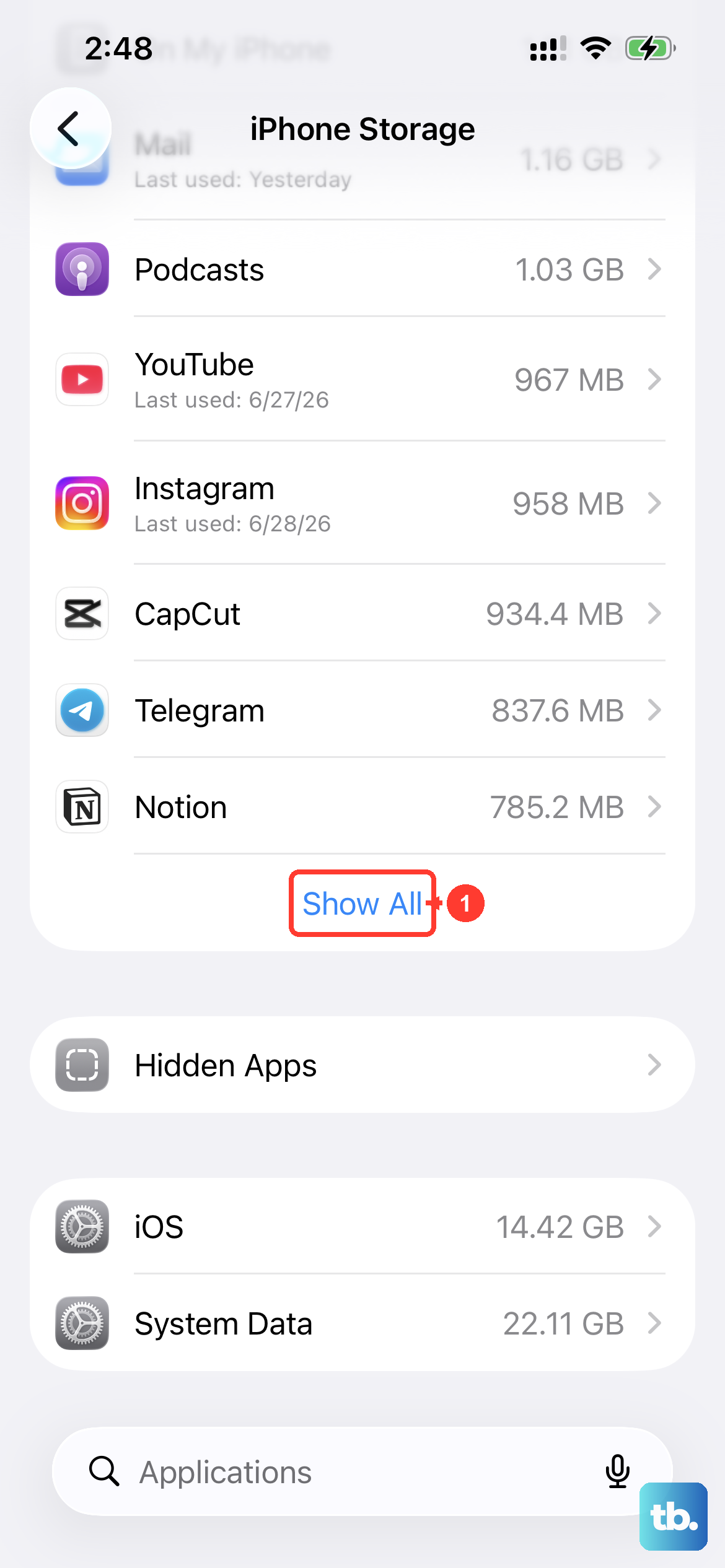
When your iPhone 14's storage is nearly full, it can slow down. The system needs free space to operate smoothly. Head to Settings > General > iPhone Storage to see what's taking up room.
You can offload unused apps (which removes the app but keeps its data), delete old messages and large attachments, and review your photo library. Keep at least 1 GB of storage free to help avoid slowdowns.
Update to the Latest Version of iOS
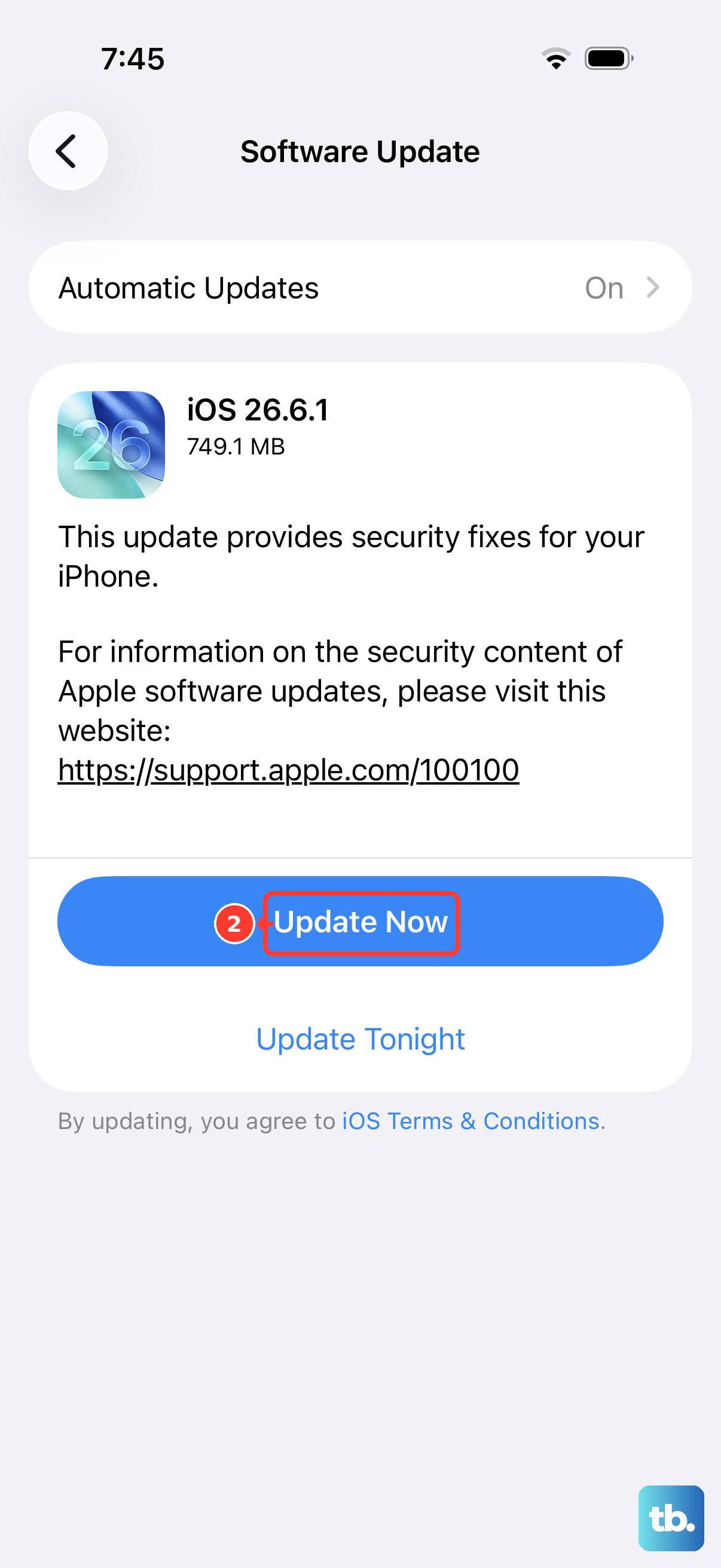
Apple frequently releases updates that include performance improvements and bug fixes. If you're experiencing slowness, especially after a major update, installing the latest version can help.
Go to Settings > General > Software Update. If an update is available, download and install it. Make sure your phone is plugged into power and on Wi-Fi first.
Manage Background App Refresh
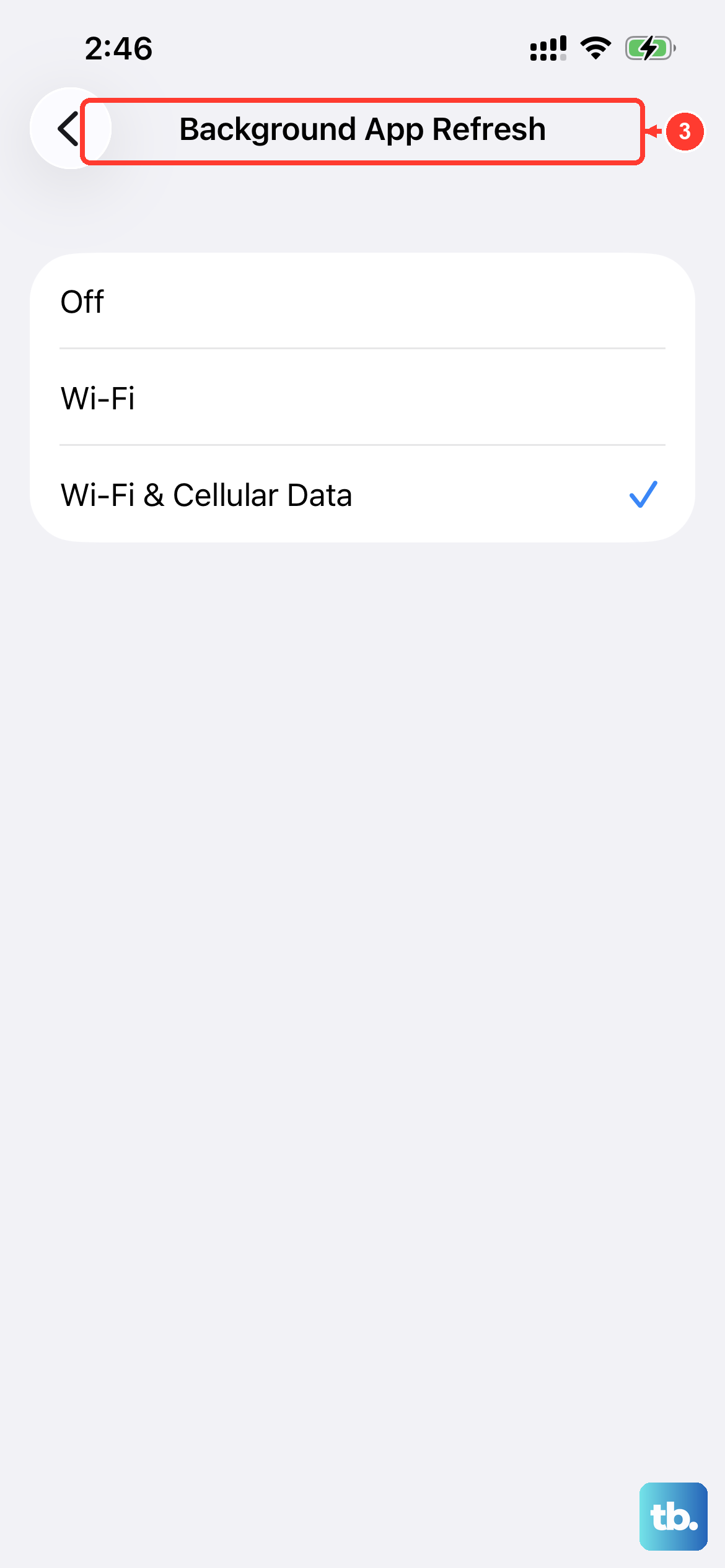
Apps refreshing content in the background use processor power and data, which can slow down your iPhone 14. You can control this globally or per app.
Navigate to Settings > General > Background App Refresh. You can turn it off entirely or just for specific apps you don't need updating constantly, like games or streaming services.
Close Apps That Aren't Responding
Close an app if it stops responding. Force-closing apps unnecessarily can slow down your iPhone because reopening them requires their data to reload. To close an unresponsive app on your iPhone 14, swipe up from the bottom of the screen and pause in the middle.
Swipe left or right to find the app you want to close, then swipe up on the app's preview to quit it. You don't need to do this constantly, but it's a good reset if an app is misbehaving.
Reduce Motion and Visual Effects
The parallax and zooming effects on your home screen and within apps use graphics power. Turning them off can make your iPhone 14 feel snappier, especially if it's already under strain.
Go to Settings > Accessibility > Motion. Turn on the "Reduce Motion" switch. You can also go to Display & Text Size in the same menu and turn on "Reduce Transparency" to simplify some visual elements.
Reset All Settings
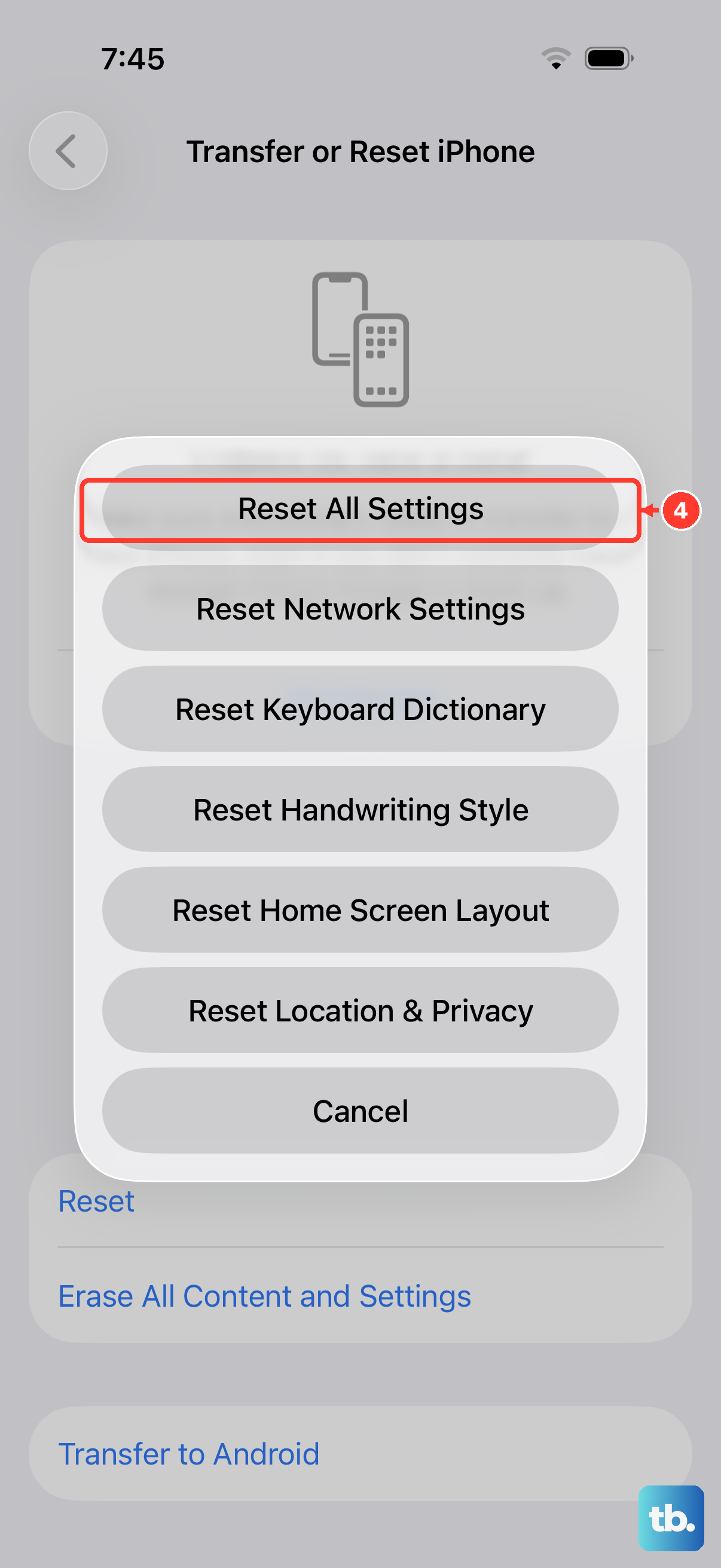
If the slowdown persists, a deeper reset can help. This will revert all your system settings (like Wi-Fi passwords, wallpaper, and privacy permissions) back to factory defaults without deleting any of your personal data, photos, or apps.
Go to Settings > General > Transfer or Reset iPhone. Tap "Reset" and then choose "Reset All Settings." You'll need to enter your passcode to confirm.
Check for Problematic Apps
Sometimes, a single app is the culprit. You can identify battery hogs that may also be causing slowdowns. Go to Settings > Battery and check App and System Activity for today's battery use. Tap View All Battery Usage to see the last eight days.
If you see a social media, gaming, or dating app using a disproportionate amount of battery in the background, try updating it or even deleting and reinstalling it. Force-close it only if it isn't responding.
Keep Your iPhone at a Moderate Temperature
Your iPhone 14 can run slower when it gets too hot or cold. If you notice lag in extreme temperatures, move it to a more moderate temperature.
Give the phone time to return to a comfortable temperature before checking its performance again. This can help when temperature is causing the slowdown.