
When your iPhone 13 gets stuck on an update, it's a common roadblock that usually has a simple fix. You might see a download that won't start, an error message, or an install that fails halfway through. Try these steps to get your phone moving forward again.
Free Up Storage Space
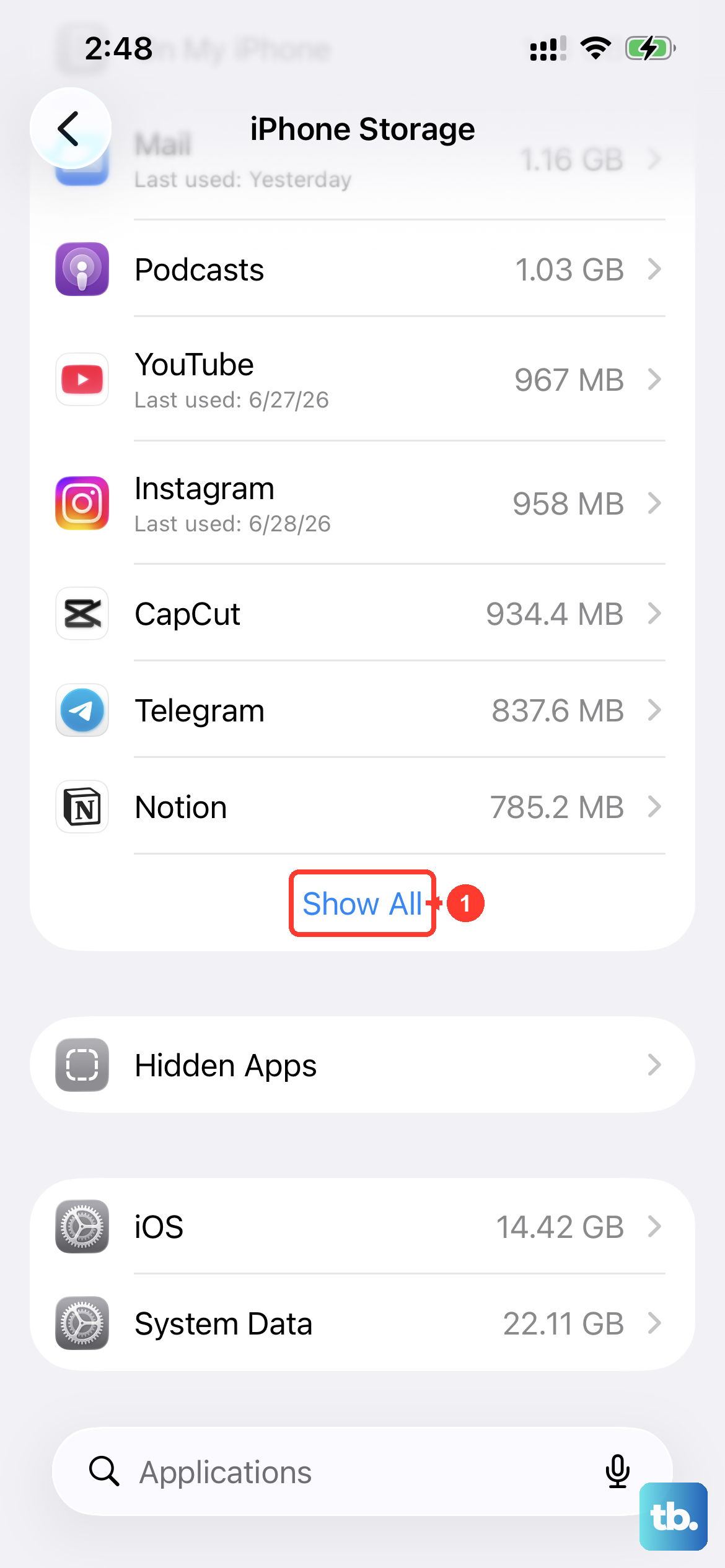
Your iPhone 13 needs breathing room for an update. Head to Settings > General > iPhone Storage to see what's available. A major iOS update can require several gigabytes of free space. If you're low, the quickest fix is to offload unused apps, which removes the app but keeps its documents and data.
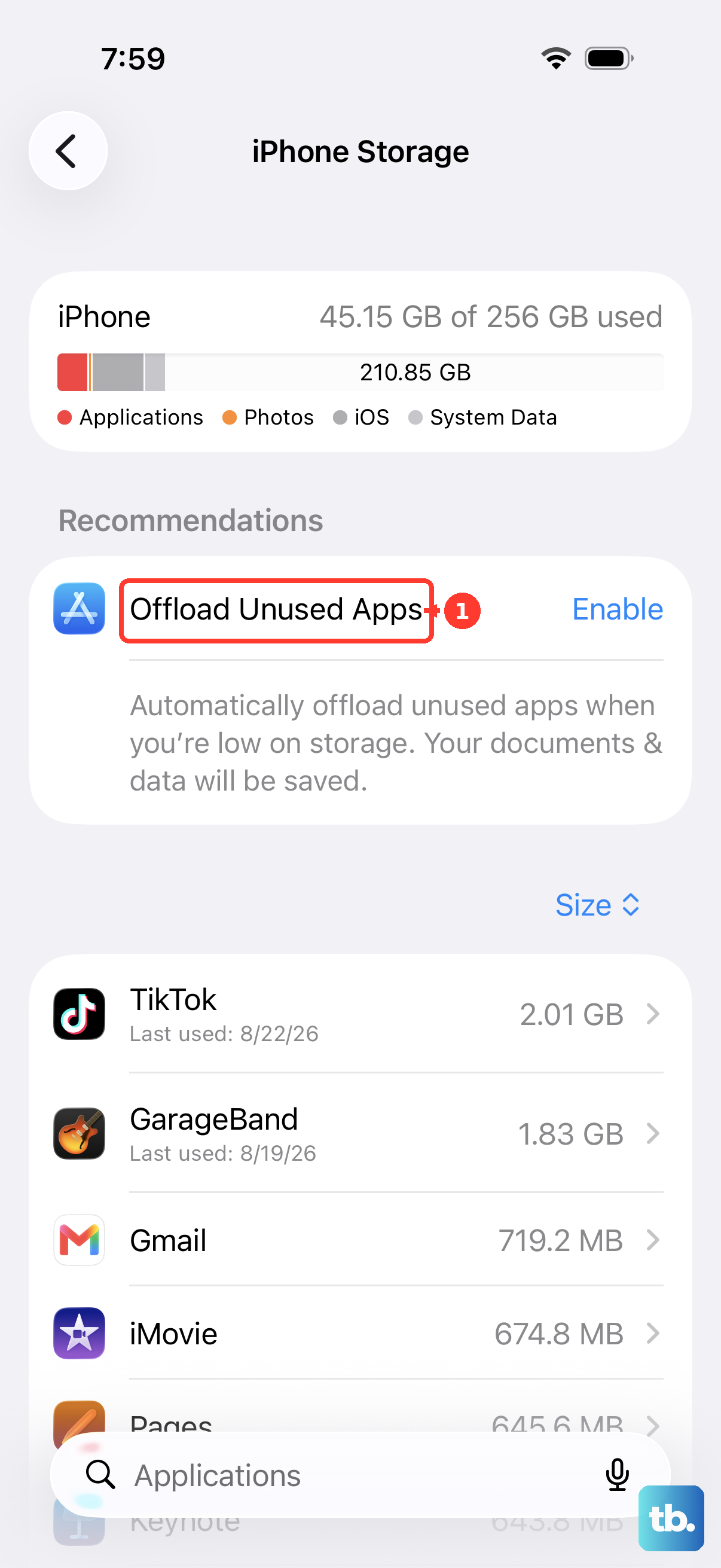
You can also go through and delete old message threads or clear your Safari cache. Start with offloading a few large apps you haven't used in a while. Once you've cleared enough space, go back to Settings > General > Software Update and try again.
Check Your Wi-Fi Connection
An iPhone 13 can download iOS updates over 5G cellular data, but try a stable Wi-Fi connection if the download is slow or fails. Test your connection by loading a webpage in Safari. If it's slow, try restarting your router.
VPN or proxy connections might prevent your iPhone from contacting the update servers. If retrying on the same network fails, try another Wi-Fi network. Avoid downloading other content while the update downloads to help it finish faster.
Delete the Downloaded Update File
If the update keeps failing, delete the downloaded update and download it again. To clear it out, go back to Settings > General > iPhone Storage. Scroll down and look for the iOS update file in the list of apps.
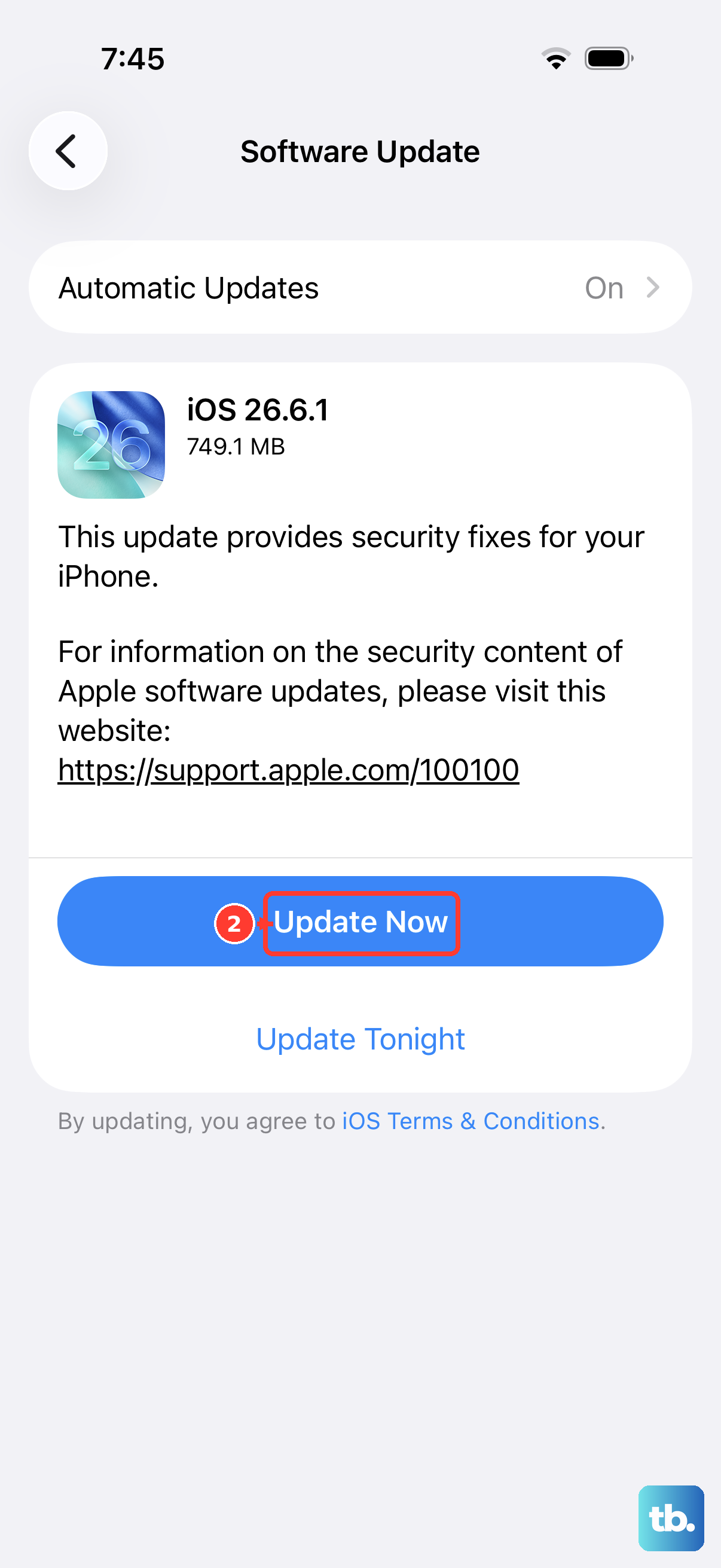
Tap on it and select Delete Update. This removes the downloaded update file. After it's gone, return to Settings > General > Software Update and tap Download and Install while connected to power and Wi-Fi. If the update isn't listed or the problem returns, update using a computer.
Perform a Force Restart
If your phone is frozen, try a force restart. If the installation progress bar is moving slowly, keep the phone connected to power and give it time to finish. For the iPhone 13, press and quickly release the Volume Up button, then press and quickly release the Volume Down button.
Finally, press and hold the Side button. Keep holding it until you see the Apple logo appear, then let go. Once your phone boots back up, immediately check for the update again.
Reset Your Network Settings
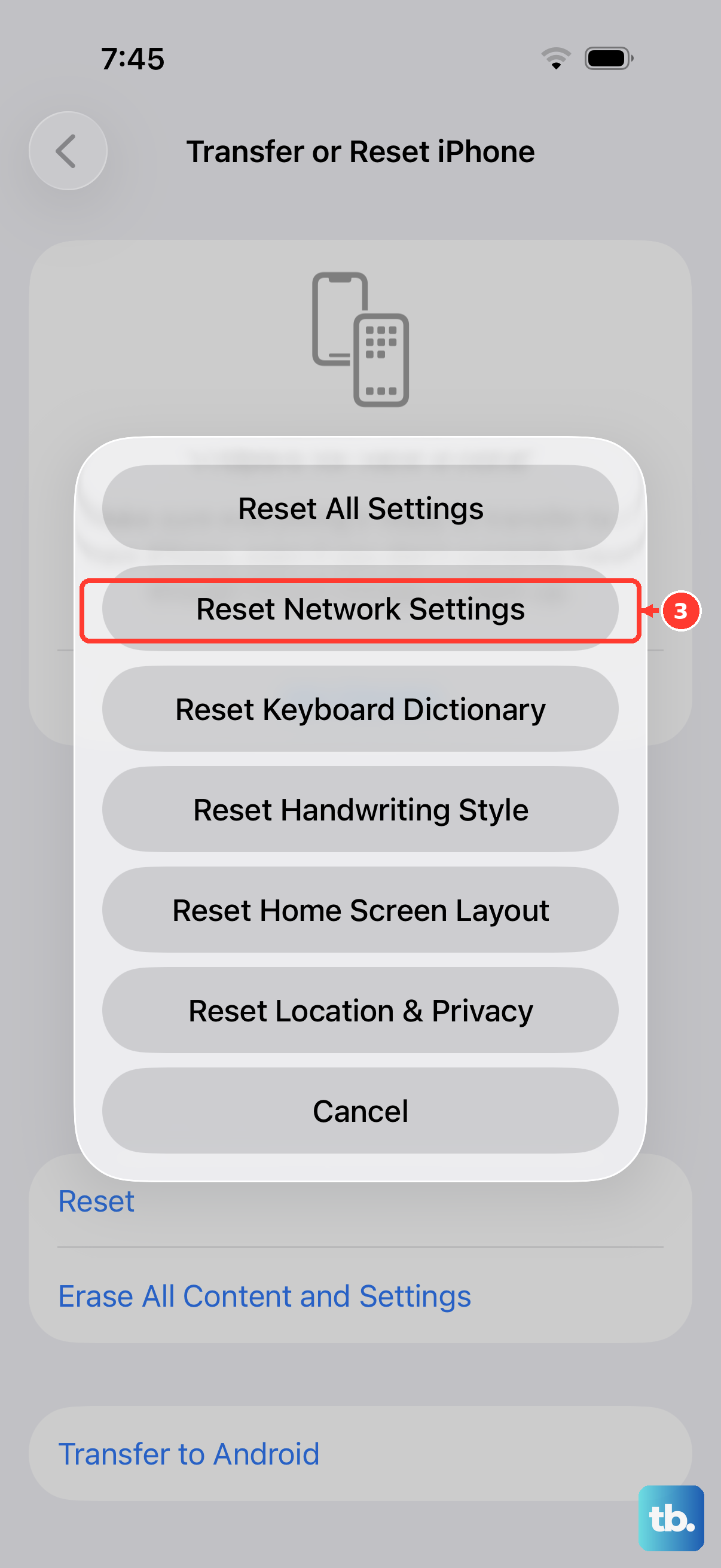
If other connection fixes fail, try resetting your network settings. Go to Settings > General > Transfer or Reset iPhone. Tap Reset and then choose Reset Network Settings.
This will erase all saved Wi-Fi networks and passwords, so you'll need to reconnect to your home network afterward. Once you're back online, attempt the software update once more. If you still see an "Unable to Check for Update" or "Unable to Download" alert, try another network or update using a computer.
Update Using a Computer
When over-the-air updates repeatedly fail, try updating with a computer. Back up your iPhone using iCloud or your computer first. Grab your original Lightning cable or a certified MFi one to ensure a good connection. Plug your iPhone 13 into a Mac or PC.
On a Mac with macOS Catalina or later, open Finder, select your device in the sidebar, and click General. On an older Mac, open iTunes, select your device, and click Summary. Click Check for Update, then Download and Update. On a Windows PC, use the Apple Devices app or iTunes and follow the onscreen instructions to update your iPhone. Your iPhone still needs enough available storage. Make sure your computer has an internet connection and isn't using Personal Hotspot from the iPhone you're updating.
Check Apple's System Status
The problem might not be on your end at all. Your iPhone may be unable to reach the update server. Open Safari on any device and go to apple.com/support/systemstatus.
Check for any listed service issues. If you see an update error, retry on the same network first, then try another network or a computer if it returns. If it keeps happening across multiple networks, delete the downloaded update and download it again.
Try Updating at a Different Time
If you'd rather try the update overnight, go to Settings > General > Software Update > Automatic Updates and turn on Automatically Install. Leave your iPhone charging and connected to Wi-Fi overnight so it can download and install an available update.
You'll be notified before the update installs. If you'd prefer to install it yourself later, turn off Automatically Install to see Automatically Download, then turn that option on. Avoid downloading other content while the update downloads.
Ensure Your iPhone 13 is Compatible
The iPhone 13 is compatible with iOS 27. For any other update, check that it supports your model. Go to Settings > General > About to confirm your model name, then check the compatible-device list for that iOS version.
If your model is compatible, return to Settings > General > Software Update and try again. If the update doesn't appear on your phone, try updating with a computer. Some software updates aren't available wirelessly.