
If your iPhone 13 won't connect to your AirPods, car, or speaker, it's a frustrating roadblock. Bluetooth issues can pop up on any phone, but on iOS, they're often tied to a specific software quirk or a simple setting that needs a refresh. I'd start with the most common fix first, which usually gets things working again in under a minute.
Go to Settings > Bluetooth. Find the device that's giving you trouble in the "My Devices" list and tap the info icon (the small "i" in a circle) next to it. Then, tap Forget This Device and confirm. After that, turn your Bluetooth accessory off and back on, put it back into pairing mode, and try to reconnect it to your iPhone fresh.
Restart Your iPhone and the Bluetooth Device
This classic tech support step clears out temporary software glitches that can block connections. For your iPhone 13, you'll want to do a force restart, which is a bit different than just powering it off.
Quickly press and release the Volume Up button, then quickly press and release the Volume Down button. Finally, press and hold the Side button. Keep holding it until you see the Apple logo appear, then let go. Don't worry, this won't erase any of your data.
Once your iPhone is back on, power cycle the Bluetooth device you're trying to connect to as well. Turn it completely off, wait about 30 seconds, and then turn it back on. Try the pairing process again from scratch.
Check for iOS and Accessory Updates
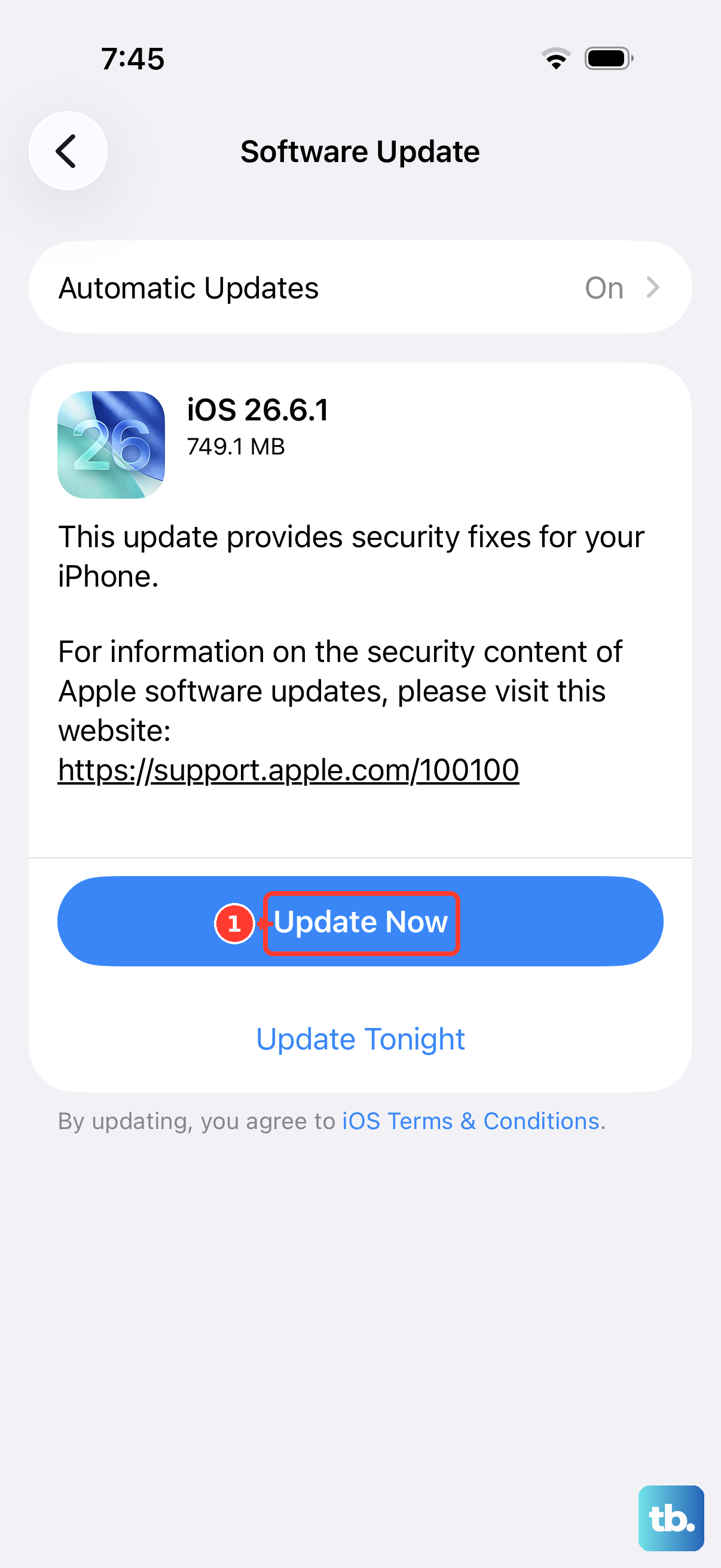
Software mismatches are a common culprit, especially as Apple releases new versions of iOS. Your iPhone 13 is compatible with iOS 26, and an update might include important Bluetooth stability fixes.
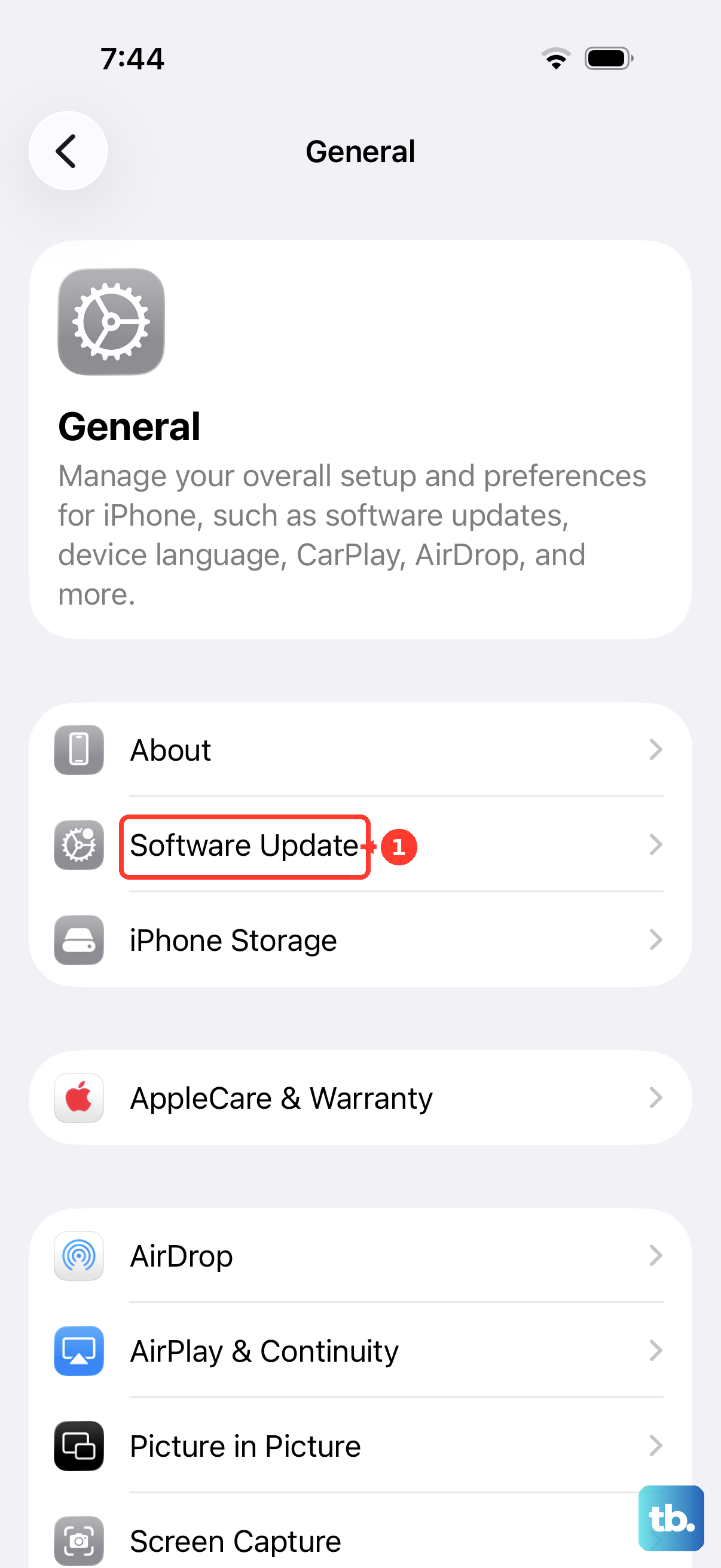
Head to Settings > General > Software Update. If an update is available, I'd recommend installing it while your phone is connected to Wi-Fi and has a good charge. For accessories like AirPods or Beats headphones, you might need to check their firmware through the connected iPhone or their respective app.
Reset Your iPhone's Network Settings
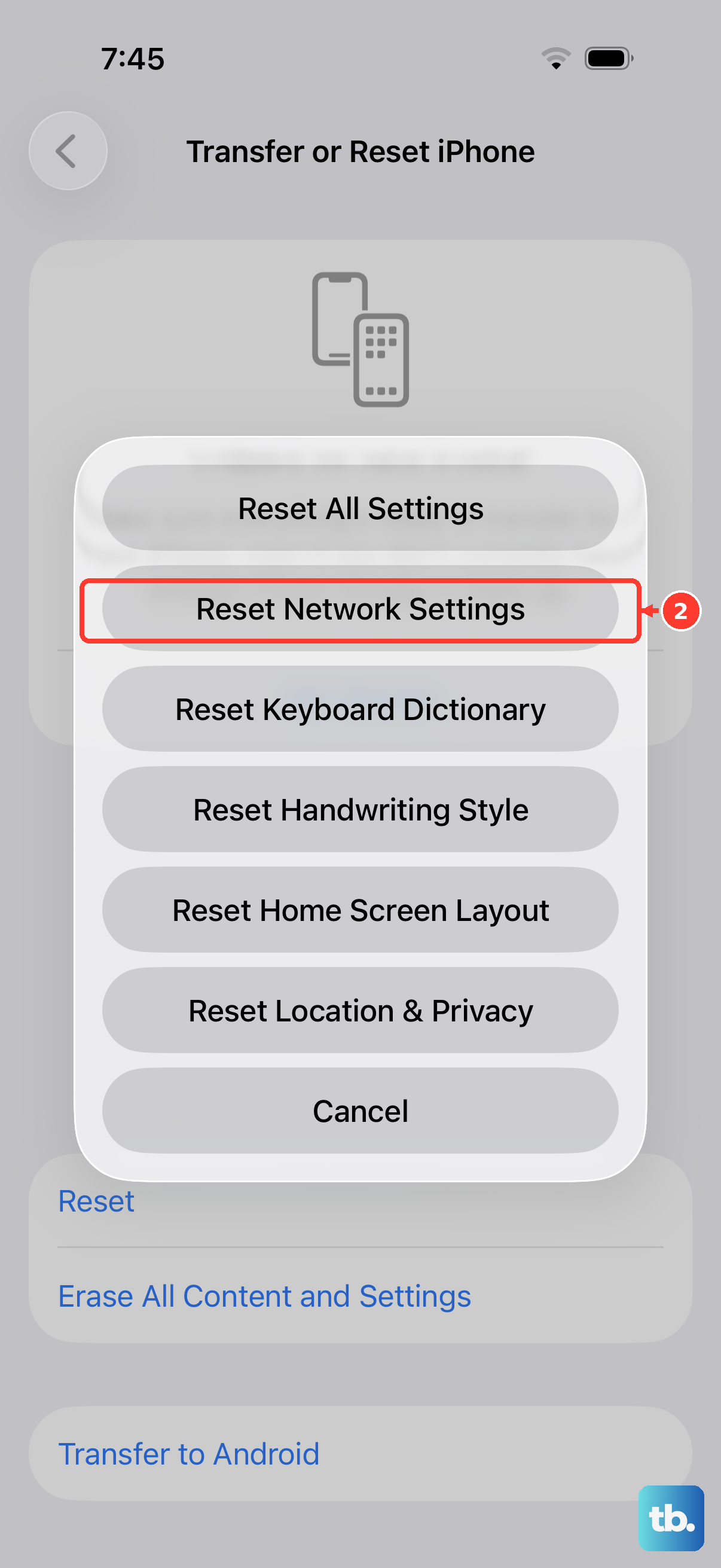
This is a more thorough step that resets all network-related configurations back to their defaults. It will erase saved Wi-Fi networks and passwords, cellular settings, and VPN configurations, along with your Bluetooth pairings.
Because it removes your Wi-Fi info, make sure you know your home network password before proceeding. To do it, go to Settings > General > Transfer or Reset iPhone. Tap Reset and then select Reset Network Settings. Enter your passcode if prompted and confirm. Your iPhone will restart, and you'll need to re-pair all your Bluetooth devices.
Look for Interference and Physical Issues
Bluetooth uses the 2.4 GHz radio band, which is shared with Wi-Fi and many other household devices. If you're having connection drops or poor audio quality, try moving away from your Wi-Fi router, microwave, or other potential sources of interference.
Also, check the physical condition of your iPhone 13. While rare, damage to the device from a drop or liquid exposure could affect the internal Bluetooth antenna. If you've recently had the phone repaired with non-genuine parts, that could also be a factor in connectivity problems.
Address Specific Connection Scenarios
For car Bluetooth, the process can be finicky. On your iPhone, forget the car. In your car's infotainment system, delete your iPhone from its memory. Then, with the car running and in park, initiate the pairing process from the car's menu first, not from your phone.
If your AirPods won't connect, place them in the case, close the lid and wait 30 seconds, then open it and hold the setup button on the back of the case until the status light flashes amber, then white. Bring the case near your iPhone and follow the on-screen prompts.
For other accessories, make absolutely sure they are in pairing or discovery mode. The method to do this varies, so check the manual. Sometimes, a device can appear in your Bluetooth list but not be actively ready for a new connection.
Consider a Software Restore
If you've tried everything and your iPhone 13 still won't connect to any Bluetooth devices, a deeper software issue might be at play. Before taking this step, ensure you have a recent backup in iCloud or on your computer.
You can restore your iPhone through a computer using Finder (on Mac) or iTunes (on Windows). This reinstalls a clean copy of iOS while giving you the option to restore your data from the backup afterward. This process often resolves persistent, obscure software bugs that simpler resets can't fix.











