
If your iPhone 16 Pro is refusing to pair with your AirPods, car, or speaker, it can be incredibly annoying. Bluetooth issues on iOS 26 are usually software glitches that you can fix yourself. Let's walk through the most effective solutions to get your wireless connections working again.
Check the Simple Stuff First
Before you try anything complicated, run through this quick checklist. It solves more problems than you'd think. Make sure both your iPhone 16 Pro and the device you're trying to connect to have enough battery, ideally above 20%.
Check that Bluetooth is actually enabled on your iPhone. You can swipe down from the top-right corner to open Control Center and look for the blue Bluetooth icon. Also, ensure the other device is in pairing mode, which often involves holding a button until a light flashes.
Finally, keep the devices close together, within a few feet, while you attempt to pair. Interference from other electronics or walls can sometimes block the initial handshake.
Toggle Bluetooth and Restart
The digital equivalent of "turn it off and on again" works wonders here. First, go to Control Center and tap the Bluetooth icon to turn it off. Wait about ten seconds, then tap it again to turn it back on.
If that doesn't do it, a full restart of your iPhone 16 Pro is the next logical step. The force restart sequence for this model is to quickly press and release the Volume Up button, then quickly press and release the Volume Down button. Finally, press and hold the Side button until you see the Apple logo appear.
Don't forget to restart the Bluetooth device you're trying to connect to as well. Power it down completely, wait a moment, and turn it back on before trying to pair again.
Forget and Re-Pair the Device
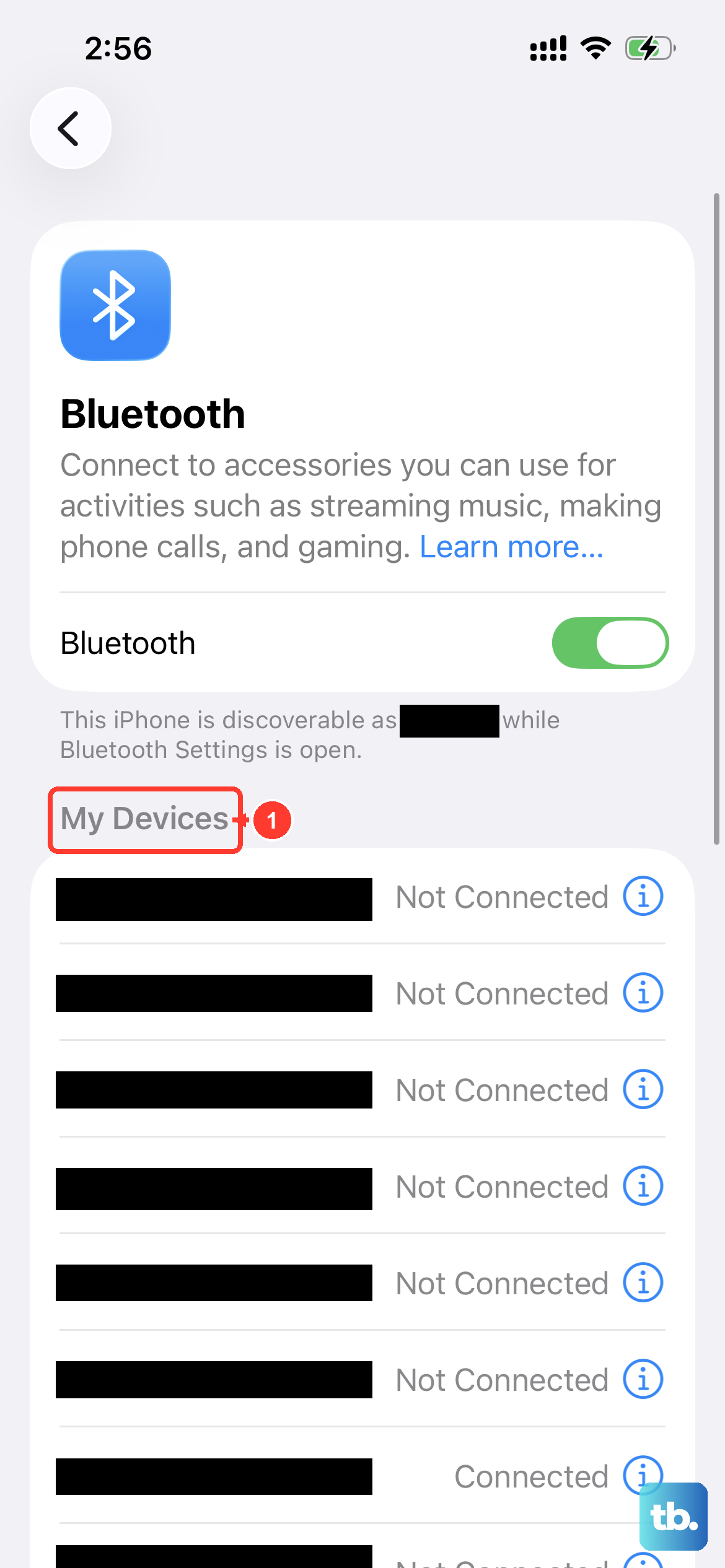
Sometimes a pairing gets corrupted. The fix is to remove the device from your iPhone's memory and start fresh. Open the Settings app and tap on Bluetooth. Find the troublesome device in your list and tap the info (i) icon next to it.
On the next screen, tap "Forget This Device" and confirm. This completely severs the connection. Now, put the other device back into pairing mode and look for it in the "Other Devices" list on your iPhone's Bluetooth screen. Tap its name to initiate a brand new pairing.
Update iOS on Your iPhone 16 Pro
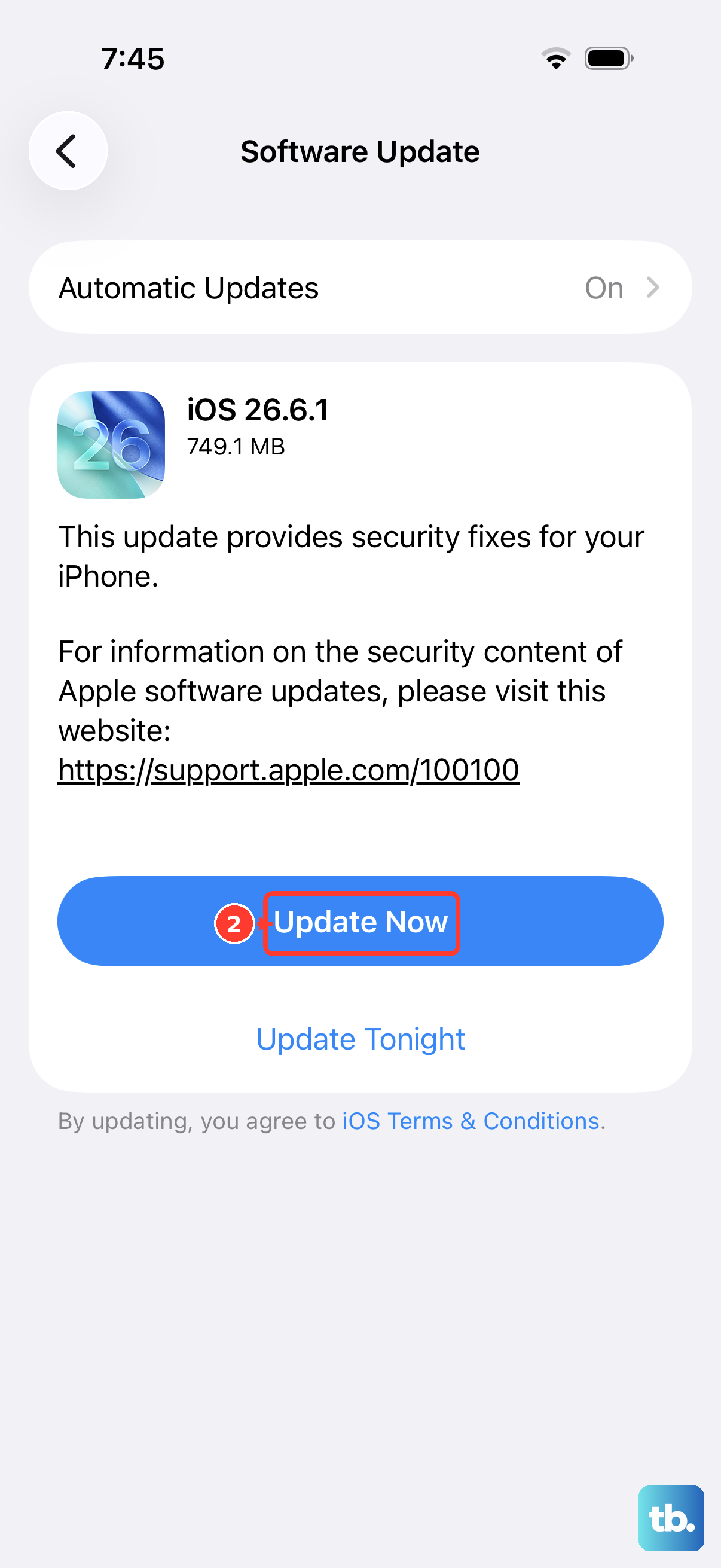
An outdated version of iOS 26 can have bugs that break Bluetooth functionality. Apple frequently releases updates that include fixes for connectivity issues. To check, go to Settings, then General, and tap Software Update.
If an update is available, I'd recommend installing it while your phone is connected to Wi-Fi and power. After the update completes and your phone restarts, try pairing your Bluetooth device again. This single step resolves a huge number of pairing problems.
Reset All Network Settings
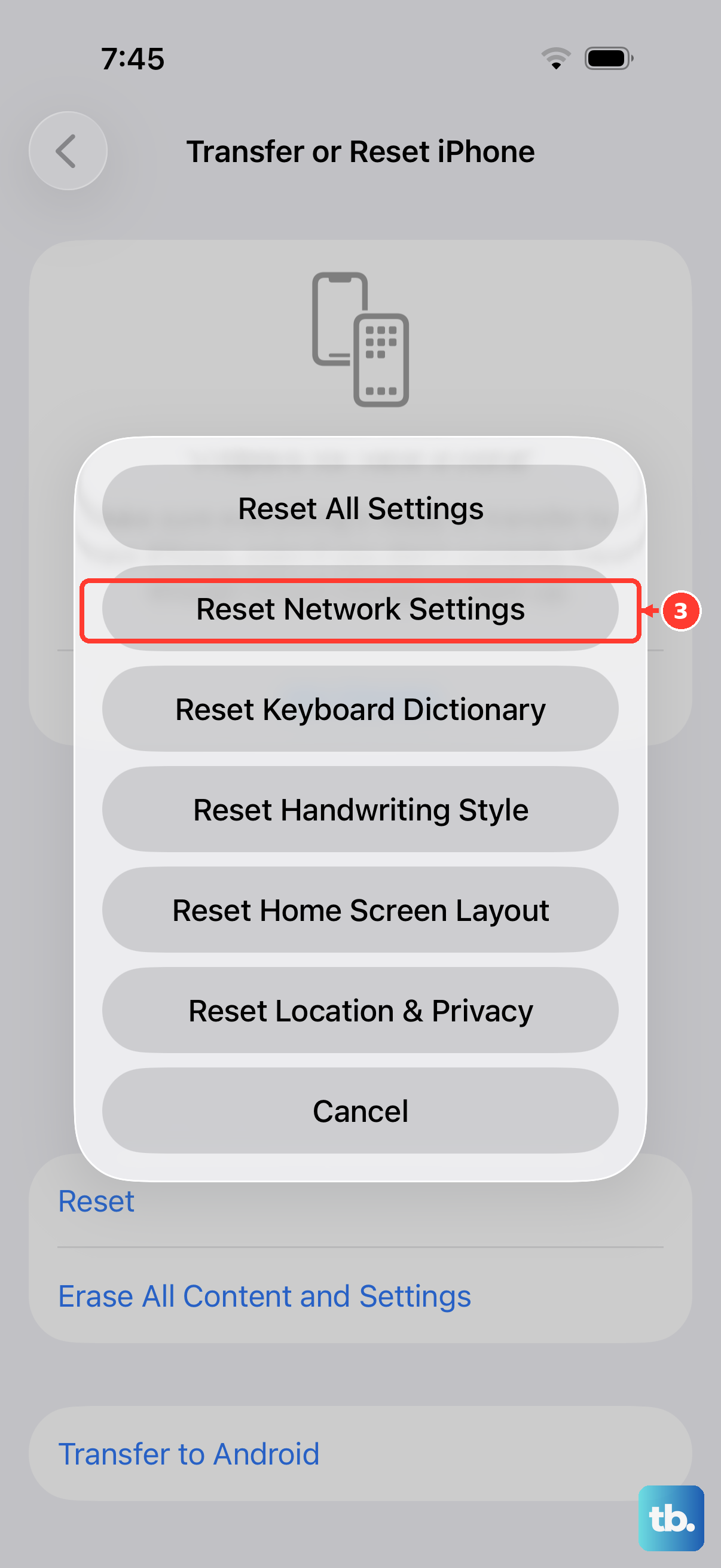
This is a more thorough step that clears out all network-related data, including Wi-Fi passwords, VPN settings, and, crucially, all Bluetooth pairings. It won't delete your personal data like photos or messages, but you will need to re-enter Wi-Fi passwords.
To do this, open Settings, go to General, and scroll down to Transfer or Reset iPhone. Tap on Reset, and then choose "Reset Network Settings." You'll need to enter your passcode to confirm. After your phone restarts, you'll be starting with a clean slate for all wireless connections.
Check for Interference from Other Devices
Wireless congestion can sometimes prevent a successful pairing. If you're in a crowded area with many active Bluetooth and Wi-Fi signals, try moving to a different room. Other USB-C devices, wireless routers, or even microwave ovens can cause temporary interference.
Also, if you're using a MagSafe charger or a Qi2 wireless pad, try moving your iPhone 16 Pro away from it while pairing. The strong magnetic field or power transfer can occasionally disrupt the Bluetooth radio's operation during the sensitive pairing process.
Review Bluetooth Device Compatibility
The iPhone 16 Pro uses the latest Bluetooth standards. While it's backward compatible, very old Bluetooth accessories might have trouble. Check the manufacturer's website for your headphones, speaker, or car stereo to see if there are any known issues with iOS 26 or newer iPhones.
Some devices, especially cars, may require a firmware update from the manufacturer's website. For other accessories, see if they have a companion app in the App Store that might facilitate the connection or provide a firmware update tool.
Disable Bluetooth Handoff and Sharing
Features like Handoff and Automatic Switching, which let your devices seamlessly work together, can sometimes get confused and block a new connection. You can temporarily disable this to see if it helps. Go to Settings, tap your Apple ID banner at the top, then choose AirPlay & Handoff.
Toggle off "Handoff." Also, go back to the main Settings screen, tap General, then AirPlay & Handoff, and make sure "Automatically AirPlay to TVs" is set to "Never" for now. Try your pairing again with these features paused.
Pair Through the Settings Menu, Not Control Center
For a more reliable pairing attempt, always use the main Settings app instead of Control Center. The Bluetooth menu in Settings gives the system a more direct pathway to manage the connection. Open Settings, tap Bluetooth, and make sure the switch at the top is green.
With your other device in pairing mode, its name should appear under "Other Devices." Tap on it there. If it asks for a PIN, refer to the accessory's manual, but common defaults are 0000 or 1234. Using this method can bypass any minor glitches in the Control Center's quick-access panel.
Check for Physical Case Interference
This is an easy one to overlook. A very thick or metal iPhone case, particularly some MagSafe cases with strong magnets or alignment rings, can potentially interfere with the Bluetooth antenna. The antenna is typically located along the frame of the phone.
Try removing your iPhone 16 Pro from its case completely. Then, attempt the pairing process again. If it works without the case, you've found the culprit. You may need to look for a case that's certified not to interfere with wireless signals.











