
Force Restart Your iPad
When your iPad screen won't respond to touch, start with a force restart. It clears temporary software glitches that can freeze the touchscreen. The button sequence depends on which iPad model you have.
For iPads without a Home button, press and quickly release the volume button closest to the Top button, then press and quickly release the volume button farthest from the Top button. Then press and hold the Top button until the Apple logo appears, and let go. For iPads with a Home button, press and hold both the Home button and the Top button until the Apple logo appears.
A force restart often fixes an unresponsive screen, especially after an iPadOS update or when a particular app seems to have locked things up. A force restart doesn't delete any of your data or settings.
Clean the Screen and Your Hands
A dirty screen or wet fingers can block touch input completely. Wipe the whole glass surface with a soft, slightly damp, lint-free cloth. Don't use window cleaners, household sprays or abrasives.
Make sure your hands are completely dry, because the iPad's capacitive touchscreen struggles with moisture. Take off any gloves, and check whether a thick screen protector is getting in the way.
Some matte or privacy screen protectors reduce touch sensitivity. As a test, gently peel back one corner of the protector and see whether touch works on the bare glass.
Check for a Stuck Button or Case Interference
Sometimes the screen isn't the problem. If your iPad is in a case, especially a keyboard case like the Magic Keyboard, take it out. A stuck key or a misaligned hinge can send constant input and make the screen seem frozen.
Check the Top button and the volume buttons to make sure none is physically stuck down. Press each one gently a few times and confirm it clicks. A stuck button can stop normal touch from working.
If you use a folding screen cover, open it fully or take it off. The iPad may think the cover is closed and put the display to sleep, even when the screen looks on.
Charge Your iPad
A very low battery can cause erratic behavior, including a screen that won't respond. Plug your iPad in with the charging cable for your model and a compatible power adapter. The right cable and adapter depend on your iPad model and your country or region.
Don't use a small 5W iPhone charger, because it charges an iPad very slowly. Use the adapter that came with your iPad, a Mac USB-C power adapter, or a third-party USB-C adapter rated at 15W or more. Leave the iPad connected for a while before you try it again. Apple says an iPad that won't turn on may need up to an hour of charging.
While it charges, unplug any USB-C hubs, external drives or other accessories. Leaving them connected can slow charging when you need it most.
Update or Restore via a Computer
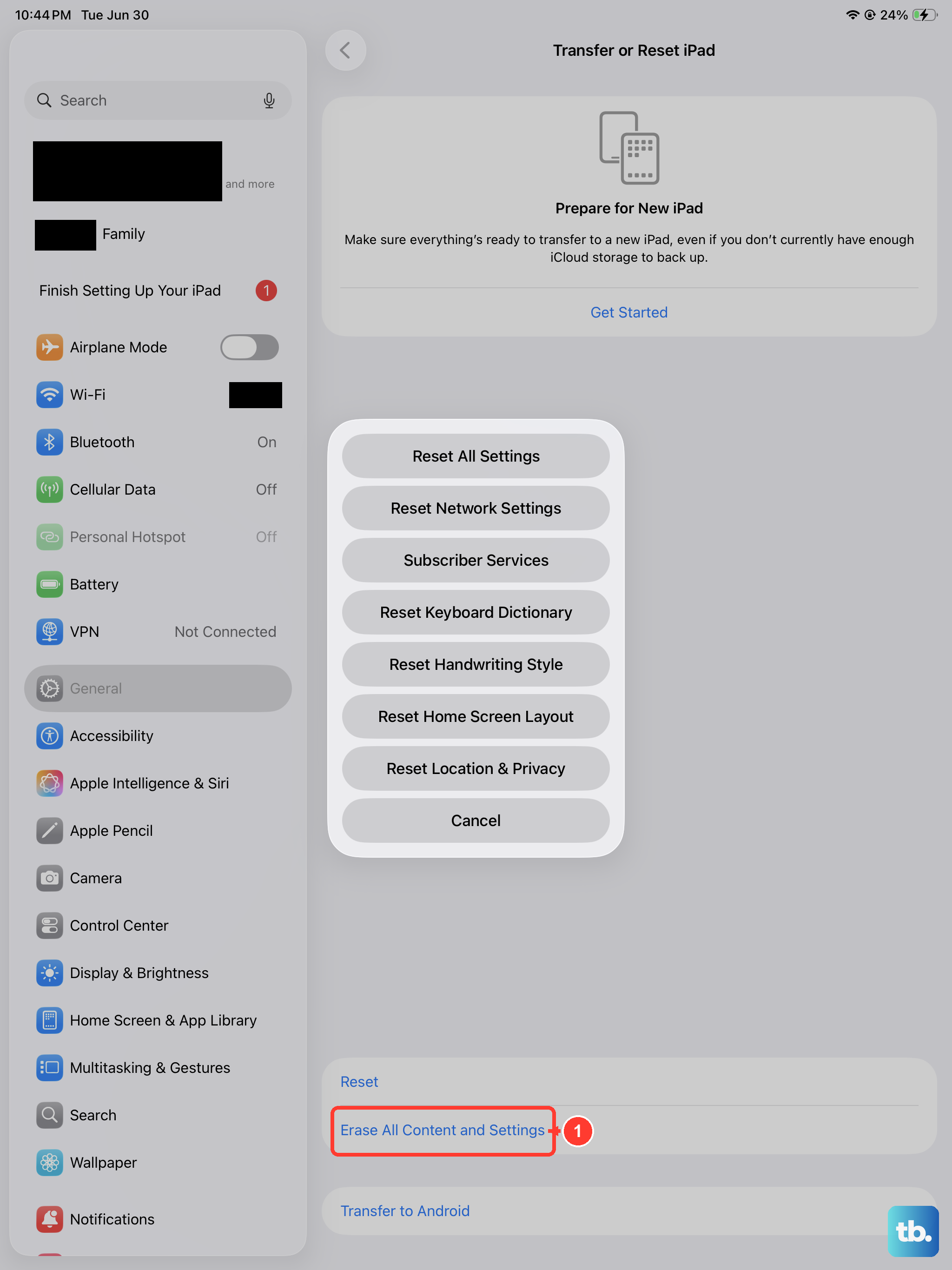
If the iPad turns on but the touchscreen still doesn't work, you can manage it from a computer. Connect the iPad to a Mac or PC with the right USB cable for your model. On a Mac with macOS Catalina or later, open Finder. On a PC, open the latest version of the Apple Devices app. If your PC doesn't have that app, or your Mac runs macOS Mojave or earlier, open iTunes instead.
Select your iPad when it appears. Choose Update to install the latest iPadOS without erasing your data. If the update fails or doesn't help, choose Restore.
Restore erases all content and settings and installs a fresh copy of iPadOS. Save it for last when you're fixing a software problem, and make sure you have a recent backup first if you can.
Check for Physical or Liquid Damage
Look closely at the screen for new cracks, including hairline ones, and for discolored spots. Damage to the glass or to the digitizer layer underneath can stop touch from working in one area or across the whole screen.
Think about whether the iPad has been near water or other liquids. Liquid damage can be subtle and corrosive, and the touch problems it causes can get worse over time. If you suspect liquid or battery damage, stop using the iPad and have it inspected. Apple warns that a damaged iPad or battery can overheat or cause injury.
If you see any sign of damage, the problem is most likely hardware. The remaining fixes involve repair or replacement.
Put the iPad into Recovery Mode
Use recovery mode if your computer doesn't recognize the iPad or says it's already in recovery mode, or if the Apple logo stays on screen for several minutes with no progress bar. After you enter recovery mode, you update or restore the iPad from the computer. Restore erases all your data.
Connect the iPad to your computer with a USB cable and open Finder, Apple Devices or iTunes, as described above. On an iPad without a Home button, press and quickly release the volume button closest to the Top button, then press and quickly release the volume button farthest from the Top button. Then press and hold the Top button until the recovery mode screen appears.
On an iPad with a Home button, press and hold the Home button and the Top button together. When the iPad turns off, let go of the Top button but keep holding the Home button until the recovery mode screen appears. Find your iPad on the computer and choose Update first. Choose Restore only if the update doesn't work and you need to reinstall iPadOS and erase the device.
Seek Professional Hardware Repair
If none of the software fixes work and you can't see any damage, an internal part has probably failed. It could be a loose display cable, a failing digitizer or a logic board fault.
You'll need professional service for this. Contact Apple Support to set up mail-in service, or visit the Genius Bar at an Apple Store or an Apple Authorized Service Provider. If your iPad is still under warranty or covered by AppleCare+, the repair may be covered.
Third-party repair shops can often replace the display assembly on older iPads. Pick a reputable shop and ask which parts it uses and what warranty it gives on the repair. Unless the law requires otherwise, repairs from unauthorized shops aren't covered by Apple's Limited Warranty or AppleCare.