
Seeing "No Service" on your iPad Pro M5 is a different kind of frustrating than a slow Wi-Fi connection you can't make calls, send texts, or use cellular data. This cellular iPad model relies on a solid connection to your carrier's network, and when that breaks, it's usually a software or SIM issue rather than a hardware failure. Most of the time, you can fix it in a few minutes without visiting a store.
The iPad Pro M5 runs iPadOS 26, and its cellular radio is managed through the Settings app. Whether you have the 11-inch or 13-inch model, the fixes are the same. Start with the simplest ones and work your way down.
Toggle Airplane Mode and Cellular Data
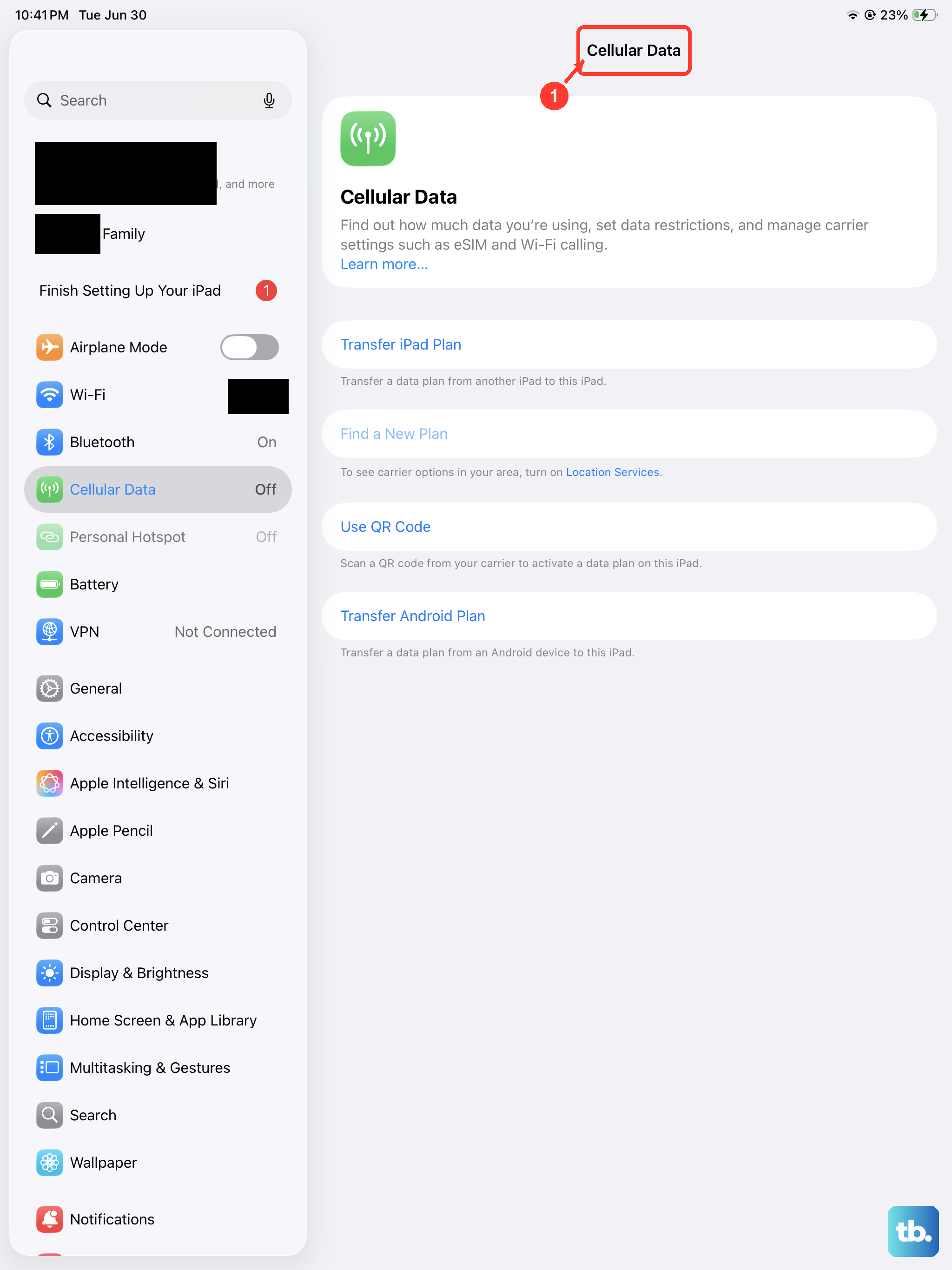
This is the quickest trick in the book. Open your iPad's Control Center (swipe down from the top-right corner) and tap the Airplane Mode icon to turn it on. Wait about 10 seconds, then tap it again to turn it off. This forces the cellular radio to re‑register with your carrier's network.
If that doesn't do it, go to Settings > Cellular Data and make sure the toggle for Cellular Data is turned on. Sometimes an accidental tap or a glitch switches it off. Toggle it off and back on while you're there.
Force Restart the iPad
When the software that talks to the cellular modem gets stuck, a regular restart might not clear it. A force restart is different it doesn't erase your data, but it cuts power completely and reboots the system fresh. On the iPad Pro M5, do this exactly: press and quickly release the Volume Up button, then press and quickly release the Volume Down button, then press and hold the Top button until you see the Apple logo. Don't let go of the Top button until the logo appears.
After the iPad restarts, check if the cellular signal returns. A force restart can clear temporary iPadOS glitches without erasing your data.
Check for a Carrier Settings Update
Carriers push small updates to your iPad to adjust network settings, and if you miss one, your iPad might not connect properly. Go to Settings > General > About. If an update is available, you'll see a prompt to install it tap Update. Your iPad might restart briefly.
These updates usually include new APN information and network preferences. They're tiny and install in seconds.
Check and Refresh the eSIM
The iPad Pro M5 is eSIM-only, so there is no nano-SIM card to remove or reseat. Open Settings > Cellular Data, tap your cellular plan, and confirm the line is active and selected.
If the plan looks stuck or missing, follow your carrier's instructions to activate the eSIM again. You can remove a plan from Settings > Cellular Data > tap your plan > Remove Cellular Plan, but only do this if you have the carrier's reactivation details ready.
Reset Network Settings
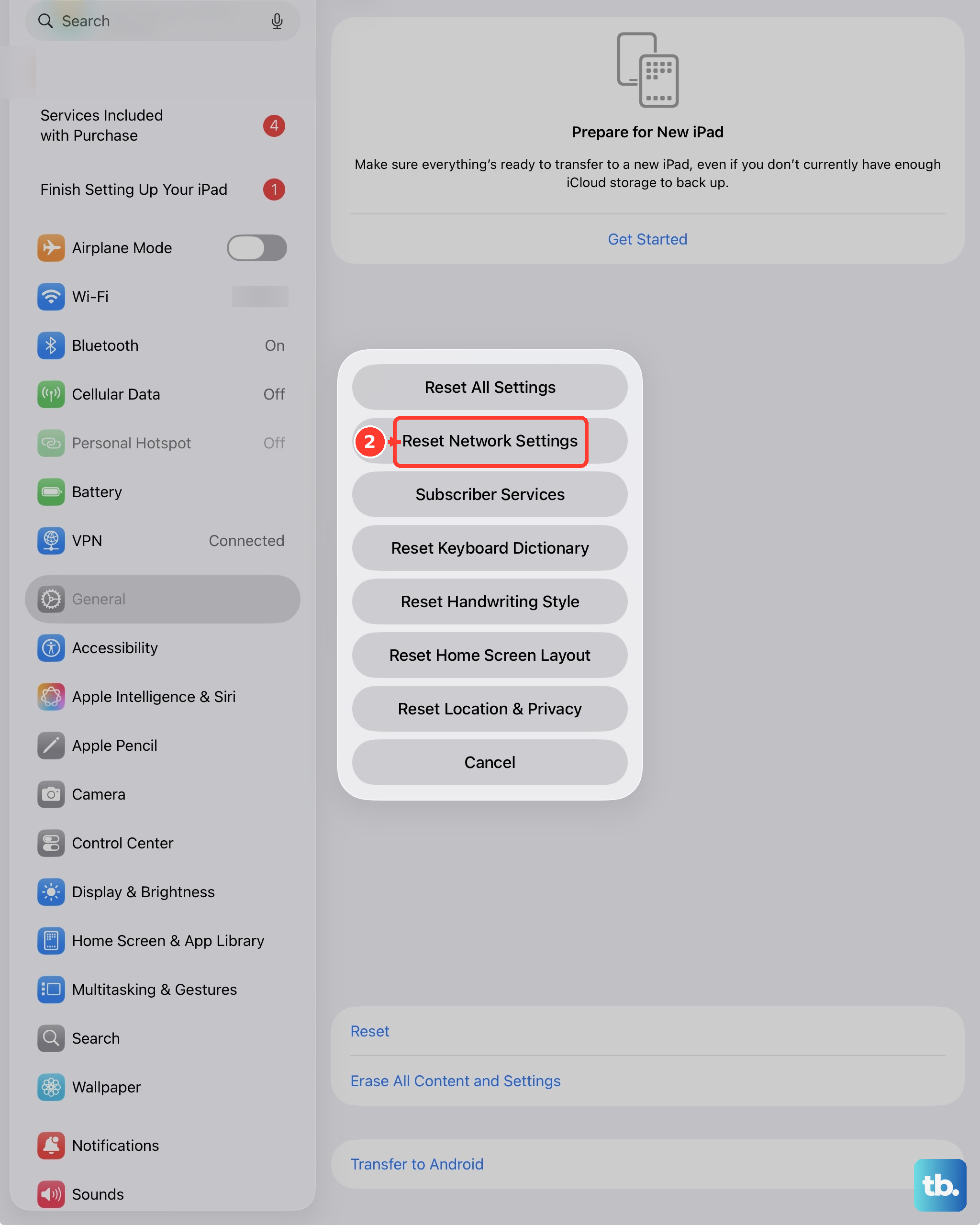
If you've tried the basics and nothing changed, corrupted network settings might be the culprit. A network reset erases saved Wi‑Fi networks, Bluetooth pairings, and VPN configurations, but it doesn't delete your photos, apps, or files. Go to Settings > General > Transfer or Reset iPad > Reset > Reset Network Settings. Enter your passcode and confirm.
The iPad will restart and rebuild the network configuration from scratch. You'll need to re‑enter Wi‑Fi passwords, but the cellular connection should come back on its own after a minute or two.
Update iPadOS
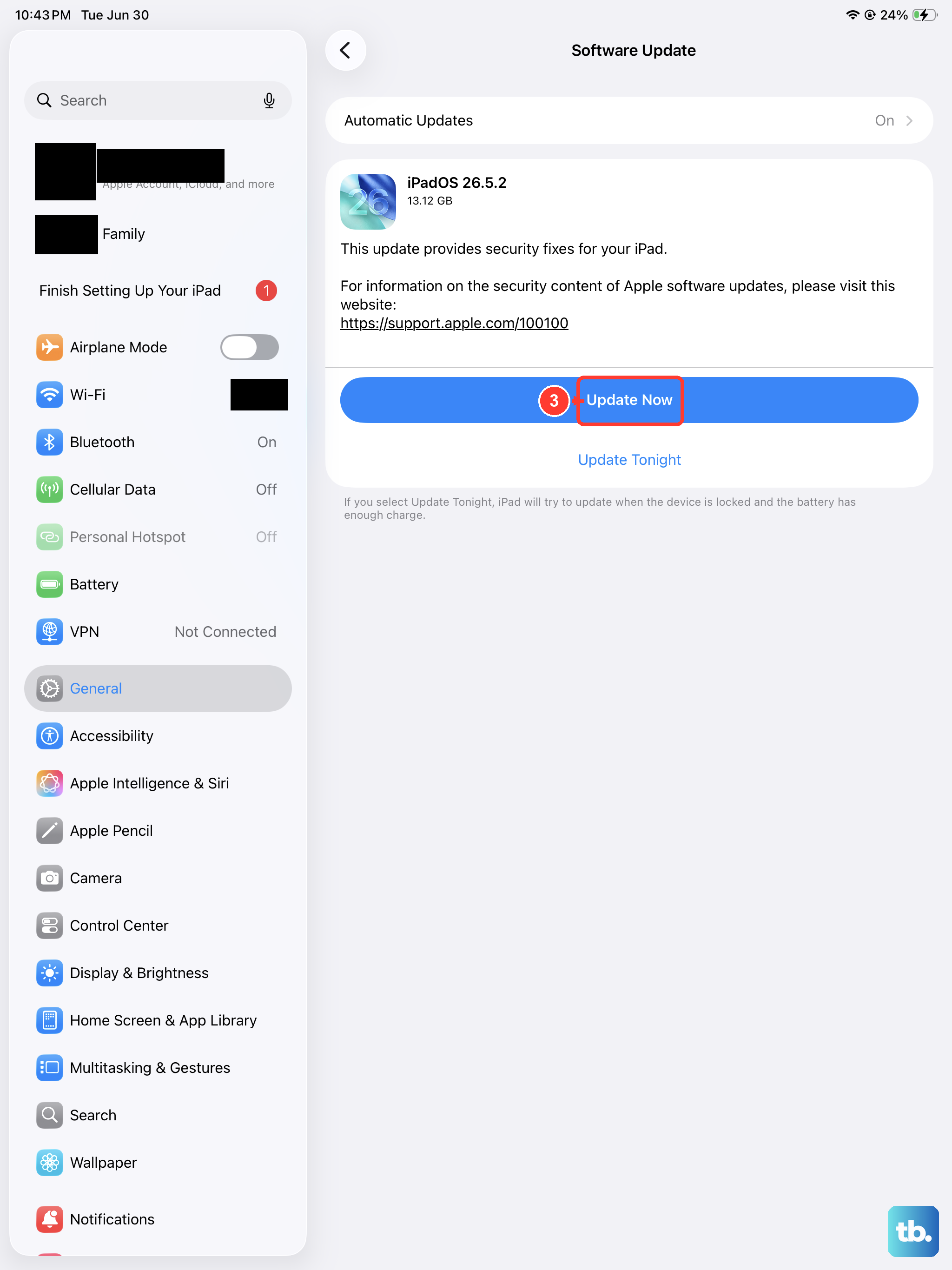
Apple regularly releases iPadOS updates that fix cellular modem bugs and carrier compatibility issues. Go to Settings > General > Software Update. If an update is available, download and install it. Make sure your iPad is plugged into power or has at least 50% battery before starting.
The iPad Pro M5 ships with iPadOS 26, so install the latest available iPadOS update rather than staying on the original release. Keeping your software current is one of the easiest ways to prevent "No Service" from recurring.
Manually Select Your Network Operator
Sometimes your iPad gets stuck trying to connect to the wrong tower or roaming partner. Telling it exactly which network to use can force a fresh handshake. Go to Settings > Cellular Data > Network Selection. Turn off Automatic and wait for the list of available networks to appear. Tap your carrier's name.
If the iPad can't find your carrier, try moving to a window or an area with better signal, then tap Search Again. Once you select the correct network, the iPad should say "Connected." You can turn Automatic back on after a few minutes if you prefer.
Disable VPN and Check APN Settings
VPNs can interfere with the iPad's ability to authenticate on cellular networks, especially if the VPN is misconfigured. Go to Settings > General > VPN & Device Management and turn off any active VPN. If you have a third‑party VPN app, you might need to disconnect from inside the app.
Less common, but sometimes APN settings get mangled. Your carrier supplies these automatically, but you can check them in Settings > Cellular Data > Cellular Data Network. If you see blank fields or odd values, tap Reset Settings at the bottom or contact your carrier for the correct APN string. Don't change anything unless you're sure it's wrong.
Check the eSIM and Carrier Account
The iPad Pro M5 does not have a physical SIM tray, so there is no SIM slot to clean. Instead, check whether your eSIM plan still appears in Settings > Cellular Data and whether the carrier account is active.
If the plan looks fine but "No Service" persists, contact your carrier and ask them to reprovision the eSIM or issue a fresh eSIM activation. Carrier-side account, roaming, or provisioning problems can look exactly like an iPad hardware issue.
Reset All Settings
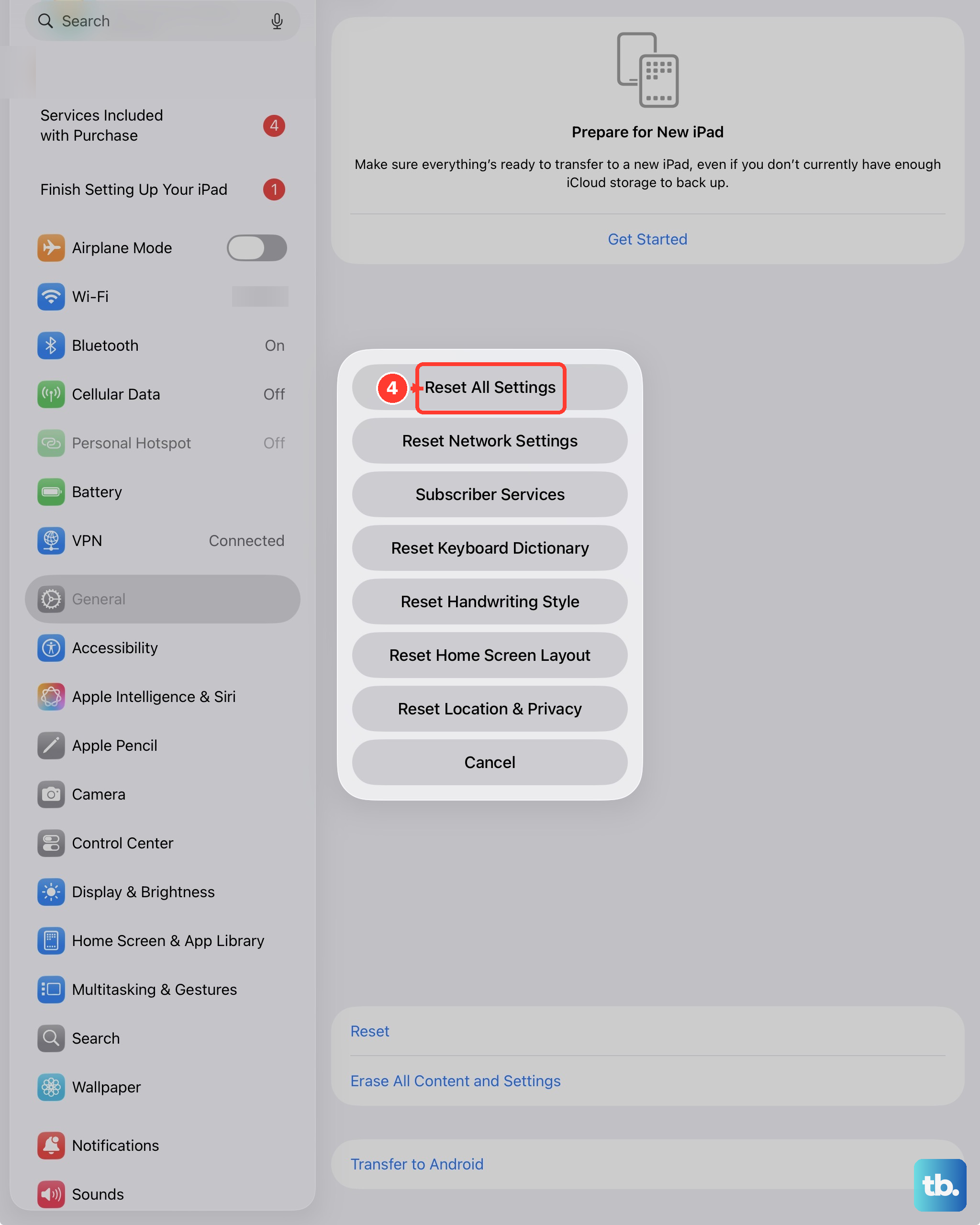
If you've gone through every fix and still see "No Service," a broader reset may be needed without wiping your data. This is different from a factory reset it doesn't erase your apps, photos, or accounts. Go to Settings > General > Transfer or Reset iPad > Reset > Reset All Settings. Your iPad will restart and return system preferences like wallpapers, display settings, and privacy permissions to their defaults.
Cellular settings get rebuilt cleanly, which often resolves stubborn carrier‑related issues. You'll need to reconfigure things like Face ID, Wi‑Fi, and your home screen layout, but your data stays safe.