
Your iPad Pro M5 touchscreen suddenly stopped responding, and you're staring at a frozen screen with no idea what to do next. This usually comes down to a temporary software glitch, a display calibration issue, or something physical blocking the touch sensors. Let me walk you through what's actually going to fix it.
Before trying the fixes, map the problem with a online touch test in your browser. Dragging a finger across the grid reveals exactly which areas of the screen respond and which do not.
Force Restart the iPad Pro M5 First
A force restart clears temporary software hiccups without deleting any of your data. On the iPad Pro M5, the sequence is specific because Apple changed it from older models. Press and quickly release the Volume Up button, then press and quickly release the Volume Down button, then press and hold the Top button until the Apple logo appears.
Keep holding that Top button even after you see the logo on screen. Just let go once the Apple logo shows up, and the iPad should boot normally within about 30 seconds. I've seen this fix a frozen touchscreen more often than any other single step.
If your iPad was unresponsive for a while, give it a full minute after the logo appears before trying to interact with the screen. Sometimes the system needs a moment to fully initialize the touch controller.
Clean the Display and Check for Screen Protectors
Oil, moisture, or debris on the screen can confuse the capacitive touch sensors. Grab a soft, lint-free cloth (the one you use for glasses works fine) and wipe the entire display clean. Avoid using any liquids unless absolutely necessary, and never spray anything directly onto the iPad.
If you're using a screen protector, remove it completely. Some third-party protectors are too thick or have adhesive that interferes with the iPad Pro M5's touch layer. This is especially common with tempered glass protectors that don't have proper oleophobic coating.
Test the touchscreen without the protector for a few minutes. If it works, you've found the culprit and need a different brand of screen protector.
Update iPadOS to the Latest Version
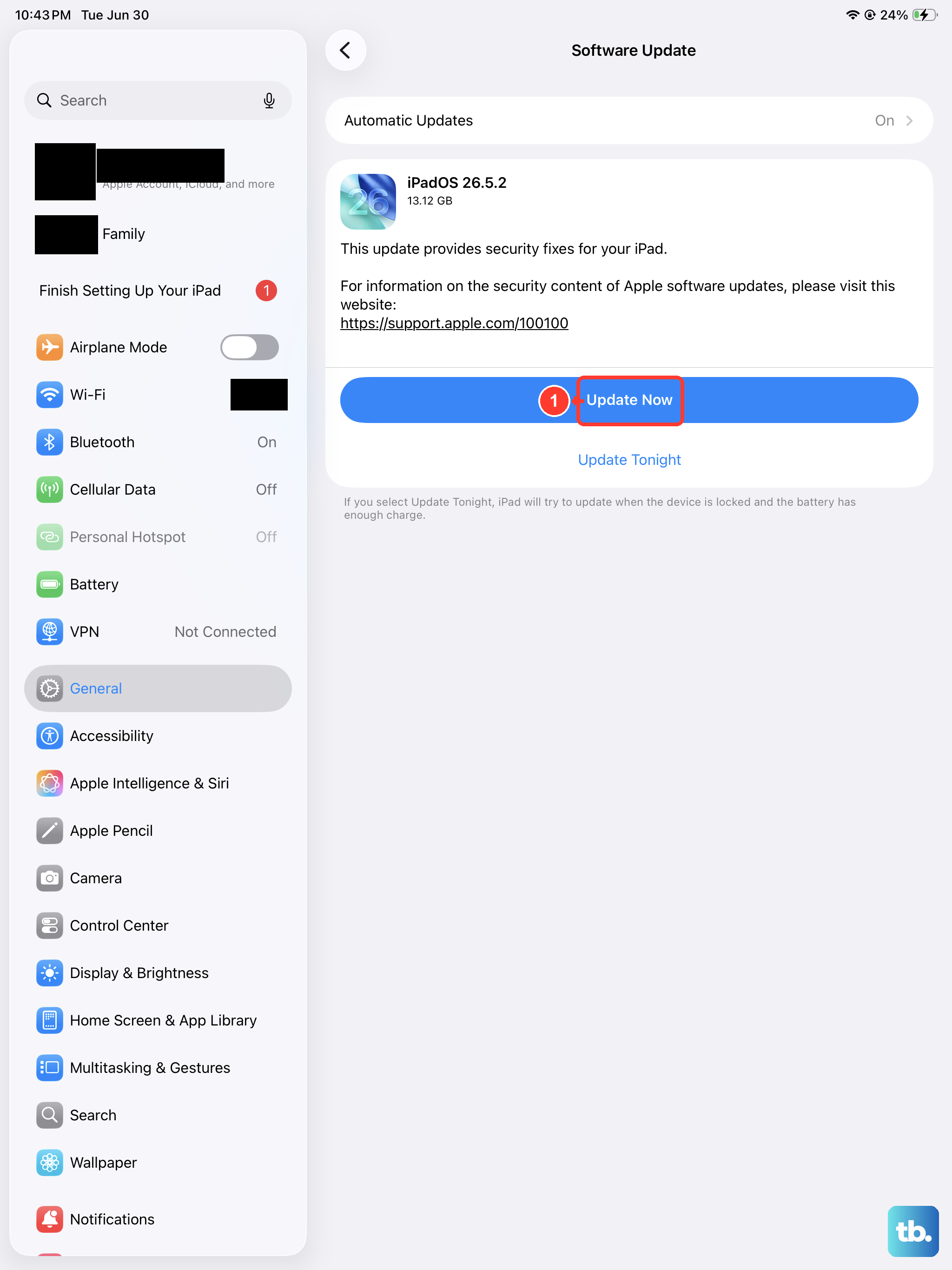
Apple regularly pushes out iPadOS updates that fix touch-related bugs. Your iPad Pro M5 runs iPadOS 18, and if you're on an early version, there might be a known touchscreen glitch that's already been patched. Go to Settings > General > Software Update and check for any available updates.
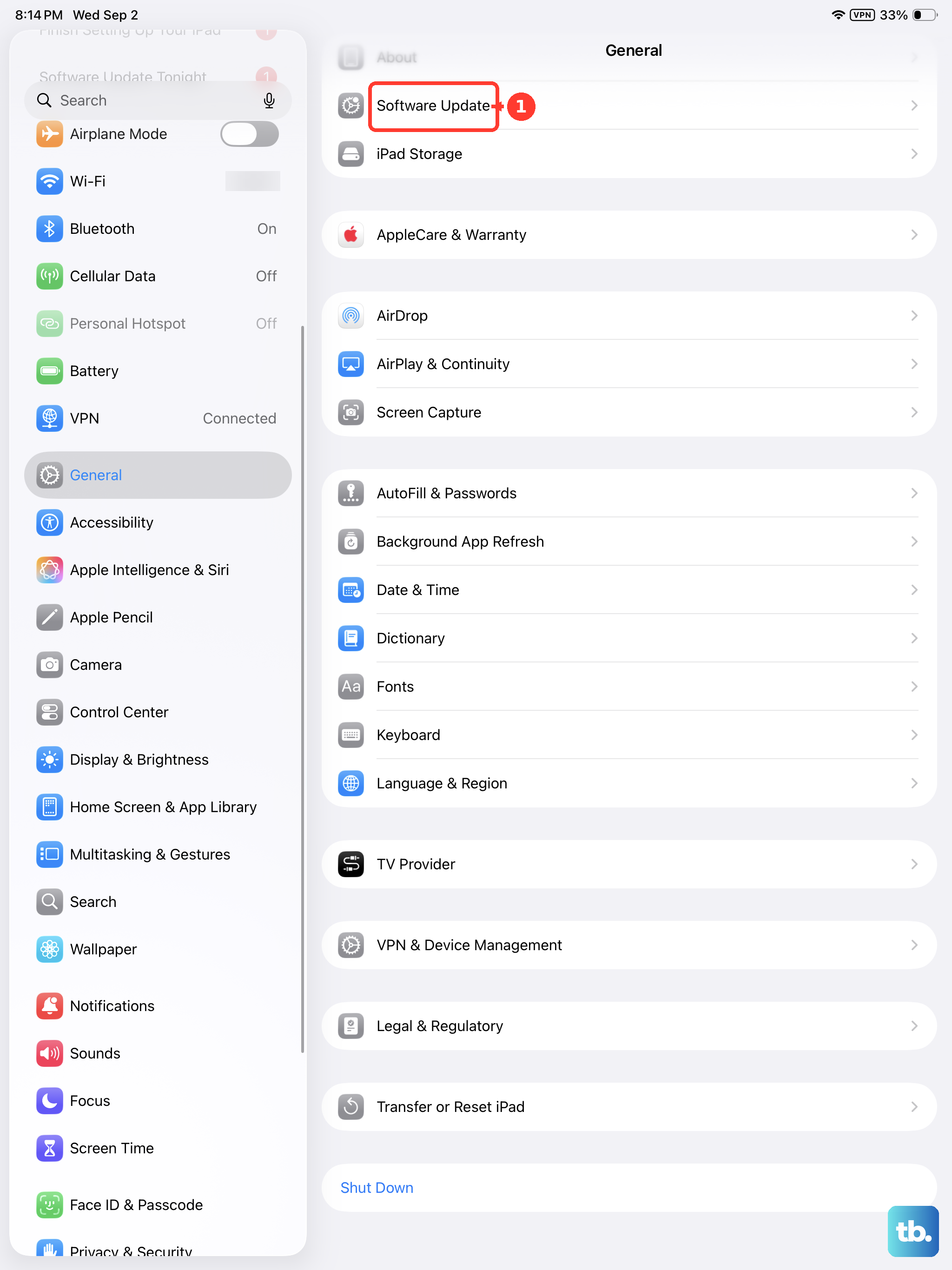
If the touchscreen isn't responding well enough to navigate Settings, connect a Bluetooth mouse or keyboard with trackpad. You can also use a USB-C mouse plugged directly into the iPad's USB-C port. This trick lets you update the software even if direct touch isn't working.
Let the update download and install completely. A 500MB to 2GB update usually takes about 10-20 minutes on a solid Wi-Fi connection.
Check for USB-C Accessory Interference
The iPad Pro M5's USB-C port can sometimes cause touchscreen issues when a faulty accessory is connected. Unplug any dongles, hubs, chargers, or external displays from your iPad. I've seen a cheap USB-C hub cause the touch panel to behave erratically or stop working entirely.
If the touchscreen starts working after disconnecting everything, you've narrowed it down to the accessory. Try each device one at a time to identify which one is causing the problem.
The same goes for the magnetic Smart Connector on the back. If you have a Magic Keyboard or other Smart Connector accessory attached, try removing it and using the iPad on its own for a while.
Reset All Settings (Not a Full Wipe)
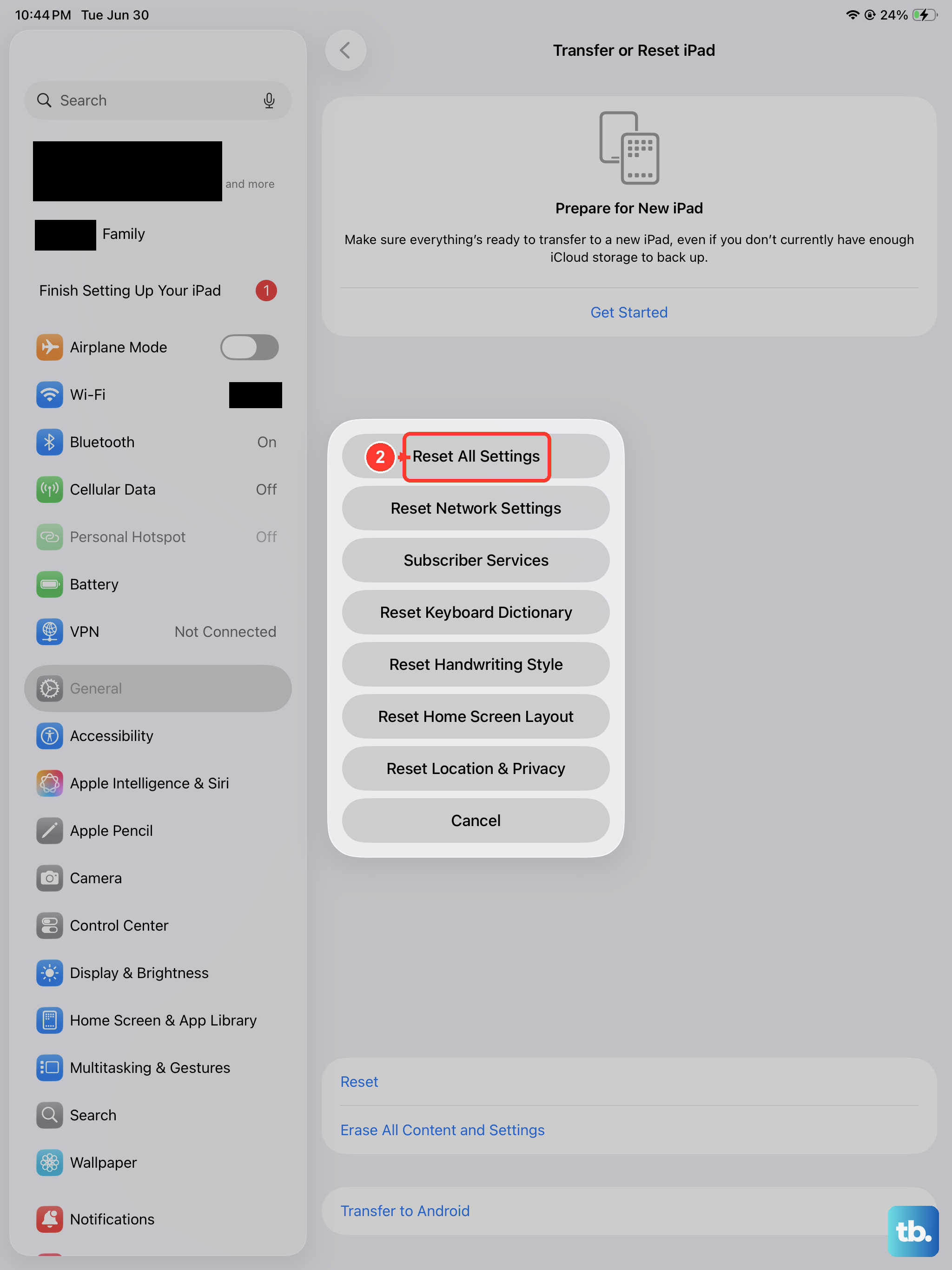
This option resets system preferences back to defaults without erasing your apps, photos, or documents. Head to Settings > General > Transfer or Reset iPad > Reset > Reset All Settings. You'll need to re-enter Wi-Fi passwords and adjust some preferences afterward, but it's way less painful than a factory reset.
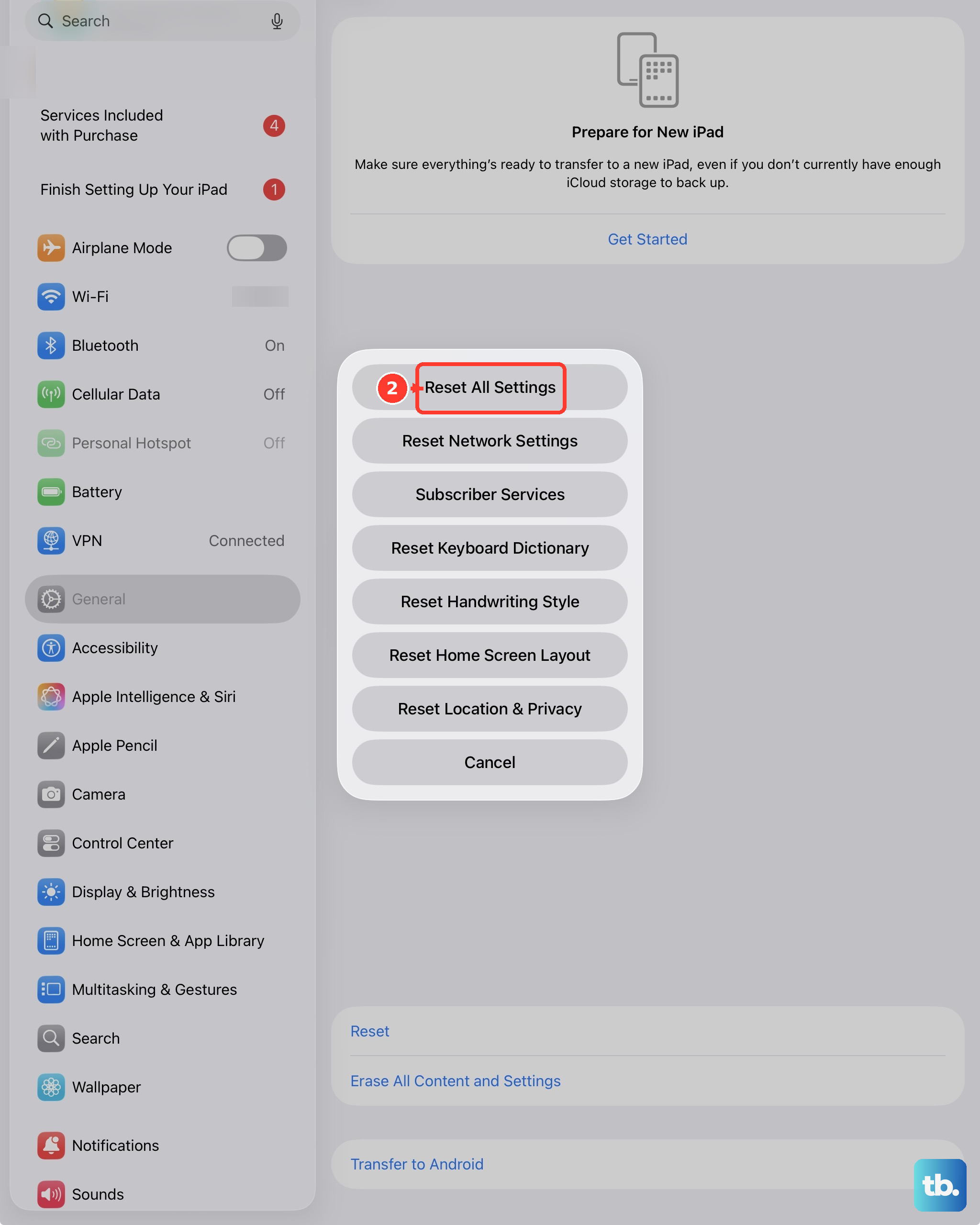
This clears out corrupted system configuration files that might be interfering with touch input. It also resets accessibility settings that can sometimes interfere with normal touch behavior without you realizing it.
Check for Physical Damage or Debris
Inspect the iPad's screen carefully for any cracks or chips. Even a hairline fracture along the edge can disrupt the touch sensor grid. The iPad Pro M5 uses a laminated display, so damage to the outer glass often affects touch sensitivity directly.
Also check the USB-C port for dust or lint buildup. While this usually causes charging issues, a piece of metal debris shorting the port pins can sometimes confuse the iPad's internal circuits. Use a plastic toothpick or SIM eject tool to gently clean out the port if needed.
Restore the iPad Using a Computer
If nothing above has worked, a full restore via computer is the next step. Connect your iPad Pro M5 to a Mac or PC and open Finder (or iTunes on Windows). Put the iPad into recovery mode by following the force restart sequence, but don't release the Top button when you see the Apple logo. Keep holding until you see the recovery mode screen with a computer icon and a cable.
You'll get a popup asking to either Update or Restore. Try Update first, which reinstalls iPadOS without erasing your data. If that fails, Restore will wipe everything and install a fresh copy of the operating system.
Just keep in mind that Restore erases everything on the iPad, so hopefully you have a recent iCloud or computer backup to restore from afterward.