
If the camera on your iPad Pro M5 suddenly went black, won't open, or shows a flickering image, start with a force restart. This clears most temporary software glitches without deleting anything. Press and quickly release the Volume Up button, then press and quickly release the Volume Down button, then press and hold the Top button until the Apple logo appears. Give it about 30 seconds to finish booting, then open the Camera app and see if it works.
Before digging into settings, open a quick webcam test in your browser. If the preview shows a live picture, the camera hardware works and the issue is with app permissions or configuration.
Key Points
- Force restart first: The Volume Up, Volume Down, Top button sequence clears most camera glitches fast.
- Check camera permissions: Some apps block camera access if you've denied permissions accidentally.
- Inspect the lens: Even a faint smudge on the rear camera lens can blur photos or trigger focus errors.
- Update iPadOS 18: Apple's latest patches fix several camera-related bugs for the M5 models.
- Reset all settings as a last resort: This preserves your data but clears camera-specific configurations that might be corrupted.
Most camera issues on the iPad Pro M5 are software-related rather than hardware failures. The 2025 models use a 12MP wide camera and a 10MP ultra-wide camera on the back, plus a 12MP front-facing camera with Center Stage. All three cameras share the same image signal processor, so a glitch in iPadOS 18 can hit any of them.
Check for a Software Update First
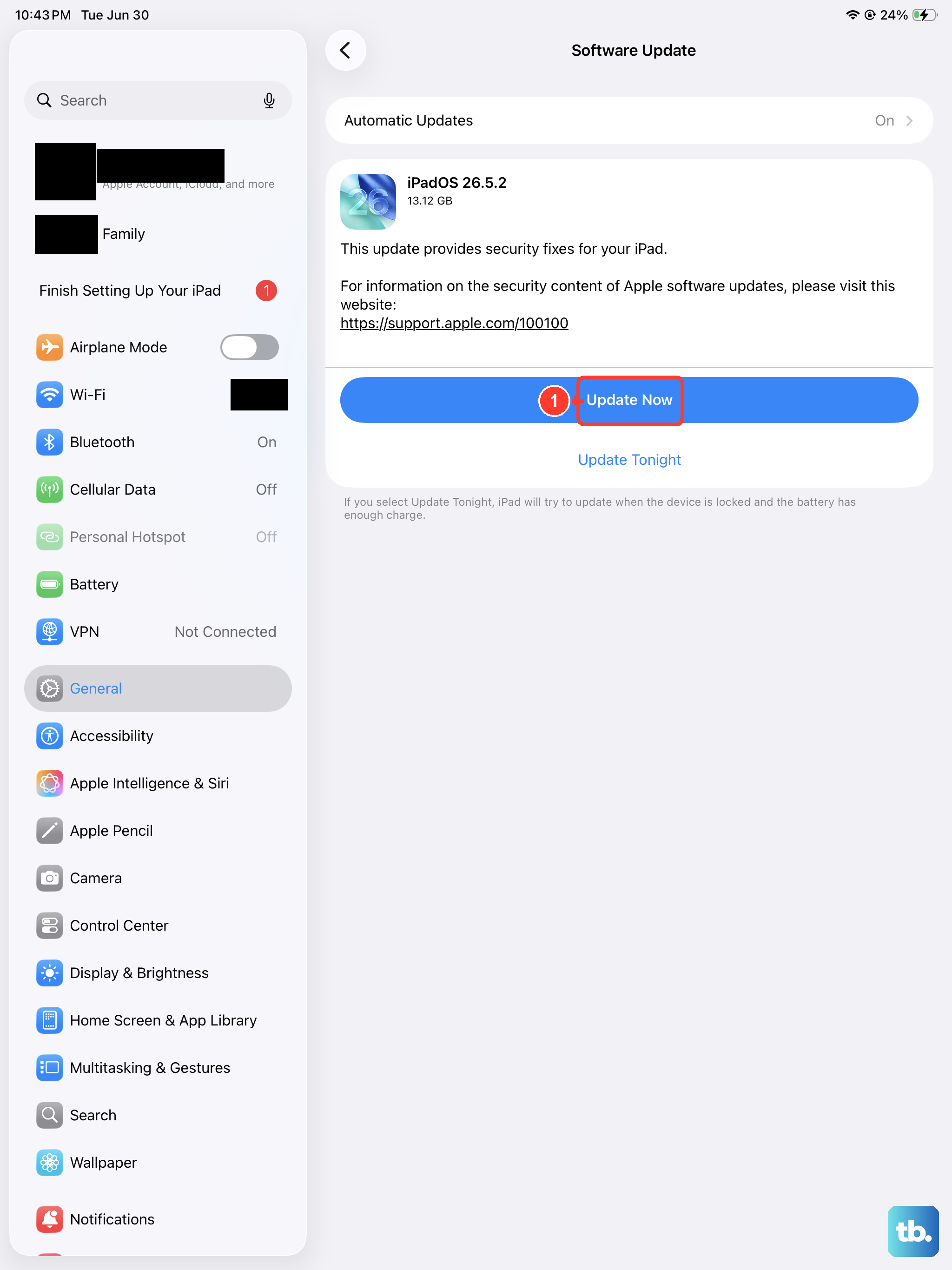
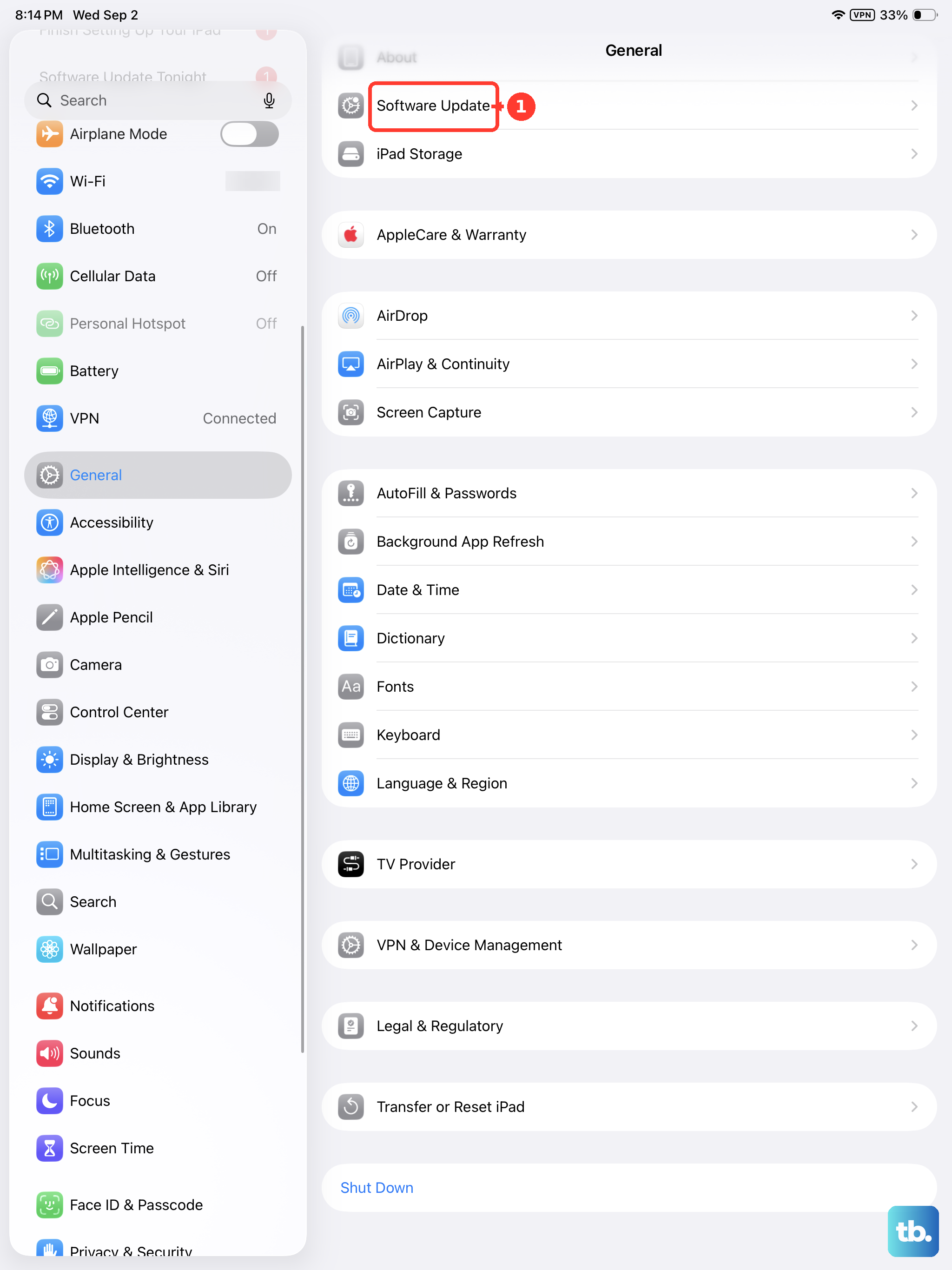
If your camera started acting up after a recent iPadOS update, Apple may have already pushed a fix. Go to Settings > General > Software Update and see if a newer version is available. The M5 iPad Pro shipped with iPadOS 18, and Apple has released several point updates that addressed camera stability, particularly for the ultra-wide lens.
Install any available update and let the iPad restart. Test the camera again after the update completes. I've seen this resolve camera freezing issues on the 11-inch and 13-inch models alike.
The Camera App Itself Might Be the Problem
Sometimes the Camera app gets stuck with corrupted data. Force close it first. Swipe up from the bottom of the screen and pause to open the App Switcher, then swipe the Camera app off the top of the screen. Wait about 10 seconds and reopen it.
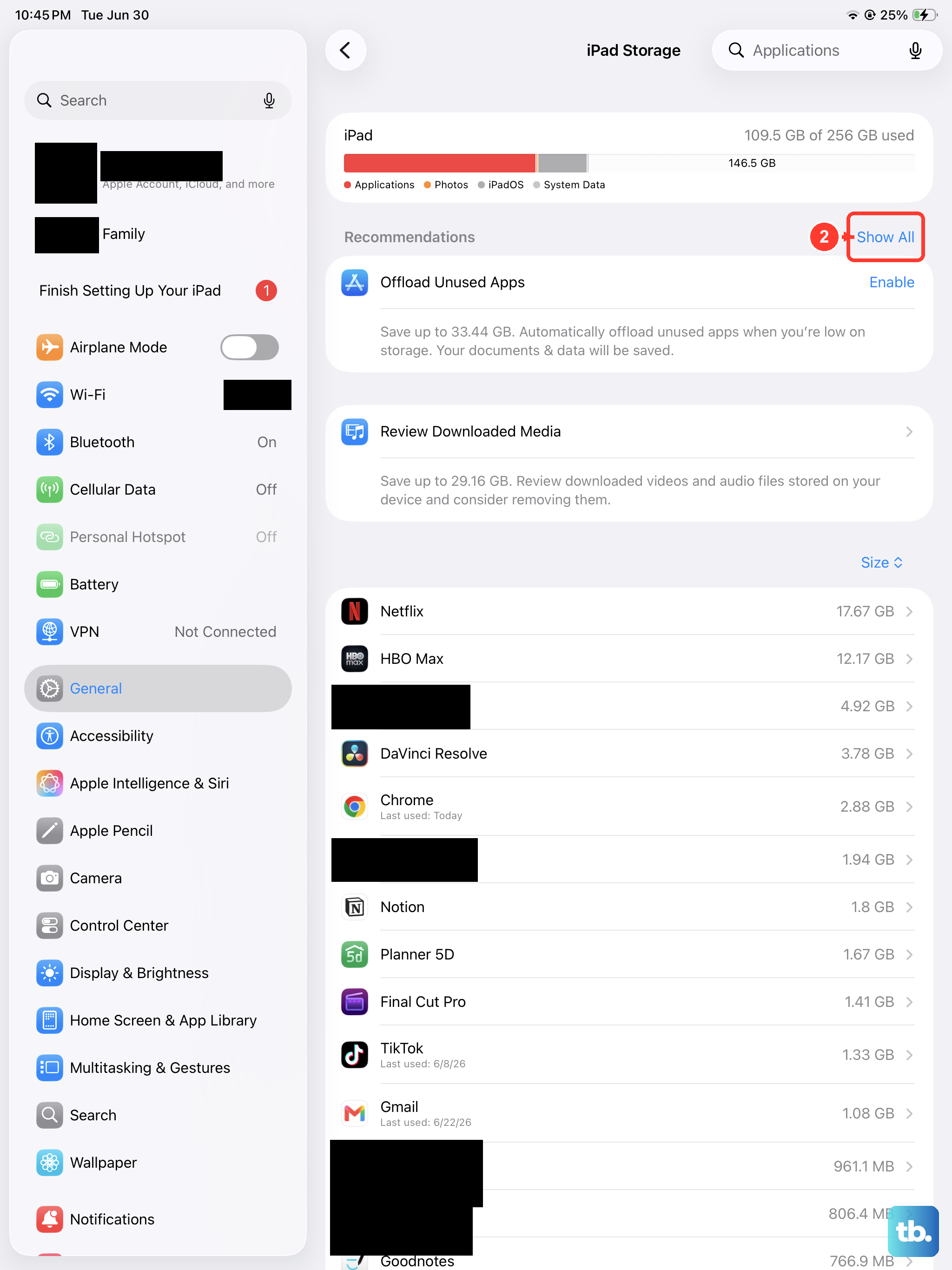
If that doesn't help, clear the Camera app's cache indirectly by restarting the iPad. iPadOS doesn't have a manual cache-clearing option for individual apps, but a restart flushes out most temporary files. For persistent issues, go to Settings > General > iPad Storage and offload the Camera app (tap the app, then Offload App). This removes the app but keeps your settings and data. Reinstall it from the App Store afterward.
Camera Permissions May Be Blocked
If the camera works in the default Camera app but not in third-party apps like Zoom, FaceTime, or Instagram, check your privacy permissions. Open Settings > Privacy & Security > Camera. You'll see a list of every app that has requested camera access. Make sure the app you're using is toggled on.
If an app is listed but grayed out, you may have denied it permission previously. Toggle it off, wait a second, then toggle it back on. This resets the permission state and usually fixes the issue.
Check for Physical Obstructions
The rear cameras on the iPad Pro M5 sit flush with the back of the device, so they're less protected than camera bumps on iPhones. Even so, a case or screen protector can sometimes cover the lens. Remove your case and check that the camera cutout aligns properly with the lenses. Some third-party cases have slightly misaligned cutouts that block part of the ultra-wide lens.
Clean both cameras with a dry microfiber cloth. A fingerprint or dust speck on the lens can cause focus hunting, blurry images, or a "Camera Failed" error message. For the front-facing camera, wipe the top edge of the screen where the sensor is located.
The USB-C Port Could Be Related (Seriously)
Charging issues and camera problems might seem unrelated, but on the iPad Pro M5 they share a common root. The USB-C port handles data from external accessories, and debris in the port can confuse the iPad's system controller, causing weird behavior across multiple subsystems including the camera.
Inspect the USB-C port for lint or debris. Shine a flashlight inside and look for any visible obstruction. Use a dry, soft-bristled brush or a wooden toothpick to gently dislodge any gunk. Blow compressed air into the port at a slight angle. If the port is clean but your iPad won't charge properly either, try a different USB-C cable and a 60W or higher power adapter. Apple recommends the 40W dynamic power adapter (model A3351) or any USB-C adapter delivering 60W or more for fast charging.
Center Stage and Front Camera Issues
The 12MP front camera on the iPad Pro M5 supports Center Stage, which automatically pans and zooms to keep you in frame during video calls. If Center Stage behaves erratically, open Settings > Apps > FaceTime and toggle Center Stage off, then back on. This recalibrates the camera's motion tracking without affecting other settings.
If the front camera won't switch on at all, check if you're in a landscape orientation that triggers the wrong camera. The iPad Pro M5 has intelligent orientation sensing, and sometimes it tries to switch between the front and ultra-wide cameras unexpectedly. Rotate the iPad to portrait, force close the Camera app, and try again.
Reset All Settings Before Resorting to a Factory Reset
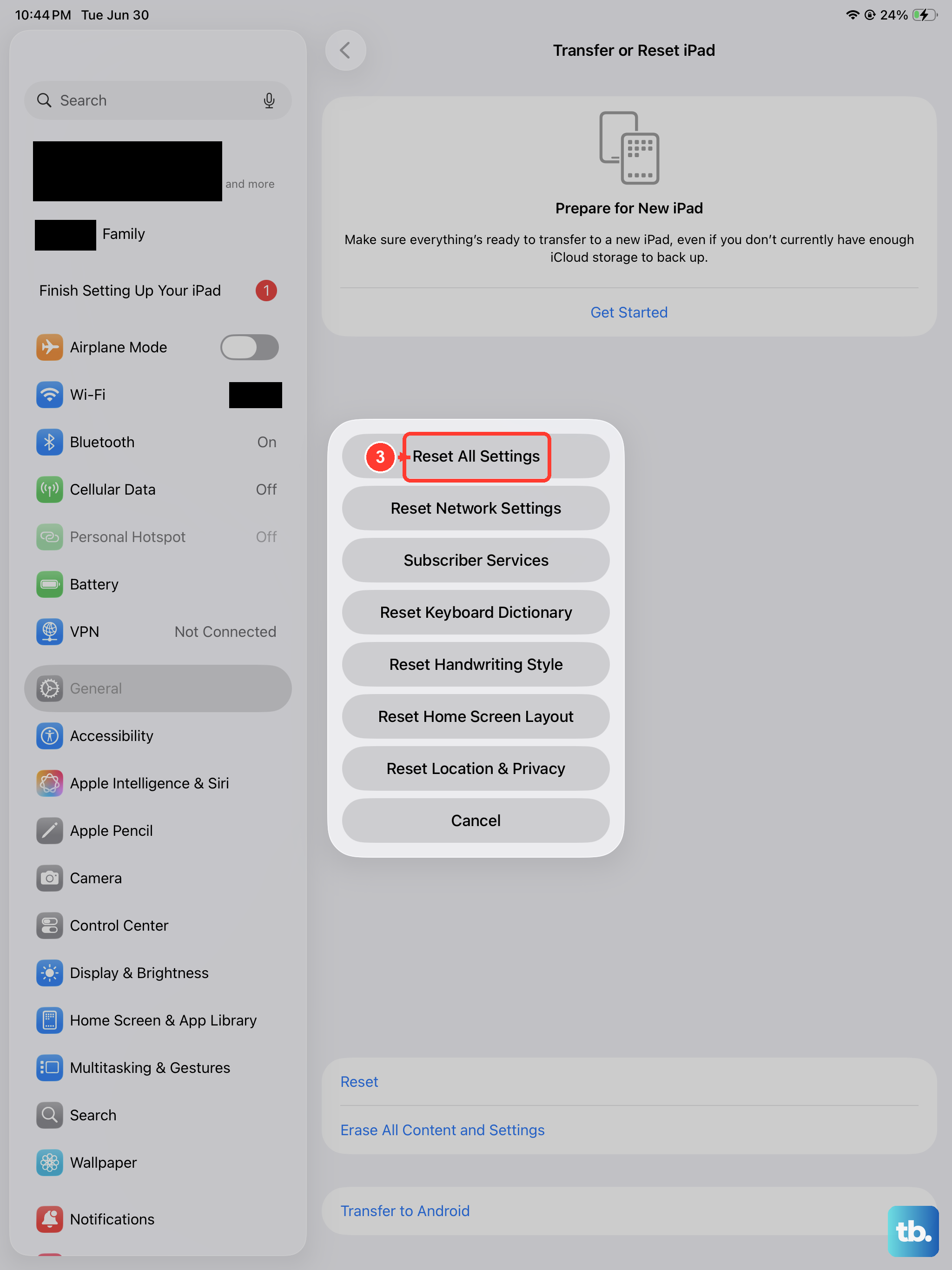
If none of the above works, try a settings reset. This doesn't delete your photos, apps, or data, but it does reset Wi-Fi passwords, wallpaper, and accessibility settings to defaults. It's less drastic than a full factory reset but often clears camera configuration corruptions.
Go to Settings > General > Transfer or Reset iPad > Reset > Reset All Settings. Enter your passcode and confirm. The iPad restarts automatically. Afterward, test the camera. You'll need to reconnect to Wi-Fi networks and re-pair Bluetooth devices, but your photos and data remain intact.
If the Camera Still Won't Work
A hardware failure is possible but uncommon on the iPad Pro M5. The camera modules on these 2025 models are soldered to the logic board, so individual camera replacement isn't straightforward. If you've tried every software fix and the camera still shows a black screen, won't switch lenses, or displays a "Camera Not Available" error, the issue is likely physical.