When your iPad Pro M5 stops routing audio to your headphones, whether AirPods, Bluetooth cans, or wired via USB-C, it instantly turns your personal cinema or studio session into a frustrating puzzle. The screen shows audio is playing, but nothing comes through the headphones. Here is how to trace the issue and get your sound back.
It helps to confirm what actually works before changing settings. Run a online headphone test, note which channels and frequencies play correctly, and match the result against the steps below.
Check the Basics First
Before diving into deep settings, rule out the simplest culprits. Make sure your Bluetooth headphones have enough battery life left. If you are using wired headphones, check that your USB-C adapter is fully pushed into the port.
Try the headphones with another device, like your iPhone or a laptop, to confirm the problem is specifically with the iPad Pro M5. If they don't work on anything else, the headphones themselves are the issue.
Force Restart Your iPad Pro M5
A temporary software glitch is often the culprit behind audio routing problems. The easiest way to clear that glitch is a force restart, which is different on the M5 than on older iPads with a Home button.
Press and quickly release the Volume Up button, then press and quickly release the Volume Down button. Immediately press and hold the Top button until the Apple logo appears on screen. Keep holding even if the power off slider shows up, just ignore it and wait for the Apple logo. Let the iPad boot up fully and try your headphones again.
Check the Volume and Mute Status
Audio routing bugs can sometimes reset your volume to zero without you noticing. Press the Volume Up button on the side of your iPad Pro while your headphones are connected.
Open Control Center by swiping down from the top-right corner of the screen. Check the volume slider and make sure the audio output card shows your expected device, not the iPad speaker.
Clean the USB-C Port for Wired Audio
If you are using wired headphones with a USB-C adapter, pocket lint or debris in the port is a common enemy. The iPad Pro M5 relies entirely on its USB-C port for wired audio, so any blockage prevents the connection.
Inspect the port carefully with a flashlight. If you see any gunk, gently remove it with a wooden or plastic toothpick. Compressed air works well too. Avoid metal tools that could damage the internal pins. A clean port often solves intermittent disconnects and static noise instantly.
Is Your USB-C Adapter Compatible?
Wired audio on the iPad Pro M5 requires a USB-C to 3.5mm headphone jack adapter, unless your headphones have a native USB-C plug. Not all adapters are created equal. Apple's own USB-C to 3.5mm adapter works flawlessly because it includes a built-in digital-to-analog converter (DAC). Some cheap third-party adapters lack this chip and won't be detected by iPadOS 18. If your adapter isn't working, test it with a different device first.
Forget and Re-Pair Bluetooth Headphones
A corrupted Bluetooth profile can cause audio to cut out or refuse to connect entirely. Go to Settings > Bluetooth and tap the information icon (the "i" in a circle) next to your headphones. Tap Forget This Device. Now put your AirPods or Bluetooth headphones back into pairing mode and connect them fresh. A clean pairing clears out any bad handshake data that might be stuck in the iPad's memory.
Turn Bluetooth Off and On
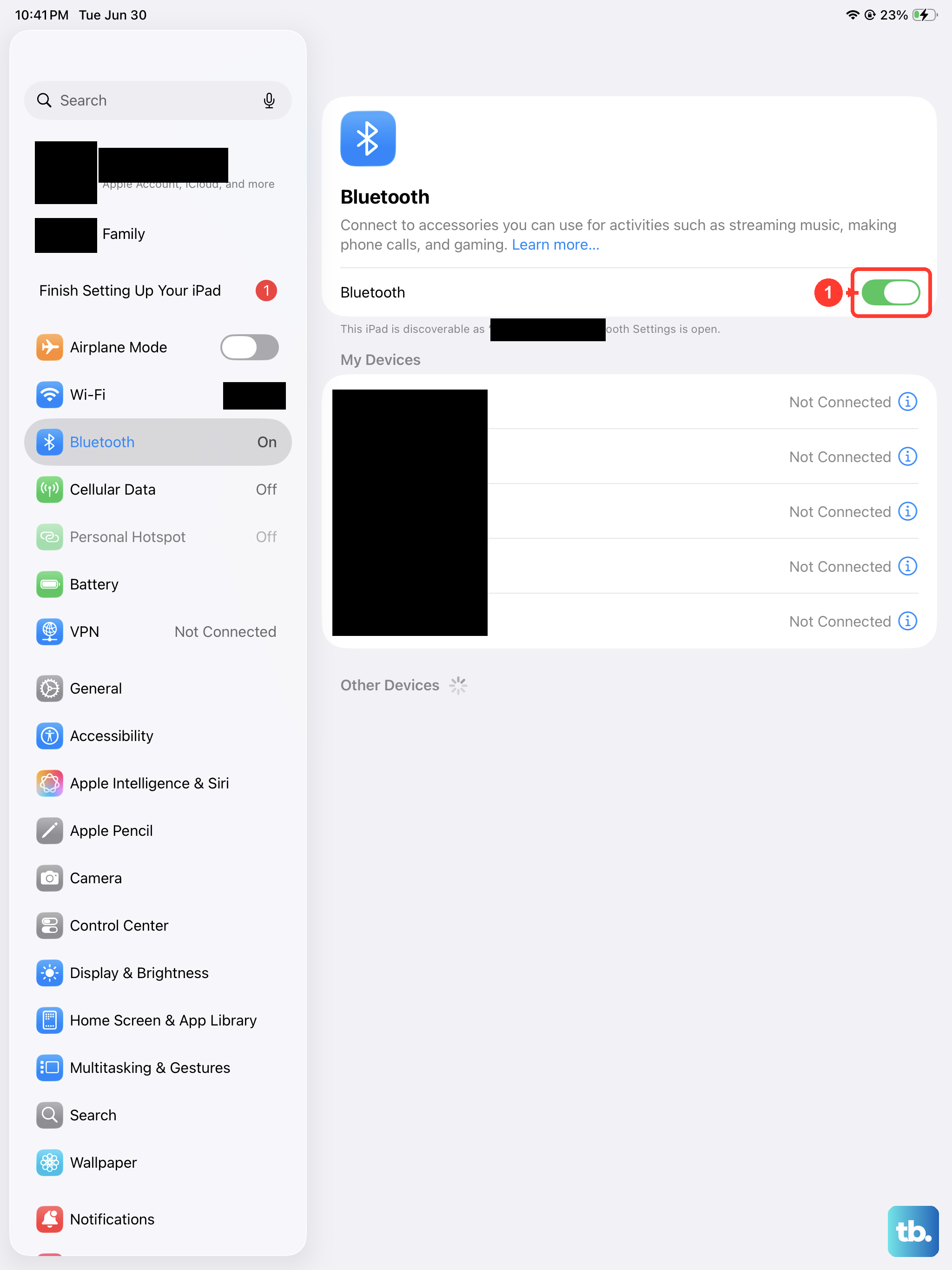
Sometimes the Bluetooth stack itself gets hung up. Swipe down to open Control Center and tap the Bluetooth icon to toggle it off. Wait about 10 seconds, then tap it back on. This is quicker than a full restart and often resolves momentary audio routing hiccups where the iPad plays sound through the speaker even though your headphones are connected.
Update iPadOS 18
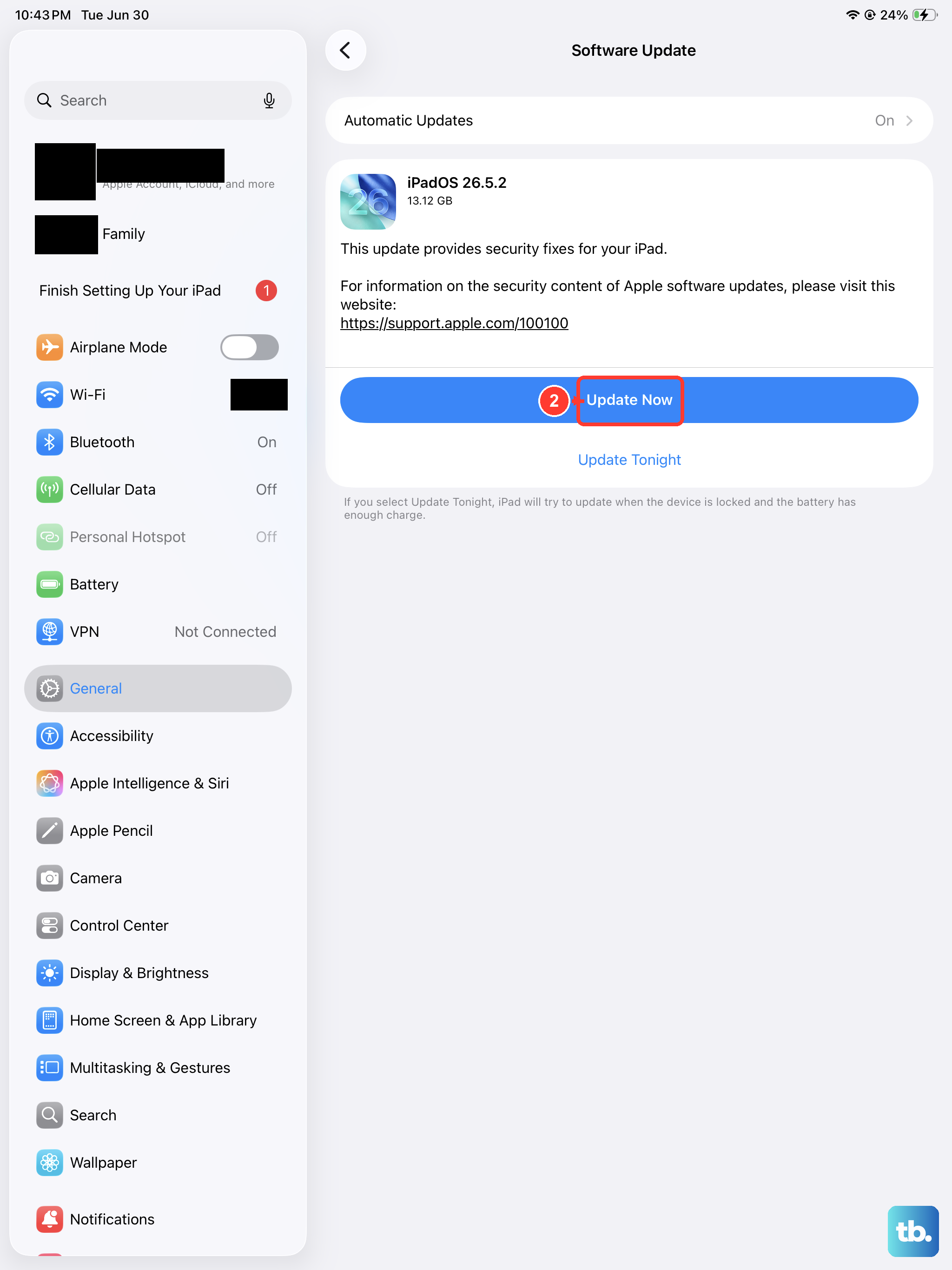
Apple regularly patches audio bugs in iPadOS updates. Go to Settings > General > Software Update. If an update is available, download and install it.
This is particularly important for AirPods Pro and AirPods Max users. Those devices receive their firmware updates through the connected iPad. Running the latest version of iPadOS 18 eliminates known software conflicts that can cause dropouts or poor audio quality.
Check Audio Output in Control Center
It is easy to accidentally switch audio output without realizing it. Open Control Center and press and hold the audio card in the top-right corner. You will see a list of available output devices. Make sure your headphones are selected and not just the iPad speakers. You can also tap the AirPlay or Output icon in your music or video app to force the correct output path.
Reset All Settings
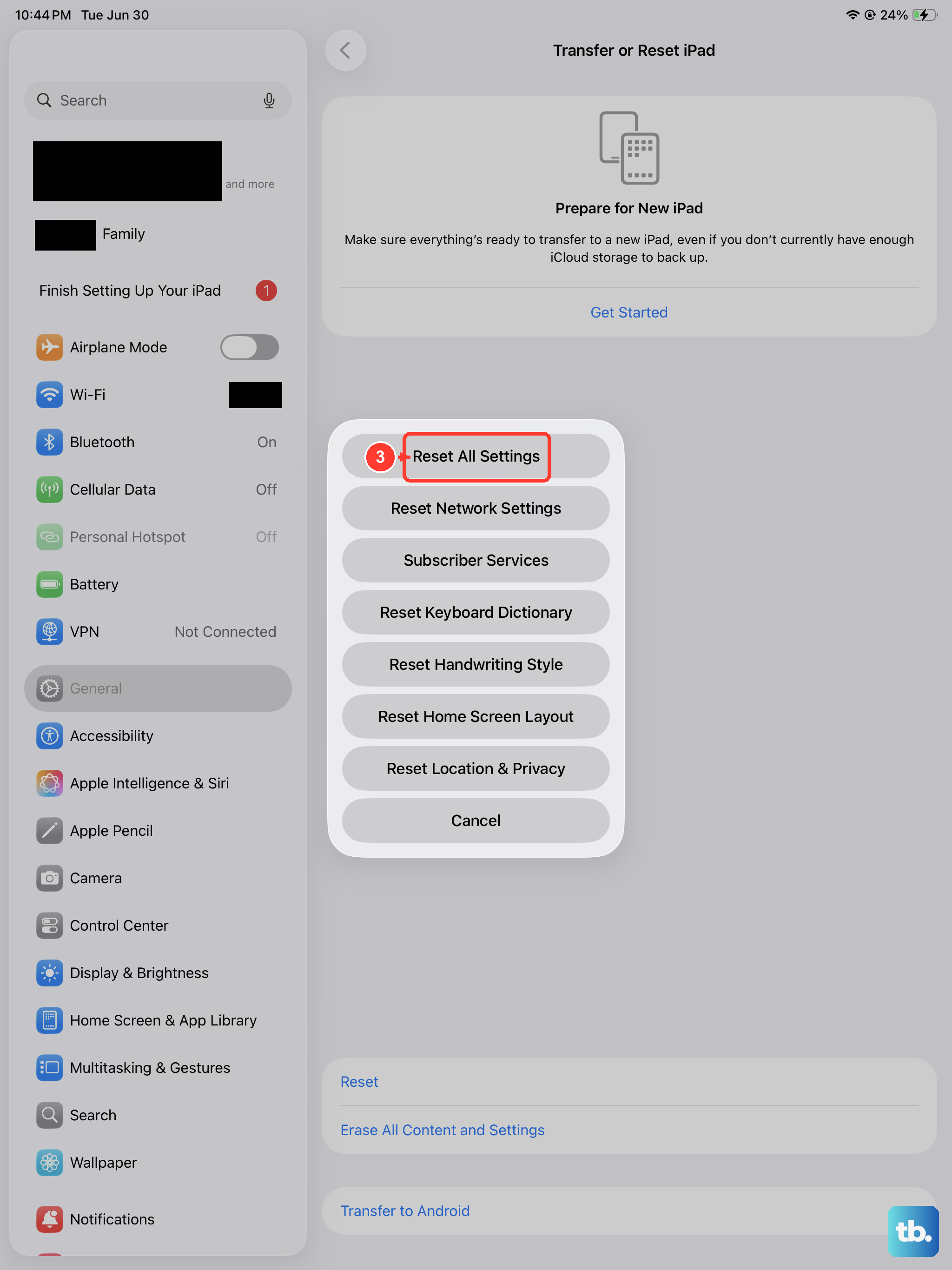
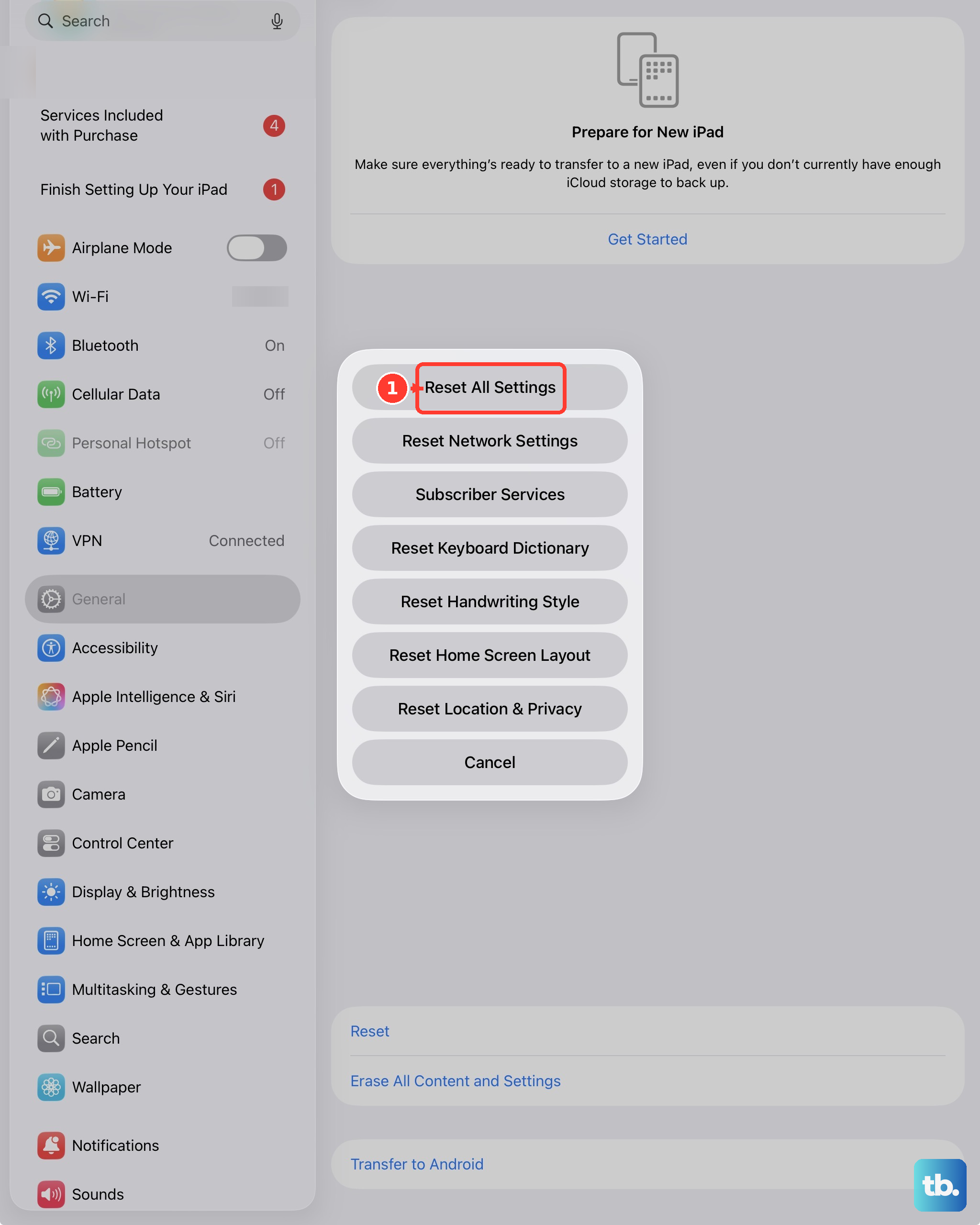
If you have tried everything and the iPad Pro still refuses to send audio to your headphones, Reset All Settings is the next step. Go to Settings > General > Transfer or Reset iPad > Reset > Reset All Settings. This does not delete your photos, music, or apps. It resets system preferences like Wi-Fi passwords, Bluetooth pairings, and audio routing rules. You will need to re-pair your AirPods after this, but it fixes deep-level configuration corruption that standard menus can't touch.