
When your iPad Pro M5's hotspot stops working, it cuts off your laptop, phone, or other devices from the internet. Whether the hotspot isn't showing up, won't connect, or keeps dropping connections, there are several reliable fixes to get tethering working again.
Turn Hotspot Off and On Again
Head to Settings > Personal Hotspot and toggle it off. Wait about 10 seconds, then turn it back on. Make sure Allow Others to Join is enabled. This simple reset clears temporary glitches in the hotspot service on iPadOS 18 and often solves the problem immediately.
Restart the iPad Pro M5
If the quick toggle didn't work, a full restart is next. Press and quickly release the Volume Up button, then press and quickly release the Volume Down button, then press and hold the Top button until the Apple logo appears. This force restart clears cached network processes and refreshes the cellular connection. It's especially useful if the iPad was unresponsive or the hotspot toggle seemed stuck.
Make Sure Cellular Data Is Active
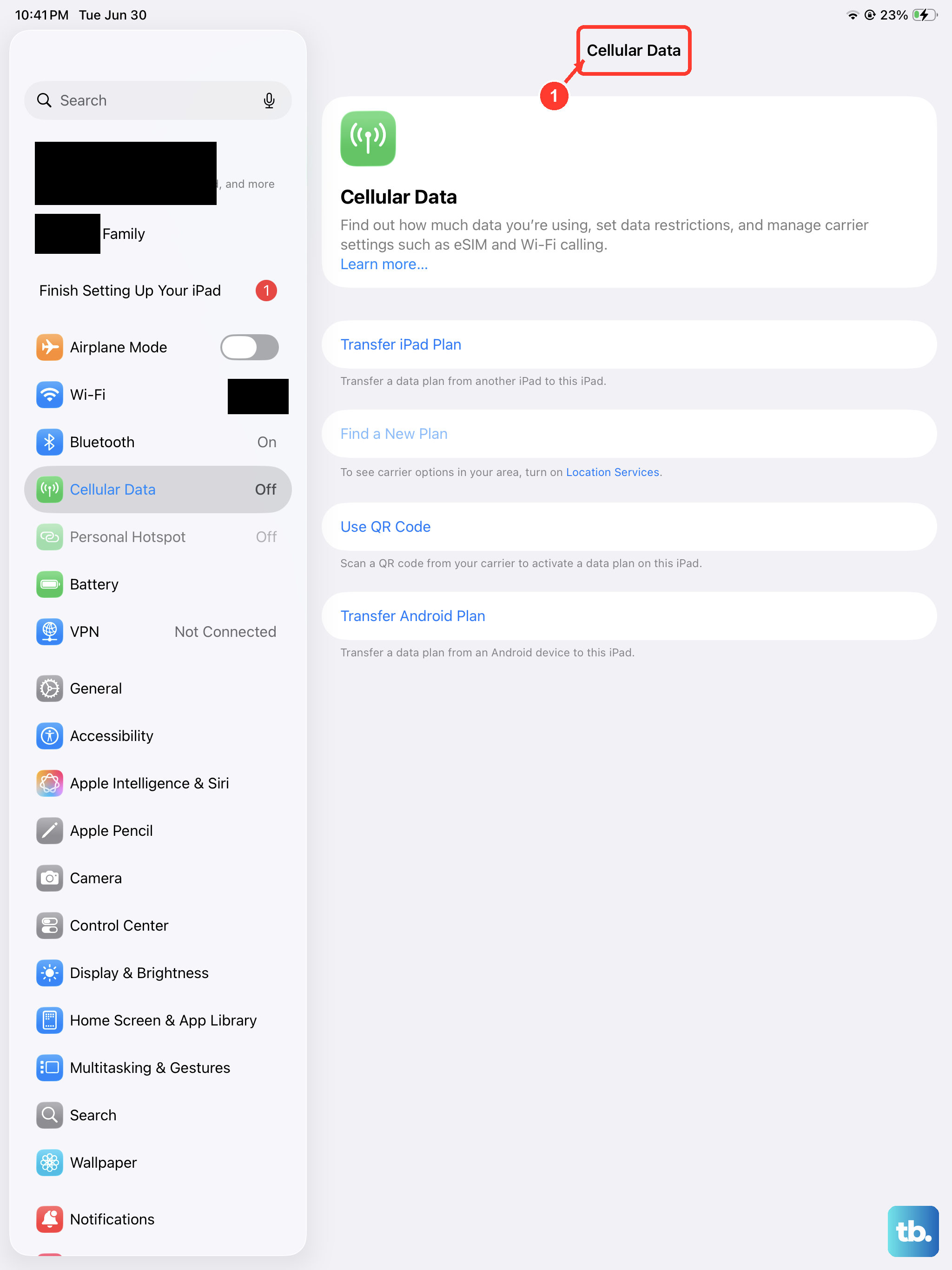
Personal Hotspot only works when you have an active cellular data connection. Go to Settings > Cellular Data and confirm it's turned on. If you're in a low-signal area, the hotspot may not work reliably. Also verify that your carrier plan includes tethering, as some plans restrict or limit hotspot access. You can check this in Settings > Cellular Data > Personal Hotspot to see if your carrier allows it.
Check for iPadOS Updates
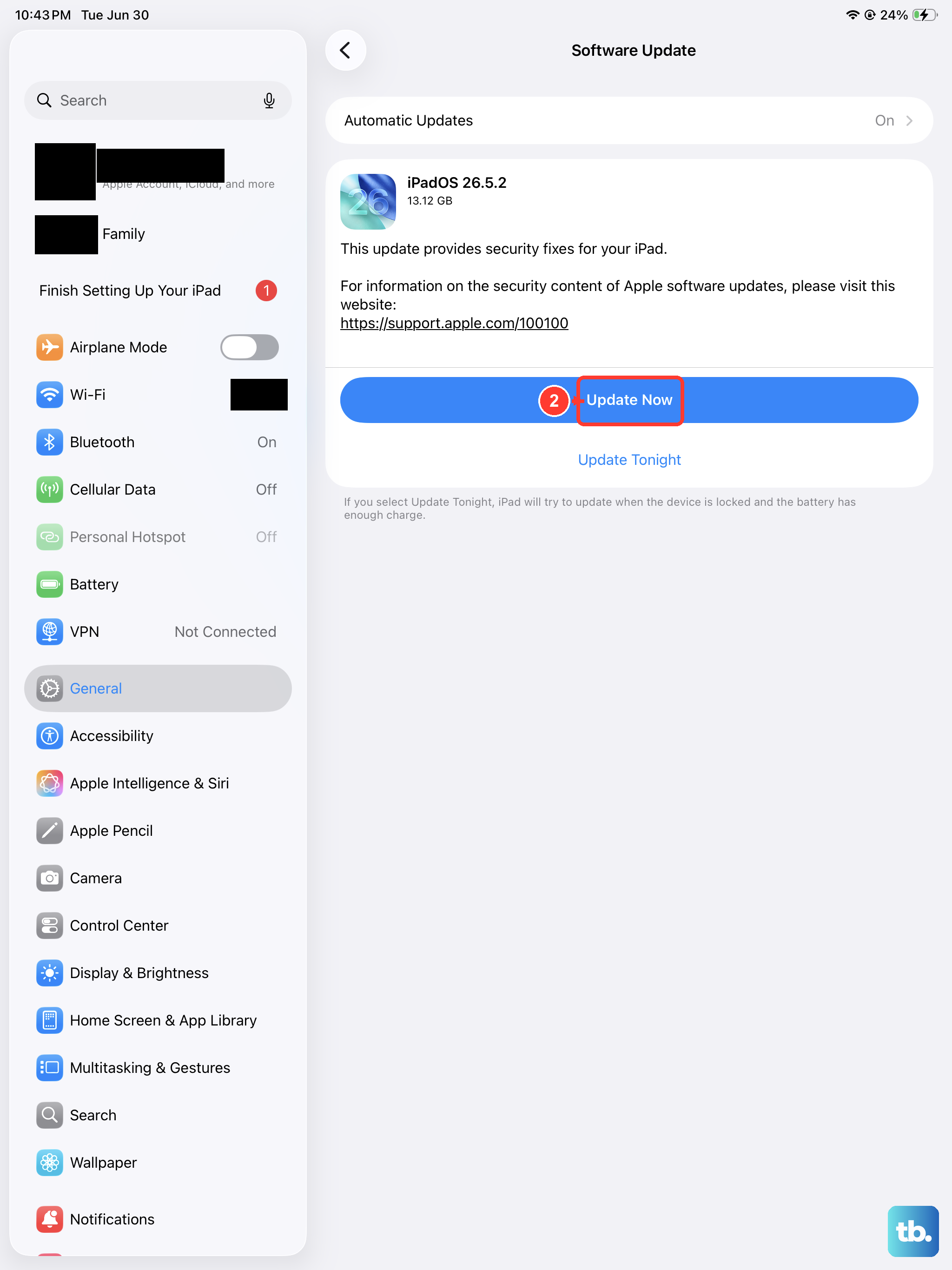
Hotspot bugs are often fixed in software updates. Go to Settings > General > Software Update and install any available iPadOS update. Apple regularly patches tethering-related issues, especially with iPadOS 18 updates. Make sure your iPad is plugged into power and connected to Wi-Fi before downloading.
Reset Network Settings
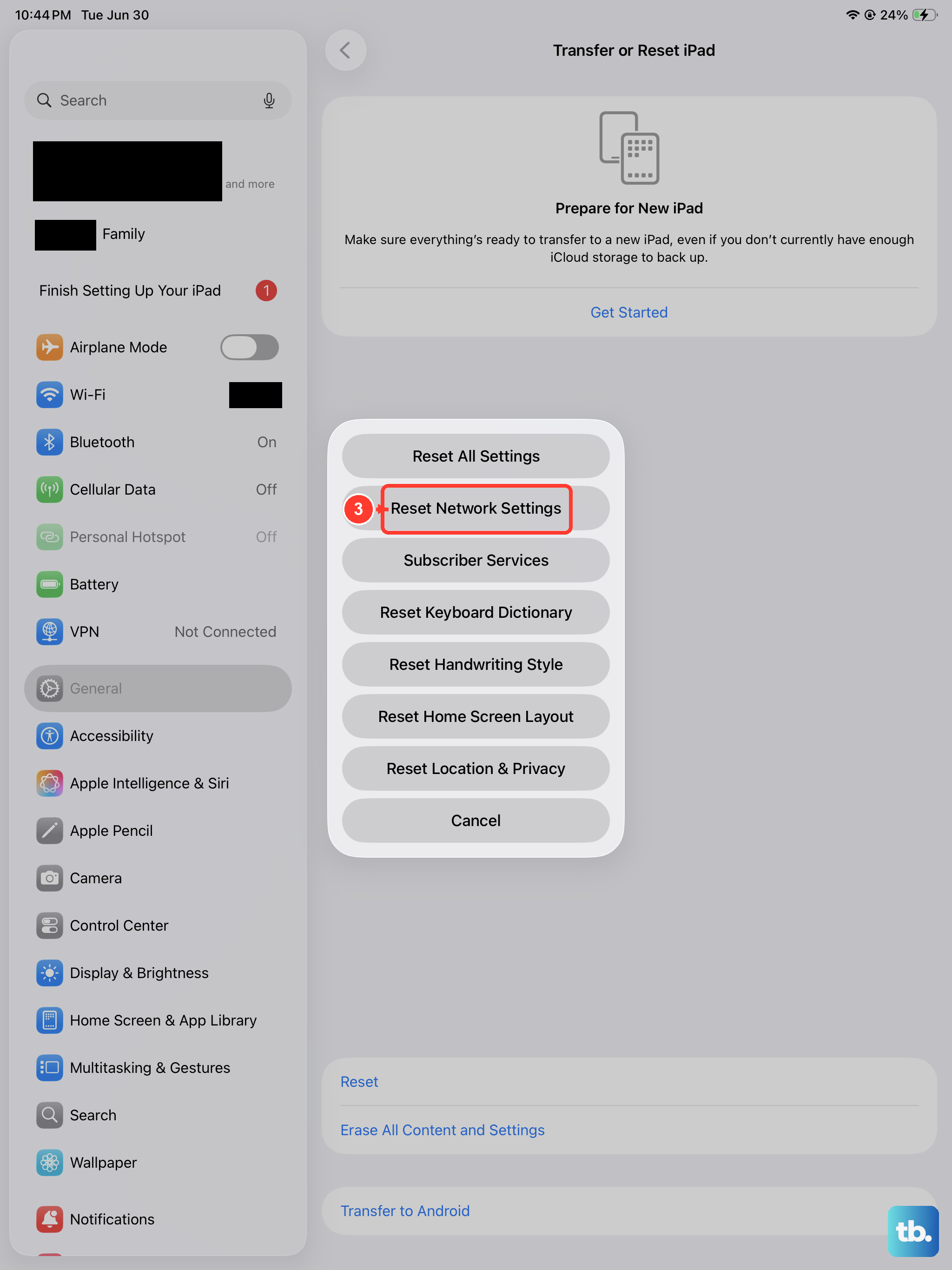
Go to Settings > General > Transfer or Reset iPad > Reset > Reset Network Settings. This erases all saved Wi-Fi passwords, VPN configurations, and cellular settings, then rebuilds them from scratch. You'll need to re-enter Wi-Fi passwords afterward, but this clears up most stubborn hotspot problems. It's a more thorough reset than toggling the hotspot or restarting.
Install Any Carrier Updates
Carrier updates can fix connectivity issues including hotspot problems. Go to Settings > General > About. If a carrier settings update is available, a popup will appear. Install it. These updates are small and install quickly, usually fixing network-related bugs specific to your carrier.
Reconnect from the Other Device
On the device trying to connect to your iPad's hotspot, go to its Wi-Fi settings and forget the hotspot network. Then search for it again and re-enter the password. Sometimes the saved connection profile on the other device becomes corrupted, and a fresh connection fixes it. This is worth trying if the hotspot shows up but won't connect.
Set a New Hotspot Password
Go to Settings > Personal Hotspot > Wi-Fi Password and change it to something new. Tap Done to save. Then reconnect your other devices with the new password. A fresh password forces a new authentication handshake between devices, which can resolve connection dropouts.
Use a USB-C Cable or Bluetooth Instead
If the Wi-Fi hotspot isn't working, try tethering over USB-C or Bluetooth instead. Connect your iPad to your computer using the USB-C cable. Your computer should detect the iPad as a network connection. For Bluetooth, pair the devices first under Settings > Bluetooth, then enable the hotspot. Both methods bypass Wi-Fi hotspot glitches entirely.
Check With Your Carrier
If nothing works, your carrier may have disabled hotspot on your plan or there may be an account-level block. Call your carrier or visit their website to confirm hotspot is included in your plan and that there are no restrictions on your account. Some carriers require a specific tethering add-on even if you have unlimited data.