
Your iPad can feel warm during intensive tasks, setup, a restore or a software update. While some heat during these activities is normal, excessive or persistent warmth can affect performance and battery health. If a temperature warning appears, turn it off, move it away from direct sunlight to a cooler environment, and let it cool down.
If there's no temperature warning, try restarting your iPad. Go to Settings > General > Shut Down and drag the slider, then hold the top button to turn it back on. If it's unresponsive and you can't restart it normally, force restart it. Without a Home button, quickly press and release the volume button nearest the top button, then the one farthest from it. Hold the top button until the Apple logo appears. With a Home button, hold the Home and top buttons together until the Apple logo appears.
Check What's Running and Close Apps
An app that's stuck or malfunctioning can sometimes use far more processor power than it should, generating extra heat. Swipe up from the bottom of the screen and pause in the middle (or double-click the Home button on models with one) to enter the App Switcher. Swipe through the apps you see and swipe up on an app that's unresponsive to close it.
Pay special attention to apps that are known to be resource-intensive. Games with high-quality graphics, video editing software, and apps that use augmented reality are common culprits. If your iPad heats up consistently when using one specific app, check the App Store for an update, as developers often release patches for performance issues.
Reduce Screen Brightness and Disable Background Activity
Your iPad's display is one of its biggest power draws, and a brighter screen generates more heat. Swipe down from the top-right corner to open Control Center and drag the brightness slider down to a more comfortable level. Also, consider turning on Auto-Brightness in Settings > Accessibility > Display & Text Size.
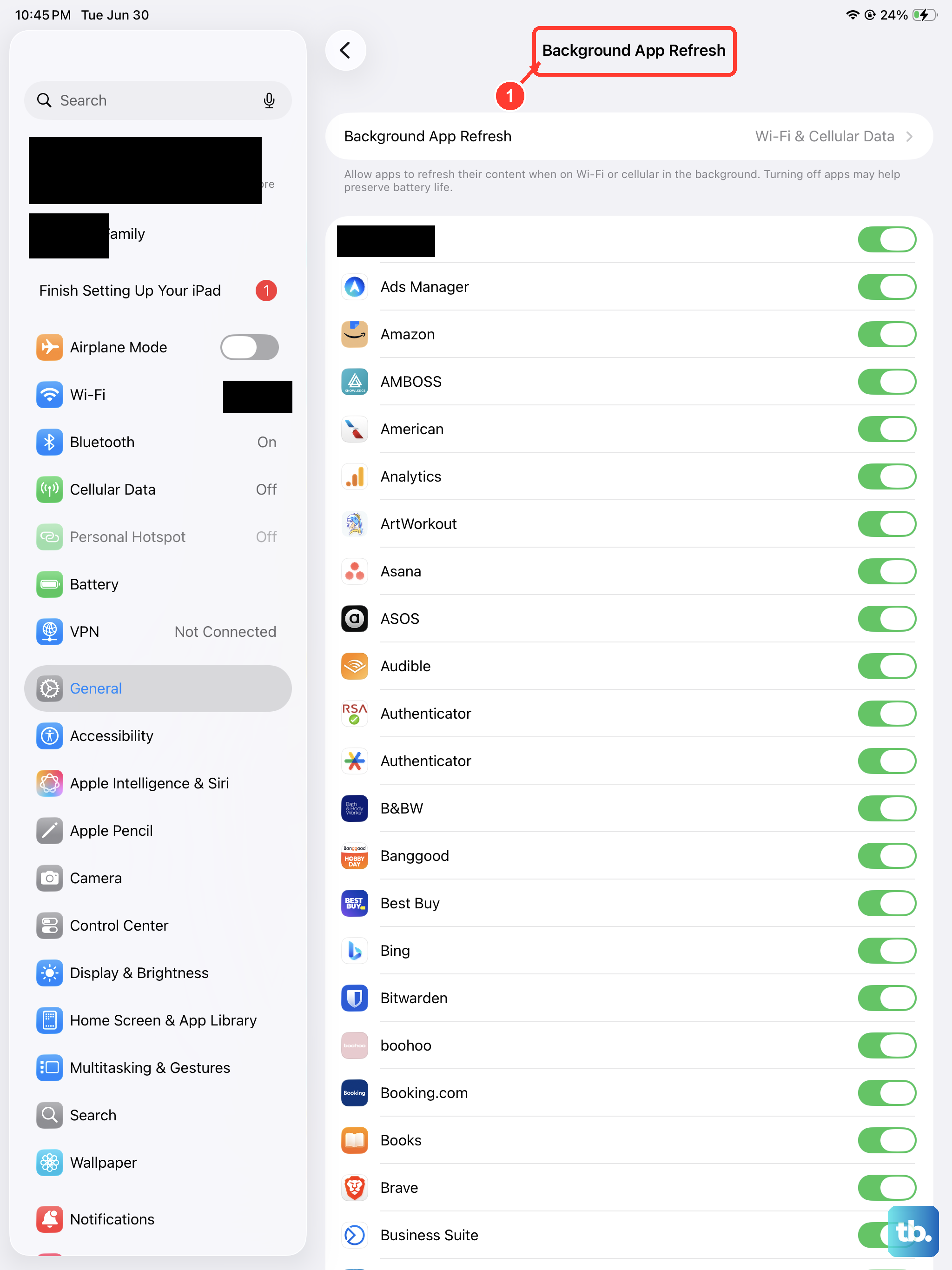
Many apps refresh their content in the background, which keeps your iPad's cellular or Wi-Fi radios active and the processor ticking over. You can limit this. Go to Settings > General > Background App Refresh. You can turn it off entirely or selectively disable it for apps that don't need live updates.
Update iPadOS and Manage Your Case
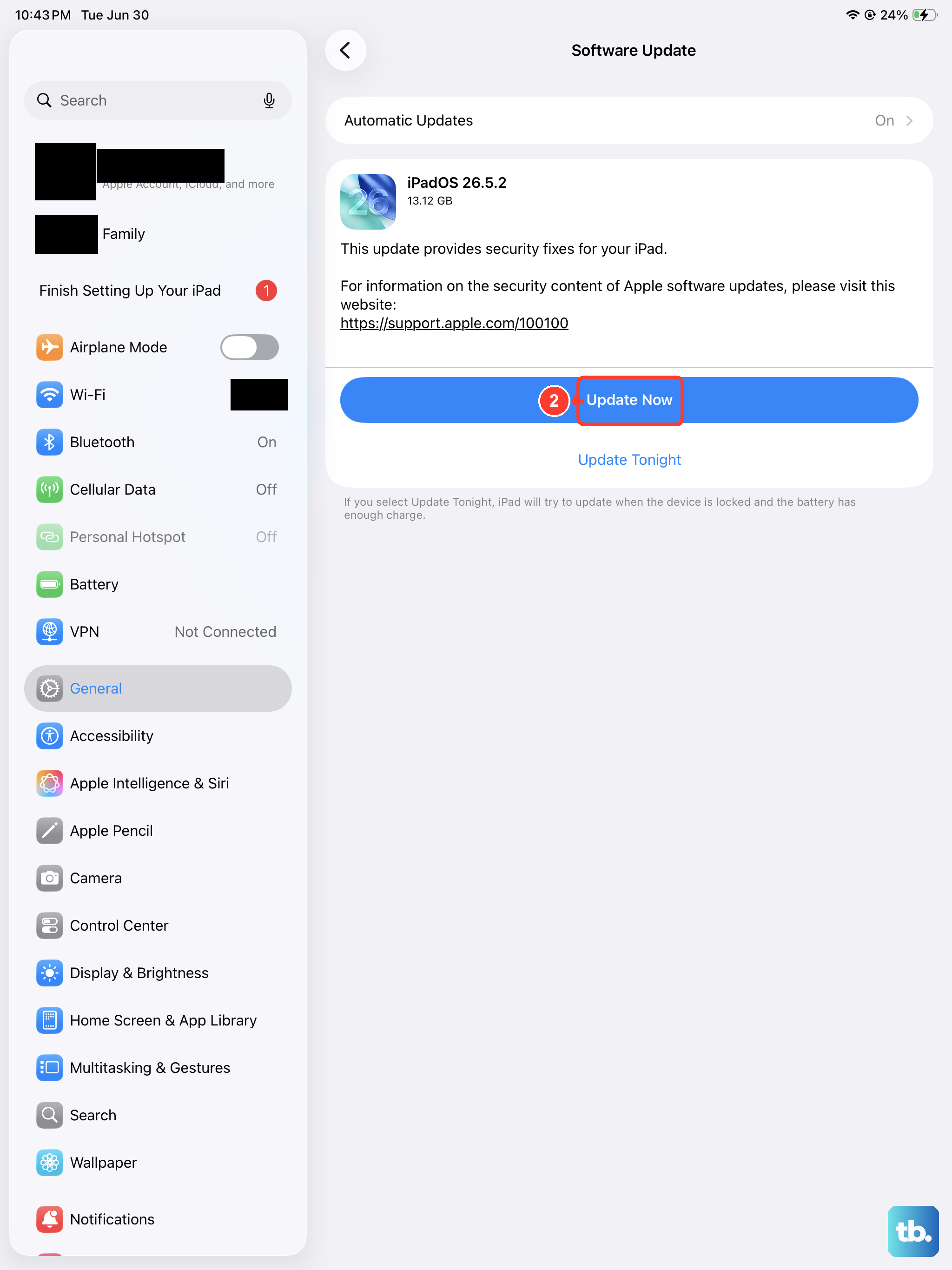
Keep your iPadOS software up to date. Back up your iPad first, then head to Settings > General > Software Update to see if a newer version is available. If one is available, tap Download and Install and follow the onscreen instructions. Your iPad may feel warm while completing an update.
If you use a case, especially a thick or heavily insulated one, it can trap heat around your iPad. Try removing the case for a while, particularly when you're doing something demanding like gaming or video streaming. If the iPad stays cooler without the case, you might want to look for a more breathable alternative.
Optimize Your Charging Setup
Charging can produce some heat. Connect your iPad to a power outlet using its included cable and power adapter. If Charging On Hold appears because the iPad is too hot, move it to a cooler place away from direct sunlight. If you're using it, lock the screen or put it to sleep. Charging resumes when the iPad returns to its normal temperature.
Also, disconnect any accessories plugged into the USB-C or Lightning port while charging, depending on your model. Hubs, external drives, or displays can draw power and create extra heat. If your iPad is connected to a Magic Keyboard with USB-C, it can charge through the keyboard, or you can connect the charging cable directly to the iPad.
Reset All Settings
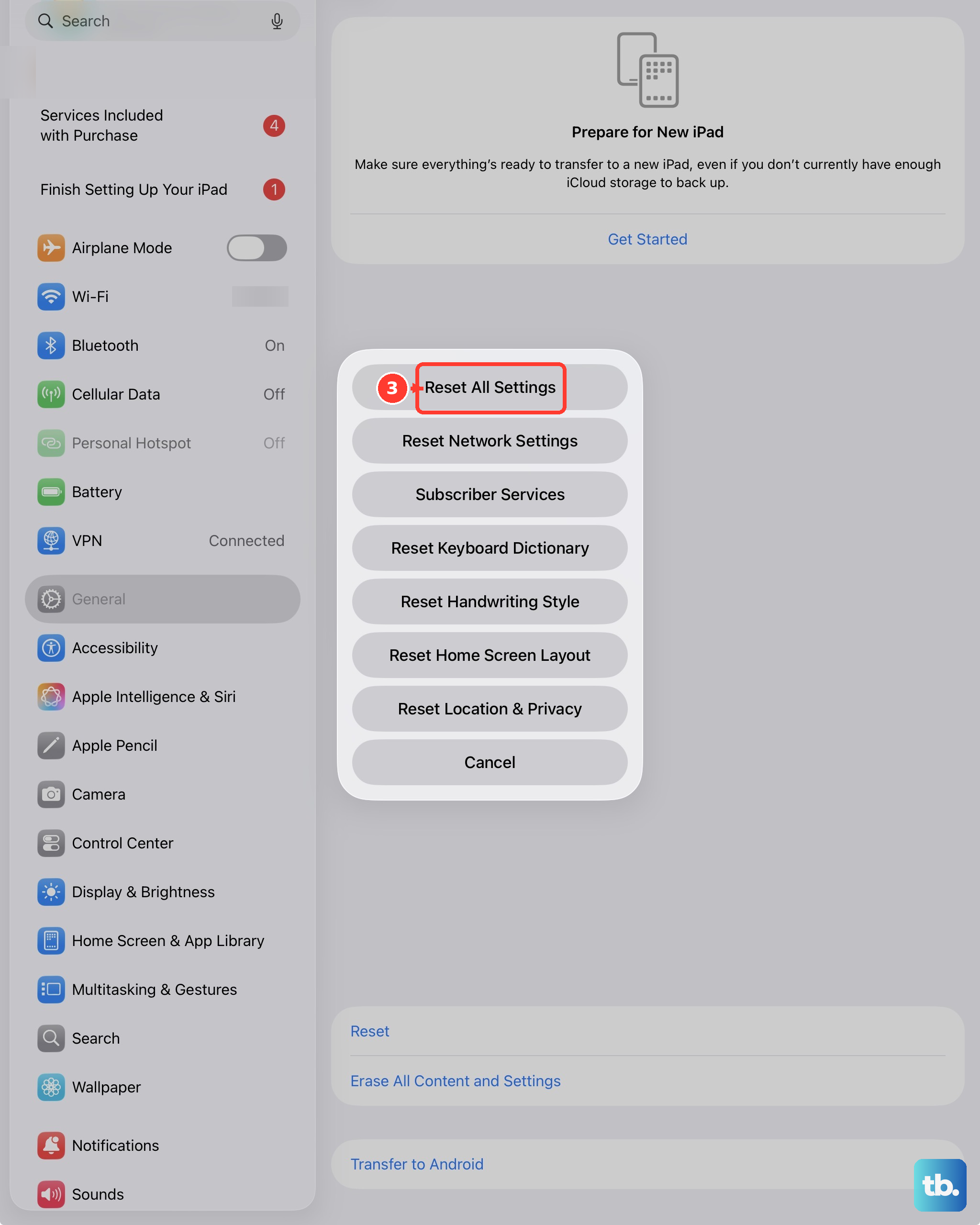
If the overheating persists and you can't pin it to a specific app or activity, a deeper software reset might help. This won't erase your personal data like photos or messages, but it will reset all your system settings to their defaults. Things like Wi-Fi passwords, wallpaper, and display preferences will need to be set up again.
To do this, go to Settings > General > Transfer or Reset iPad and tap Reset. Then choose Reset All Settings. Enter your passcode if prompted and confirm. After the iPad restarts, monitor its temperature during normal use to see if the issue is resolved.