
When your iPad mini stops responding to "Hey Siri" or "Hey Google," it feels like a step backward. You're left tapping on the screen for things your voice should handle. Let's get your assistant listening again.
The quickest thing to try is a simple restart. Press and quickly release the Volume Up button, then quickly press and release the Volume Down button. Finally, press and hold the Top button until you see the Apple logo appear. This force restart can clear out temporary glitches that might be blocking the microphone or voice processing.
Confirm Your Voice Assistant is Enabled
It sounds obvious, but the first place to check is in Settings. Open the Settings app and look for either Siri & Search or the Google Assistant app settings, depending on which one you use.
For Siri, make sure Listen for "Hey Siri" is toggled on. Also, check that Allow Siri When Locked is enabled if you want to use it without unlocking your iPad. For Google Assistant, open the Assistant app, tap your profile picture, go to Assistant settings, and then Hey Google & Voice Match to ensure it's turned on for your device.
Check for Settings That Interfere
Several features in iPadOS are designed to help but can accidentally block voice assistants. Head to Settings > Accessibility > Sound Recognition. If this feature is on, it will automatically disable "Hey Siri" to avoid conflicts. Toggle it off to restore Siri functionality.
Also, take a look at your Focus modes. If you have a Focus like Do Not Disturb or Personal active, it might be silencing or ignoring assistant requests. You can check this by swiping down from the top-right corner to open Control Center and seeing which Focus is active. Try turning them all off temporarily to test.
Retrain the Assistant to Recognize Your Voice
Background noise, a slight cold, or even just the natural evolution of your voice can throw off the recognition. It's a good idea to retrain it. For Siri, go to Settings > Siri & Search and turn Listen for "Hey Siri" off and then back on.
You'll be guided through the setup process again, where you'll say a few phrases. For Google Assistant, open the app, go to your profile, then Assistant settings > Hey Google & Voice Match and tap Retrain voice model. I've found this fixes the issue about half the time, especially if you set it up in a noisy place initially.
Inspect Your iPad's Microphones
The iPad mini has multiple microphones. If they're blocked, neither Siri nor Google will hear you. Check the top edge near the front camera and the sides for any small grilles. Look for lint, dust, or case material that might be covering them.
Gently clean these areas with a soft, dry brush. Be careful not to push debris further in. Also, if you're using a very thick case or a screen protector that wraps over the edges, try removing it to see if it's obstructing the microphone ports.
Review Your Audio and Connection Settings
Make sure your iPad's volume is turned up, as you won't hear the assistant's verbal response if it's muted. Also, check if a Bluetooth accessory like headphones or a speaker is connected. Sometimes the assistant gets confused about which microphone to use.
Disconnect any Bluetooth audio devices from Settings > Bluetooth and try using "Hey Siri" or "Hey Google" again directly through the iPad's speakers. While many requests are processed on-device now, some still need the internet. Ensure you have a stable Wi-Fi or cellular connection for full functionality.
Update iPadOS and Your Apps
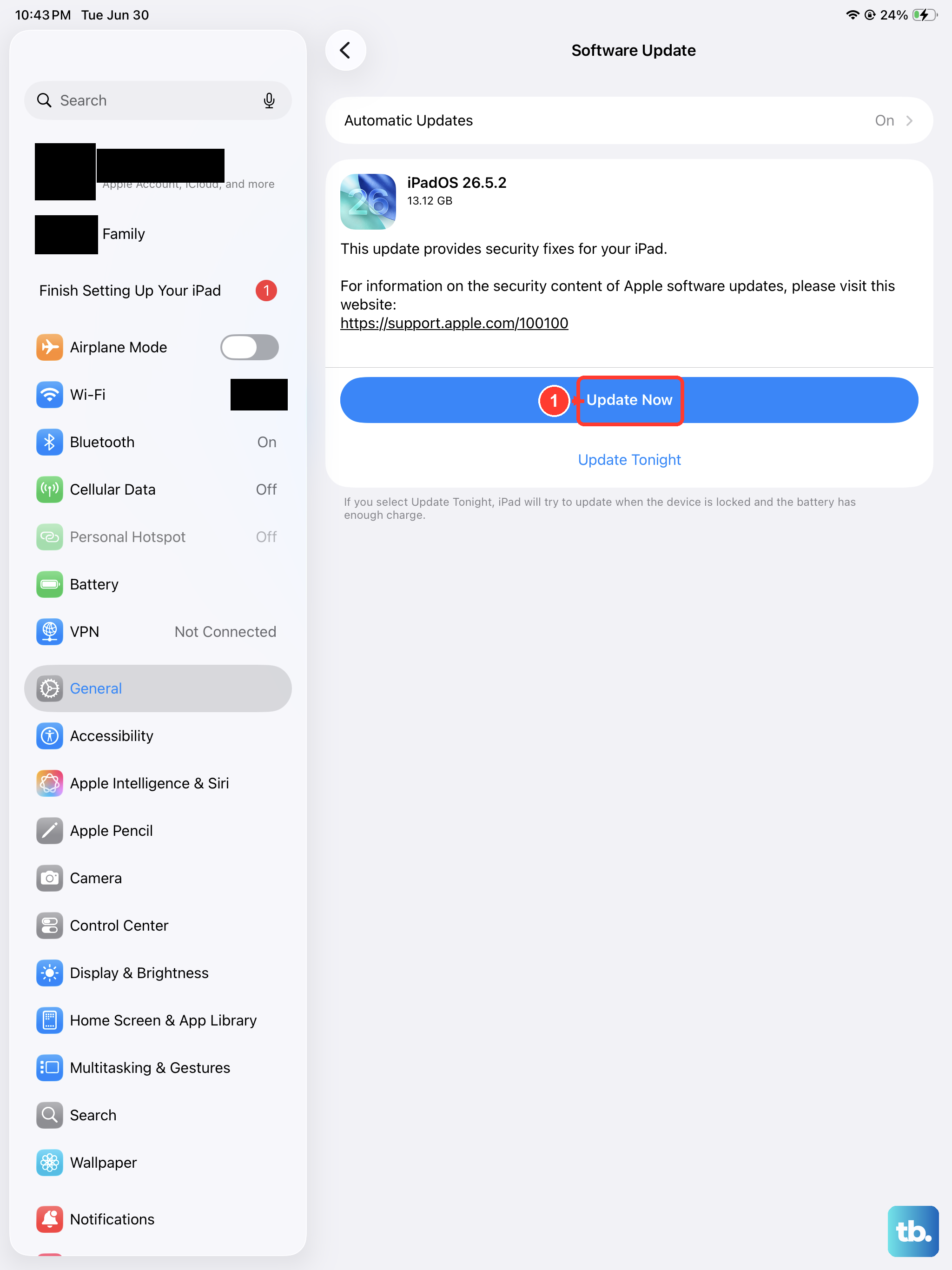
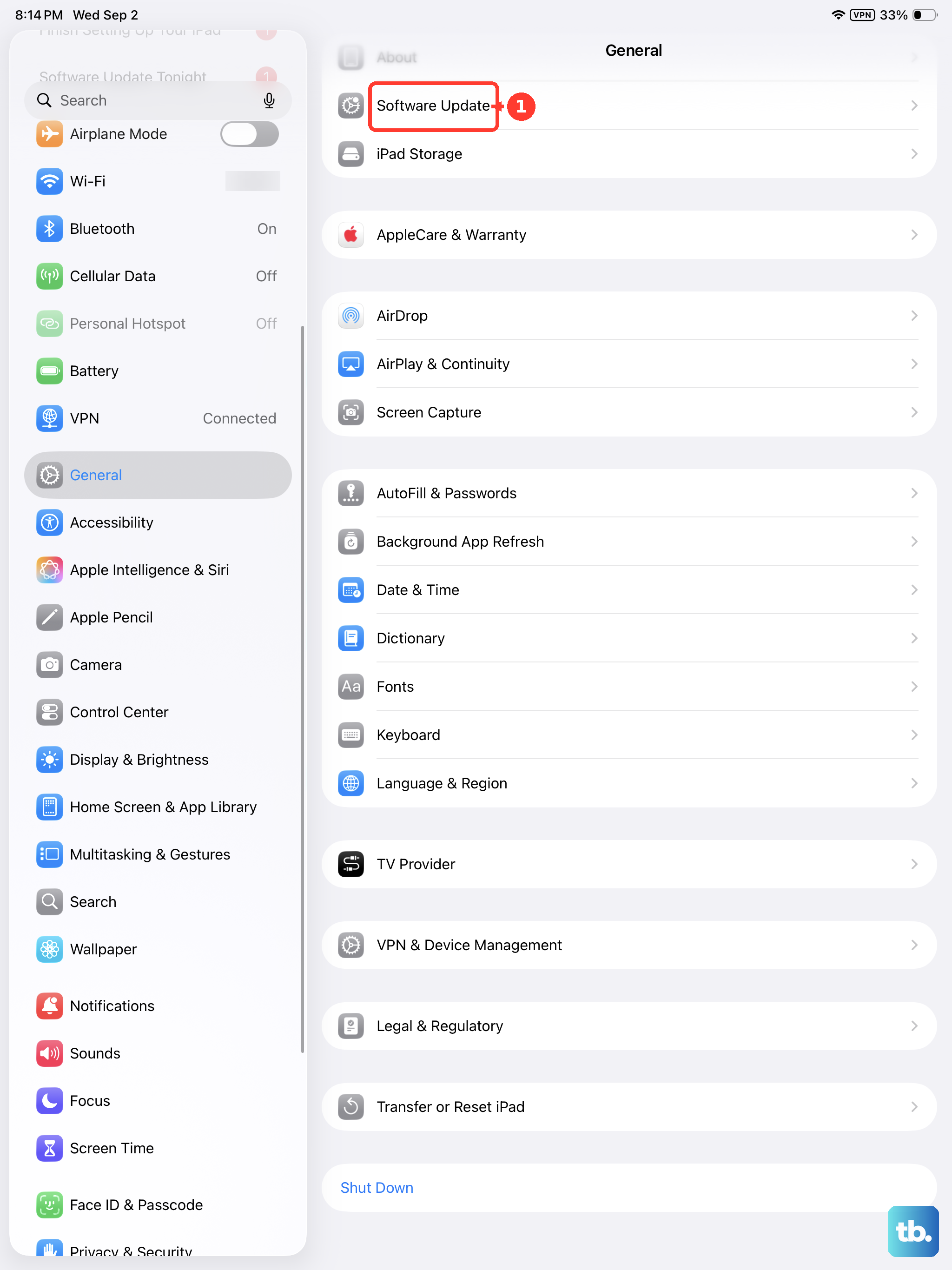
Software bugs are a common culprit for voice features stopping. Apple and Google regularly release updates with fixes. Go to Settings > General > Software Update to install the latest version of iPadOS.
Similarly, open the App Store, tap your profile icon, and update the Google Assistant app (or any other assistant app you use) to its newest version. Keeping everything updated is one of the most reliable ways to maintain stability.
Reset All Settings on Your iPad
If you've tried everything else and the assistant is still unresponsive, a settings reset can help. This won't delete your personal data like photos or apps, but it will revert all system settings, Wi-Fi passwords, wallpaper, notifications, back to their defaults.
Go to Settings > General > Transfer or Reset iPad. Tap Reset and then choose Reset All Settings. You'll need to re-enter passwords and reconfigure some preferences, but it often resolves deeper software conflicts affecting the microphones and voice services.