
When apps on your iPad mini keep closing unexpectedly, it usually means they're hitting a software snag they can't recover from. This can happen after a major iPadOS update, when new software can sometimes have temporary conflicts with apps. The quickest fix is often just closing the app and reopening it, or giving your iPad a fresh restart.
To force restart your iPad mini, press and quickly release the Volume Up button, then do the same with the Volume Down button. Immediately after, press and hold the Top button. Keep holding it until you see the Apple logo appear on the screen, then let go. This clears the device's temporary memory and can stop apps from crashing immediately.
Update Your Apps and iPadOS
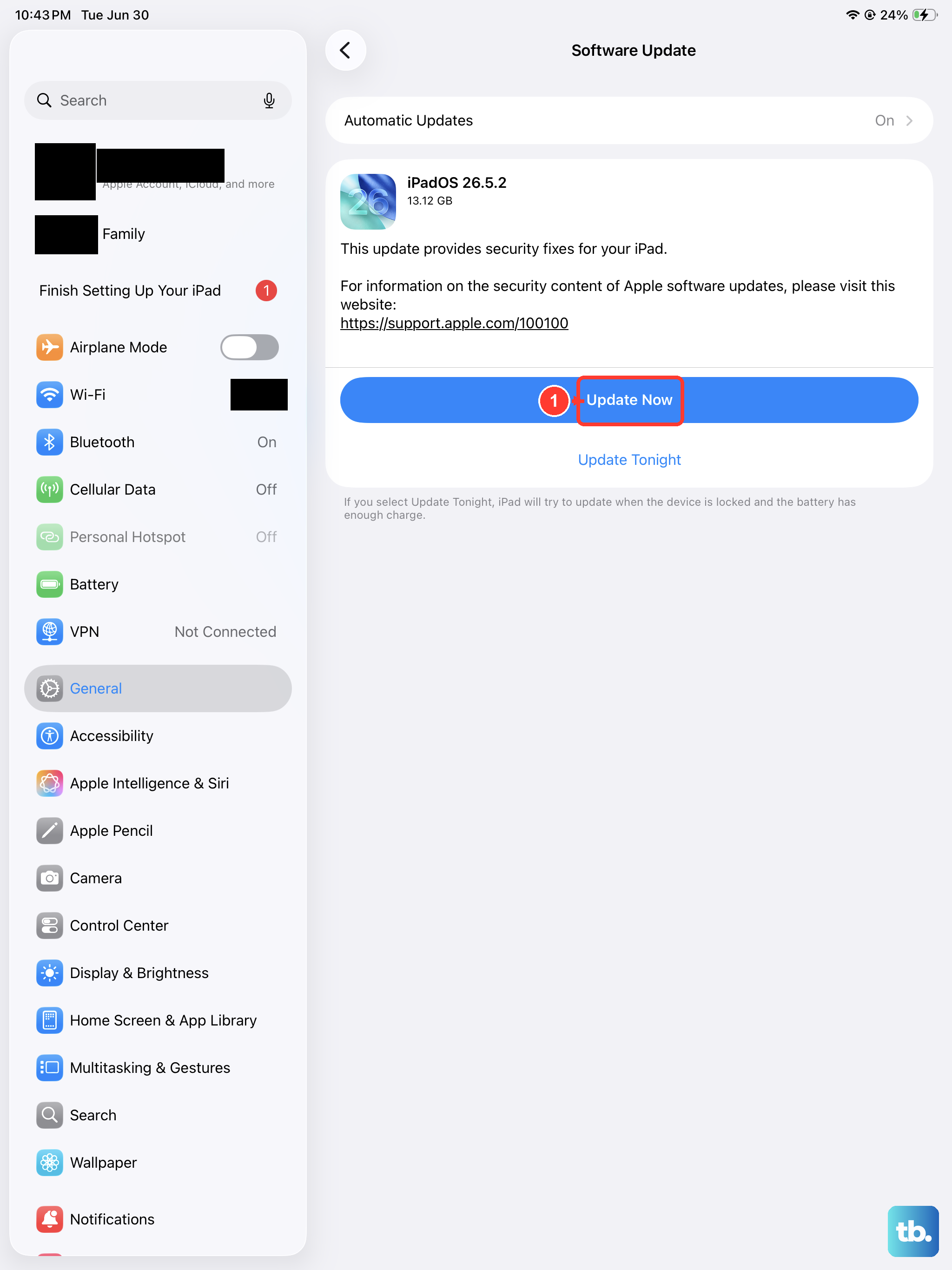
Outdated apps are a prime suspect for crashes. Developers release updates to fix bugs and ensure compatibility with the latest iPadOS. Head to the App Store and tap your profile icon in the top right corner. Scroll down to see if any updates are pending for your apps.
It's just as important to keep iPadOS itself current. Apple's updates often include performance improvements and stability patches. Go to Settings > General > Software Update to check for and install any available updates for your iPad mini. I've found that keeping both the OS and apps updated resolves most random closing issues.
Check Your Available Storage
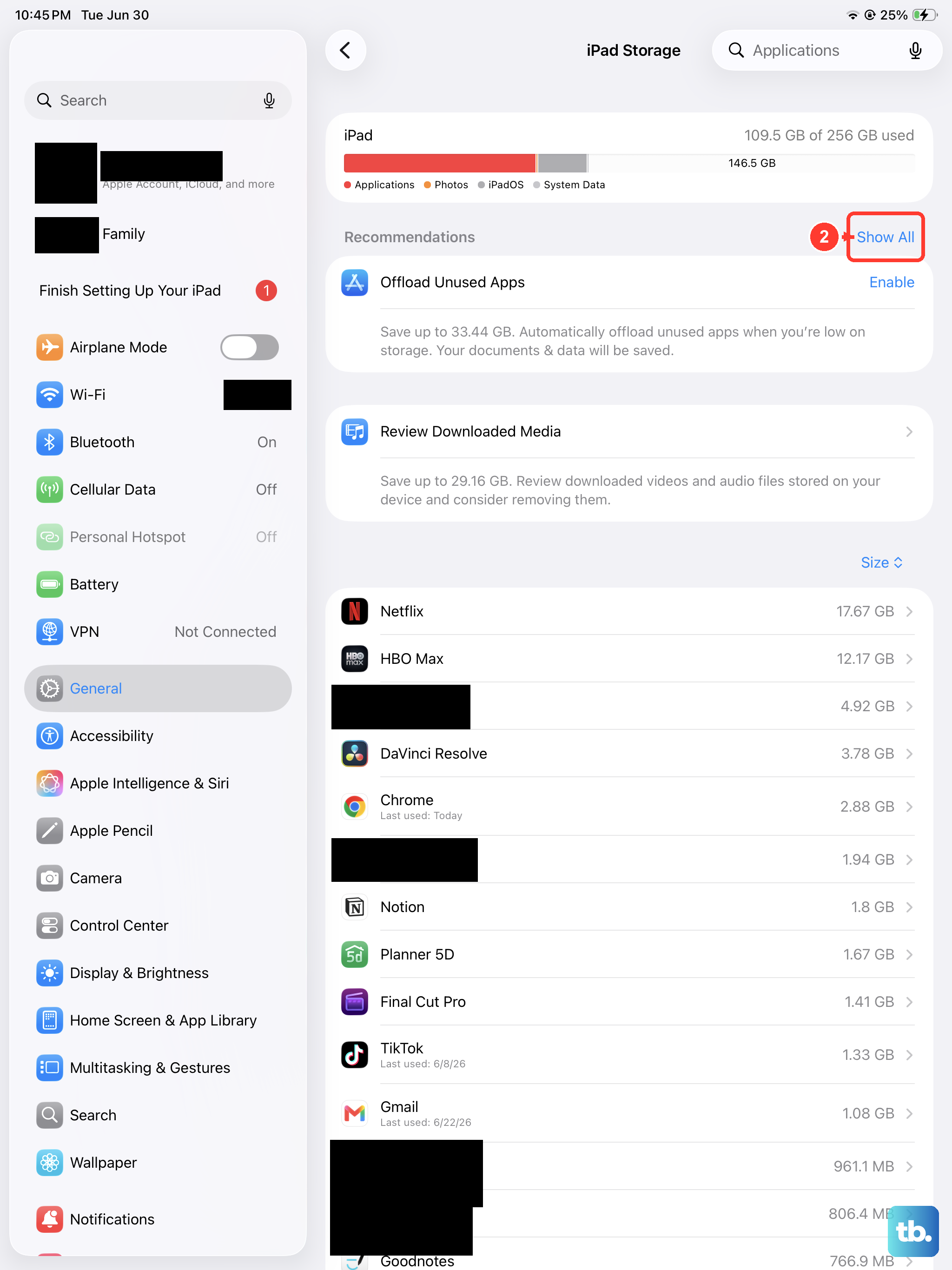
Your iPad mini needs free space to operate smoothly. When storage is critically low, apps can crash because they don't have room to create temporary files or cache data. You can check this by going to Settings > General > iPad Storage.
The system will show you a breakdown of what's using space. If you're below 1GB of free space, it's time to clear some out. Start by offloading unused apps, which removes the app but keeps its documents and data. You can also review large files in apps like Photos or clear Safari's website data.
Close and Reopen Problem Apps
If a specific app is misbehaving, force it to quit completely. Swipe up from the bottom of the screen and pause in the middle to enter the App Switcher. Find the app's preview and swipe it up and off the top of the screen to close it. Wait a moment, then tap the app icon on your Home Screen to relaunch it.
For a more thorough reset, you can offload the app. This deletes the app but keeps its data. Go to Settings > General > iPad Storage, tap the problematic app, and select "Offload App." Then, reinstall it from the App Store. This gives the app a clean install while preserving your login info and saved files.
Review Background App Refresh and Notifications
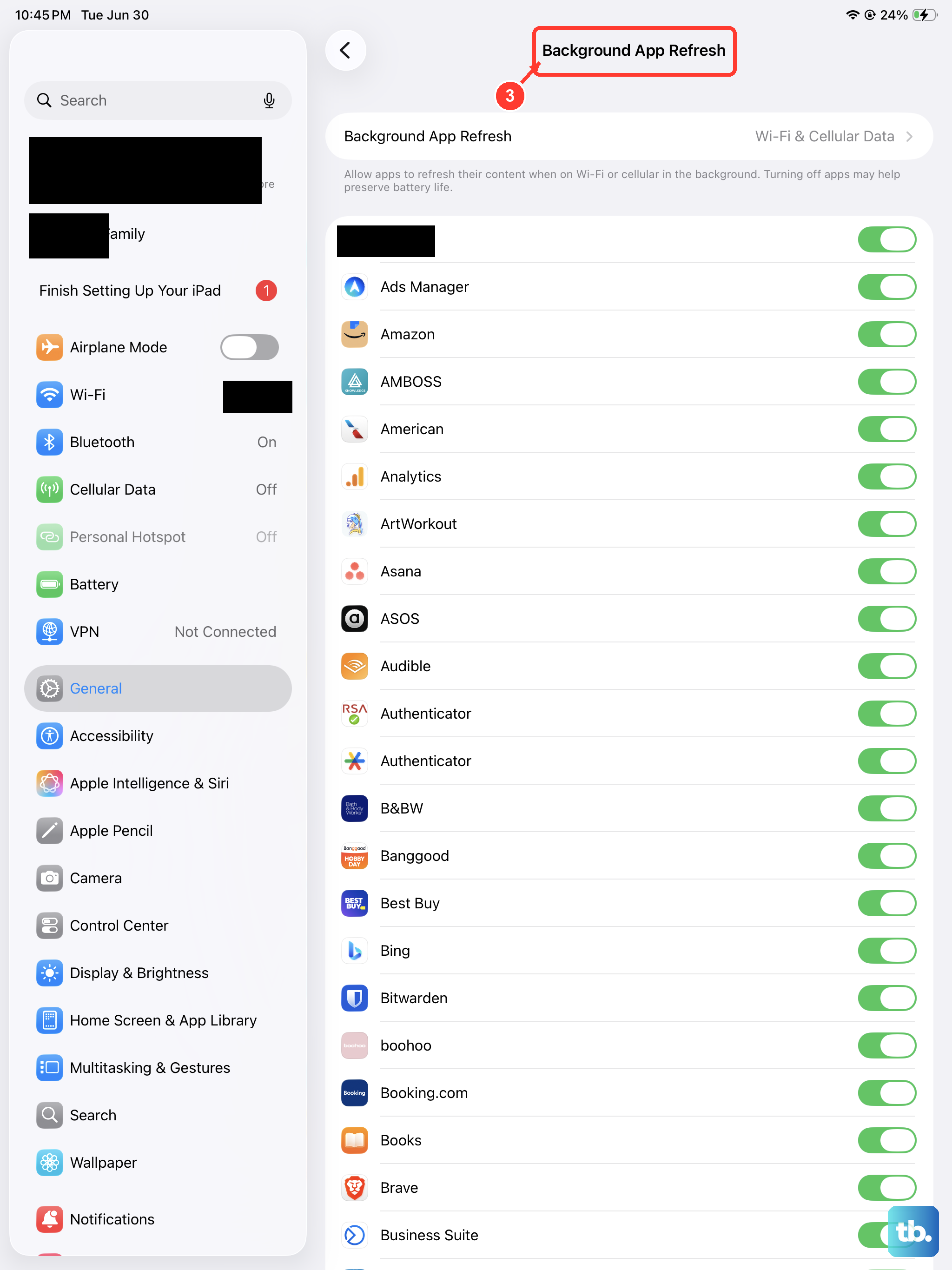
Some apps crash because they're trying to do too much in the background. You can manage this by adjusting Background App Refresh. Go to Settings > General > Background App Refresh.
You can turn this off entirely or just for specific, problematic apps. This can free up system resources. Similarly, if an app crashes when sending a notification, you can try temporarily disabling its notifications in Settings > Notifications to see if that stabilizes it.
Reset All Settings
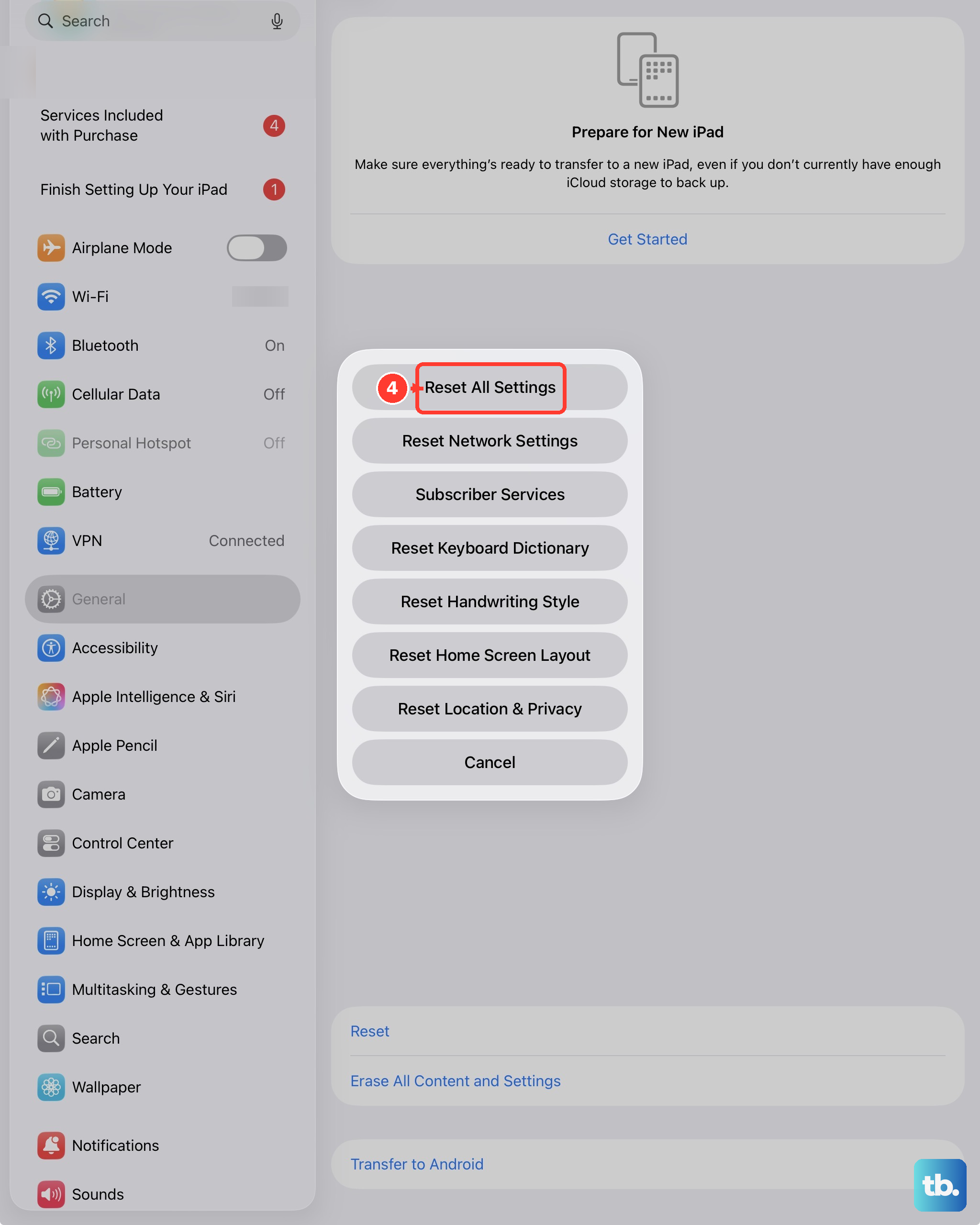
If apps are still closing and you've ruled out storage and updates, a deeper software reset might help. This will revert all your preferences, like Wi-Fi passwords, wallpaper, and privacy settings, back to their defaults without deleting your personal data.
Go to Settings > General > Transfer or Reset iPad. Tap "Reset" and then choose "Reset All Settings." Your iPad mini will restart. Afterward, you'll need to reconnect to Wi-Fi and re-customize some preferences, but your apps and files will remain intact.
Ensure a Stable Power Connection
While the iPad mini doesn't support wireless charging, using a proper charger is still important. Performance can throttle if the battery is extremely low or if you're using an underpowered or uncertified USB-C charger.
For the iPad mini, use an official Apple 20W or higher USB-C power adapter. Also, take a moment to check the USB-C port for any lint or debris, as a poor physical connection can cause power fluctuations that might affect app stability. A clean, solid charge can sometimes clear up weird software behavior.