
Factory resetting your iPad mini wipes everything and returns it to its original state. It's the nuclear option, but sometimes it's exactly what you need, whether you're selling your tablet, fixing persistent software issues, or just starting fresh. Here's how to do it safely without losing anything important.
Back Up Your iPad mini First
Before you reset anything, make sure your data is backed up. Go to Settings > tap your name at the top > iCloud > iCloud Backup. Tap Back Up Now and stay connected to Wi-Fi until it finishes. You can also back up to a computer using Finder on Mac or iTunes on Windows by connecting your iPad with a USB-C cable and selecting Back Up Now.
Double-check that your photos, notes, and messages are syncing to iCloud. Once you factory reset, everything on the device is gone permanently. I'd start with this backup step every single time.
Sign Out of Your Apple ID
This step is critical. Go to Settings > tap your name at the top, and scroll all the way to the bottom. Tap Sign Out. You'll be asked to enter your Apple ID password and to confirm you want to turn off Find My iPad. If you skip this, Activation Lock stays on and the tablet becomes unusable for anyone else, including you if you forget your credentials.
Factory Reset from Settings
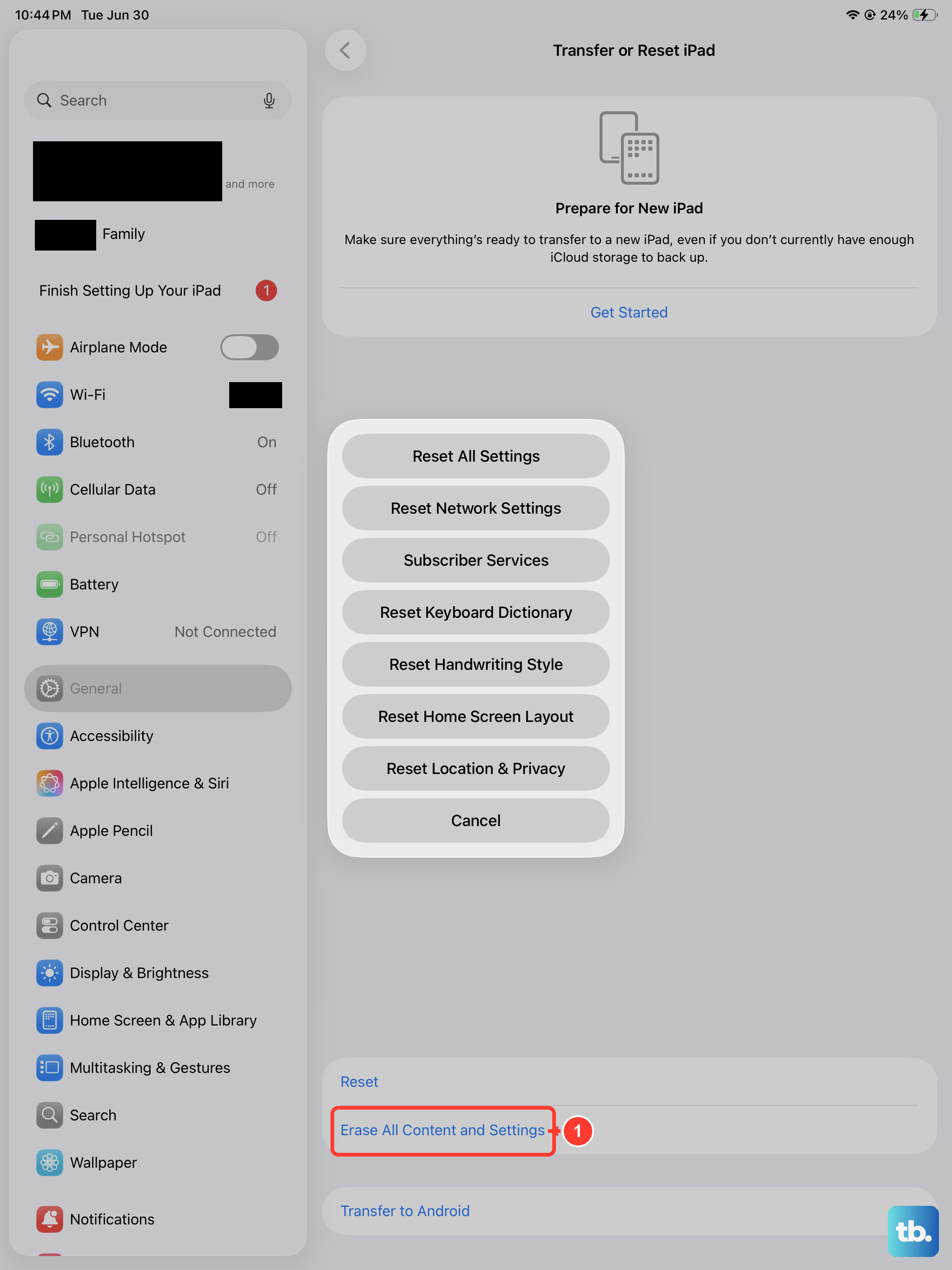
Open Settings > General > Transfer or Reset iPad. At the bottom, tap Erase All Content and Settings. Your iPad will ask for your passcode and your Apple ID password to turn off Find My. Confirm the reset and the tablet will begin erasing everything. This process takes a few minutes. When it finishes, you'll see the initial "Hello" setup screen, just like when the iPad was brand new.
Factory Reset Using a Computer
If your iPad mini is frozen, locked out, or won't respond to touch, you can reset it through a computer. Connect your iPad to a Mac or PC with a USB-C cable. Open Finder (on Mac with macOS Catalina or later) or iTunes (on Windows or older Macs). Select your iPad when it appears, then click Restore iPad.
This downloads the latest version of iPadOS and completely wipes the device. If the iPad won't show up in Finder or iTunes, you'll need to put it into recovery mode first. For the iPad mini 7th generation, quickly press and release the Volume Up button, then quickly press and release the Volume Down button, then press and hold the Top button until you see the recovery mode screen on your iPad.
Reset Without Erasing Everything
If you don't need a full wipe and just want to fix specific issues, there are targeted resets. Go to Settings > General > Transfer or Reset iPad > Reset. From here you can choose to reset only your network settings, keyboard dictionary, home screen layout, or location and privacy settings.
These options are great for fixing Wi-Fi or Bluetooth problems, or clearing out odd behavior in specific apps, without touching your personal photos, documents, or messages.
Set Up Your iPad After the Reset
Once the factory reset completes, your iPad mini boots to the "Hello" screen. Follow the on-screen prompts to choose your language, region, and connect to a Wi-Fi network. When asked, sign in with your Apple ID. You'll then be given the option to set up as new or restore from a backup.
Select Restore from iCloud Backup to pull your data back. Pick the most recent backup you created and wait for everything to download over Wi-Fi. Your apps, photos, and settings will gradually return as they were.
When You Should Factory Reset
A factory reset makes sense when your iPad has persistent lag, random app crashes, or battery drain that a simple restart or software update doesn't fix. It's also the essential final step before selling or giving away your device. For minor glitches, a force restart is a good first try. Just quickly press and release the Volume Up button, press and release the Volume Down button, then press and hold the Top button until you see the Apple logo.