
When your iPad mini's GPS stops working, it can leave you stranded without directions or prevent location-based apps from functioning properly. This is especially frustrating on a device you might rely on for navigation or outdoor activities. The good news is most GPS issues on the iPad mini are software-related and can be fixed with a few simple steps.
Start With These Quick Fixes
Before we get into the detailed steps, try these three things first. They solve the majority of temporary GPS glitches on the iPad mini.
First, give your iPad a quick restart. This clears out any temporary software bugs that might be interfering with the location services. Just hold the top button and either volume button, then slide to power off.
Next, check that Location Services are actually turned on. Swipe down from the top-right corner to open Control Center and look for the location arrow icon. If it's not highlighted, tap it to enable location access for a moment.
Finally, make sure you're not in Airplane Mode, as this disables all wireless radios including GPS. You can check this in Control Center as well, the airplane icon should not be orange.
Restart Your iPad mini
A simple restart is often the most effective fix. It clears the device's memory and resets all system processes, including the one that manages the GPS chip. I'd start with this every time.
To restart your iPad mini, press and hold the top button and either volume button until the power off slider appears. Slide it to turn off the device, wait about 30 seconds, then press and hold the top button again until you see the Apple logo.
If the GPS was stuck due to a minor software hang, this should get it working again immediately after the iPad boots back up.
Check Your Location Services Settings
Location Services might be disabled entirely, or the specific app you're using might not have permission to use your location. This is a common oversight, especially after updating to a new version of iPadOS.
Open the Settings app and tap Privacy & Security, then tap Location Services at the top. Make sure the main Location Services toggle at the very top is switched on and colored green.
Scroll down through the list of apps and find the one that's having GPS trouble, like Maps or a hiking app. Tap on it and make sure its permission is set to "While Using the App" or "Always," depending on your preference. Setting it to "Never" will completely block its access to GPS.
Toggle Airplane Mode
Turning Airplane Mode on and off forces all of your iPad's wireless radios, cellular, Wi-Fi, Bluetooth, and GPS, to reset. This can clear up conflicts that prevent the GPS from getting a clean signal.
Swipe down from the top-right corner to open Control Center. Tap the airplane icon to turn Airplane Mode on, it will turn orange. Wait for about 15 seconds to let everything fully disconnect.
Then, tap the airplane icon again to turn it off. Give your iPad another 15 seconds to reconnect to cellular or Wi-Fi networks, then try opening your maps app again to see if the GPS has locked on.
Update Your Apps and iPadOS
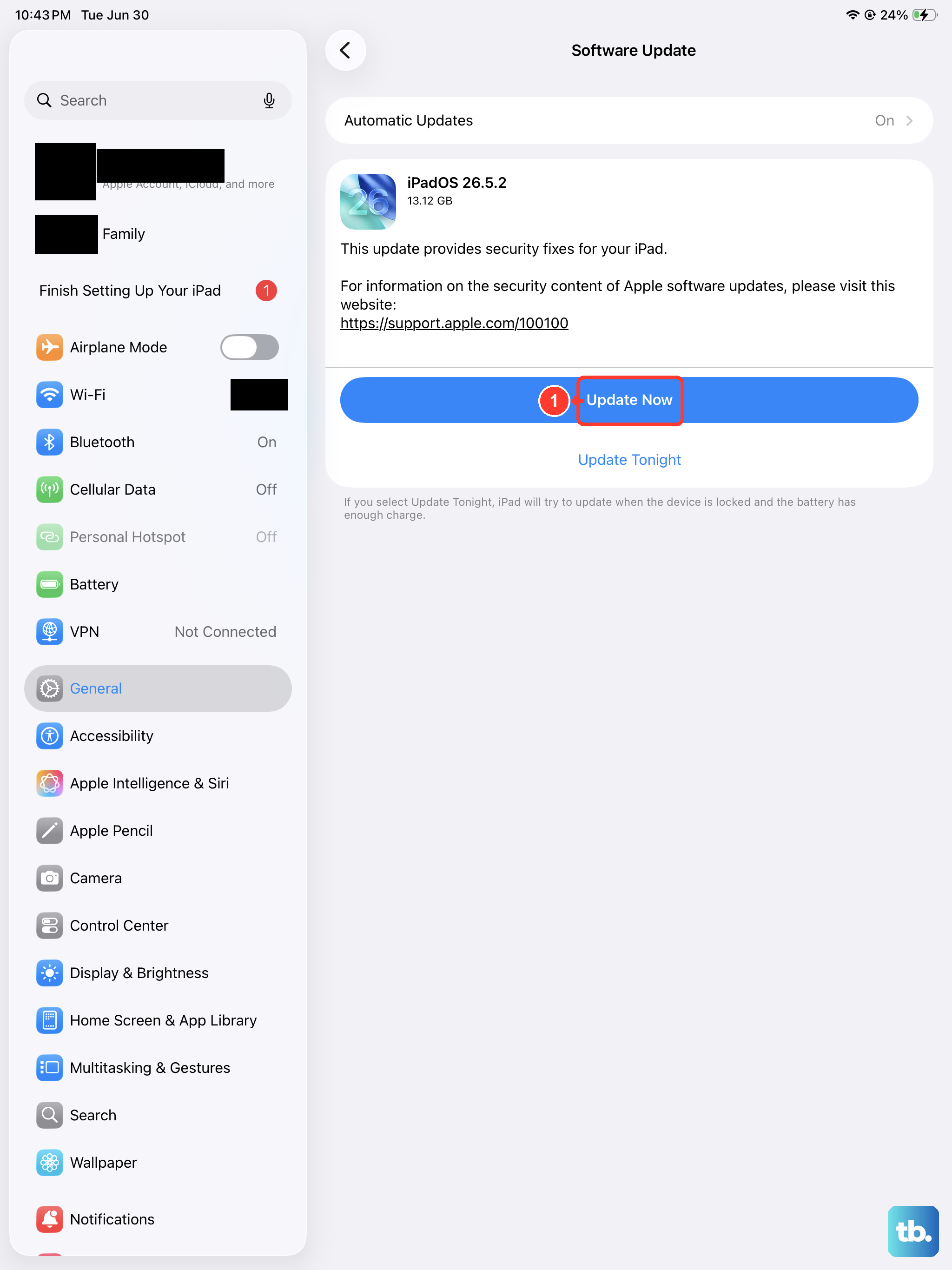
Outdated software is a frequent culprit for GPS problems. An old version of Maps or your navigation app might have a bug that breaks location tracking. Similarly, system-level bugs in iPadOS itself can affect the GPS hardware.
First, open the App Store and tap your profile icon in the top right. Scroll down to see if there are any pending updates, especially for Maps, Google Maps, or any other app you use for GPS. Tap "Update All" to be safe.
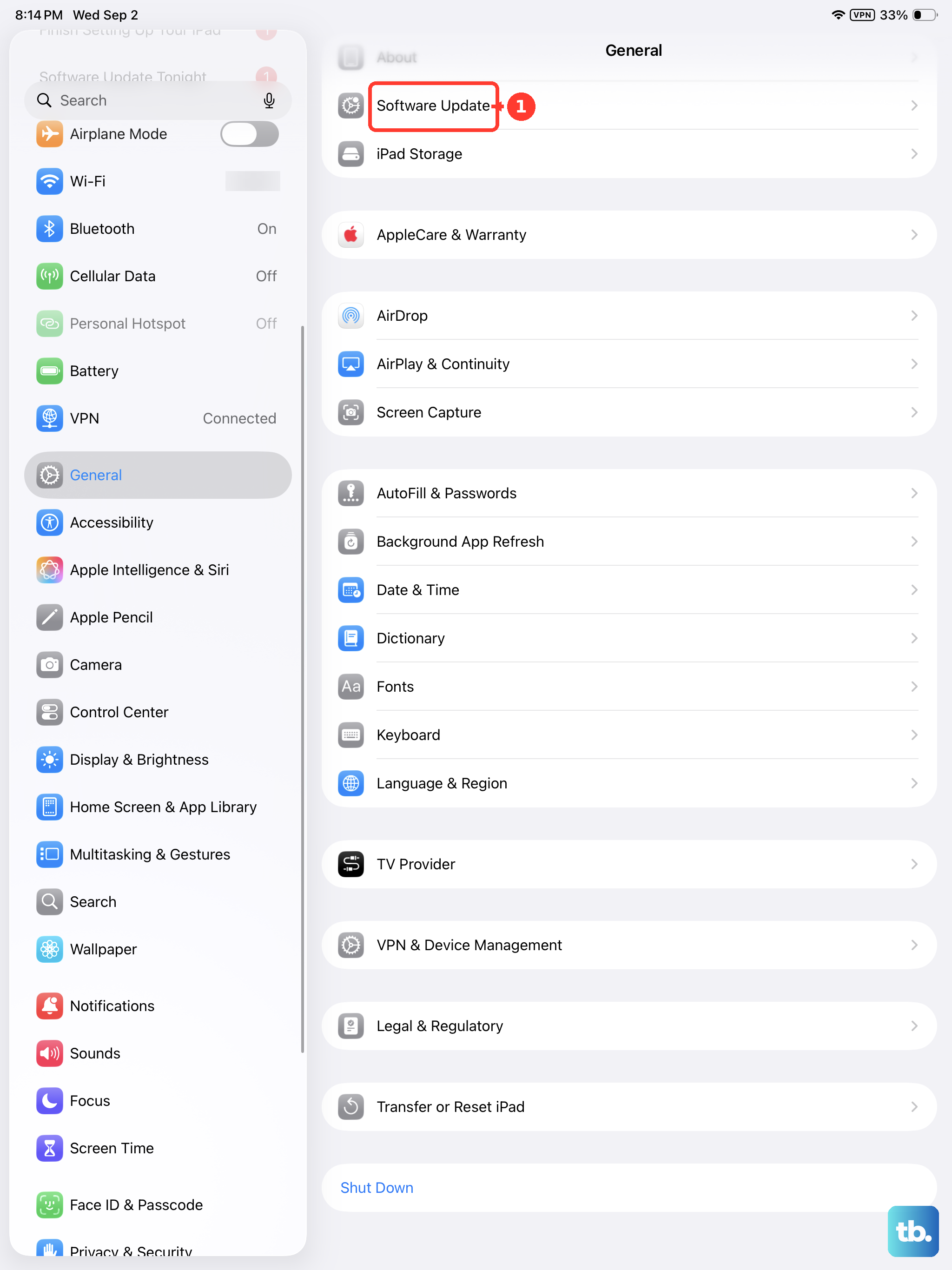
Next, check for an iPadOS update. Go to Settings > General > Software Update. If an update is available, I'd recommend installing it. Apple often includes fixes for location and connectivity issues in these updates.
Reset Your Network Settings
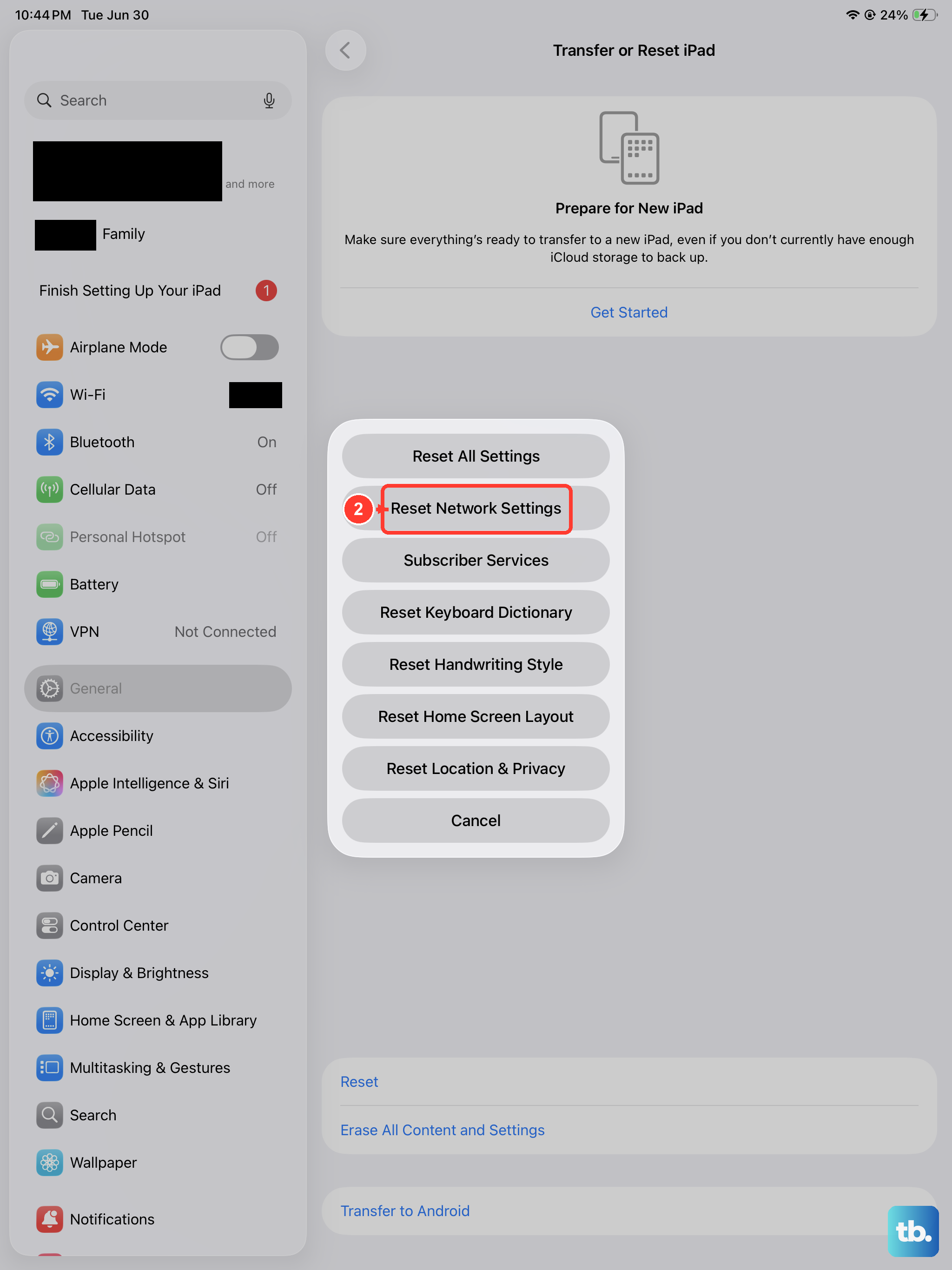
This step resets all network-related configurations back to their factory defaults. It clears out Wi-Fi passwords, cellular settings, and VPN configurations, but it can also resolve deeper software conflicts affecting the GPS.
Be aware this will make your iPad forget all known Wi-Fi networks and you'll need to re-enter passwords. Go to Settings > General > Transfer or Reset iPad. Tap Reset at the bottom, then choose Reset Network Settings.
Enter your passcode if prompted and confirm the reset. Your iPad will restart. Once it's back on, reconnect to your Wi-Fi and test the GPS again. This has fixed stubborn location issues for many users.
Check for Physical and Environmental Issues
The iPad mini's GPS antenna needs a relatively clear line of sight to the sky to communicate with satellites. If you're indoors, in a basement, or surrounded by tall buildings, the signal can be very weak or non-existent.
Try moving near a window or, better yet, step outside into an open area. Thick metal cases or magnetic accessories, particularly ones that cover the back of the iPad near the top, can also interfere with the antenna.
If you're using a case, try removing it temporarily to see if the GPS performance improves. Some third-party cases with strong magnets or metal plates can disrupt the signal.
Force Restart Your iPad mini
If a normal restart didn't help, a force restart is a stronger reset that can clear more persistent glitches. It's different from just turning the device off and on.
To force restart your iPad mini (7th generation), quickly press and release the Volume Up button, then quickly press and release the Volume Down button. Immediately after that, press and hold the Top button.
Keep holding the Top button even after you see the power off slider. Continue holding until you see the Apple logo appear, then you can let go. This forces a hard reboot of the entire system.
Check Date & Time Settings
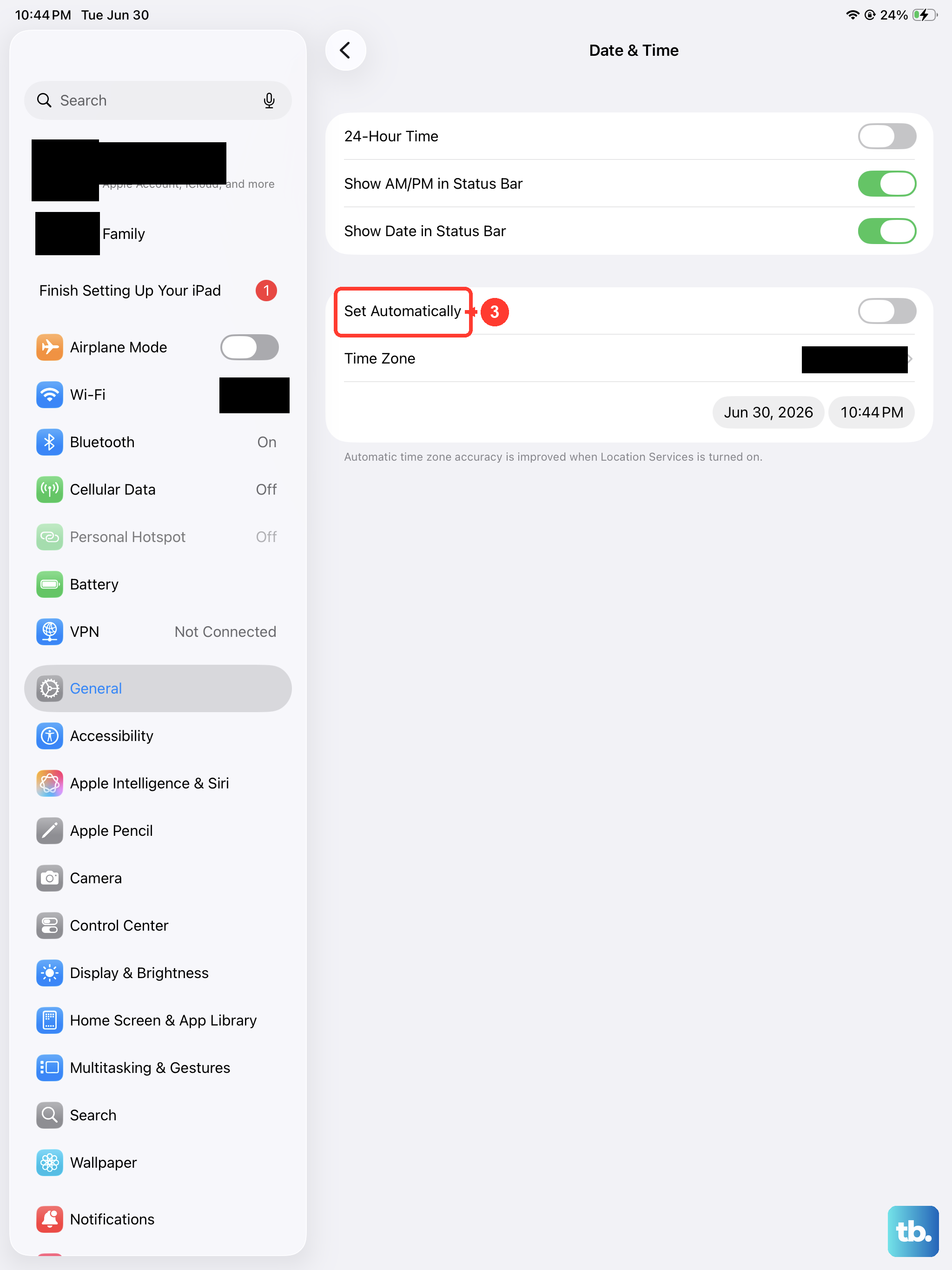
This might seem unrelated, but GPS relies on incredibly precise timing data from satellites. If your iPad's date, time, or time zone are set incorrectly, it can completely throw off the location calculation.
Go to Settings > General > Date & Time. Make sure the "Set Automatically" option is turned on. This allows your iPad to set the correct time based on your network location.
If it's already on, try turning it off for a moment, then turn it back on. This forces the iPad to re-fetch the correct time data, which can help the GPS sync up properly.
Test With a Different App
To figure out if the problem is with one specific app or with the iPad's GPS system as a whole, try using a different app that requires location. Open the built-in Compass app, for example, or download a free app like "GPS Status" from the App Store.
If the other app can find your location accurately, then the issue is isolated to your original navigation app. Try force-closing that app and reopening it, or uninstalling and reinstalling it.
If no app can get a GPS lock, then the issue is system-wide, pointing back to a setting, a software bug, or less commonly, a hardware problem with the antenna.