
When your iPad mini stops syncing emails, it can leave you waiting on important messages or unable to send replies. This is usually a quick fix, often related to a setting that got changed or a temporary glitch in the Mail app.
Before we get into the specific steps, let's cover a couple of universal checks. First, make sure your iPad mini is connected to the internet, either through Wi-Fi or cellular data if you have that model. Second, it's worth a quick check to see if your email provider, like Gmail or Outlook, is having a widespread service outage, as that's completely out of your hands.
Restart the Mail App
This is the fastest thing to try. If the Mail app is just stuck, force-closing it can clear the issue. Swipe up from the bottom of the screen and pause in the middle to enter the app switcher. Find the Mail app preview and swipe it all the way up to close it. Wait a moment, then tap the Mail icon to reopen it and see if your emails start flowing.
Check Your Mail Fetch and Push Settings
Your iPad mini can check for new mail in two main ways: Push, which delivers emails instantly, or Fetch, which checks at intervals you set. To adjust this, go to Settings > Apps > Mail > Accounts > Fetch New Data.
If Push is available for your account type, make sure it's turned on. If you only see Fetch options, choose "Automatically" for the most frequent checks. Remember, with Fetch, your iPad will typically only look for new data in the background when it's connected to power and Wi-Fi.
Toggle Airplane Mode
This resets all your iPad's wireless connections in one go. Swipe down from the top-right corner to open Control Center and tap the airplane icon. Wait about 30 seconds, then tap it again to turn Airplane Mode off. This can clear up temporary network hiccups that might be blocking email sync.
Switch Between Wi-Fi and Cellular
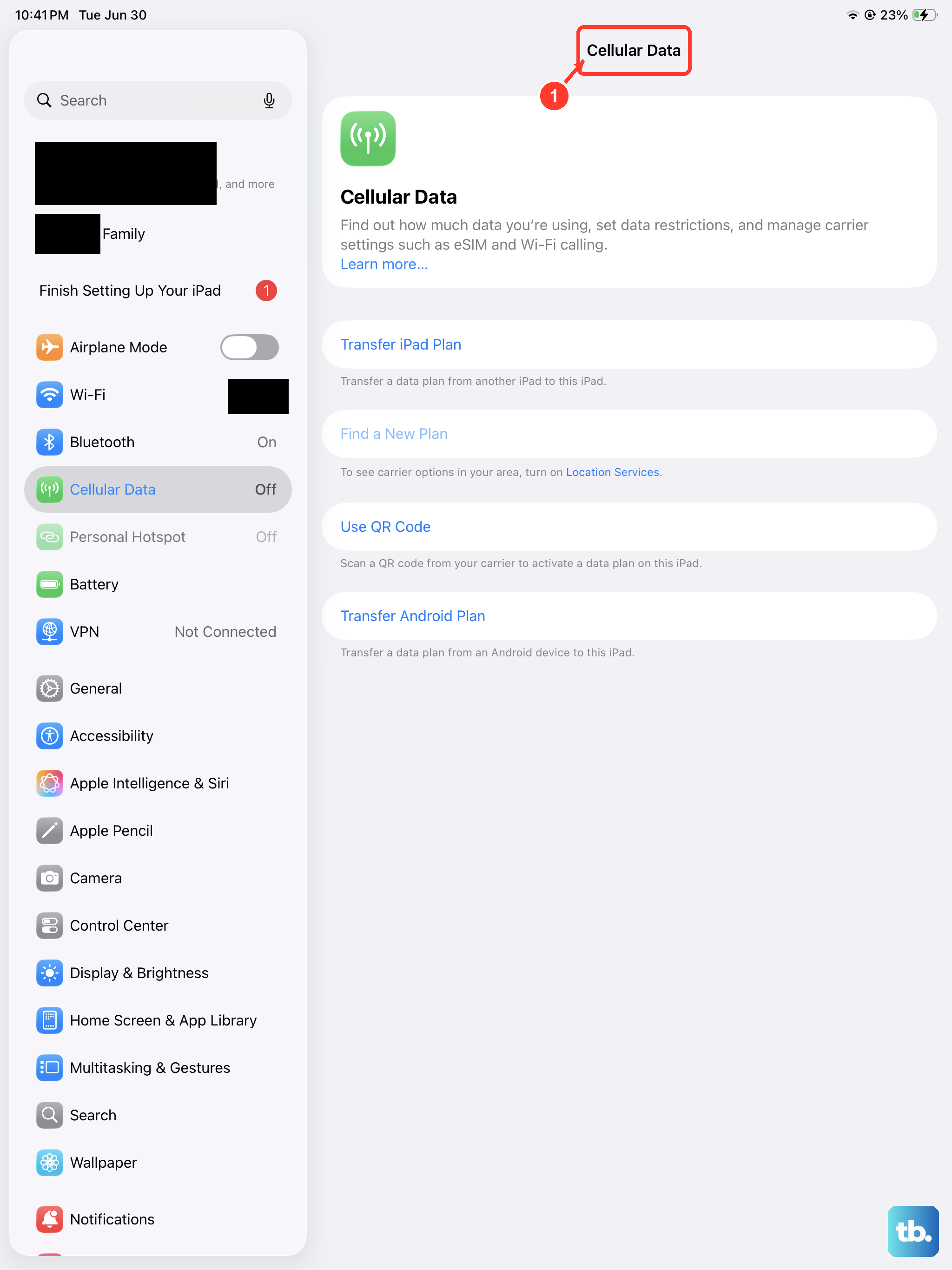
Sometimes the problem is with one specific network. If you're on Wi-Fi, try turning it off to force the iPad to use cellular data, or vice versa. You can turn cellular data on or off by going to Settings > Cellular Data. I've seen cases where an email server has a brief issue with one type of connection but not the other.
Verify Your Email Account Password
Passwords expire, get changed on other devices, or sometimes just need re-entering. Try logging into your email account through a web browser on a computer. If you can't sign in there, you'll need to reset your password with your email provider first.
Once you have the correct password, you can update it on your iPad by going to Settings > Apps > Mail > Accounts, tapping your account, and then tapping "Re-enter Password."
Enable Background App Refresh for Mail
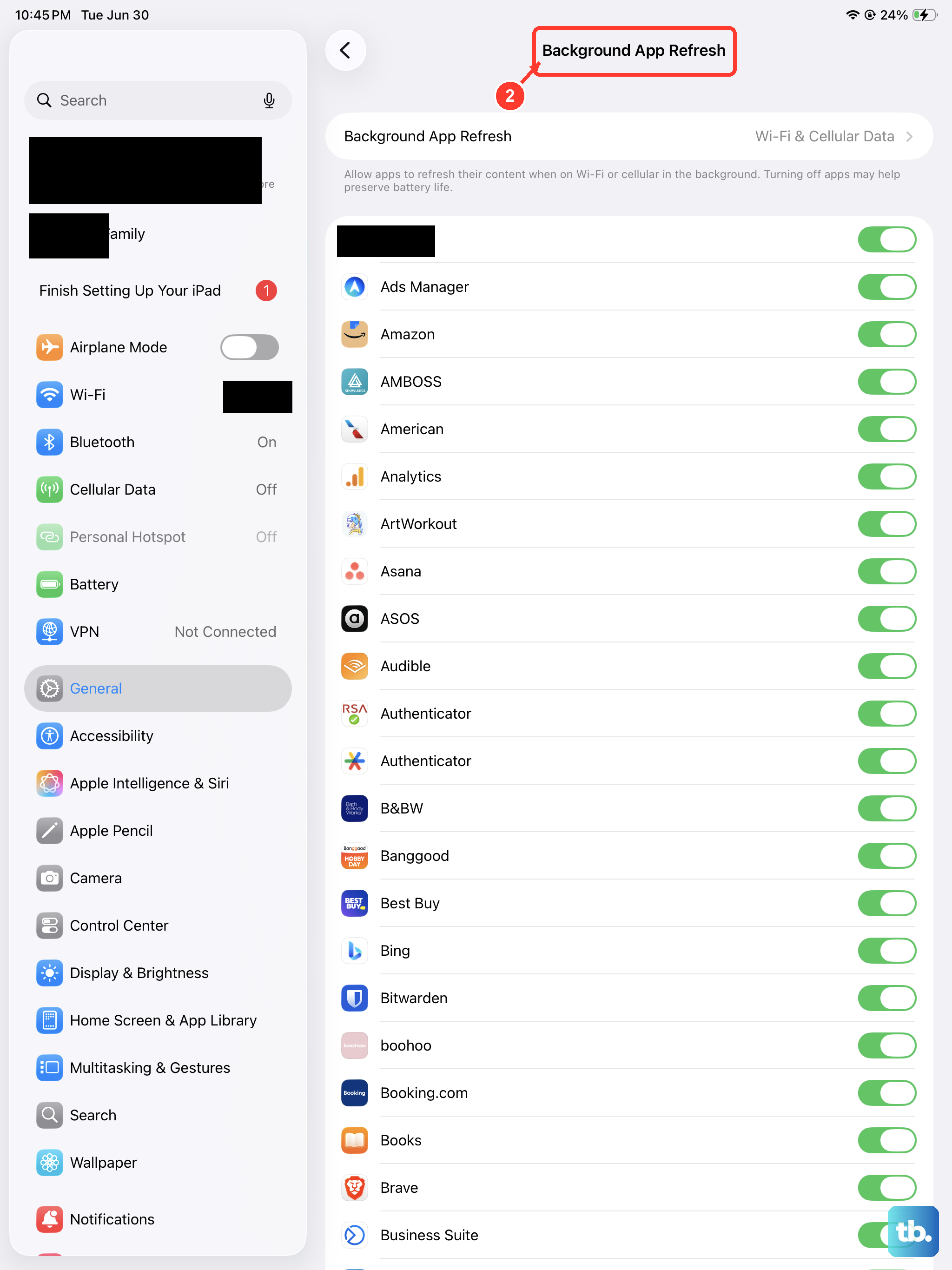
This setting allows the Mail app to check for new messages even when you're not actively using it. To make sure it's on, navigate to Settings > General > Background App Refresh. Ensure the toggle at the top is on, and then scroll down to confirm the switch next to Mail is also enabled.
Check for Cellular Data Restrictions
If you're relying on a cellular connection, you need to make sure the Mail app is allowed to use it. Open Settings and go to Cellular Data. Scroll down through the list of apps until you find Mail, and make sure its toggle is switched to the on position.
Set the Date and Time Automatically
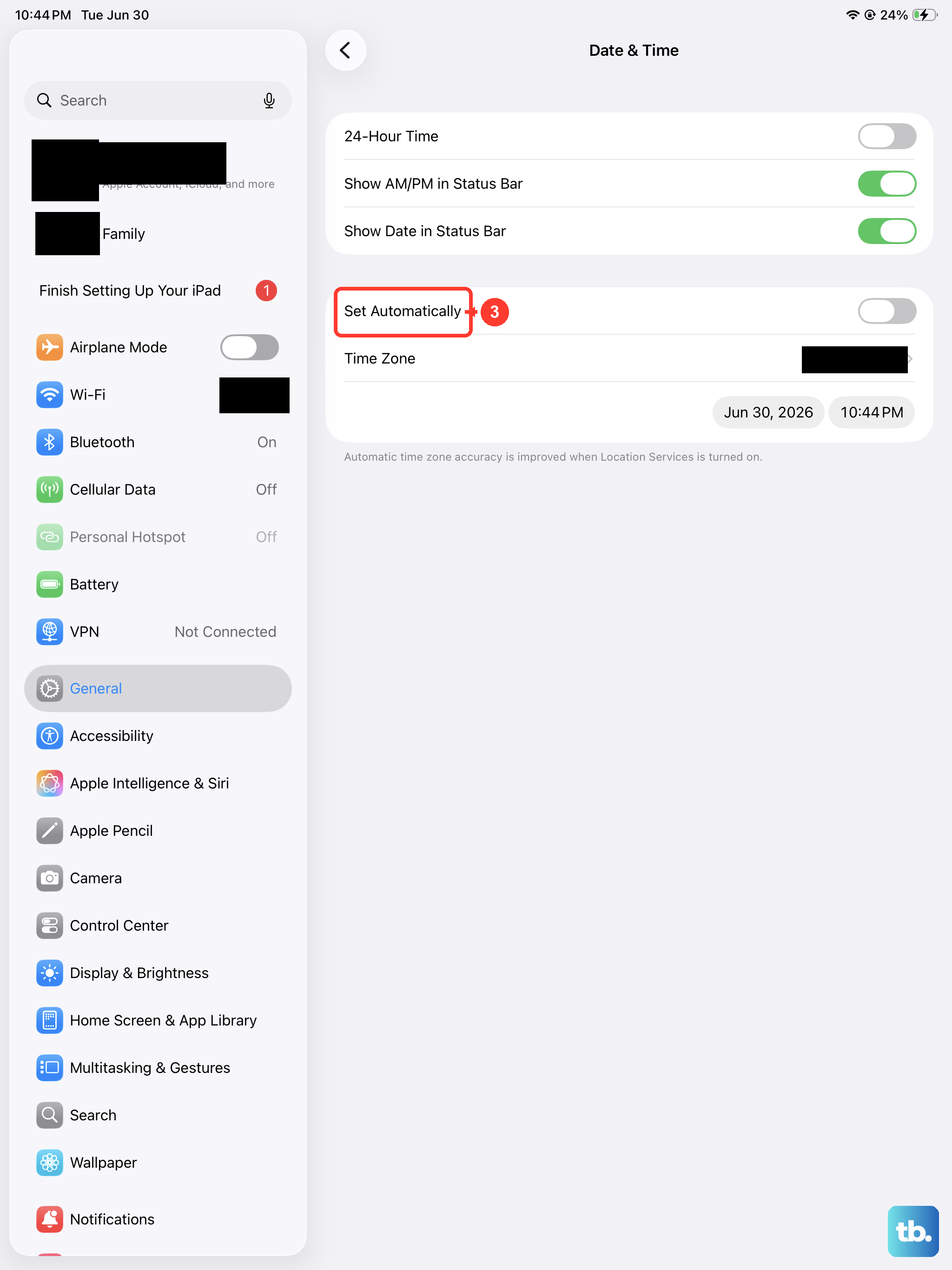
Incorrect date and time settings can cause all sorts of syncing problems, including with email. Your iPad mini needs to know the correct time to communicate properly with mail servers. Go to Settings > General > Date & Time and make sure "Set Automatically" is turned on.
Check Your Mail Notification Settings
If emails are arriving but you're not getting alerts for them, the issue is with notifications, not syncing. Go to Settings > Notifications > Mail. Tap on the specific email account you're having trouble with and ensure "Allow Notifications" is enabled. You can also customize the alert style and sounds here.
Disable Any Active VPN
A VPN is great for privacy, but it can sometimes interfere with the connection to your email provider. If you're using one, try temporarily turning it off to see if that resolves the sync issue. You can manage VPNs in Settings > General > VPN & Device Management.
Update Your iPadOS Software
Software updates from Apple frequently include fixes for bugs that affect apps like Mail. It's always a good idea to make sure you're running the latest version of iPadOS. Go to Settings > General > Software Update. If an update is available, I'd recommend installing it, as it often clears up persistent glitches.
Delete and Re-add Your Email Account
This is a more thorough step that can fix deeper configuration issues. It removes the account and all its settings, then lets you set it up fresh. Go to Settings > Apps > Mail > Accounts, tap on the problematic account, and then tap "Delete Account." Don't worry, this doesn't delete your emails from the provider's server.
After deleting, go back to the Accounts page and tap "Add Account" to set it up again. You'll need your email address and current password.
Force Restart Your iPad Mini
A standard restart fixes many issues, but a force restart can clear more stubborn ones. On your iPad mini (7th generation), press and quickly release the Volume Up button, then press and quickly release the Volume Down button. Finally, press and hold the Top button until you see the Apple logo appear on the screen, then release it.
Reset All Network Settings
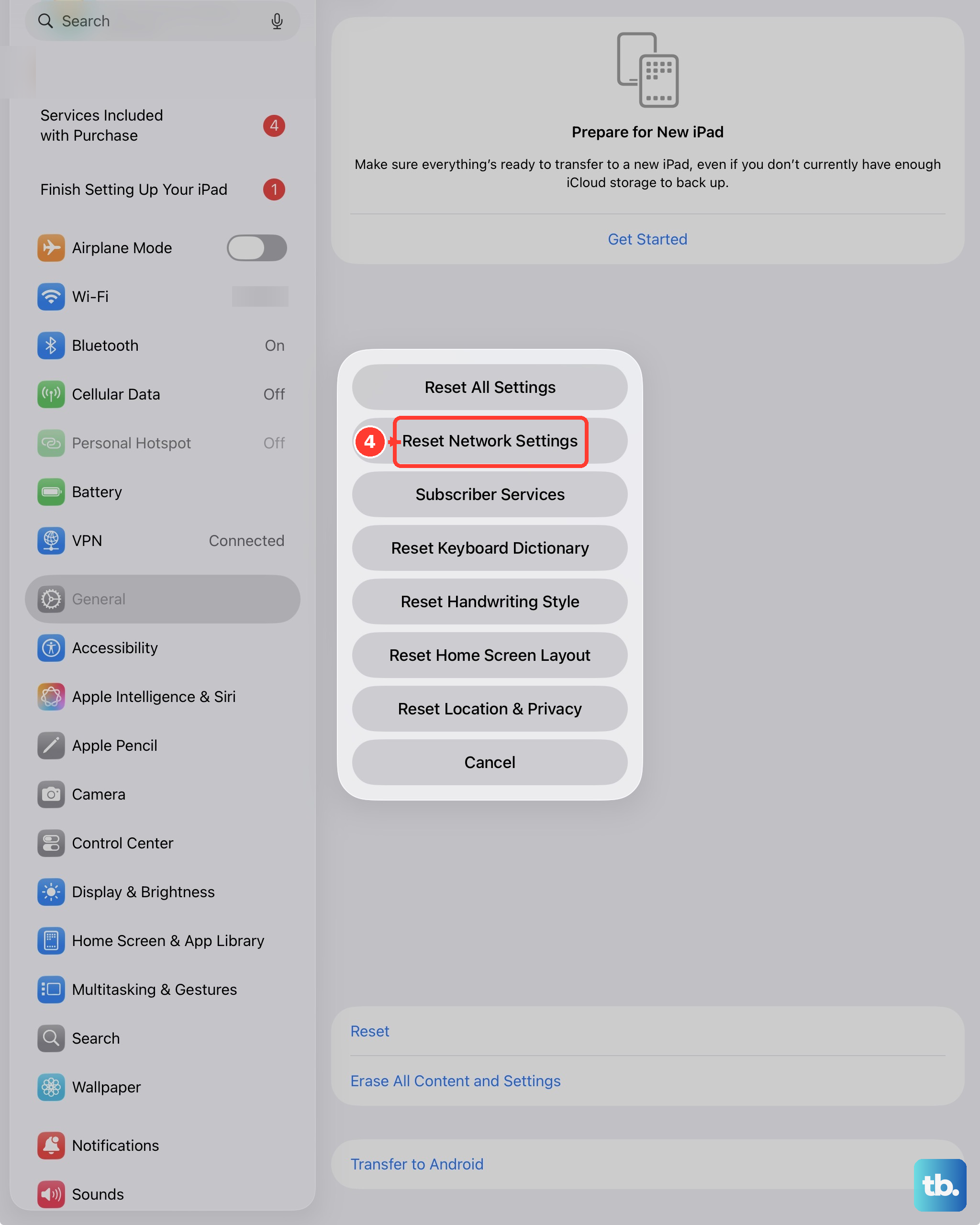
If you're still having trouble and it seems network-related, this step can help. It clears all your Wi-Fi networks and passwords, cellular settings, and VPN configurations, then restores them to defaults. Go to Settings > General > Transfer or Reset iPad > Reset, and choose "Reset Network Settings." You'll need to re-join your Wi-Fi networks afterward.