
When your headphones stop working with your iPad Air M3, whether they're wired via USB-C or wireless Bluetooth, it kills the experience of music, calls, and videos. The iPad might not detect them, send audio to the speakers instead, or play distorted sound. Here's how to fix it.
It helps to confirm what actually works before changing settings. Run a left and right audio test, note which channels and frequencies play correctly, and match the result against the steps below.
Check the Basics First
Make sure your wireless headphones are charged and in pairing mode or that your wired headphones are fully plugged into the USB-C port (using an Apple-certified USB-C to 3.5mm adapter if needed). Try the headphones with another device like your iPhone or a Mac to confirm they work. If they don't work on anything, the headphones themselves are the problem.
Restart Your iPad Air M3
A quick restart can clear temporary software glitches that mess up audio routing. Press and quickly release the volume button closest to the Top button, then the one farthest from it, then press and hold the Top button until the Apple logo appears. Let the iPad restart fully and test your headphones again. This takes about 30 seconds and solves most audio hiccups.
Check the Volume and Mute Settings
Press the Volume Up button on the top edge of your iPad while headphones are connected and make sure the volume is turned up. iPads don't have a physical mute switch like iPhones, but check Control Center doesn't have the sound muted or the volume slider at zero. Open Control Center by swiping down from the top-right corner and confirm the volume slider is active.
Clean the USB-C Port
For wired headphones using a USB-C adapter, lint or debris in the port can prevent a solid connection. Use a wooden toothpick or a soft brush to gently clean out the USB-C port. Avoid metal objects and be careful not to damage the port. Compressed air works well too. A dirty port is a common cause when wired audio cuts in and out.
Forget and Re-Pair Bluetooth Headphones
Go to Settings > Bluetooth. Find your headphones in the list and tap the (i) icon next to them. Tap Forget This Device. Then put your headphones back into pairing mode and reconnect them from scratch. A fresh pairing clears corrupted connection profiles, which is a frequent issue with AirPods and other Bluetooth headphones.
Check the Audio Output
Sometimes audio gets routed to the wrong output. Open Control Center, press and hold the audio card (top-right corner), and see which device is selected. Make sure it shows your headphones, not the iPad speakers or another Bluetooth device. You can also tap the AirPlay icon in any app playing audio to switch outputs directly.
Turn Bluetooth Off and Back On
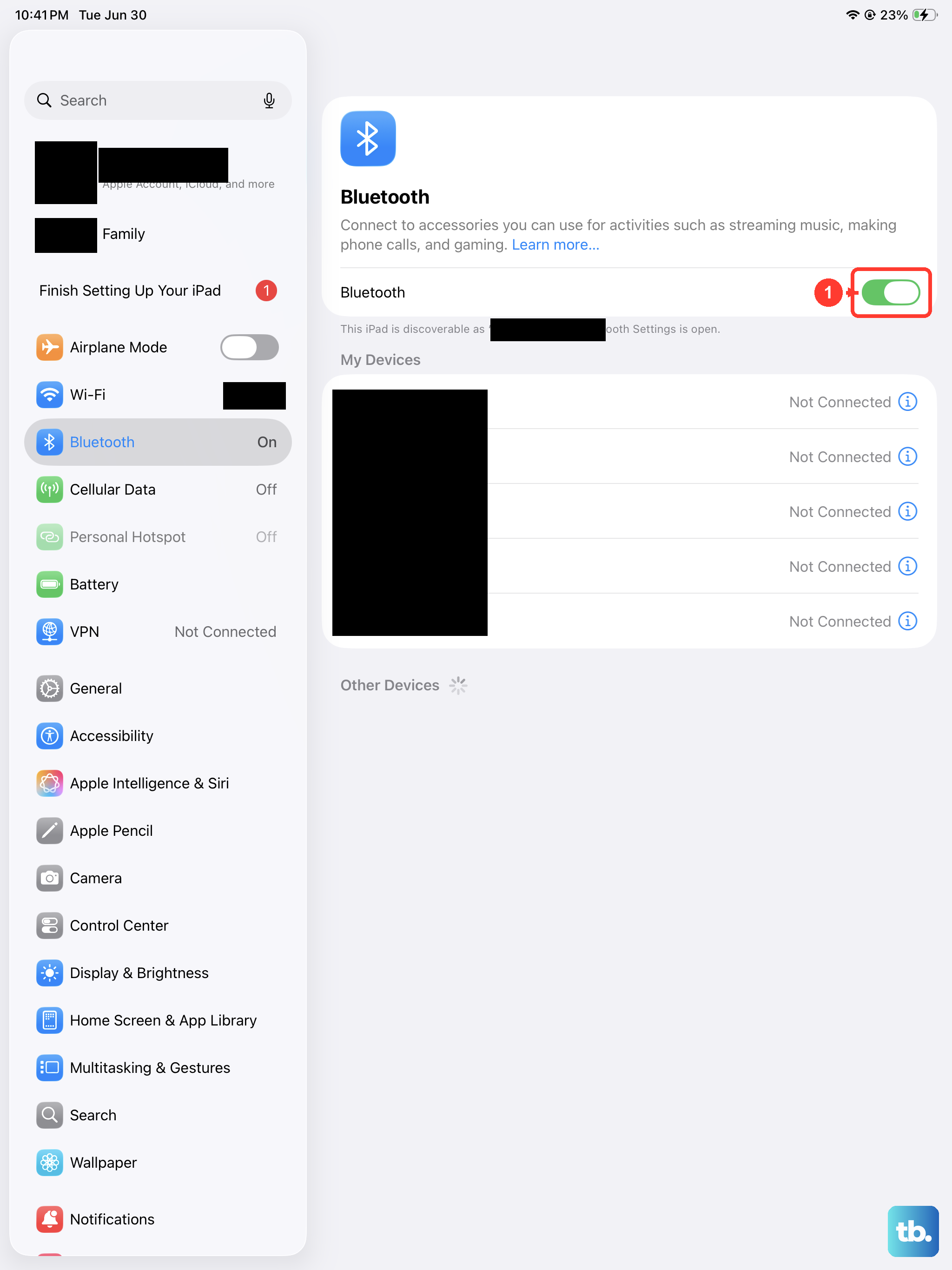
Toggle Bluetooth off in Settings > Bluetooth. Wait 10 seconds, then turn it back on. This refreshes the Bluetooth stack and can fix connection drops or audio stuttering. It's a simple step that often helps when a device won't stay connected.
Check for Stuck Headphone Mode
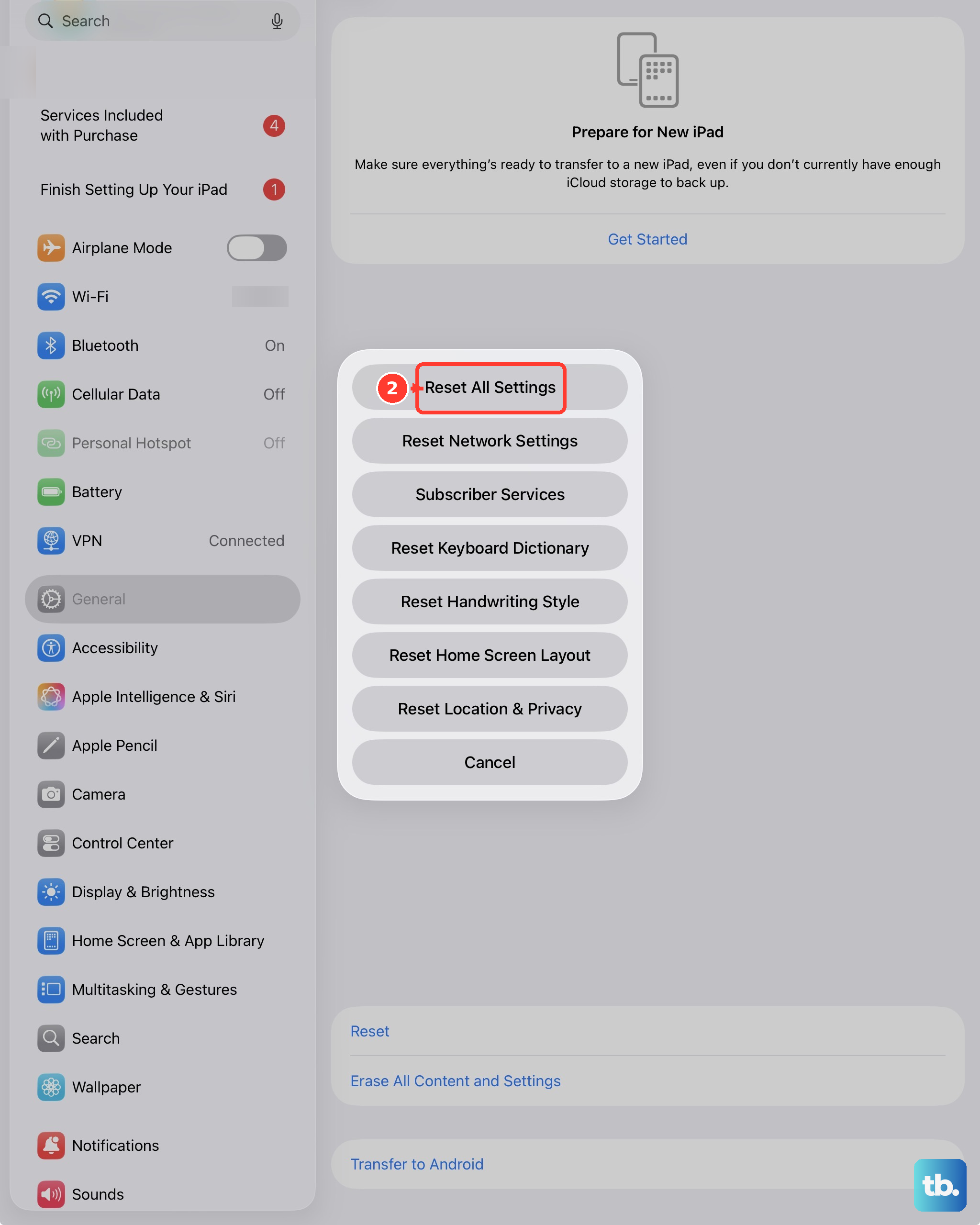
Your iPad might think cables or headphones are plugged into the USB-C port when they aren't. You'll see the headphone icon in the status bar or volume indicator even without anything attached. Clean the USB-C port thoroughly, plug a headphone adapter in and out several times, or restart the iPad. If the icon persists, try Settings > General > Transfer or Reset iPad > Reset > Reset All Settings this usually kicks it out of stuck headphone mode.
Update iPadOS
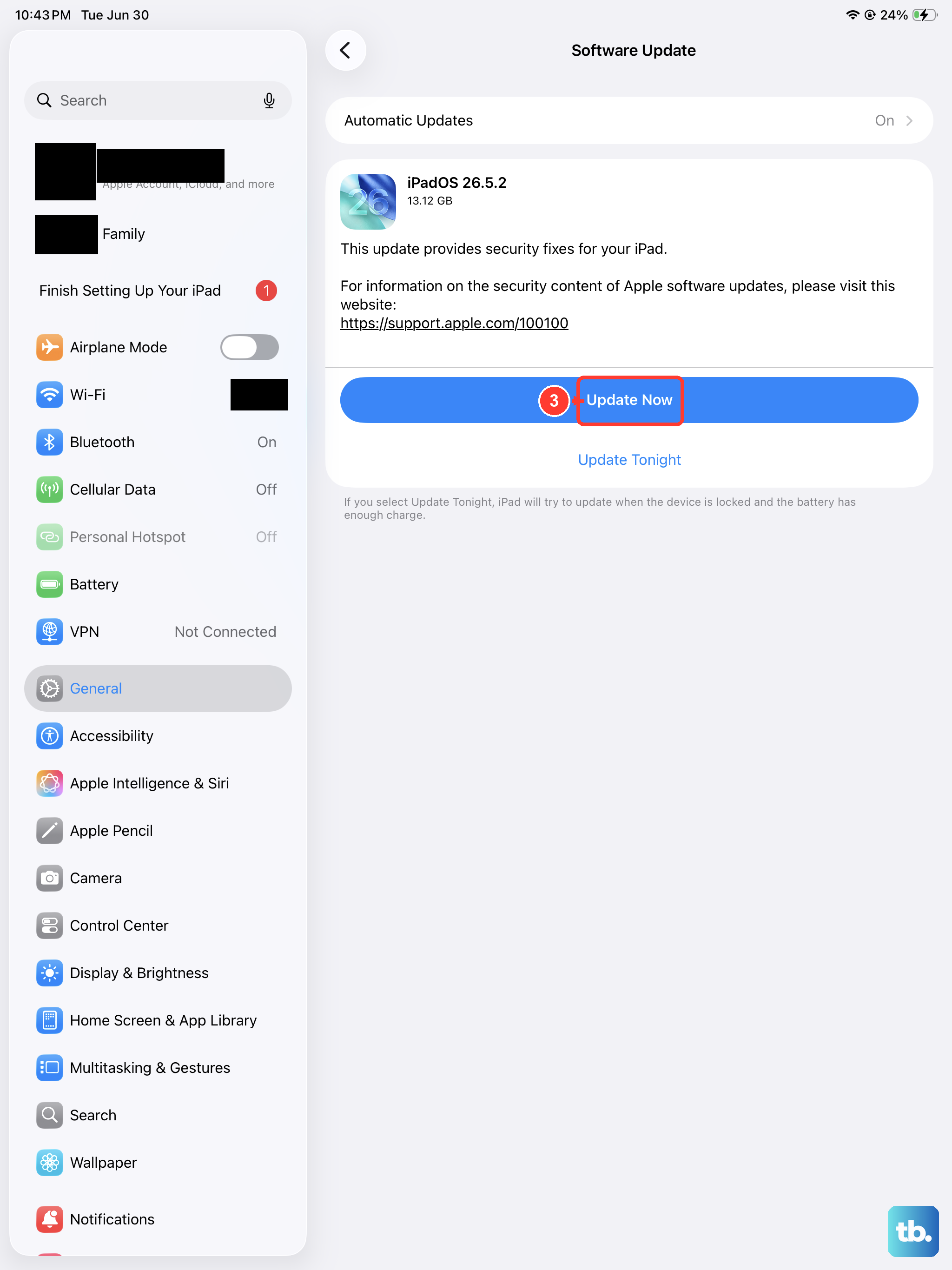
Go to Settings > General > Software Update. Audio and Bluetooth bugs are regularly fixed in iPadOS updates. Keeping your iPad Air M3 on the latest version is especially important if you use AirPods or Beats headphones, which get firmware updates through the iPad.
Reset All Settings
If nothing else has worked, go to Settings > General > Transfer or Reset iPad > Reset > Reset All Settings. This resets system settings including Bluetooth pairings, Wi-Fi passwords, and audio preferences without deleting your data. You'll need to re-pair your headphones, but it often fixes stubborn audio routing problems that other steps miss.