
Getting a "Call Failed" error on your iPad Air M3 can be just as annoying as on an iPhone, whether you're trying to make a FaceTime Audio call or a regular cellular call on a Wi‑Fi + Cellular model. The good news is that most of the time it's a quick network or settings fix.
Here are 10 ways to fix call problems on the iPad Air M3, starting with the fastest solutions.
Toggle Airplane Mode
This is the easiest thing to try first. It forces your iPad to re‑establish its connection to the cellular network (or Wi‑Fi for FaceTime).
Swipe down from the top‑right corner to open Control Center. Tap the Airplane icon to turn it on, wait about 10 seconds, then tap it again to turn it off. Try your call again.
Check Your Connection
Weak signal is the most common cause. Look at the signal bars at the top‑right of your screen. If you have one bar or see "No Service," move closer to a window or step outside. For FaceTime calls, make sure you're on a stable Wi‑Fi network you can test by streaming a video.
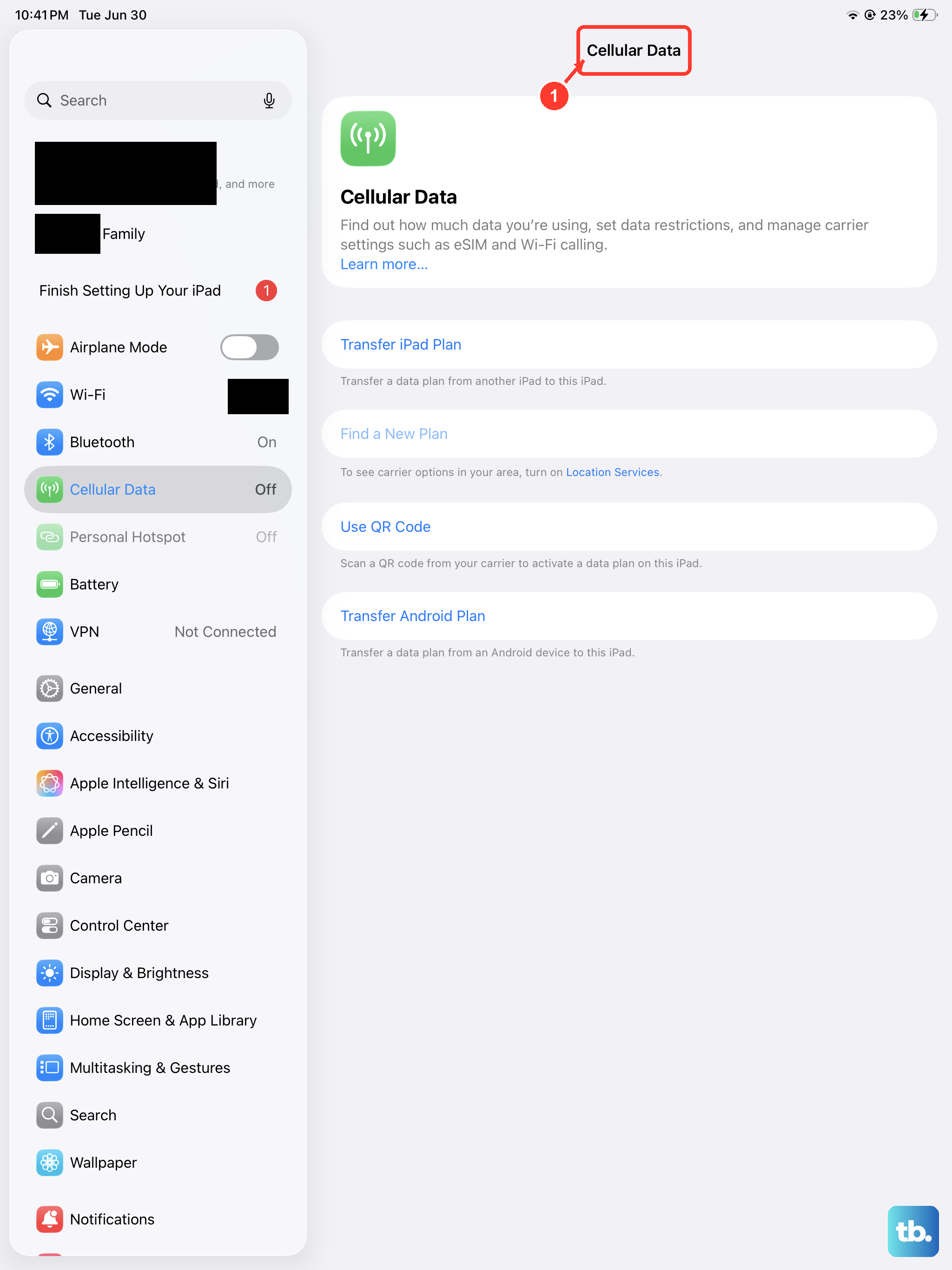
If you're on a cellular iPad, also check that Cellular Data is enabled. Go to Settings > Cellular Data and toggle it off and back on if needed.
Restart Your iPad Air M3
A simple restart clears up a lot of temporary glitches. Press and hold the Top button and either volume button until the power‑off slider appears. Drag the slider, wait 30 seconds, then press the Top button to turn it back on.
Force Restart If Normal Restart Doesn't Help
If a normal restart didn't do the trick, a force restart goes deeper without erasing anything. On the iPad Air M3, press and quickly release Volume Up, then Volume Down, then press and hold the Top button until the Apple logo appears. Let go and let the iPad boot up.
Check Focus and Do Not Disturb
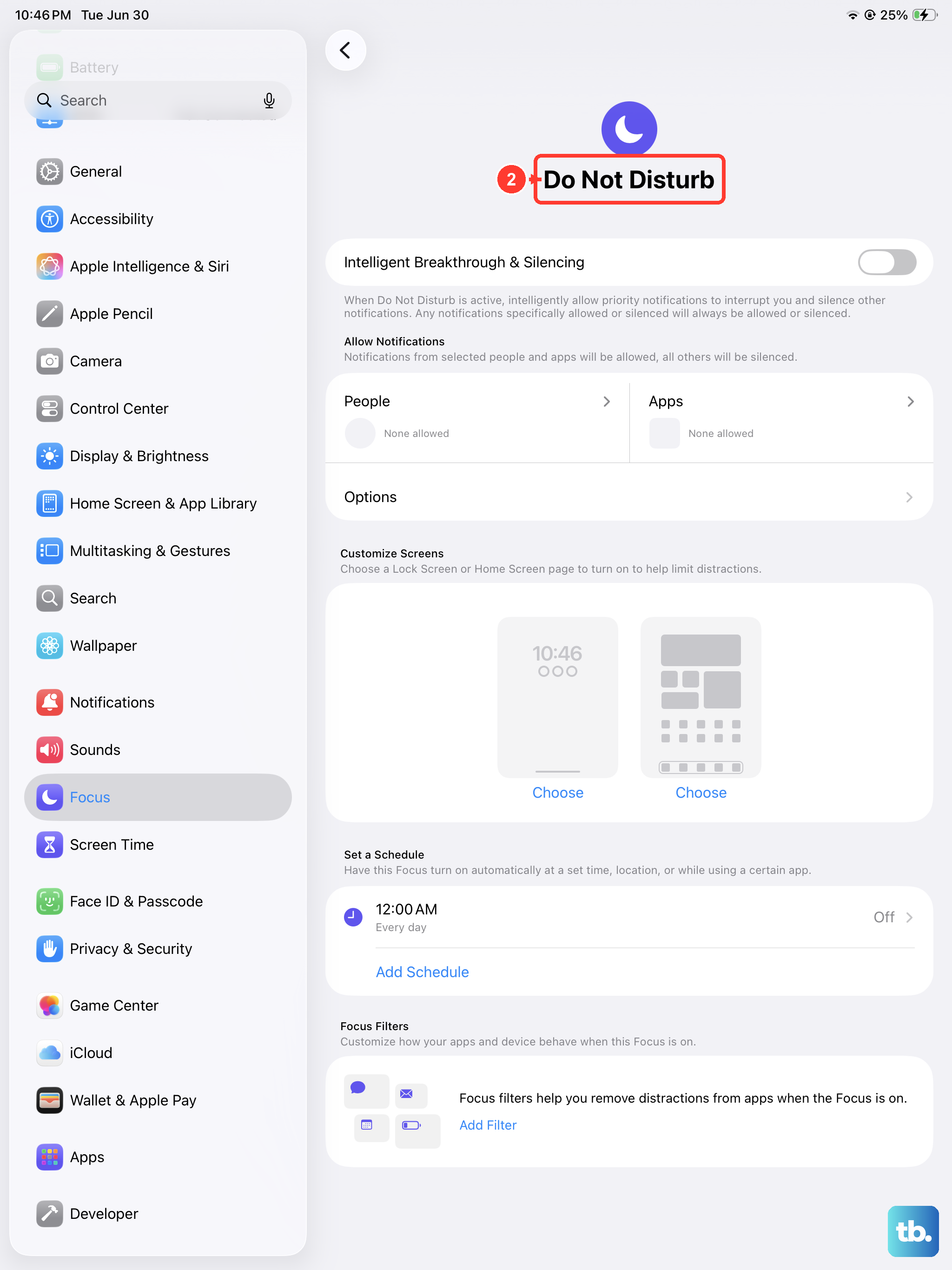
Focus modes can block incoming calls and FaceTime requests. Swipe down to open Control Center and see if Focus or Do Not Disturb is active. Tap it to turn it off. You can also go to Settings > Focus to review which calls and apps are allowed.
Update iPadOS and Carrier Settings
Software bugs that affect calls get fixed in updates. Go to Settings > General > Software Update and install any pending iPadOS updates. After that, check for carrier settings updates by going to Settings > General > About. If one is available, a pop‑up will appear tap Update.
Set Date & Time Automatically
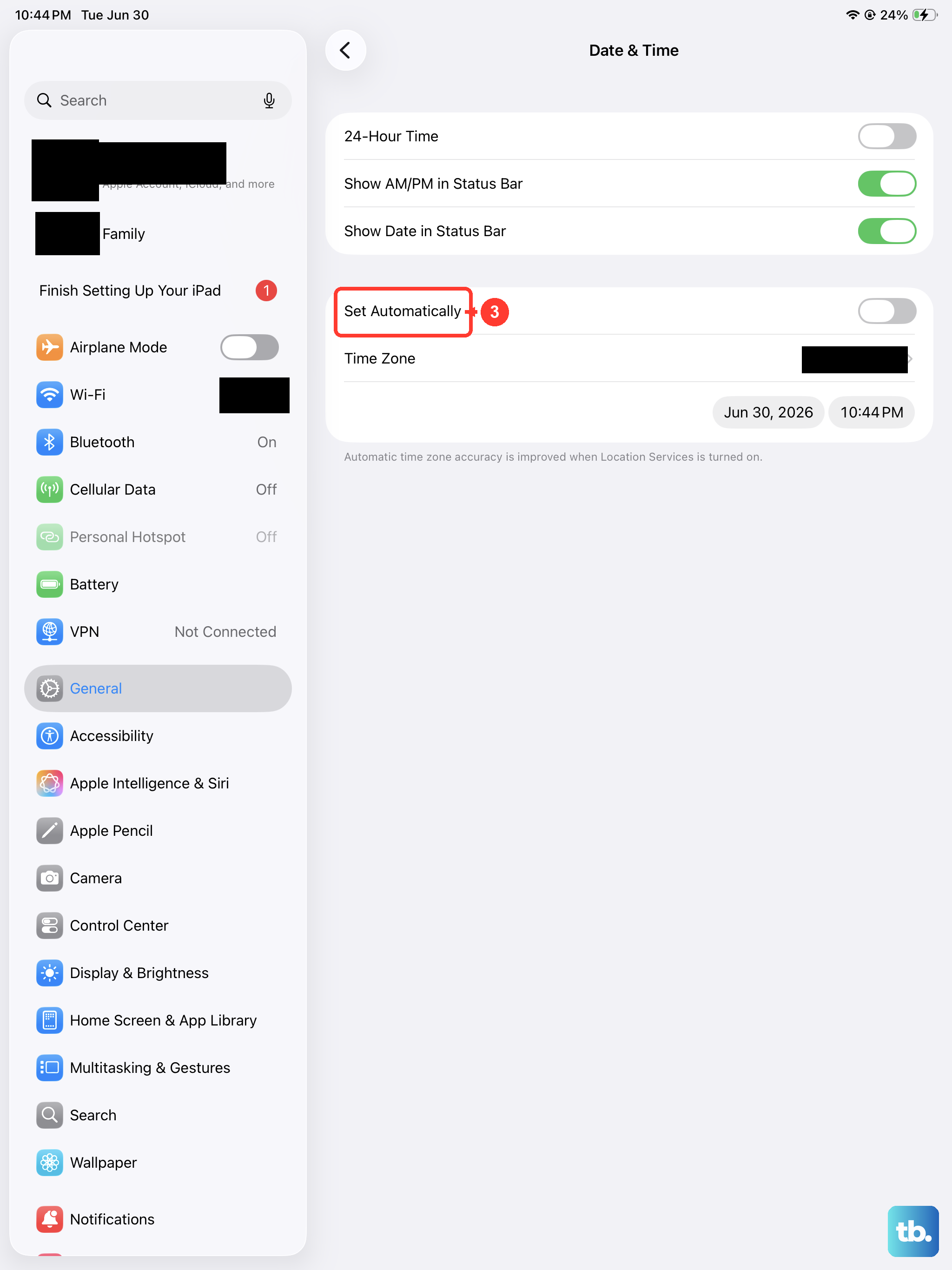
Incorrect date and time can mess up network authentication. Go to Settings > General > Date & Time and make sure Set Automatically is turned on.
Reset Network Settings
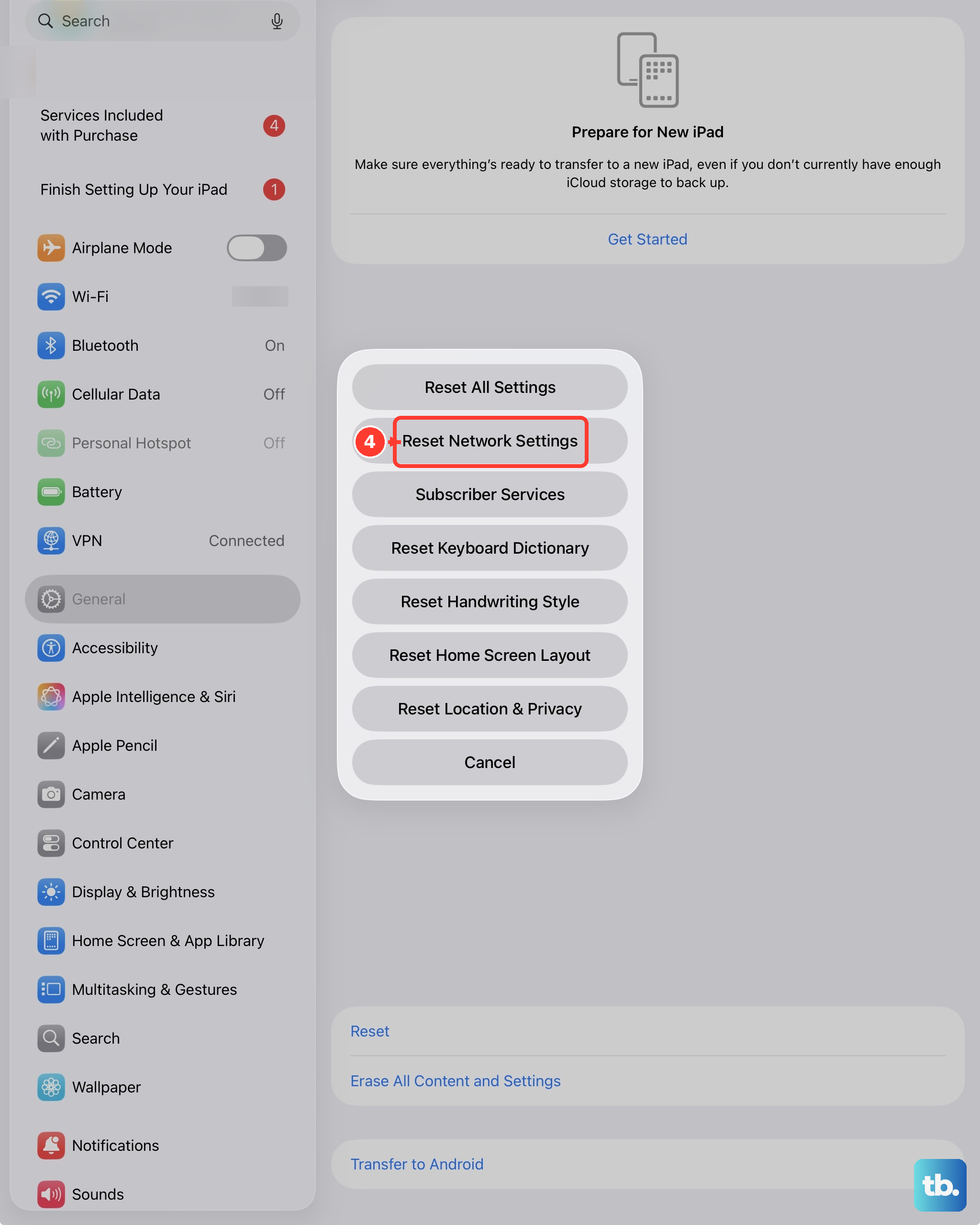
This is more aggressive but won't delete your apps or data. It clears saved Wi‑Fi networks, Bluetooth pairings, and cellular settings. Go to Settings > General > Transfer or Reset iPad > Reset > Reset Network Settings. Enter your passcode and confirm. Set up your Wi‑Fi again and test calls.
Check Your SIM Card (Cellular Models)
If your cellular iPad Air M3 can't make calls, the SIM card might be loose or damaged. Use a paperclip to eject the SIM tray. Remove the SIM, inspect it for damage, and reinsert it firmly. You can also try the SIM in another device to see if it works.
Contact Your Carrier
If you've tried everything and still get "Call Failed," the issue may be on your carrier's side. Call them and ask about outages in your area or any account restrictions. They can also send a network refresh signal to your iPad or replace the SIM if needed.
Most call problems on the iPad Air M3 are fixed by toggling Airplane Mode, restarting, or updating software. Work through these steps in order, and you'll likely be back on calls quickly.