
Slow WiFi or cellular data on your iPad Air (2026) can really put a damper on streaming, browsing, or getting work done. The issue often comes down to a simple setting or a temporary glitch that's easy to fix yourself.
I'd start by checking the basics, as a quick restart or a network reset solves most problems. If you're still stuck, working through these steps will usually get your connection back up to speed.
Restart Your iPad and Your Router
This is the classic first step for a reason. A simple restart clears out temporary software bugs that can interfere with your connection. Start by restarting your iPad Air.
Press and quickly release the Volume Up button, then quickly press and release the Volume Down button. Finally, press and hold the Top button until you see the Apple logo appear on the screen.
Once your iPad is back on, unplug your WiFi router from power for about 30 seconds, then plug it back in. Give it a minute to fully reboot before trying to connect your iPad again.
Check for iPadOS Updates
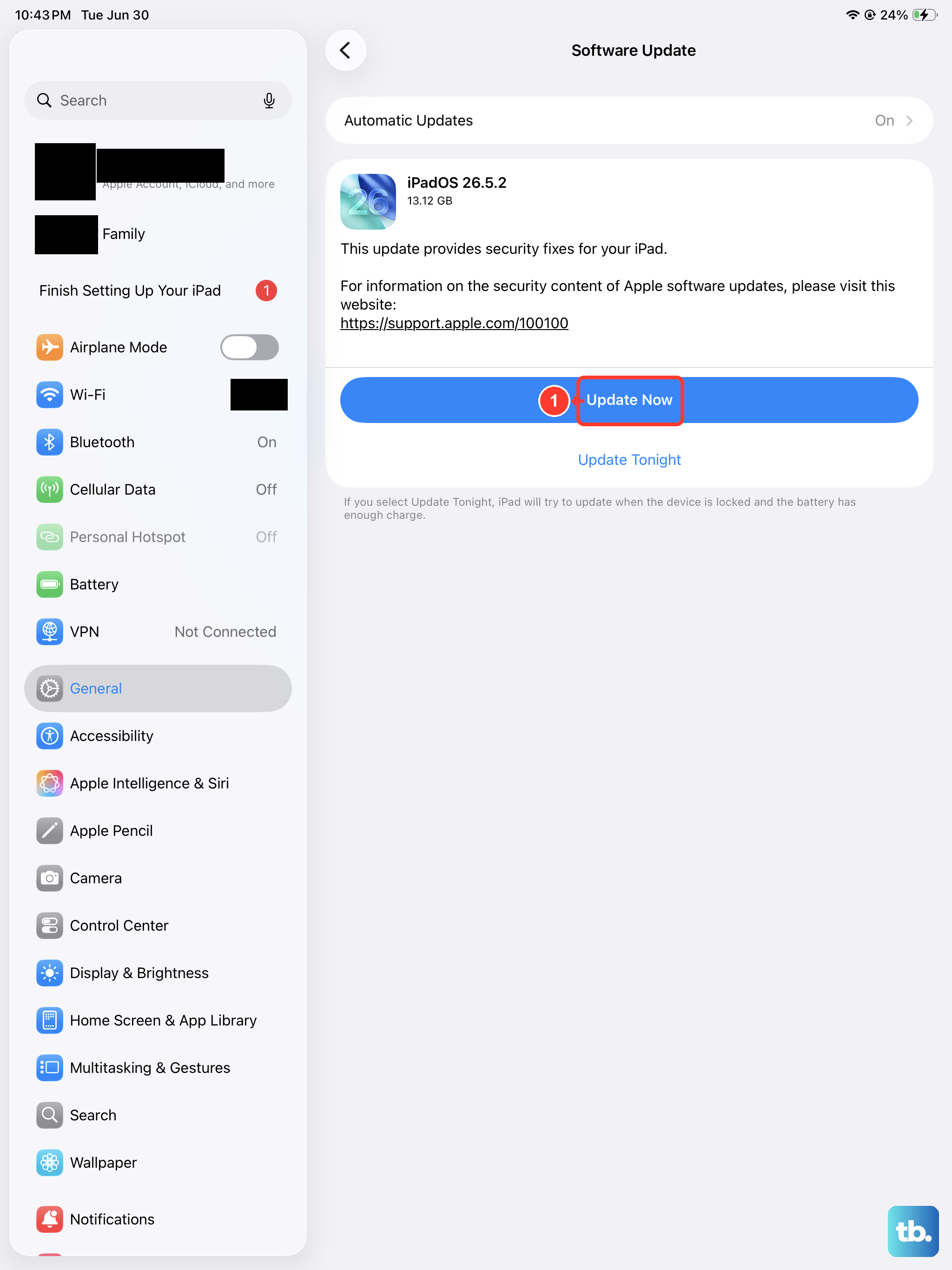
Apple regularly releases updates that include fixes for connectivity and performance bugs. Keeping your iPad Air (2026) on the latest version of iPadOS 26 is one of the best ways to ensure stable WiFi and cellular data.
Go to Settings > General > Software Update. If an update is available, tap "Download and Install." Make sure your iPad is connected to power and has a strong WiFi connection during the update process.
Toggle Airplane Mode On and Off
This quick trick forces your iPad to re-establish its connection to both cellular networks and WiFi. It's like giving the radios a fresh start without having to restart the whole device.
Swipe down from the top-right corner of the screen to open Control Center. Tap the airplane icon to turn Airplane Mode on, wait about 10 seconds, then tap it again to turn it off. Your iPad will search for networks again, which often resolves a weak or stuck signal.
Forget and Rejoin Your WiFi Network
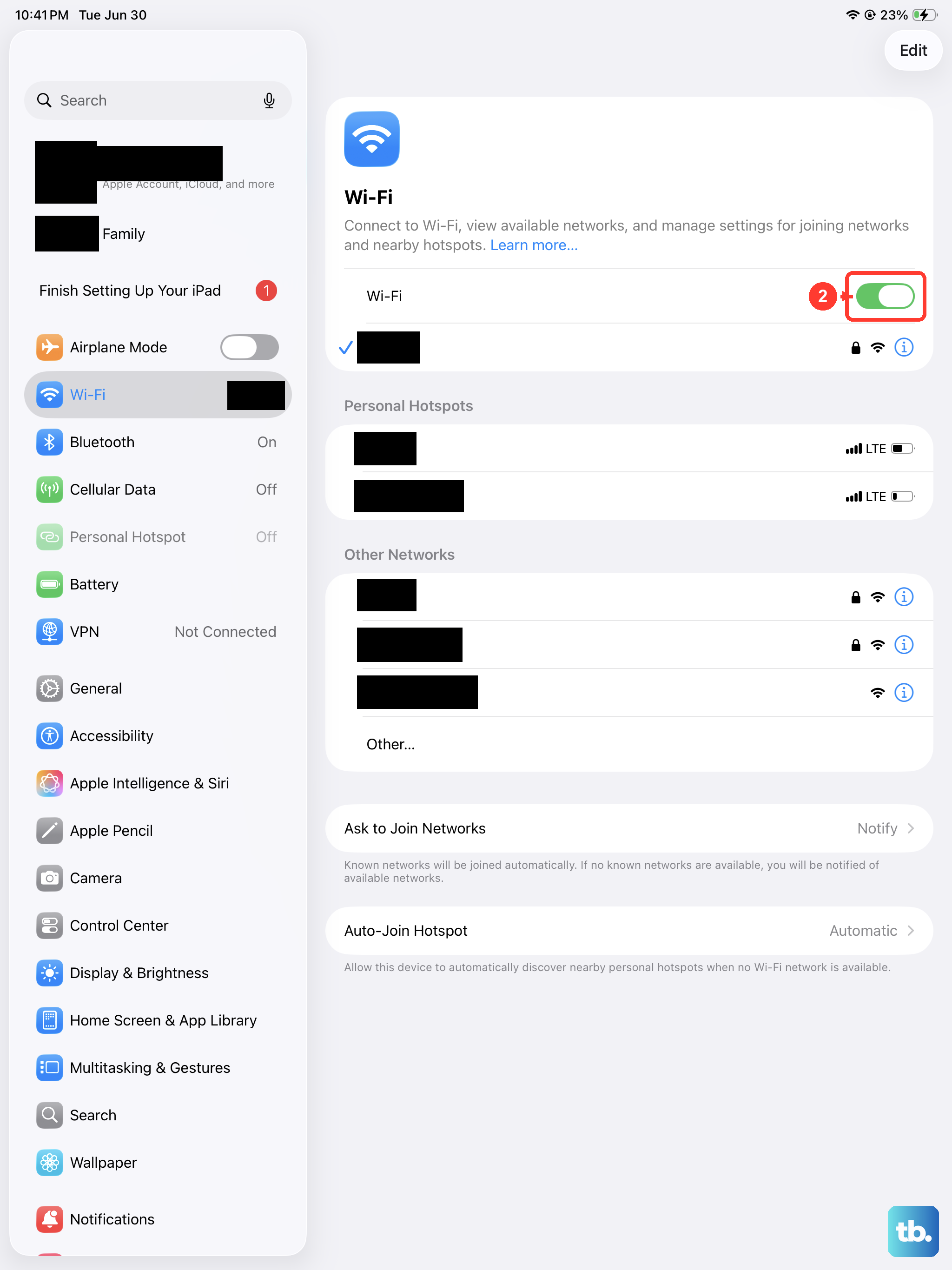
If your iPad is having trouble with a specific WiFi network, the connection data might have become corrupted. Telling your iPad to forget the network and then rejoining it with a fresh start can clear this up.
Open Settings and tap WiFi. Find the network you're having issues with and tap the information (i) icon next to it. At the top of the next screen, tap "Forget This Network" and confirm. Then, go back to your list of networks, select it again, and re-enter the password.
Reset Your iPad's Network Settings
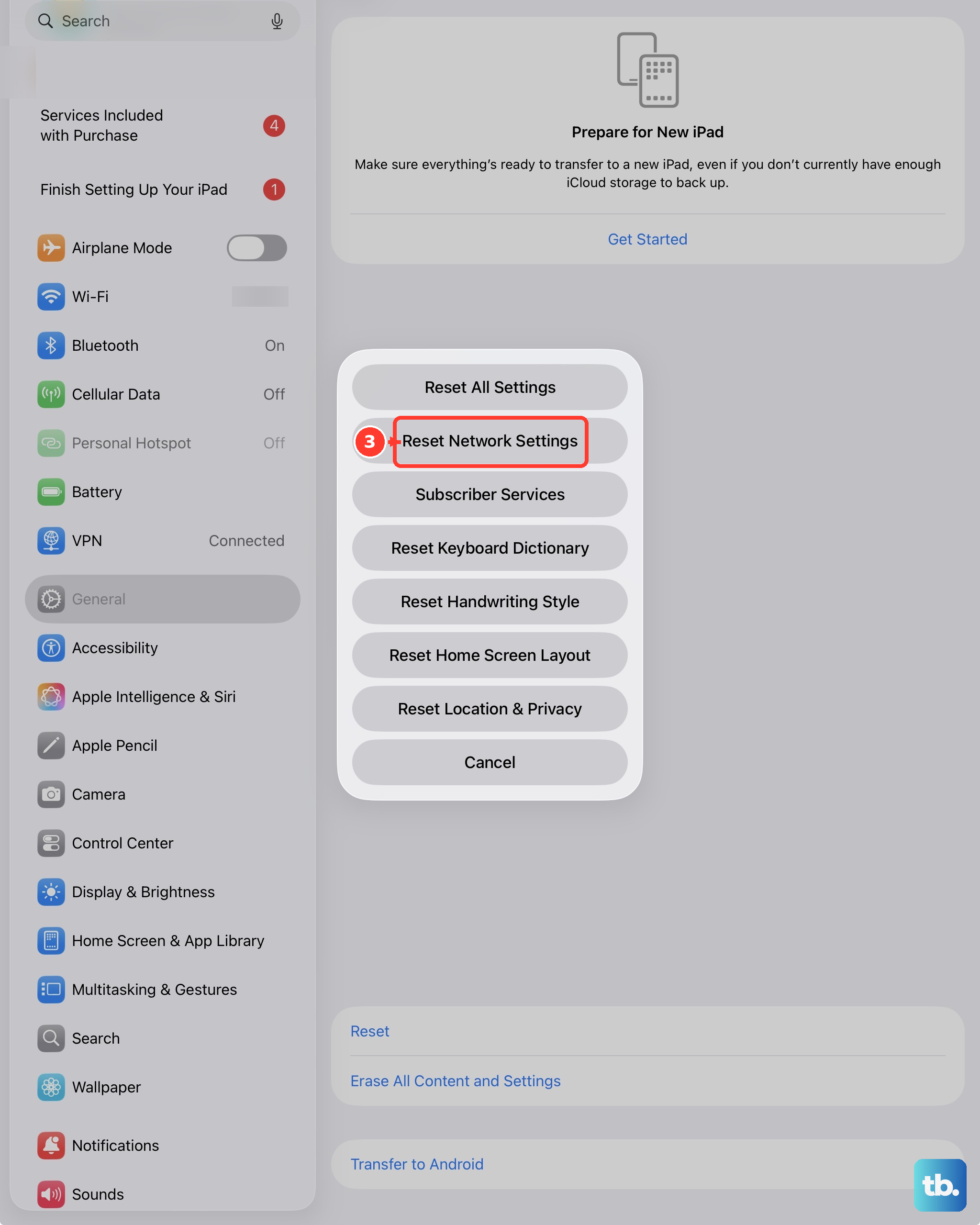
This is a more thorough step if the simpler fixes haven't worked. Resetting network settings will erase all saved WiFi passwords, cellular settings, and VPN configurations, returning them to their factory defaults.
Go to Settings > General > Transfer or Reset iPad. Tap "Reset" at the bottom, then choose "Reset Network Settings." You'll need to enter your passcode to confirm. After the reset, you'll have to rejoin your WiFi networks and re-enter their passwords.
Check Your Cellular Data Settings
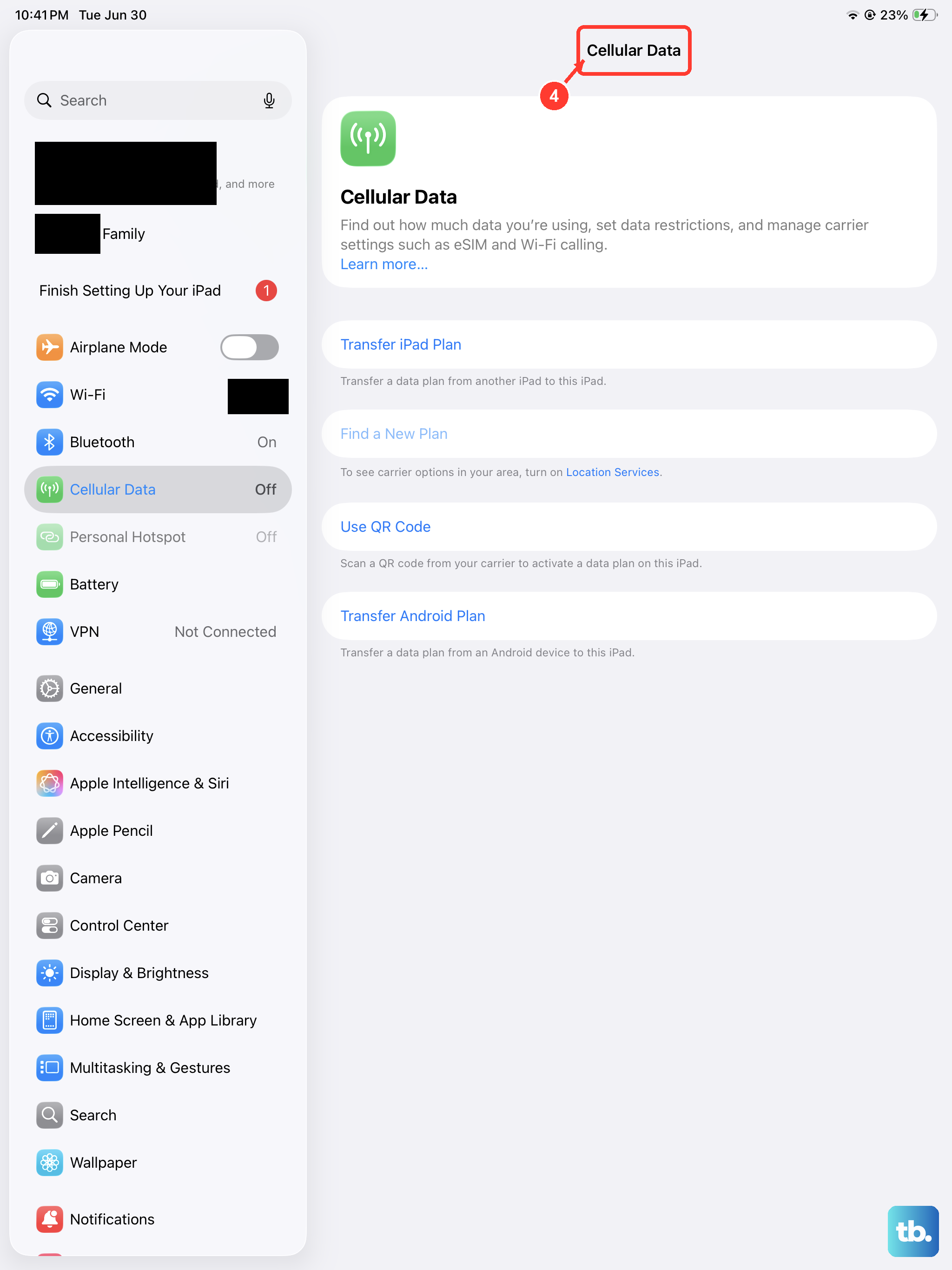
If you're using a cellular model and data is slow, first make sure you haven't accidentally turned it off. Go to Settings > Cellular Data and ensure the main "Cellular Data" switch is on.
You can also check which apps are allowed to use cellular data on this screen. If an app you're using is listed as off, it will only work on WiFi. Toggle it on if you need it to function on the go.
Disable Any Active VPN Connection
While VPNs are great for privacy, the encryption and routing through a remote server can significantly slow down your internet speed. If you're using a VPN app and experiencing lag, try turning it off temporarily to see if your connection improves.
You can usually do this from within the VPN app itself. If you're using iPadOS's built-in VPN configuration, you can toggle it off in Settings under the VPN section.
Clear Your Safari Browser Cache
Over time, your browser stores website data to load pages faster, but a large or corrupted cache can sometimes have the opposite effect. Clearing it is a good maintenance step.
Open the Settings app and scroll down to Safari. Scroll down again and tap "Clear History and Website Data." Confirm your choice. This will log you out of most websites, so you'll need to sign back in.
Manage Background App Refresh
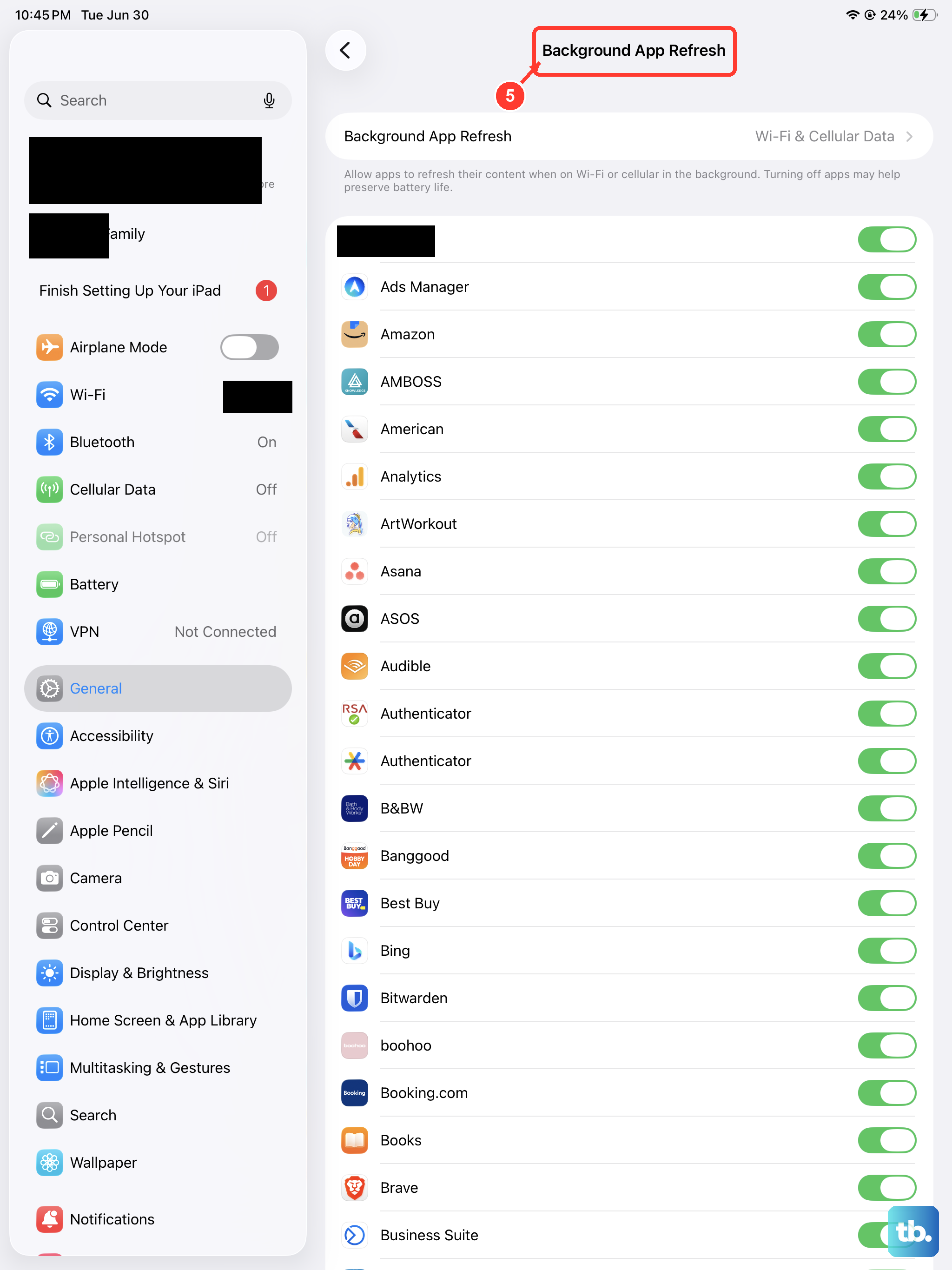
Apps refreshing content in the background can use up bandwidth, which might slow down the app you're actively using. You can control this on an app-by-app basis.
Go to Settings > General > Background App Refresh. You can set it to "Off" entirely, or "WiFi" to limit background activity to when you're on a WiFi network. You can also scroll through the list and toggle off refresh for specific, non-essential apps.
Check for Physical Interference and Signal Strength
WiFi signals can be weakened by physical obstacles and interference from other electronics. Try moving closer to your router to see if the speed improves. Thick walls, metal objects, and even microwave ovens can disrupt the signal.
Also, check how many devices are connected to your home network. If multiple people are streaming video or downloading large files simultaneously, it can slow things down for everyone. You might need to ask others to pause heavy downloads or consider upgrading your internet plan.