


That "No SIM Card Installed" or "Invalid SIM" message on your iPad mini can stop your cellular data in its tracks. It's a common hiccup that usually comes down to a few simple things you can check yourself.
Restart Your iPad
Start with the simplest fix. A quick restart clears out temporary software glitches that might be confusing the cellular modem. Just hold down the top button and either volume button until you see the power slider, then slide to turn it off.
Wait about 30 seconds, then press the top button again to turn it back on. I'd try this one first, as it solves the issue more often than you'd think.
Check and Reinsert the SIM Card
If a restart doesn't do it, the next step is to physically check the SIM card and its tray. You'll need the SIM ejector tool that came with your iPad, or a small, unwound paperclip.
Turn your iPad off completely first. Find the small pinhole on the side of the device and gently insert the tool to pop out the SIM tray. Carefully remove the nano-SIM card and take a good look at the gold contacts.
If you see any dust, lint, or discoloration, gently wipe the contacts with a clean, dry microfiber cloth. Blow any debris out of the SIM tray slot as well. When reinserting, make sure the card is seated correctly in the tray and that the tray itself goes back in smoothly without forcing it.
Toggle Airplane Mode
This is a quick way to force your iPad's cellular radio to reset. Swipe down from the top-right corner of the screen to open Control Center. Tap the airplane icon to turn Airplane Mode on, wait about 10 seconds, then tap it again to turn it off.
You should see the cellular signal bars disappear and then reappear. This can sometimes kick-start a connection that's gotten stuck.
Update iPadOS
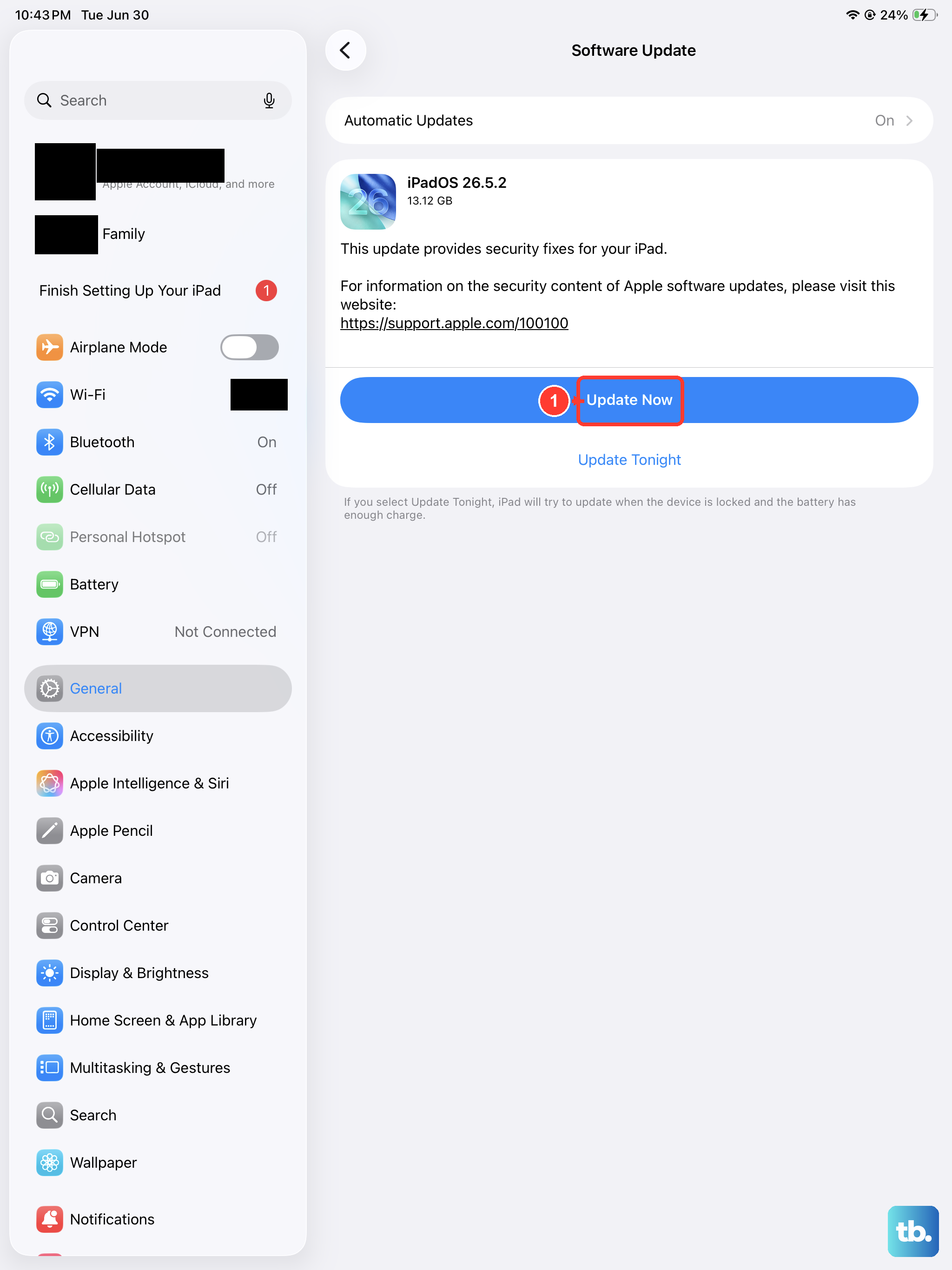
An outdated version of iPadOS can have bugs that affect cellular connectivity. It's always a good idea to make sure you're running the latest software, especially on a newer model like the iPad mini.
Go to Settings > General > Software Update. If an update is available, tap "Download and Install." Make sure your iPad is connected to Wi-Fi and has a decent charge, or better yet, plug it into your 30W USB-C charger first.
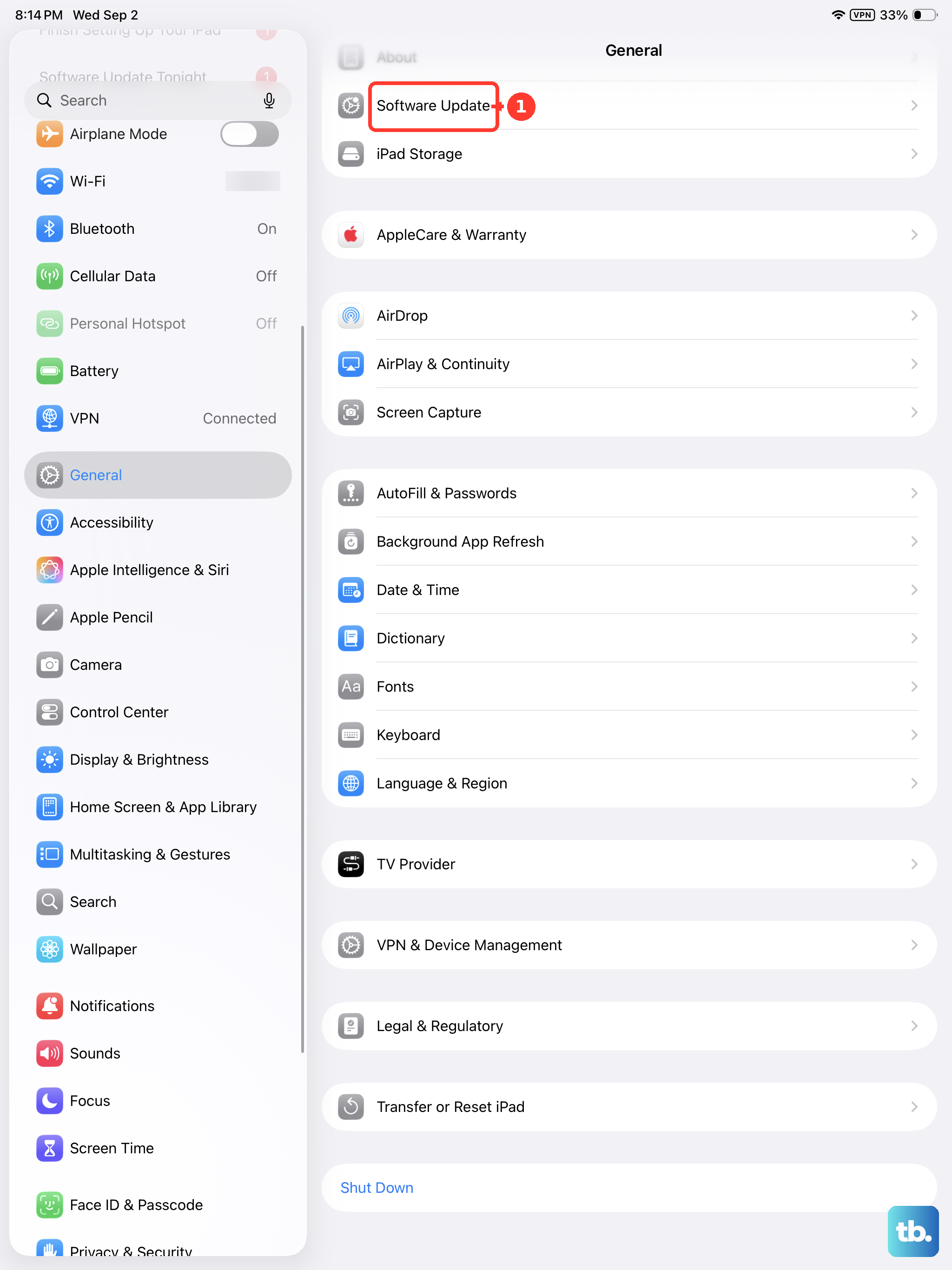
Check for a Carrier Settings Update
This is different from a regular iPadOS update. Carrier settings are small files that help your iPad work properly with your specific mobile network. Updates for these can be pushed out automatically, but it's worth checking.
With your SIM card inserted, go to Settings > General > About. If a carrier settings update is available, a pop-up notification will appear on this screen asking you to update. Just follow the prompts.
Reset Network Settings
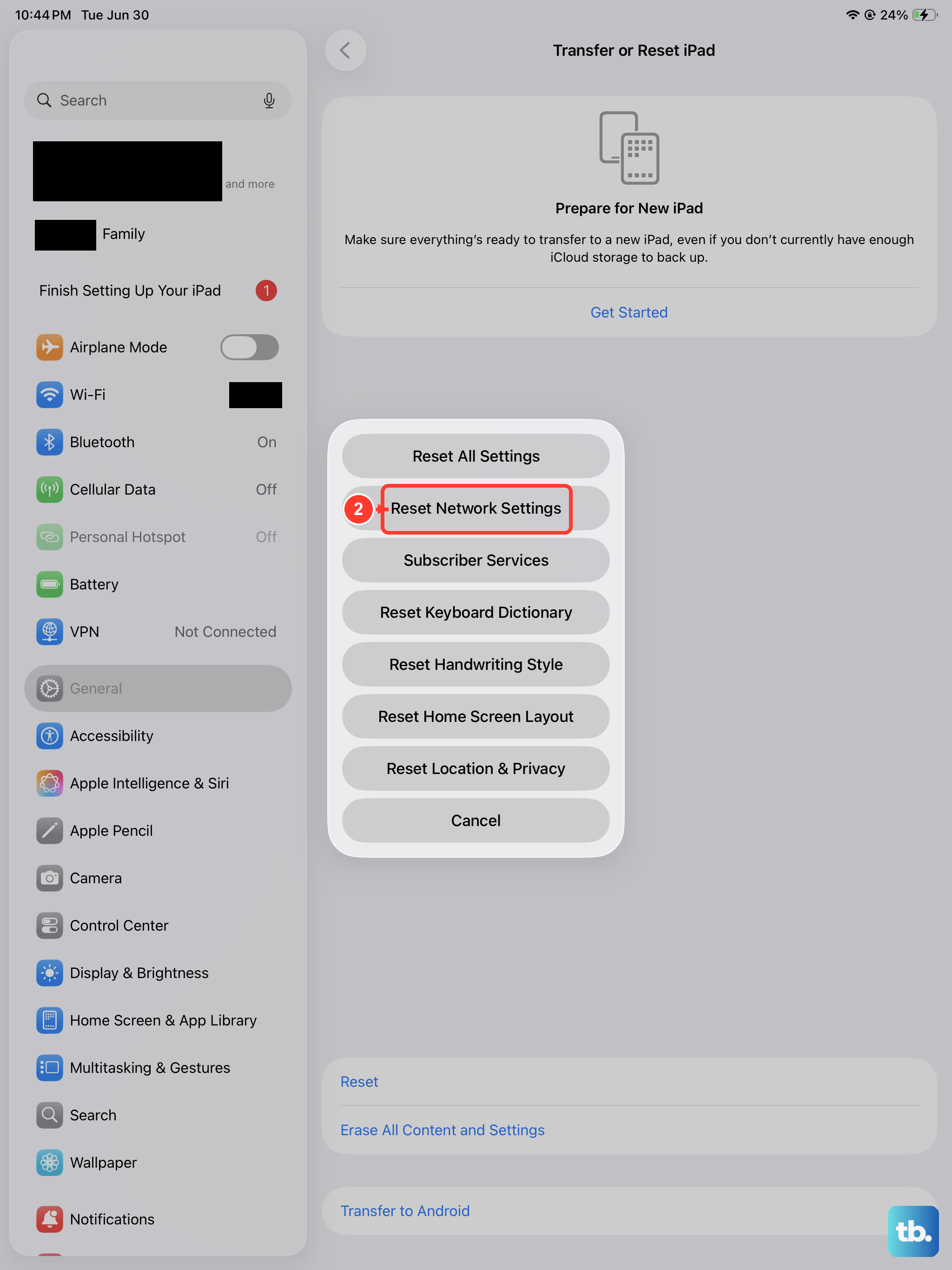
This step clears all your current network configurations, including Wi-Fi passwords, VPN settings, and cellular preferences, and restores them to factory defaults. It's very effective for cellular issues.
Go to Settings > General > Transfer or Reset iPad. Then, tap Reset and choose Reset Network Settings. You'll need to enter your passcode and confirm. Your iPad will restart, and you'll have to rejoin your Wi-Fi networks afterward.
Try Your SIM Card in Another Device
This is the best way to figure out if the problem is with your iPad or with the SIM card itself. If you have another cellular iPad, an old iPhone, or even a friend's device that uses a nano-SIM, power that device off and pop your SIM in.
If the other device also says "No SIM" or "Invalid SIM," then the issue is almost certainly with the card. If the SIM works perfectly in another device, then the problem lies with your iPad mini.
Contact Your Cellular Carrier
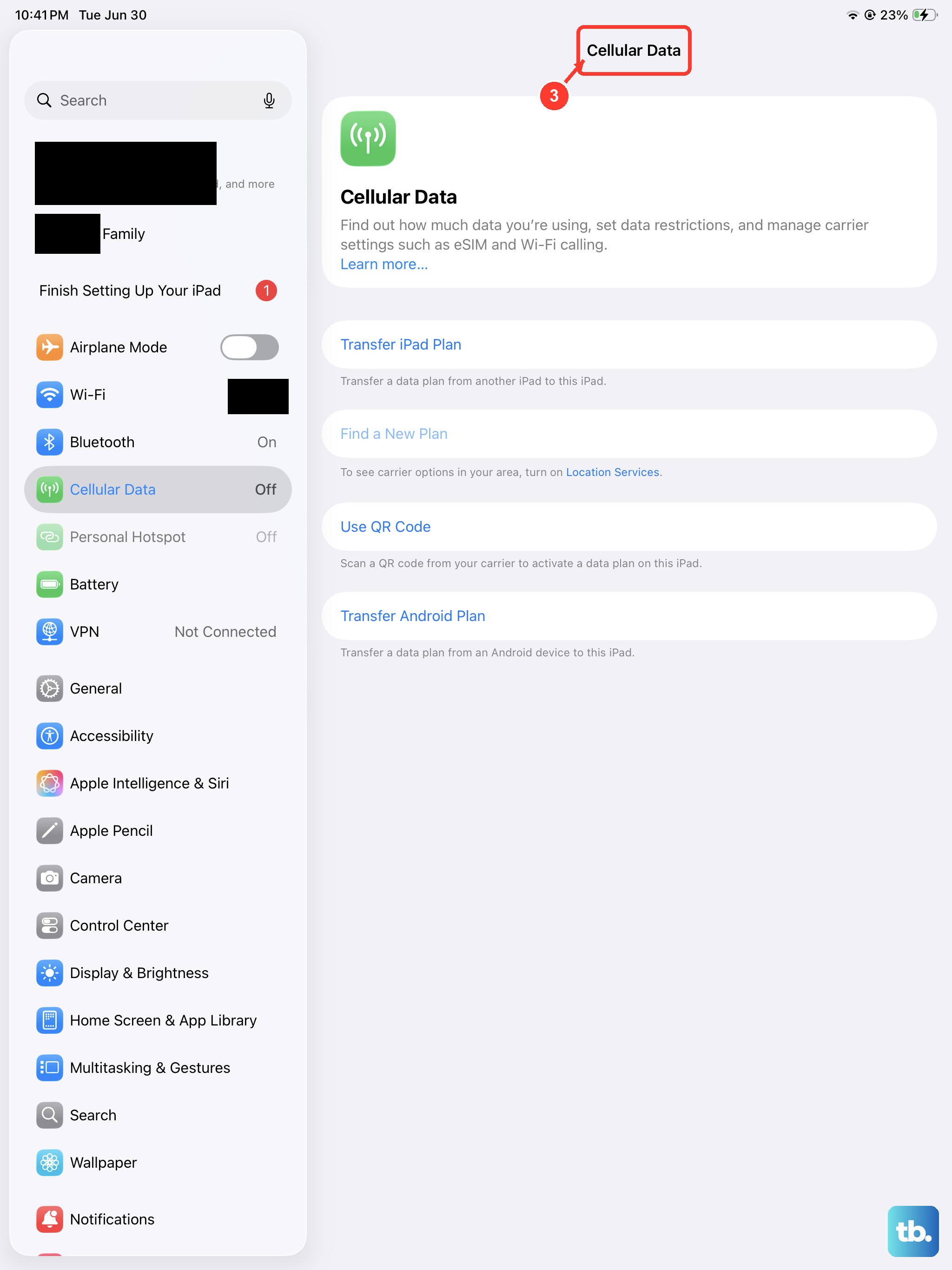
If you suspect the SIM card is faulty, your carrier is your next stop. They can check the status of your line and the SIM card on their network. Often, they can run a remote diagnostic.
They might suggest trying a new SIM card, which is usually a quick and free swap at a store. It's also worth confirming with them that your cellular data plan is active and properly associated with your iPad's IMEI number.
Force Restart Your iPad
A force restart is a step beyond a normal restart and can clear more stubborn software hangs. The process for the iPad mini is quick. Press and quickly release the Volume Up button, then press and quickly release the Volume Down button.
Immediately after that, press and hold the Top button. Keep holding it until you see the Apple logo appear on the screen, then you can let go. This doesn't erase any data, it just gives the system a fresh start.
Check for Physical Damage or Interference
Take a close look at the SIM tray and the card. Is the tray bent or warped? Are the gold contacts on the SIM scratched or corroded? Even a tiny bit of damage can break the connection.
Also, consider if you're using a case, particularly a thick or metal one. In rare cases, a poorly designed case can put pressure on the frame near the SIM slot or interfere with the antennas. Try removing the case and see if the SIM is detected without it.