
Seeing "No Service" or a missing signal bar on your iPad (11th generation) can be a real roadblock, especially if you rely on cellular data on the go. This usually means the iPad can't connect to your carrier's network for internet, and sometimes for calls or texts if you have that plan. The good news is that most of the time, this is a temporary glitch you can fix yourself.
I'd start with the simplest fix, which often works right away.
Restart Your iPad and Check Airplane Mode
First, give your iPad a quick restart. This clears out any minor software bugs in iPadOS 26 that might be interfering with the cellular radio. Just hold the top button and either volume button, then slide to power off. Wait a moment and turn it back on.
While you're at it, swipe down from the top-right corner to open Control Center. Make sure the airplane icon isn't highlighted. If Airplane Mode is on, your cellular connection is disabled. Tap it to turn it off.
Check Your Cellular Data Settings
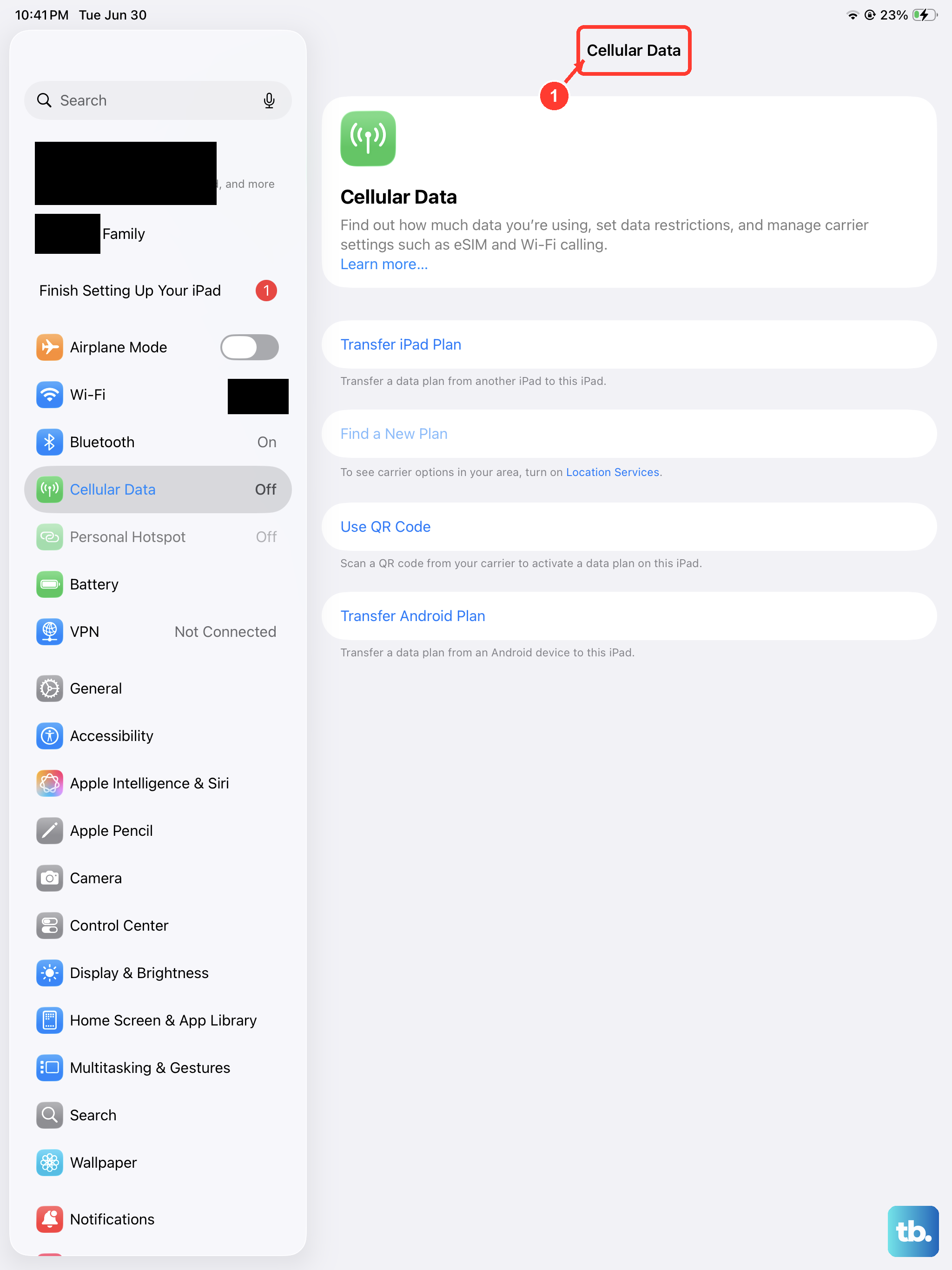
Open the Settings app and tap Cellular Data. The first thing to verify is that the Cellular Data switch at the top is turned on. It sounds obvious, but it can get toggled off accidentally.
Right below that, you'll see an option for Voice & Data. For the best balance of speed and battery life, I'd set this to 5G Auto or LTE. If you're in an area with spotty 5G, try switching to LTE only, as it can sometimes provide a more stable connection.
Also, ensure that Data Roaming is enabled if you're traveling outside your carrier's primary network area. Just remember that roaming can sometimes lead to extra charges, so check with your carrier first.
Reinsert Your SIM Card or Check eSIM
If your iPad uses a physical nano-SIM card, the connection can get loose. You'll need a SIM eject tool or a small paperclip. Find the tiny hole on the iPad's frame, insert the tool, and the SIM tray will pop out.
Carefully remove the SIM card, blow gently on the tray and the card's contacts to remove any dust, and then reseat it firmly. Push the tray back in until it clicks. If your iPad uses an eSIM, you can't physically remove it, but you can try toggling it off and on in Settings > Cellular Data.
Update Your Carrier Settings and iPadOS
Carriers occasionally push small updates that improve network connectivity. These install automatically when you're connected to Wi-Fi, but you can check. Go to Settings > General > About. If an update is available, a prompt will appear.
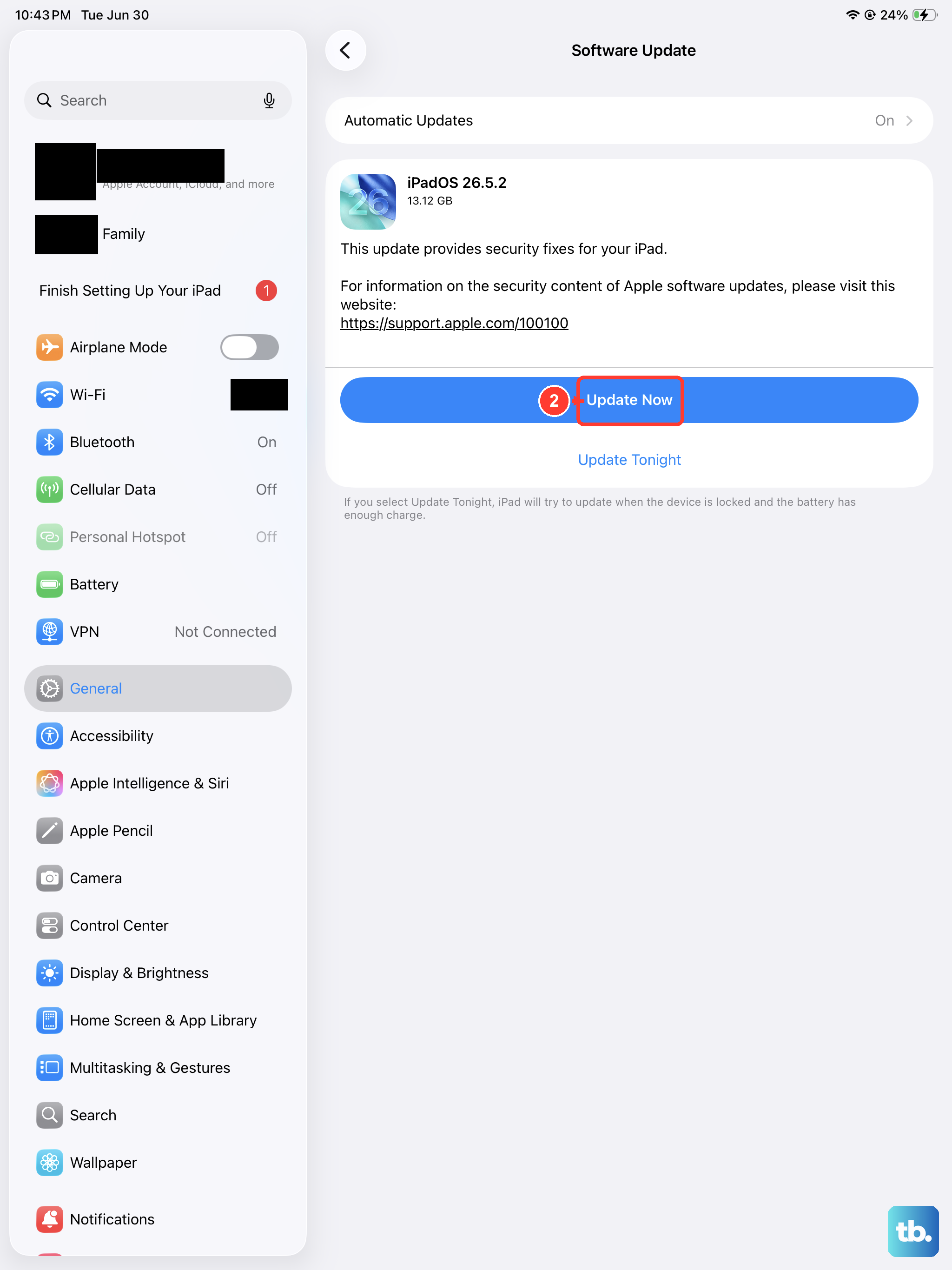
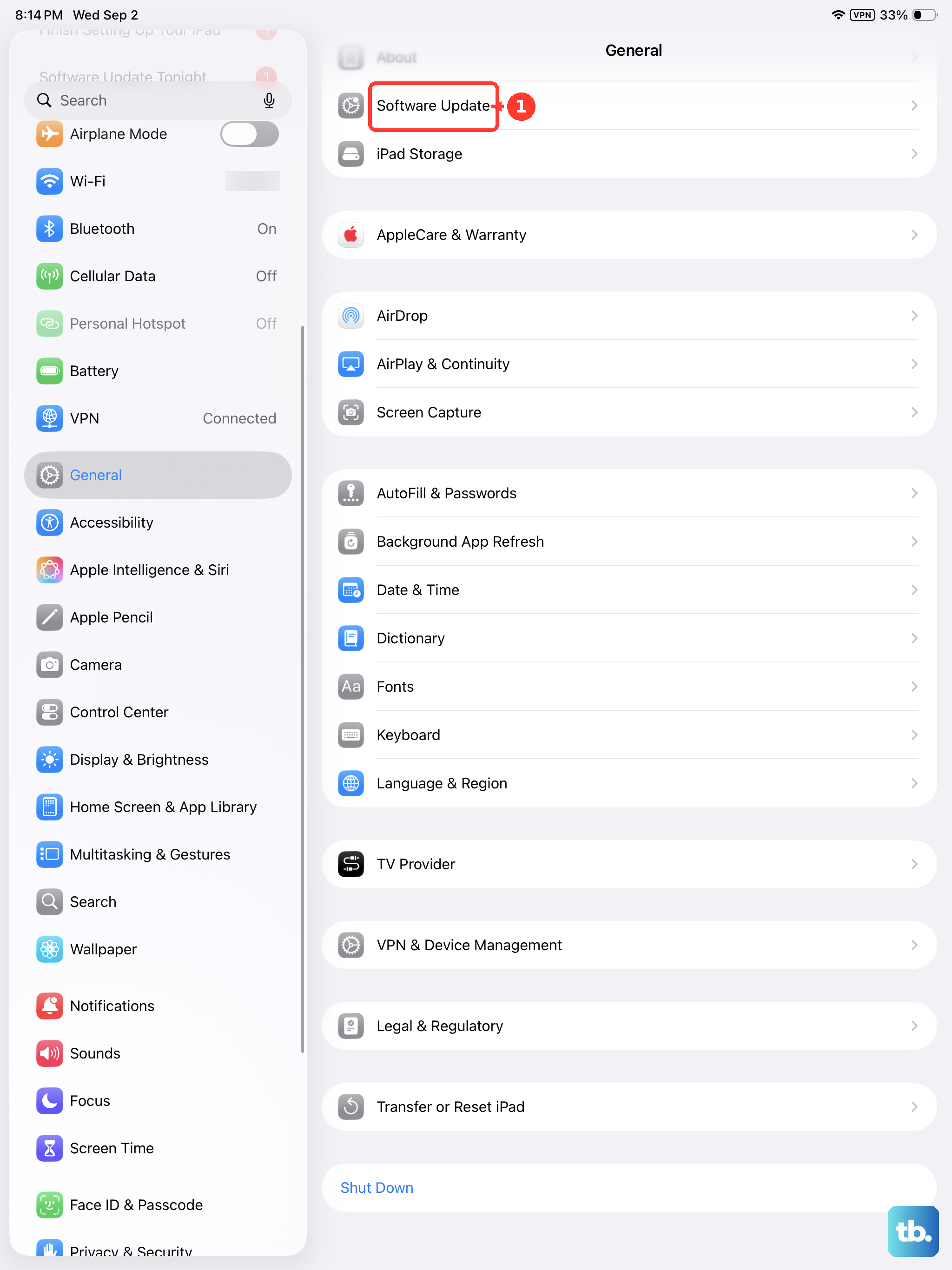
Next, check for a full iPadOS update. Tap Settings > General > Software Update. Installing the latest version of iPadOS 26 is crucial, as it includes bug fixes for all sorts of issues, including cellular modem performance.
Reset Your Network Settings
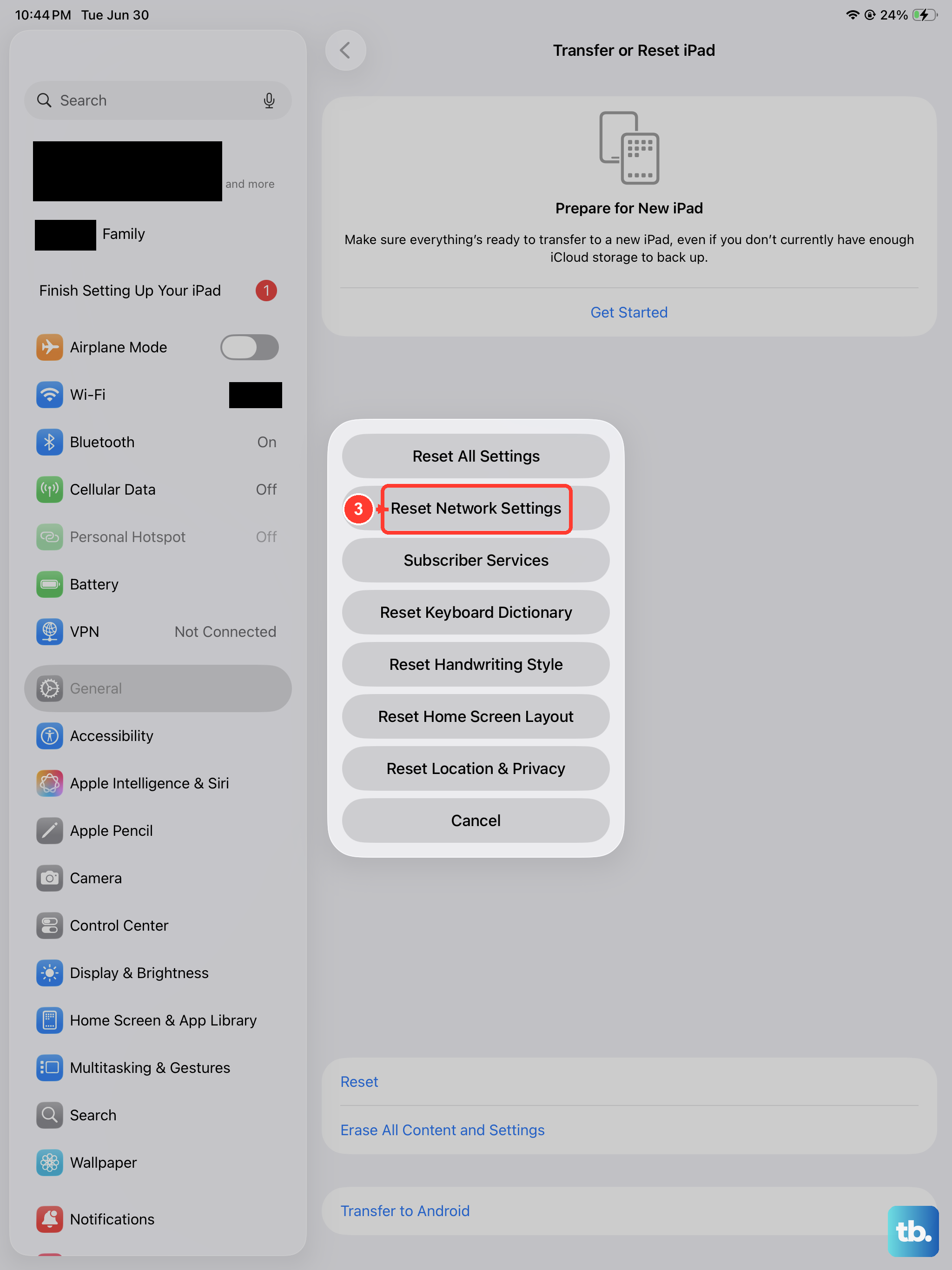
This is a more thorough step that clears all your network-related configurations. It will erase saved Wi-Fi passwords, Bluetooth pairings, and your cellular network preferences, but it won't touch your personal data or apps.
To do it, go to Settings > General > Transfer or Reset iPad. Then, tap Reset and choose Reset Network Settings. Your iPad will restart, and you'll need to reconnect to Wi-Fi and re-pair Bluetooth devices.
Check for a Carrier Outage
Sometimes the problem isn't with your iPad at all. Your carrier might be experiencing a network outage in your area. A quick way to check is to visit your carrier's official website or their support account on social media.
They often post service status updates there. You can also try using a friend's phone on a different network to see if they have service where you are.
Try a Different Location
Cellular signals can be blocked by buildings, terrain, or even certain types of glass. If you're indoors, try moving closer to a window. If you're in a basement or a large building with thick walls, you might need to go outside or to a higher floor.
Walking or driving just a few blocks can sometimes make all the difference if you're in a known weak signal zone.
Perform a Force Restart
A force restart is different from a normal shutdown and can resolve deeper glitches that a simple restart can't. For the iPad (11th generation), you press and quickly release the Volume Up button, then press and quickly release the Volume Down button.
Finally, press and hold the Top button. Keep holding it until you see the Apple logo appear on the screen, then you can let go. This doesn't delete any data, it just gives the system a fresh start.
Verify Your Account Status with Your Carrier
It's worth giving your carrier a quick call or checking your account online. Make sure your cellular plan for the iPad is still active and paid up. Sometimes, if you've recently changed plans or upgraded, there might be a provisioning error on their end that needs to be fixed.
They can also run a diagnostic on your line and, if you're using a physical SIM, check if it's been damaged or deactivated.
Contact Apple Support
If you've tried everything here and your iPad still shows no service, while other devices on the same network work fine, there could be a hardware issue. The cellular antenna or modem inside the iPad might need service.
You can start by using the Apple Support app to run a remote diagnostic or chat with an advisor. They can help determine if a visit to an Apple Store or an authorized service provider is the next step.