
When you plug in your HP Pavilion 15 and the battery percentage just won't budge, it's a frustrating roadblock. The problem could be with the power adapter, the laptop's charging port, the battery itself, or even a software glitch. Let's walk through the most effective ways to get it charging again.
Inspect Your Power Adapter and Cable
Start with the simplest possibility. Check the power brick and the cable running from it to your laptop for any obvious damage, like fraying or kinks. Make sure the adapter is firmly plugged into a working wall outlet.
If you have a spare HP charger that's compatible with your Pavilion 15 model, try using it. Adapters can fail over time and may not deliver the necessary wattage, especially if you're using the laptop while it's plugged in.
Perform a Full Restart
Shut down your laptop completely, don't just put it to sleep. Once it's fully off, plug the charger back in and turn it on. This basic step resets the laptop's power management controller and can often re-establish communication with the charger.
For a more thorough reset, you can try a hard reset. Turn off the laptop, unplug the charger, and hold down the power button for about 15 seconds. Then, plug the charger back in and power it on normally.
Run the HP Hardware Diagnostics
HP builds a useful diagnostic tool right into your Pavilion. Restart your computer and immediately press the F2 key repeatedly as it boots up. This will launch the HP PC Hardware Diagnostics UEFI menu.
From there, you can run tests on the power system and battery. This is a great way to see if the laptop itself can detect a hardware problem with the charging circuit or battery before diving into Windows settings.
Check and Update Your Drivers with HP Support Assistant
Outdated or corrupted drivers can cause all sorts of power issues. HP makes this easy with their Support Assistant app, which should already be installed on your Pavilion.
Open HP Support Assistant and check for updates. It will scan for the latest BIOS, chipset, and power management drivers specific to your exact model. A one-click update here can resolve many charging problems caused by software bugs.
Reinstall the Battery Driver in Windows
If the HP tool doesn't fix it, you can refresh the battery driver manually. Press the Windows key + X and select Device Manager. Expand the Batteries section.
Right-click on Microsoft ACPI-Compliant Control Method Battery and select Uninstall device. Do the same for any other entries listed under Batteries. Restart your laptop, and Windows will automatically reinstall fresh drivers upon booting.
Check for Power-Saving Settings and Bloatware
Some power plans or manufacturer utilities can limit charging. Go to Settings > System > Power & battery and review your power mode. Also, open the HP Command Center or any other pre-installed HP power utility to ensure no battery conservation mode is active.
I've seen background processes from pre-installed software sometimes interfere. You can manage these by going to Settings > Apps > Installed apps and removing any HP programs you don't use, which can free up system resources.
Clean the Charging Port Carefully
Over time, the barrel charging port on your Pavilion 15 can collect pocket lint and dust. This prevents the charger's plug from making a solid connection. Shine a flashlight into the port to check for debris.
If you see anything, use a can of compressed air to blow it out gently. Avoid using metal objects like paperclips, as you could damage the sensitive pins inside the port.
Generate a Battery Health Report
Windows can tell you a lot about your battery's condition. Open Command Prompt as an administrator and type the command: powercfg /batteryreport.
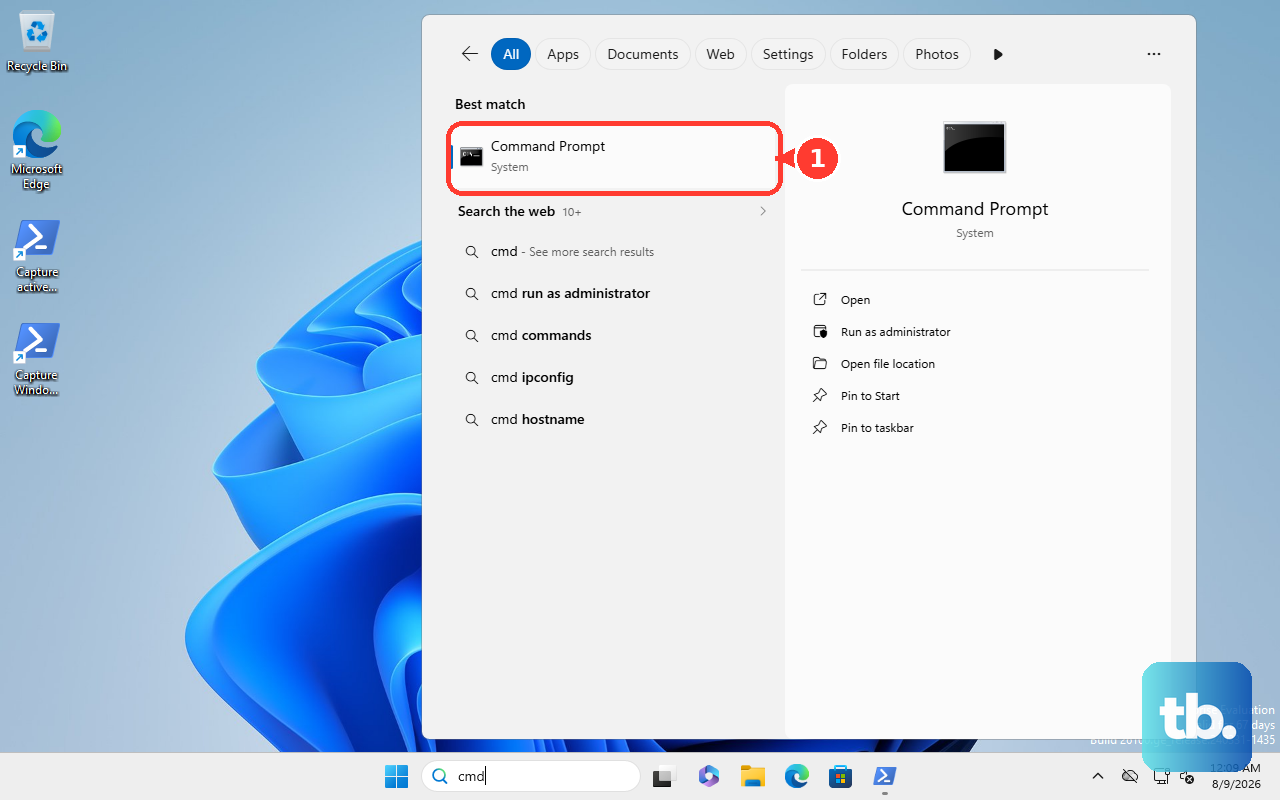
This generates an HTML file on your computer. Open it to see your battery's original design capacity versus its current full charge capacity. If the current capacity is significantly degraded (often below 50-60%), the battery itself may be worn out and need replacing.
Update Your System BIOS
Manufacturers often release BIOS updates that fix power management and charging irregularities. You can check for the latest BIOS through the HP Support Assistant app or by visiting the official HP support website for your specific Pavilion 15 model.
Always follow HP's instructions to the letter when updating your BIOS. Make sure your laptop is plugged into power throughout the entire process, as an interruption can cause serious problems.