A Windows laptop that suddenly drains fast gives you very little to go on from the battery icon alone. The built-in powercfg /batteryreport command creates a detailed battery report you can open in your browser. Start with the fastest Windows 11 path, then use the optional commands when you need a cleaner save location or a shorter report.
1. Generate the battery report from Command Prompt
Use Command Prompt first. Microsoft lists this as the consumer path for creating a battery report on Windows 11 devices with a battery.
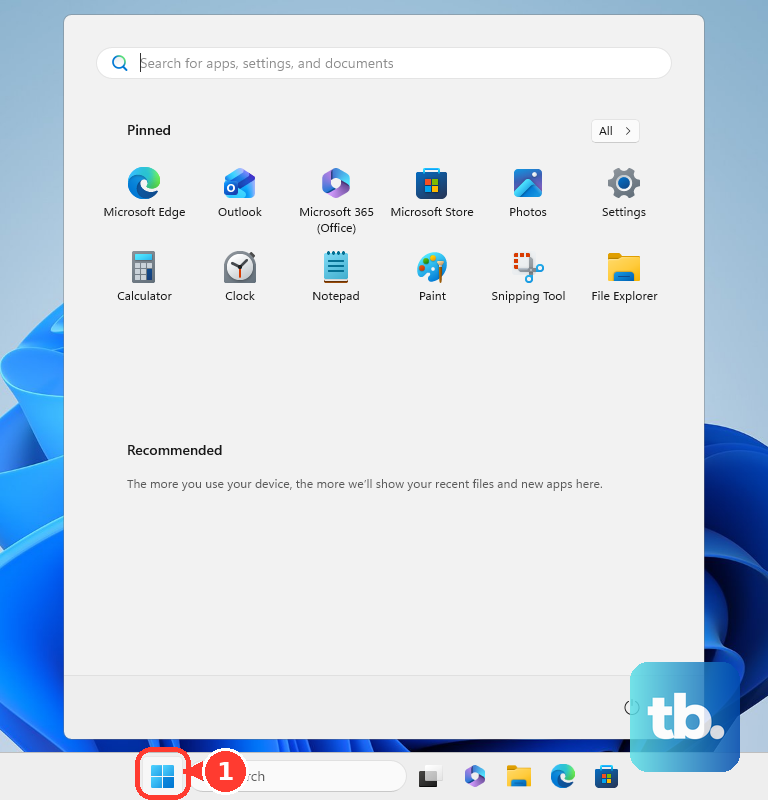
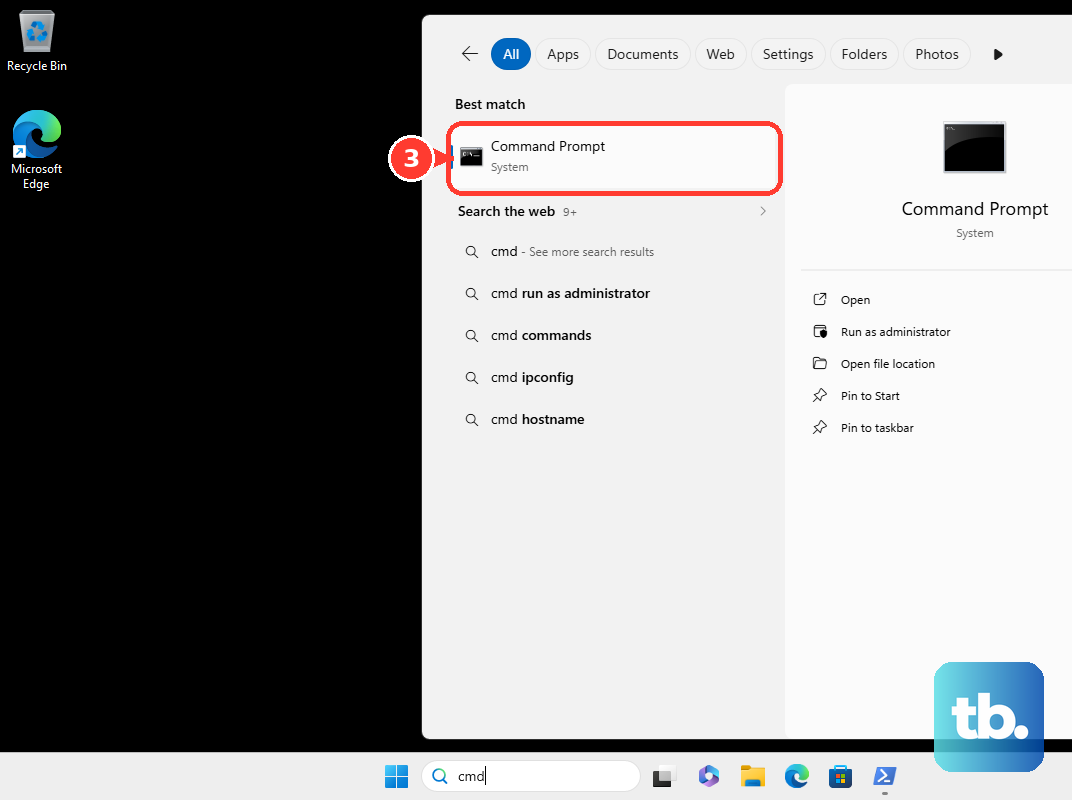
Select Start, type Command Prompt, then press and hold or right-click Command Prompt. Choose Run as administrator, select Yes, then type powercfg /batteryreport and press Enter. Copy or note the saved HTML file path shown in the Command Prompt window.
The battery report is not a download. Windows creates it with the built-in powercfg command.
2. Open the HTML file in your browser
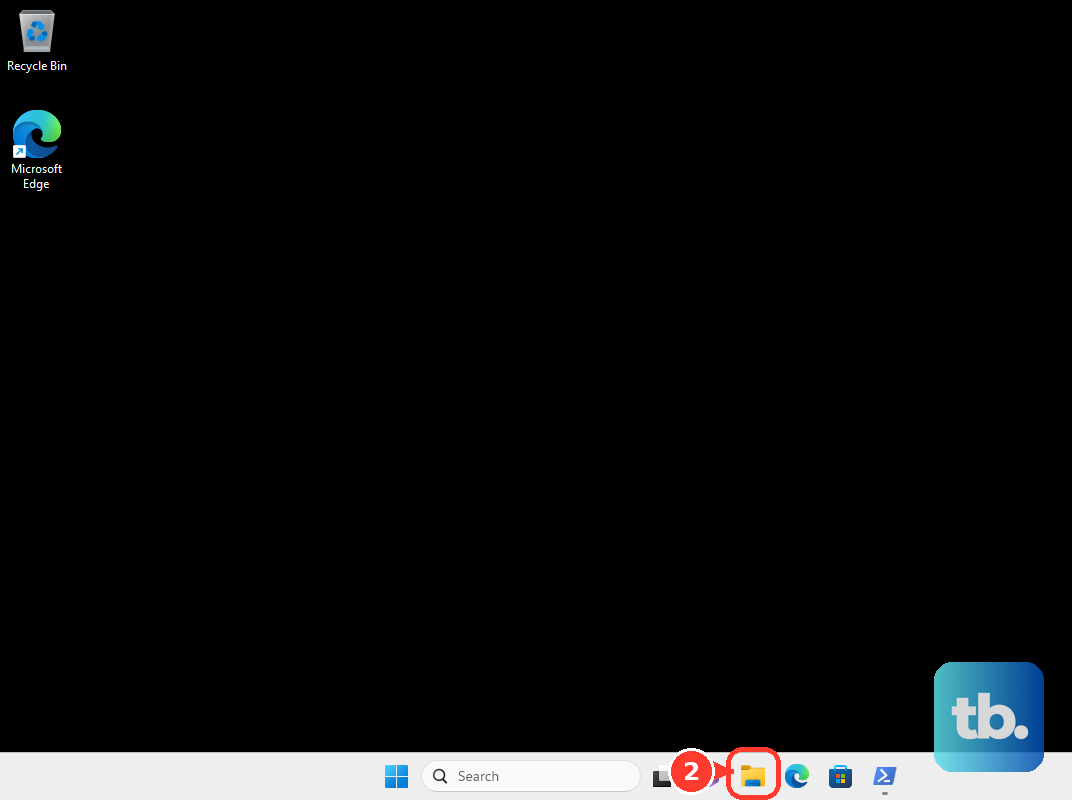
Open File Explorer, go to the folder shown in the Command Prompt result, then double-click the battery report HTML file. The report opens in your web browser.
Start with Installed battery, Recent usage, and Battery usage, since Microsoft names those sections as useful places to begin.
3. Save the report to your desktop
The default save location depends on the command path you used. Send the file straight to your desktop when you want it easy to find.
Open Command Prompt, PowerShell, or Windows Terminal. Run powercfg /batteryreport /output "C:\Users\<your-user-name>\Desktop\batteryreport.html".
Replace <your-user-name> with your Windows user folder name. Keep the .html ending for the normal browser-friendly report.
4. Run it from Windows Terminal or PowerShell
Command Prompt is the clearest starting point, but the same command also runs from Microsoft’s current Windows command-line tools.
For Windows Terminal, press Windows key + X, select Windows Terminal (Admin), open a PowerShell or Command Prompt tab, then run powercfg /batteryreport.
For Windows PowerShell, open Start, type Windows PowerShell, select Windows PowerShell, choose Run as administrator, then run powercfg /batteryreport.
Use Windows Terminal (Admin) from the Windows key + X menu on current Windows 11 PCs. Older instructions that point to Command Prompt (Admin) from that menu are legacy Windows 10-era directions.
5. Trim the report to recent days
Use the duration option when you only want recent battery behavior. Open Command Prompt, PowerShell, or Windows Terminal, then run powercfg /batteryreport /duration 4.
Replace 4 with the number of days you want to analyze. Run the plain powercfg /batteryreport command again when you want the standard report.
6. Export XML for parsing tools
Stick with HTML for normal reading. Use XML only when another tool needs to parse the battery data.
Open Command Prompt, PowerShell, or Windows Terminal, then run powercfg /batteryreport /output "C:\Users\<your-user-name>\Desktop\batteryreport.xml" /xml. Replace the path and file name with the location you want.
7. Check app drain in Settings
The full battery report gives you detail. Windows Settings gives you a faster app-by-app view.
Select Start, then go to Settings > System > Power & battery > Battery usage. Under Battery usage per app, review apps using more battery in the background.
For supported apps, select More options > Manage background activity. Change Let this app run in the background.
8. Handle blocked Command Prompt access
Work and school PCs can block interactive Command Prompt access through device management policy. When that block is active, use the Settings battery page for basic checks.
Open Start, then go to Settings > System > Power & battery > Battery usage. Review Battery usage per app, then contact your organization’s support team for access to the full battery report.
For current consumer instructions in 2026, treat Windows 11 as the main path. Windows 10 Home and Pro reached end of support on October 14, 2025, though the powercfg command remains documented for Windows 10 command-line environments.
Frequently Asked Questions
Which Windows PCs support powercfg /batteryreport?
Microsoft’s consumer battery report instructions apply to Windows 11 devices with a battery. Microsoft’s command documentation also lists powercfg support for Windows 10 and Windows Server 2016 and later.
Where does powercfg /batteryreport save the file?
By default, it saves the HTML report in the current working directory and shows that location in the command window. Use the /output option to choose a specific location.
Should I use HTML or XML for the battery report?
Use HTML for normal troubleshooting because it opens in a browser. Use XML when an advanced tool needs structured battery report data.
Is Windows 10 still the best target for battery report instructions?
No. Windows 10 Home and Pro reached end of support on October 14, 2025, so current consumer instructions should prioritize Windows 11.