
Getting the latest Android and HyperOS updates on your Xiaomi 14T Pro is key for new features, performance tweaks, and keeping your phone secure. The process is straightforward, but there are a few Xiaomi-specific steps to know.
Check for Updates Manually
Open your Settings app and scroll down to About phone. Tap on it, then select HyperOS version at the top. Your phone will check for any available updates. If one is found, you'll see a prompt to download and install it.
Before you start, I'd recommend plugging in your 120W charger. These updates can be large, and you don't want the battery to die mid-install. It's also best to be on a stable Wi-Fi connection to avoid using your mobile data.
Enable Automatic Updates
You can set your Xiaomi 14T Pro to handle updates automatically. After you tap on HyperOS version in the About phone menu, look for the three-dot menu icon in the top right corner and tap it. Select Update settings from the menu that appears.
Here, you can toggle on Auto-download over Wi-Fi. With this on, your phone will automatically download updates when connected to Wi-Fi and charging. You'll still get a notification to approve the installation, which gives you control over when the phone restarts.
What to Do If an Update Fails or Gets Stuck
If the download won't start or the installation seems frozen, the first step is a force restart. Press and hold the Power button for about 15 seconds until you feel the phone vibrate and the screen turns back on. This simple reboot clears temporary glitches that can block an update.
For persistent download issues, try switching to a different Wi-Fi network. Sometimes a router or network hiccup is the culprit. If the update app itself seems buggy, go to Settings > Apps > Manage apps, find the Updater app, tap on it, and then tap Clear data. This resets the update service without affecting your personal files.
Update Using Xiaomi's PC Suite (Mi PC Suite)
If the over-the-air update just won't work, you can use Xiaomi's official desktop software. Download and install the Mi PC Suite on your Windows computer from Xiaomi's official website. Launch the tool and connect your Xiaomi 14T Pro using the included USB-C cable.
The software should detect your phone. If a newer software version is available, it will prompt you to update. This method is very reliable, as it downloads the complete update package directly to your computer before transferring it to the phone.
Don't Forget Google Play System Updates
Alongside HyperOS updates, Google pushes important security patches through the Play Store. To check for these, go to Settings > Security & privacy. Scroll down and tap on System & updates, then select Google Play system update.
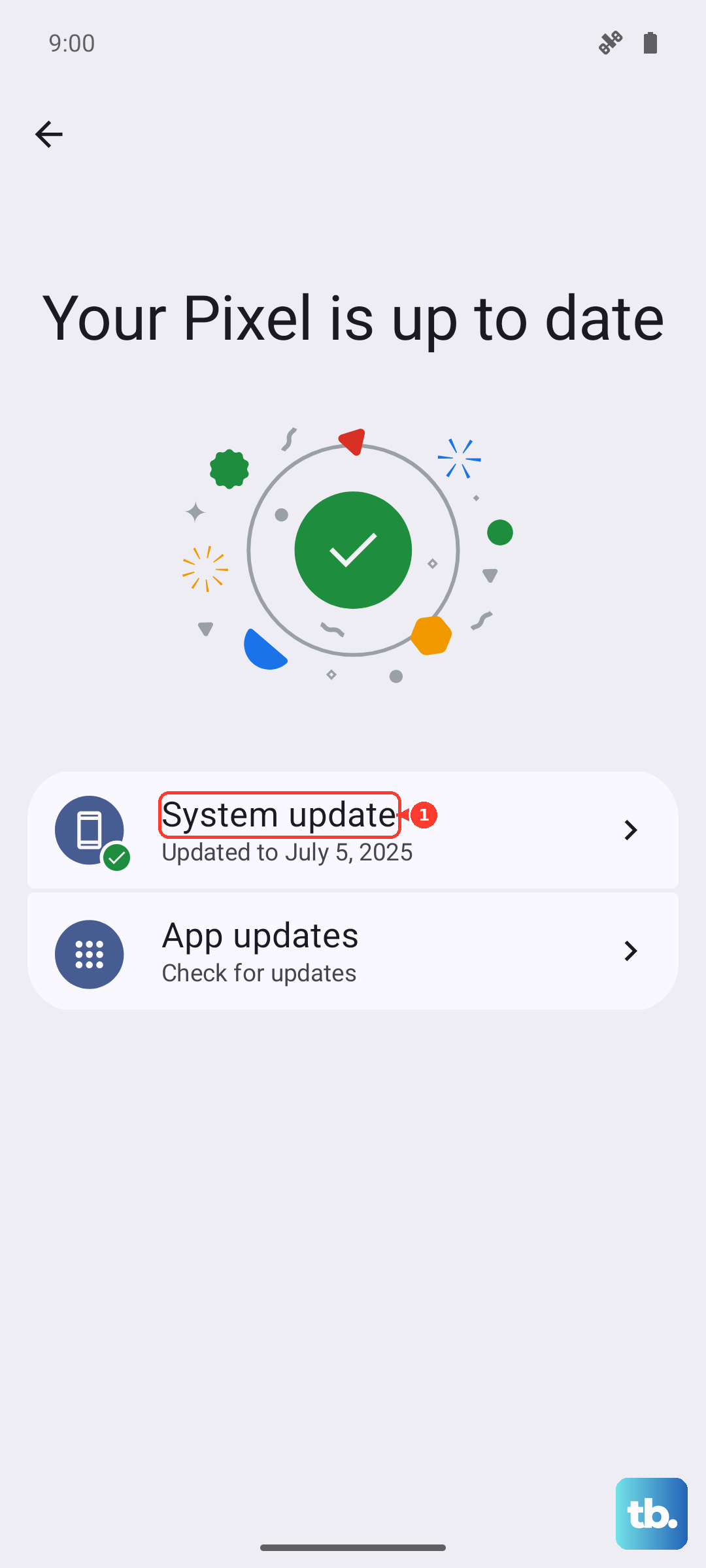
Tap the Check for update button. If an update is available, install it. These updates improve core Android services and security independently of Xiaomi's larger HyperOS releases, so it's a good habit to check here monthly.
Keep Your Apps Updated
Your system software is only part of the picture. Open the Google Play Store, tap your profile picture in the top right, and go to Manage apps & device. Under the "Updates available" section, you can tap Update all.
App updates often include compatibility fixes for new Android versions and important security patches. I've seen phones run much smoother after a batch of app updates following a major OS upgrade.
Verify Your Current Software Version
It's useful to know exactly what version you're running. Head back to Settings > About phone. Here you can see your HyperOS version, the Android version (which will be Android 14), and the Android security patch level.
This information is handy if you're researching a specific bug or feature online. You'll know immediately if an update you just installed included the latest security patch from Google.