
When your Xiaomi 14T Pro gets stuck downloading apps, it can bring your day to a halt. You're trying to grab a new tool or game, and it just hangs on "Pending" or "Downloading." This is a common hiccup on Android, especially with the transition to HyperOS, but it's almost always fixable with a few simple checks.
Let's get your app downloads moving again, starting with the quickest solutions first.
Check Your Connection and Restart
First, look at your network. Pull down the notification shade and make sure your Wi-Fi or mobile data icon is active and has a strong signal. If you're on Wi-Fi, try toggling it off and using your 5G data instead, as some networks can block the ports the Play Store needs.
A simple restart can clear out temporary glitches that freeze downloads. Just press and hold the power button, tap restart, and give it a minute to boot back up. I'd start with this one, as it often resolves the issue right away.
Verify Date, Time, and Storage
Incorrect date and time settings can confuse Google's servers. Head to Settings > Additional settings > Date & time and make sure "Use network-provided time" is switched on. If it's already on, try turning it off and setting the time manually, then switch it back on.
Also, check if you're running out of space. The Dimensity 9300+ is a powerhouse, but it can't download apps if storage is full. Go to Settings > Storage to see your available space. You might need to clear some cached data or old downloads.
Clear the Google Play Store Cache
Corrupted cache data in the Play Store is a prime suspect. To clear it, open Settings and go to Apps > Manage apps. Find and tap on "Google Play Store."
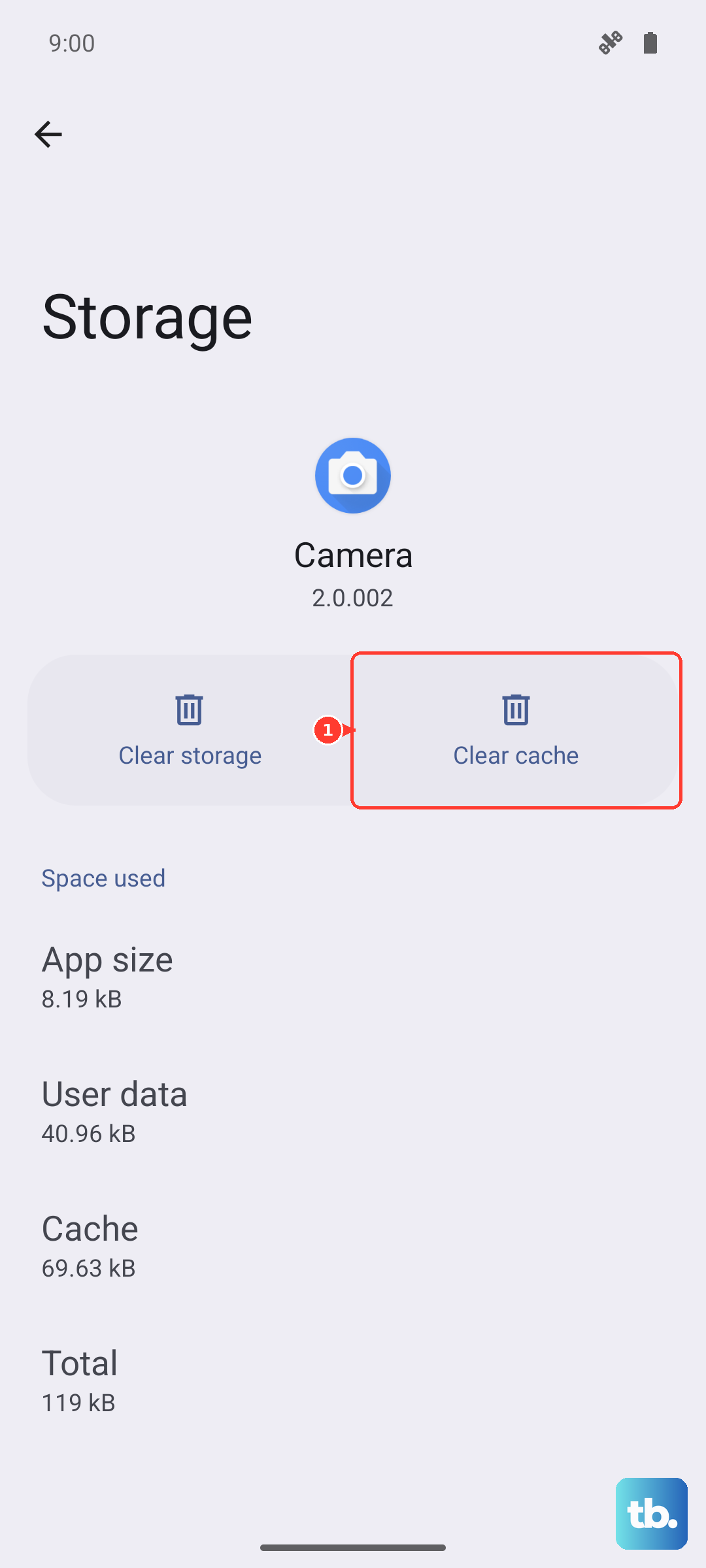
Tap Storage usage at the bottom, then hit "Clear cache." Try your download again. If it's still stuck, you can go back and tap "Clear data." This will reset the Play Store to its default state, so you'll need to sign in again, but it won't delete your apps.
Reset Google Play Services
Google Play Services is the backbone for app downloads and updates. If it's acting up, downloads will stall. Go back to Settings > Apps > Manage apps, then tap the menu icon (three dots) and select "Show system apps."
Find "Google Play Services" in the list. Tap on it, then go to Storage usage. Tap "Clear cache" first. If that doesn't work, tap "Manage storage" and then "Clear all data." Don't worry, this won't delete your personal info, but it will reset the service.
Check Download Manager and Permissions
Your phone has a system app called Download Manager that handles the process. In the same "Show system apps" list, look for "Download Manager." Make sure it's enabled. If it is, tap into it and clear its cache and data from the storage menu, just like you did for Play Services.
Next, verify permissions. Go to Settings > Apps > Manage apps > Google Play Services > Permissions. Ensure that "Storage" permission is allowed. Also, check if it has permission to modify system settings, which is sometimes needed for smooth operation.
Update Your Software and Play Store
An outdated system can cause conflicts. On your Xiaomi 14T Pro, check for a HyperOS update by going to Settings > About phone > MIUI version and tapping "Check for updates." Install any available update, as it often contains important bug fixes.
Also, make sure the Play Store app itself is updated. Open the Play Store, tap your profile icon, go to Settings > About, and see if an update is listed there. Keeping it current ensures compatibility.
Remove and Re-add Your Google Account
Sometimes the sync between your account and the phone gets out of whack. You can refresh this by removing and re-adding your account. Go to Settings > Accounts & sync > Google.
Tap on your account email, then tap "Remove account." Confirm, then go back and tap "Add account" to sign in again. This process can clear up persistent authentication or sync errors that block downloads.
Boot Into Safe Mode
If you're still stuck, a third-party app might be interfering. Booting into Safe Mode temporarily disables all apps you've installed. To do this, press and hold the power button until the power menu appears.
Then, press and hold the "Power off" option on your screen. A prompt will ask if you want to reboot to Safe Mode. Tap "OK." Once in Safe Mode (you'll see "Safe Mode" in the bottom corner), try downloading an app from the Play Store. If it works, a recently installed app is the culprit, and you'll need to uninstall apps one by one to find it.
Address Specific Error Codes
If you see an error code, it gives you a clue. The Error 495 or Error 963 often points to a Play Store cache issue, so follow the steps above to clear it. The DF-BPA-09 error is usually fixed by clearing data for "Google Services Framework" in your system apps list.
For generic "Download pending" messages, the problem is often network-related. Try forgetting your Wi-Fi network in settings and reconnecting, or use a different network entirely to test.
Consider a Factory Reset
If every other step has failed, a factory reset is the final option. This will erase everything on your phone, so you must back up your photos, files, and app data first using Xiaomi Cloud or Google Drive.
To reset, go to Settings > About phone > Factory reset. Follow the prompts. After the phone restarts and you go through setup, log into your Google account and try downloading an app immediately to see if the issue is resolved.