
Missing calls on your Xiaomi 14T Pro is a real headache, especially when you see the missed call notification pop up but never heard a sound. The good news is this is almost always a simple setting or a minor software hiccup. Let's run through the most effective fixes to get your phone ringing loud and clear again.
Check Your Physical Alert Slider and Volume
The Xiaomi 14T Pro has an alert slider on the right side, above the power button. Slide it down to make sure it's not in silent or vibrate mode. You should see an icon in your status bar change. Once that's set, unlock your phone and press the volume up button on the side to crank up the ring volume.
You can also adjust this in your settings. Go to Settings > Sound & vibration and drag the "Ringtone volume" slider all the way to the right. While you're there, tap on "Ringtone" and play one to confirm your speaker is working.
Review Do Not Disturb and Focus Modes
HyperOS has a robust Do Not Disturb mode and Focus features that can silence calls. Swipe down from the top of your screen to open the Quick Settings panel and look for the crescent moon icon. If it's highlighted, tap it to turn Do Not Disturb off.
For a deeper check, go to Settings > Sound & vibration > Do Not Disturb. Make sure the main toggle at the top is off. Also, scroll down and review any schedules or rules that might be activating it automatically, like during your bedtime.
Disconnect Bluetooth Accessories
If your phone is connected to a Bluetooth speaker, headphones, or your car, incoming call audio might be routing there instead of your phone's speaker. The quickest fix is to swipe down your notification shade and tap the Bluetooth icon to turn it off temporarily.
You can also go to Settings > Connected devices > Connection preferences > Bluetooth. Tap the gear icon next to any recently connected audio device and select "Disconnect." Test a call with Bluetooth completely off to rule this out.
Verify App Permissions and Notification Settings
The Phone app needs the correct permissions to ring. Go to Settings > Apps > Manage apps and find "Phone" in the list. Tap on it, then go to Notifications.
Ensure notifications are enabled. Then, tap on "Incoming calls" and make sure the "Sound" option is checked and set to a proper tone. I've seen this setting get reset after a major HyperOS update.
Check for Blocked Numbers and Call Forwarding
It's worth a quick look to ensure you haven't accidentally blocked the person trying to reach you. Open your Phone app, tap the three-dot menu, and go to Settings > Blocked numbers. Remove any numbers that shouldn't be there.
Also, check if call forwarding is accidentally enabled. In the Phone app settings, look for Call forwarding or "Additional settings." Make sure all forwarding options are set to "Turn off" or "Never forward."
Update Your Software and Apps
Software bugs can sometimes mute call functions. Xiaomi is pretty good about pushing fixes. Connect to Wi-Fi, go to Settings > About phone > HyperOS version, and tap "Check for updates." Install any available system updates.
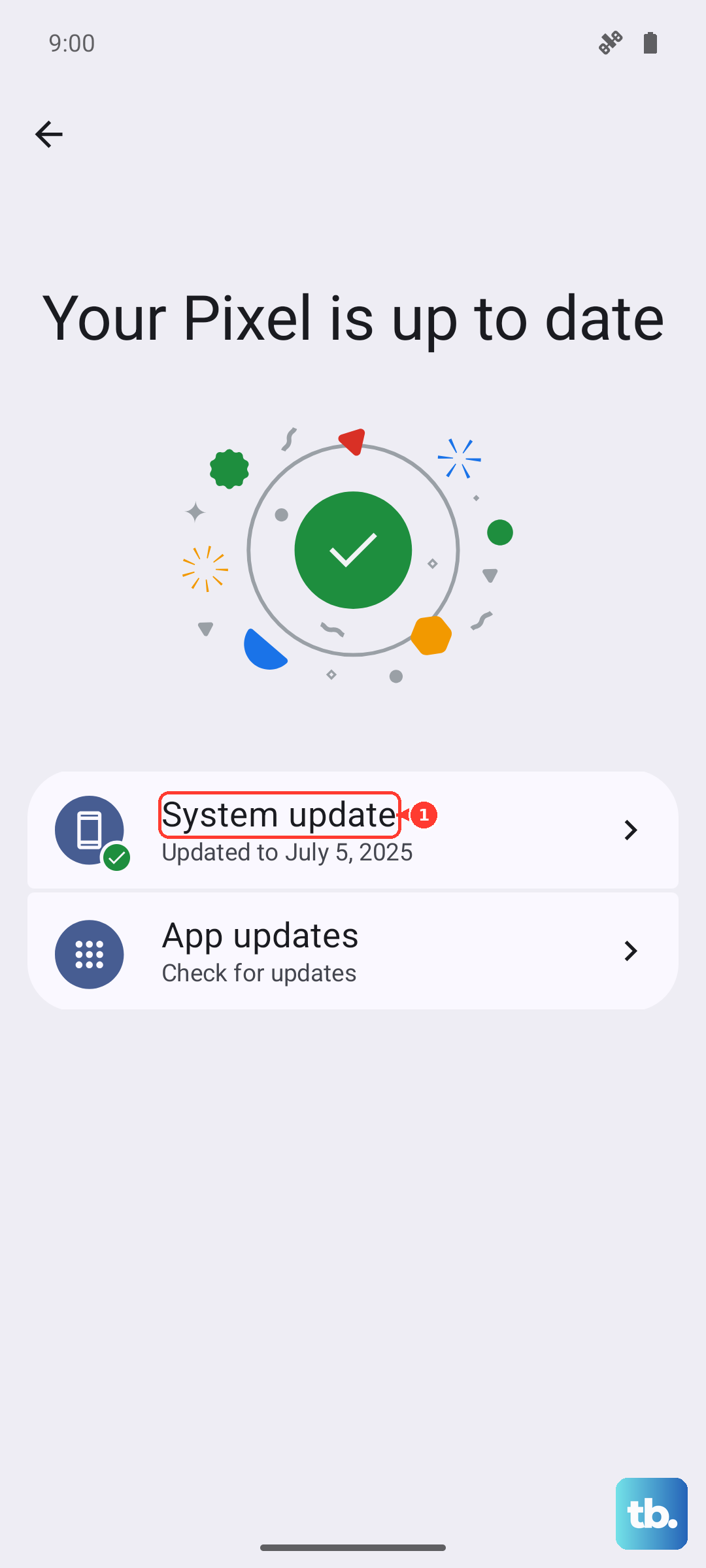
Don't forget the Phone app itself. Open the Google Play Store, tap your profile icon, and go to Manage apps & device > Updates available. See if there's an update for "Phone by Xiaomi" or any related carrier services app.
Perform a Soft Reset
A simple reboot can clear out temporary glitches. Press and hold the power button until the power menu appears, then tap "Restart." If your screen is unresponsive, you can force a restart by pressing and holding the power button for about 15 seconds until the phone vibrates and the Mi logo appears.
Review Sound Settings for Specific Contacts
HyperOS lets you set custom ringtones for individual contacts. If only one person's calls aren't ringing, their specific setting might be the issue. Open your Contacts app, find the person, tap "Edit," and look for a ringtone option. Set it to a default ringtone to test.
Reset App Preferences or Network Settings
If the issue persists, try resetting app preferences. This won't delete any app data. Go to Settings > Apps > Manage apps, tap the three-dot menu, and select Reset app preferences. This resets notification and permission defaults for all apps.
For issues that might be network-related, you can reset network settings. Go to Settings > Connection & sharing > Reset Wi-Fi, mobile networks & Bluetooth. You'll need to re-enter Wi-Fi passwords and re-pair Bluetooth devices afterward.
Check for Third-Party App Interference
Some apps, especially cleaner apps, battery savers, or those from certain regional carriers, can interfere with call functions. Try booting your phone into Safe Mode to see if the problem goes away. Press and hold the power button, then long-press the "Restart" option on your screen until you see a prompt to boot into Safe Mode.
If your phone rings normally in Safe Mode, a recently installed third-party app is likely the culprit. Uninstall apps one by one, starting with any utility or system-tuning apps, until the problem is resolved. This is also a good time to remove any pre-installed bloatware you don't use via Settings > Apps > Manage apps.