When your Xiaomi 14T Pro isn't recognized by your PC, it stops you from transferring photos, backing up files, or even doing a simple charge. This is a common hiccup with Android phones, especially on newer systems like HyperOS, but it's almost always something you can fix yourself.
I'd start by checking the cable and port. A surprising number of connection problems are solved right there. The 14T Pro's USB-C port can get clogged with pocket lint, and not all cables are built to handle both data and the phone's super-fast 120W charging.
Check Your USB Cable and Port
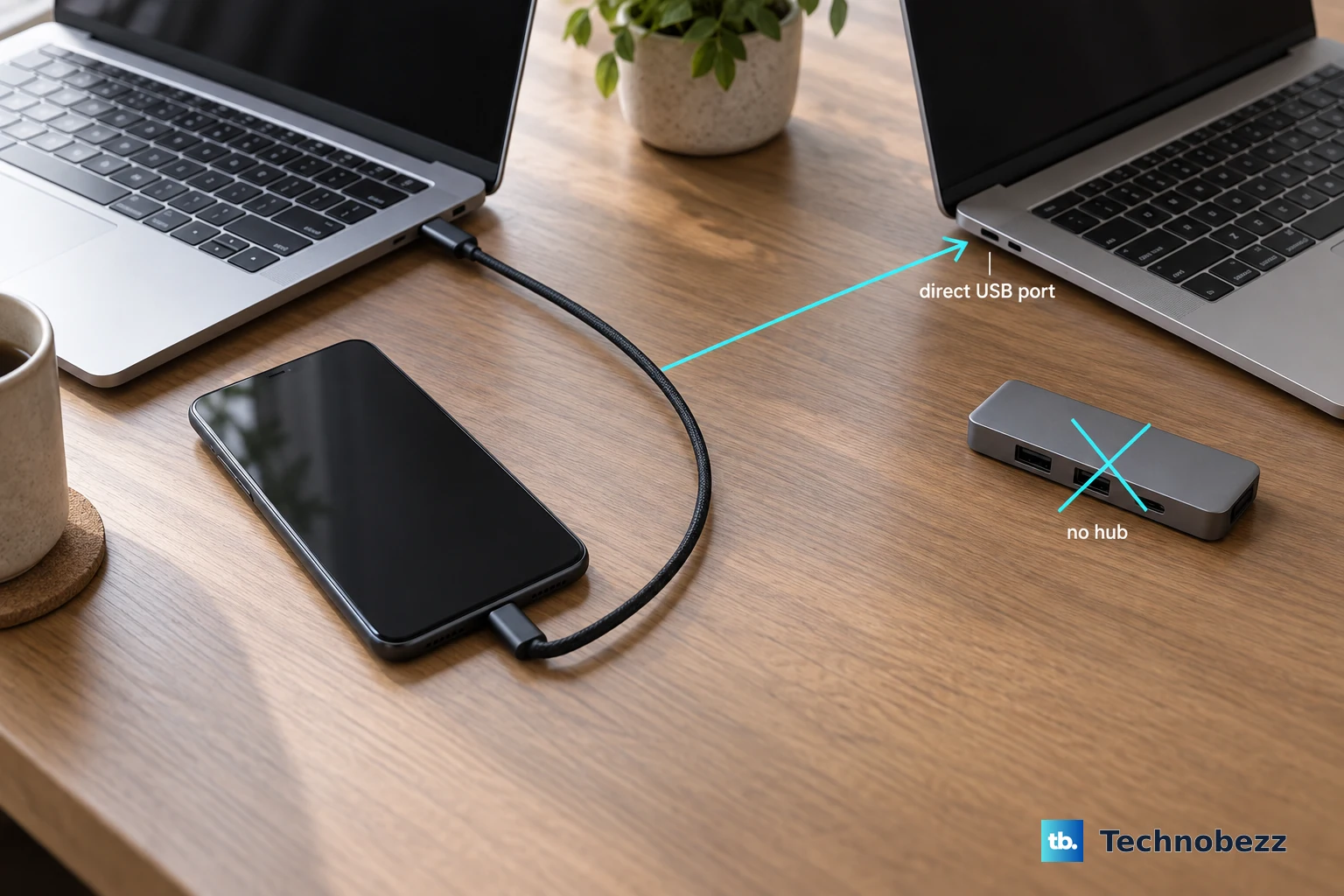
Grab the original 120W cable that came with your phone. If you don't have it handy, try a different, high-quality USB-C cable that you know works for data transfer. Cheap cables often only handle charging. Plug it into a different USB port on your computer, preferably one directly on the motherboard instead of a hub.
While you're at it, take a close look at the phone's USB-C port. Shine a light in there and see if you spot any packed-in dust or debris. Gently use a dry toothpick or a plastic flosser to carefully scrape any gunk out. Be very gentle to avoid damaging the delicate pins inside.
Restart Your Phone and Computer
A simple restart clears out temporary software glitches that can block the connection. Turn your Xiaomi 14T Pro off and then back on. Do the same for your Windows PC or Mac.
If the phone is frozen or unresponsive, you can force a restart. Just press and hold the power button for about 15 seconds until you feel it vibrate and see the Xiaomi logo appear. This is different from a normal restart and can kick-start the system when it's stuck.
Select the Correct USB Connection Mode
This is a crucial step many people miss. When you connect the phone, a notification should pop up on your screen saying "Charging this device via USB." Tap that notification.
You'll see a menu with several options. For file transfer, you need to select "File Transfer" or "MTP" (Media Transfer Protocol). If it's set to "Charging only," your computer won't see any files. Some PCs might also work with the "PTP" (Picture Transfer Protocol) mode for photos.
Enable Developer Options and USB Debugging
If the standard connection isn't working, enabling developer options can help. First, go to Settings > About phone. Tap on "MIUI version" or "HyperOS version" seven times quickly. You'll see a message saying "You are now a developer."
Go back to the main Settings menu, and you'll now find a new "Developer options" menu near the bottom. Open it and scroll down to find "USB debugging." Toggle it on. A warning will pop up; just tap "OK." This allows for a deeper, more direct connection with your PC, which often solves recognition issues.
Update Your Phone's Software
Sometimes, a bug in HyperOS can interfere with USB functions. It's worth checking for a system update. Go to Settings > About phone > MIUI/HyperOS version and tap "Check for updates."
If an update is available, install it. The Dimensity 9300+ chip in the 14T Pro is powerful, but early software can have quirks. Updates frequently include fixes for connectivity problems like this one.
Install or Update USB Drivers on Windows
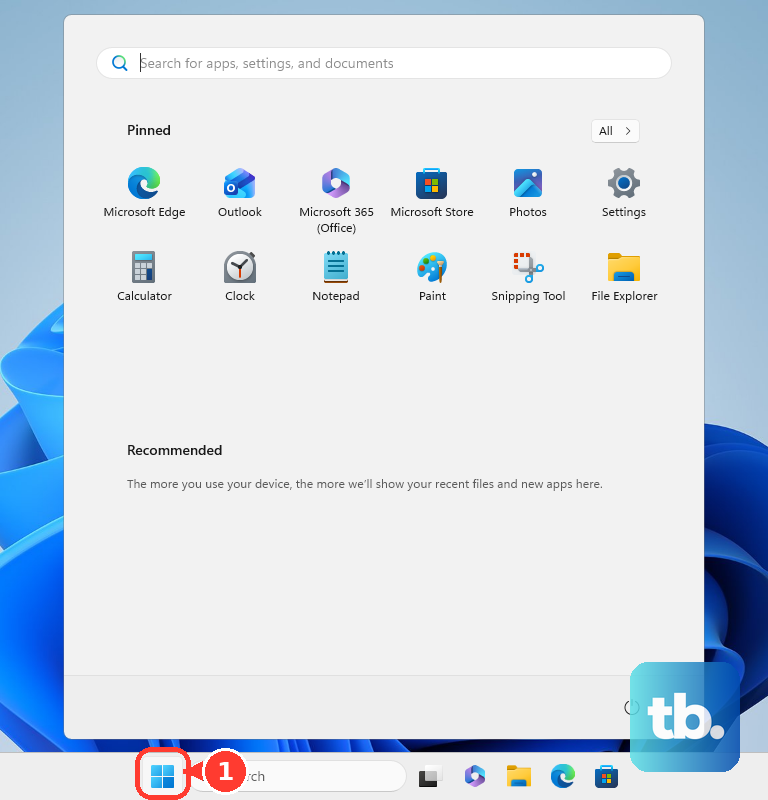
Your Windows PC needs the correct driver to talk to your Xiaomi phone. The simplest way is to let Windows Update handle it. Connect your phone to the PC, open the Start menu, and type "Device Manager." Open it and look for your phone.
It might be under "Portable Devices" or "Other devices" with a yellow warning icon. Right-click on it and select "Update driver." Choose "Search automatically for updated driver software." Windows will often find and install a generic Android driver that works.
If that fails, you can try the official Xiaomi USB Driver, though it's sometimes bundled with their Mi PC Suite tool. Installing that suite can ensure all the right drivers are in place.
Check Your Computer's USB Ports and Power Settings
Try plugging the cable into a different USB port on your computer. Front-panel ports on a desktop can be less reliable than the ones directly on the back. Also, some USB ports might be configured to save power.
On Windows, you can change this. In Device Manager, expand "Universal Serial Bus controllers." Right-click on each "USB Root Hub" and select "Properties." Go to the "Power Management" tab and uncheck "Allow the computer to turn off this device to save power." This keeps the port active.
Disable Conflicting Security Software
Occasionally, overzealous antivirus or firewall software on your PC can block the new device connection. Try temporarily disabling your antivirus's real-time protection. On Windows Security, go to Virus & threat protection > Manage settings and turn off "Real-time protection."
Remember to turn it back on after testing the connection. Third-party security suites from Norton, McAfee, or others often have deeper hooks that can interfere, so check their settings as well.
Clear USB Settings Cache on Your Phone
Your phone's USB service can get its settings tangled. You can reset it without losing personal data. Go to Settings > Apps > Manage apps. Tap the three-dot menu and select "Show system apps."
Now, search for an app called "USB settings" or "USB." Tap on it and select "Clear data" and "Clear cache." This resets all USB-related preferences back to default. The next time you connect, you'll need to re-select the "File Transfer" option from the notification.
Try a Different Computer
This is a great way to figure out where the problem lies. If your Xiaomi 14T Pro connects perfectly to another laptop or desktop, then the issue is with your primary computer's settings, drivers, or ports.
If it fails to connect to any computer, then the problem is almost certainly with the phone itself, either a software setting you haven't found yet, or less commonly, a hardware issue with the USB port. Given the 120W charging can generate heat, it's worth ensuring the port is clean and undamaged from repeated high-power cycles.