
Keeping your Samsung Galaxy Tab S11 Ultra updated gives you the latest One UI features, performance improvements, and critical security fixes. Samsung sends out monthly security patches and major One UI upgrades roughly once a year. Here's how to install them on your tablet.
Update Over Wi-Fi (OTA)
Open Settings > Software update > Download and install. The tablet will check for available updates automatically. If one shows up, tap Download and then Install now (or schedule it for later).
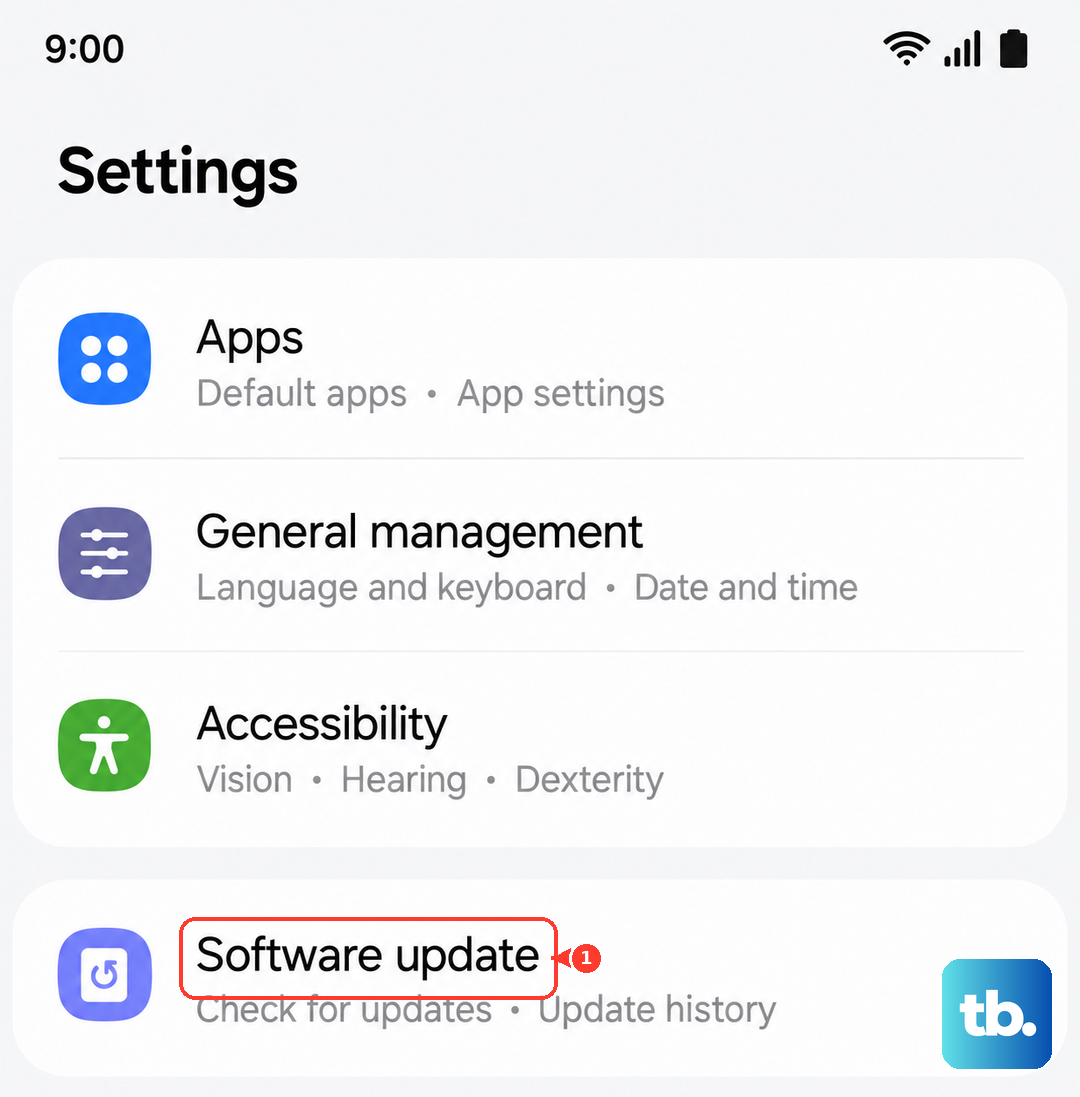
Make sure your tablet has at least 50% battery or is plugged into a charger. You also need a stable Wi-Fi connection. The download size can be a few hundred MB for security patches or several GB for a full One UI upgrade.
Enable Automatic Downloads
Go to Settings > Software update and turn on Auto download over Wi-Fi. Your tablet will grab updates in the background while connected to Wi-Fi. You'll still need to tap Install, but the download part happens on its own. You can also enable Install updates overnight to apply updates while you sleep.
Update via Smart Switch on a Computer
If the over-the-air method fails or your tablet doesn't have enough free storage, use Samsung Smart Switch on a PC or Mac. Download Smart Switch from Samsung's website, then connect your Tab S11 Ultra with a USB-C cable. Open Smart Switch and it will automatically check for available updates. Click Update to download and install through the computer.
This method is also handy if you want a fresh install without worrying about a flaky Wi-Fi connection.
Fix a Stuck or Failed Update
If the update freezes or won't complete, force restart your tablet by pressing and holding the Power button and Volume Down button simultaneously for 10-15 seconds until the device restarts. That usually clears temporary glitches.
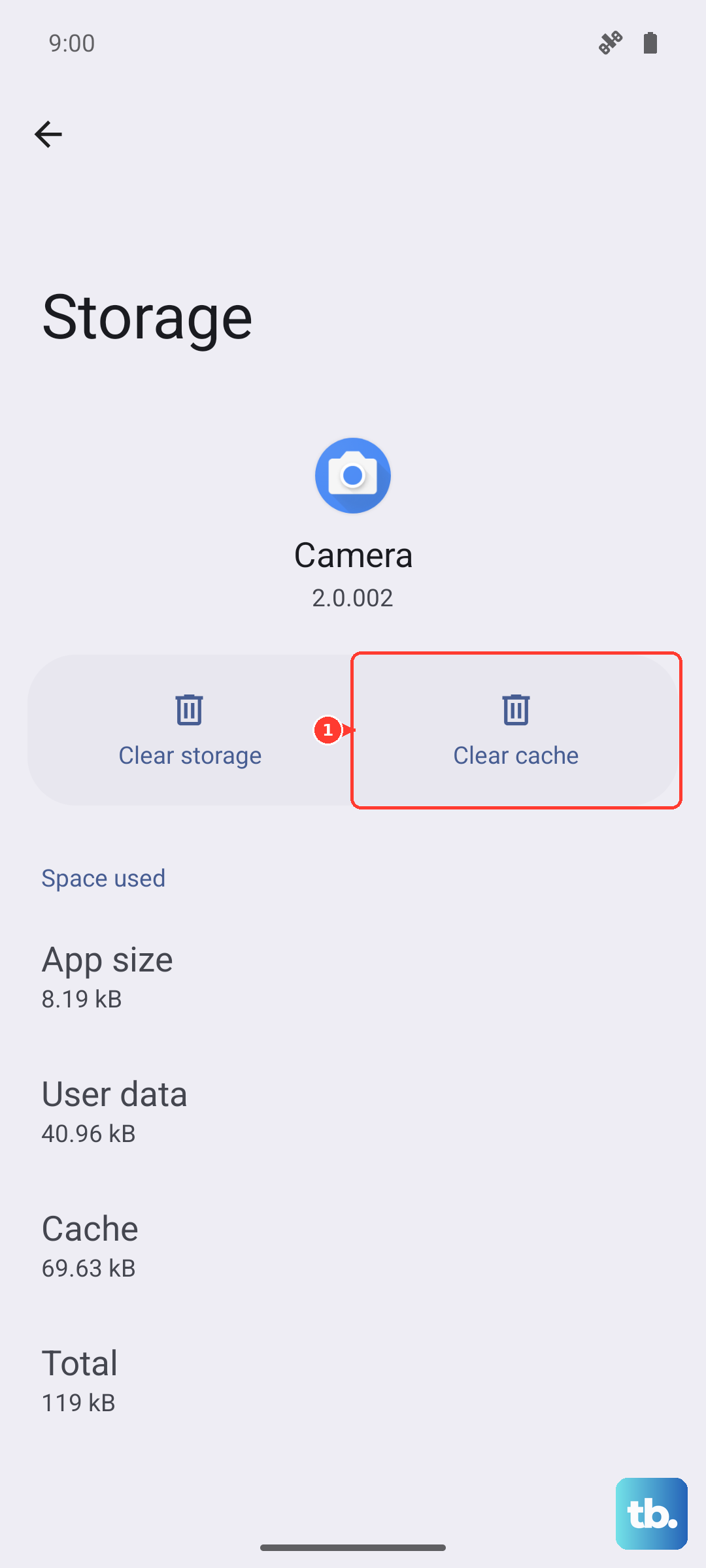
If the update still won't install, go to Settings > Apps > Software update, tap Storage, and select Clear cache. Then try downloading and installing again. For deeper issues, boot into recovery mode (Power + Volume Up) and choose Wipe cache partition. This won't delete your data, just the system cache. Then restart and attempt the update again.
Check Your Current One UI Version
Head to Settings > About tablet > Software information. You'll see your One UI version, Android version (Android 16), and the security patch date. Knowing this helps when you're waiting for a specific update and want to confirm it hasn't arrived for your model yet.
What to Do Before a Major Update
Before upgrading to a new One UI version, back up your tablet. Go to Settings > Accounts and backup > Back up data and choose Samsung Cloud or an external backup. Major updates require 5-10 GB of free storage, so check Settings > Storage and clear out old files if needed. Also make sure you have at least 50% battery or keep it plugged in the update can take 15-30 minutes depending on size.
Why Updates Matter on the Tab S11 Ultra
Samsung's monthly security patches fix vulnerabilities that could affect your tablet. One UI upgrades add new multitasking features, DeX improvements, and battery optimizations specific to the S11 Ultra's large screen. Skipping updates means missing out on performance tweaks and leaving your device less secure. Keep auto-updates on and you'll rarely have to think about it.