
Updating your iPhone 16 to iOS 26 is a straightforward process that brings the latest features and security patches to your device. The steps are similar to previous iPhones, but there are a few specifics to keep in mind for the 2024 model.
Update Over Wi-Fi
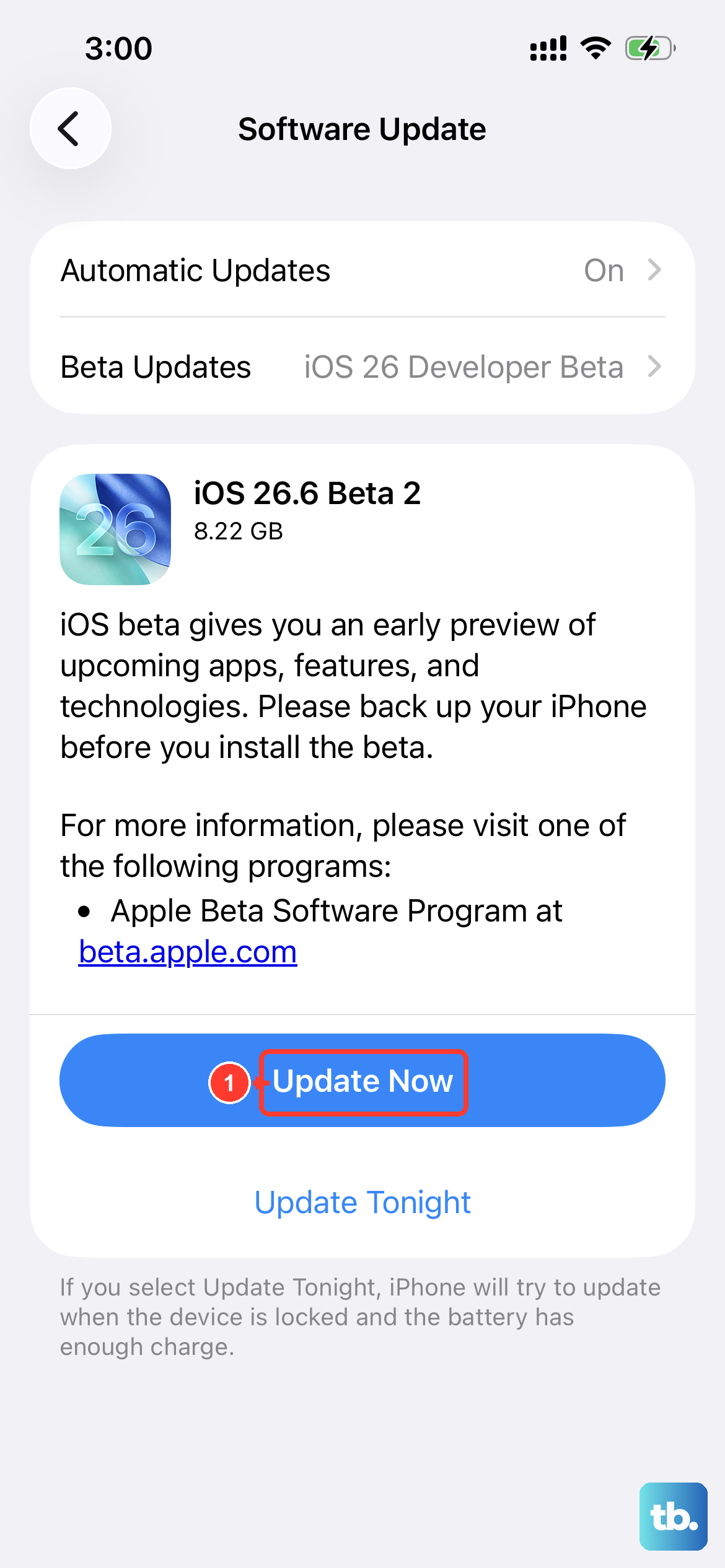
Open the Settings app and navigate to General > Software Update. Your iPhone 16 will check for available updates. If iOS 26 is ready, you'll see the details and an option to download it. Tap Download and Install to begin.
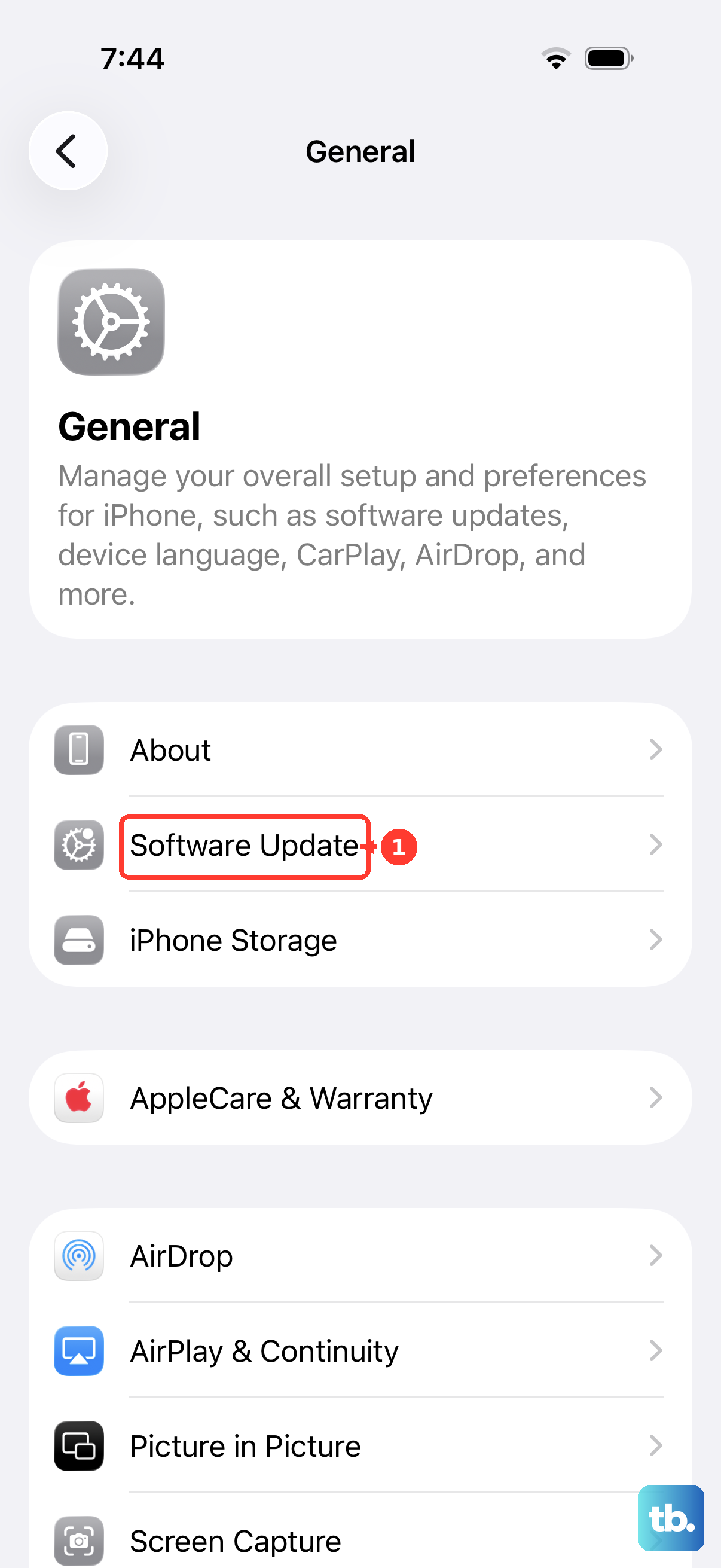
Ensure your phone is connected to a stable Wi-Fi network and has at least a 50% charge. I'd recommend plugging it into a 27W USB-C charger or a MagSafe puck to be safe. The download can be several gigabytes, so it might take a few minutes depending on your internet speed.
Enable Automatic Updates
To have your iPhone 16 handle updates on its own, go to Settings > General > Software Update > Automatic Updates. Toggle on both Download iOS Updates and Install iOS Updates.
With this enabled, your phone will download iOS 26 in the background and install it overnight when it's charging and connected to Wi-Fi. You'll still get a notification before the installation happens, giving you a chance to delay it.
Update Using a Mac or PC
If the over-the-air update fails or you're low on storage, use a computer. Connect your iPhone 16 to your Mac or Windows PC using a USB-C cable. On a Mac with macOS Catalina or later, open Finder. On a Windows PC or older Mac, open iTunes.
Select your iPhone from the sidebar, then click Check for Update. If iOS 26 is available, click Download and Update. This method is great because the computer handles the download, bypassing any storage limitations on the phone itself.
If the Update Gets Stuck
Sometimes an update can hang on the Apple logo or a progress bar. The first step is to force restart your iPhone 16. Quickly press and release the Volume Up button, then the Volume Down button, then press and hold the Side button until you see the Apple logo appear.
If that doesn't work, connect to a computer and try the update process through Finder or iTunes. This often resolves installation errors. If you see an error like Unable to Verify Update, check your internet connection or try switching to a different Wi-Fi network.
Check Your Current iOS Version
It's good to know what you're currently running before you update. Go to Settings > General > Software Update to see the currently installed version. This will tell you if you're already on iOS 26 or if you're coming from an older version like iOS 25.
Prepare Your iPhone 16 Before Updating

Always back up your phone before a major update. The easiest way is via iCloud. Go to Settings > [Your Name] > iCloud > iCloud Backup and tap Back Up Now. Make sure the backup completes.
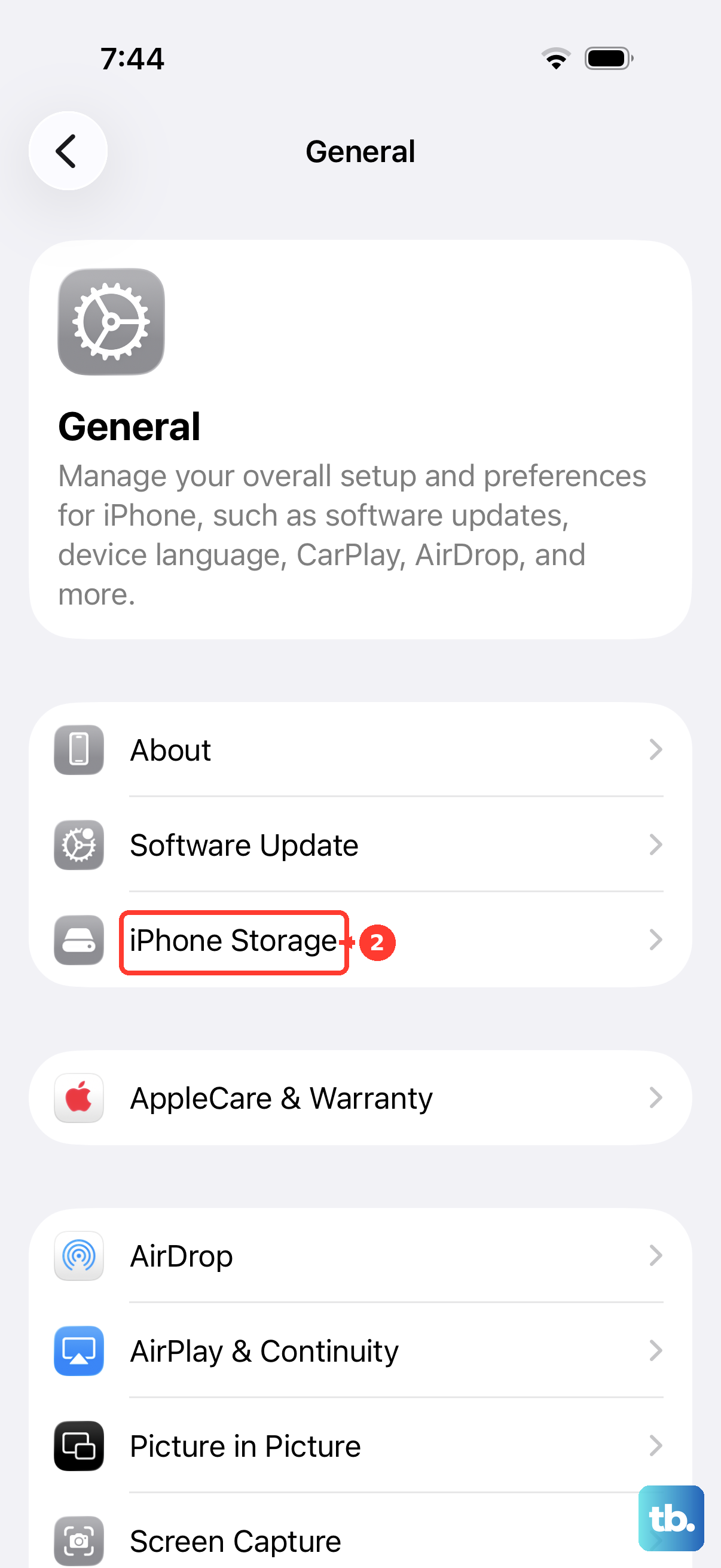
Also, ensure you have enough free space on your iPhone 16 for the update. You can check this in Settings > General > iPhone Storage. If space is tight, offloading unused apps or old photos can help.
Why Updating to iOS 26 Matters
Major updates like iOS 26 include critical security patches that protect your personal data. They also bring performance improvements that can affect battery life and system stability. For the iPhone 16, updates often include optimizations specifically for its hardware, like the camera system or the A18 chip.
While it's tempting to wait, staying current is the best way to ensure your phone runs smoothly and securely. The process is designed to be simple, whether you do it over the air or with a computer.











