
Your iPhone 16 Pro's battery is its lifeline, and keeping an eye on its health is one of the smartest things you can do. With iOS 26, Apple provides detailed diagnostics right in your settings, giving you a clear picture of your battery's condition and how you can extend its life.
Find Your Battery Health Percentage
Open Settings > Battery > Battery Health & Charging. Here, you'll see the key metric: Maximum Capacity. This percentage shows your battery's current capacity compared to when it was brand new. A fresh iPhone 16 Pro will show 100%.
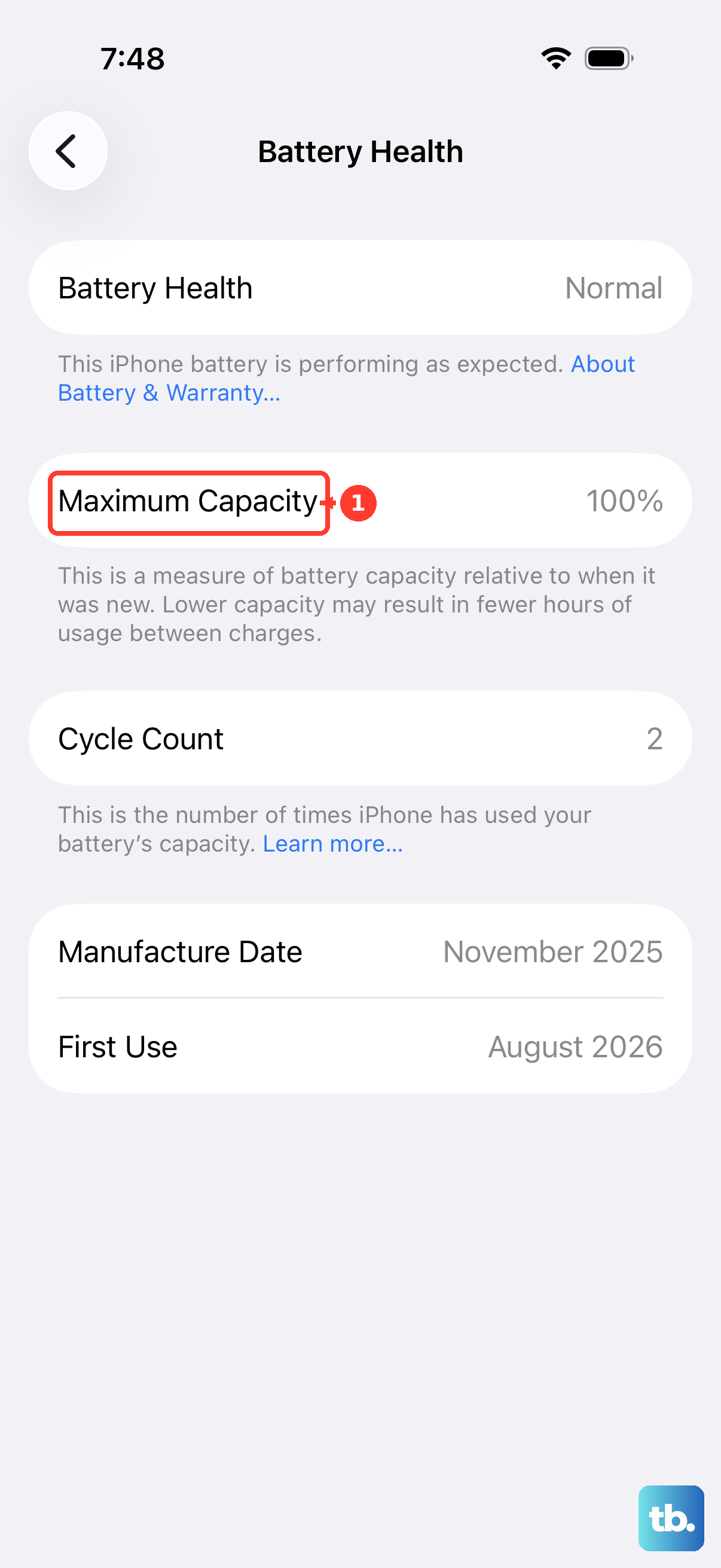
Over time, this number will naturally drop. After a year of typical use, seeing it between 90% and 95% is common. Apple considers a battery significantly degraded once it falls below 80%, which is when you'll likely notice your phone needing a charge much more often.
Just below the percentage, check the Peak Performance Capability section. If your battery is in good shape, it will state that normal peak performance is supported. If there's significant degradation, a message about performance management may appear here.
Check the Battery Cycle Count
A charge cycle is counted each time you use 100% of your battery's capacity, which can happen over multiple charges. Apple designs its batteries to retain up to 80% of their original capacity after a certain number of cycles.
For your iPhone 16 Pro, you can find this data directly in settings. Go to Settings > Battery > Battery Health. Along with the Maximum Capacity, you'll see your cycle count, the battery's manufacture date, and its first use date. This gives you a complete history at a glance.
See Which Apps Are Using the Most Power
To understand your daily battery drain, head to Settings > Battery and scroll down. You'll see a breakdown of battery usage by app for the last 24 hours and the last 10 days. Tap Show Activity next to an app to see how much time it spent on screen versus running in the background.
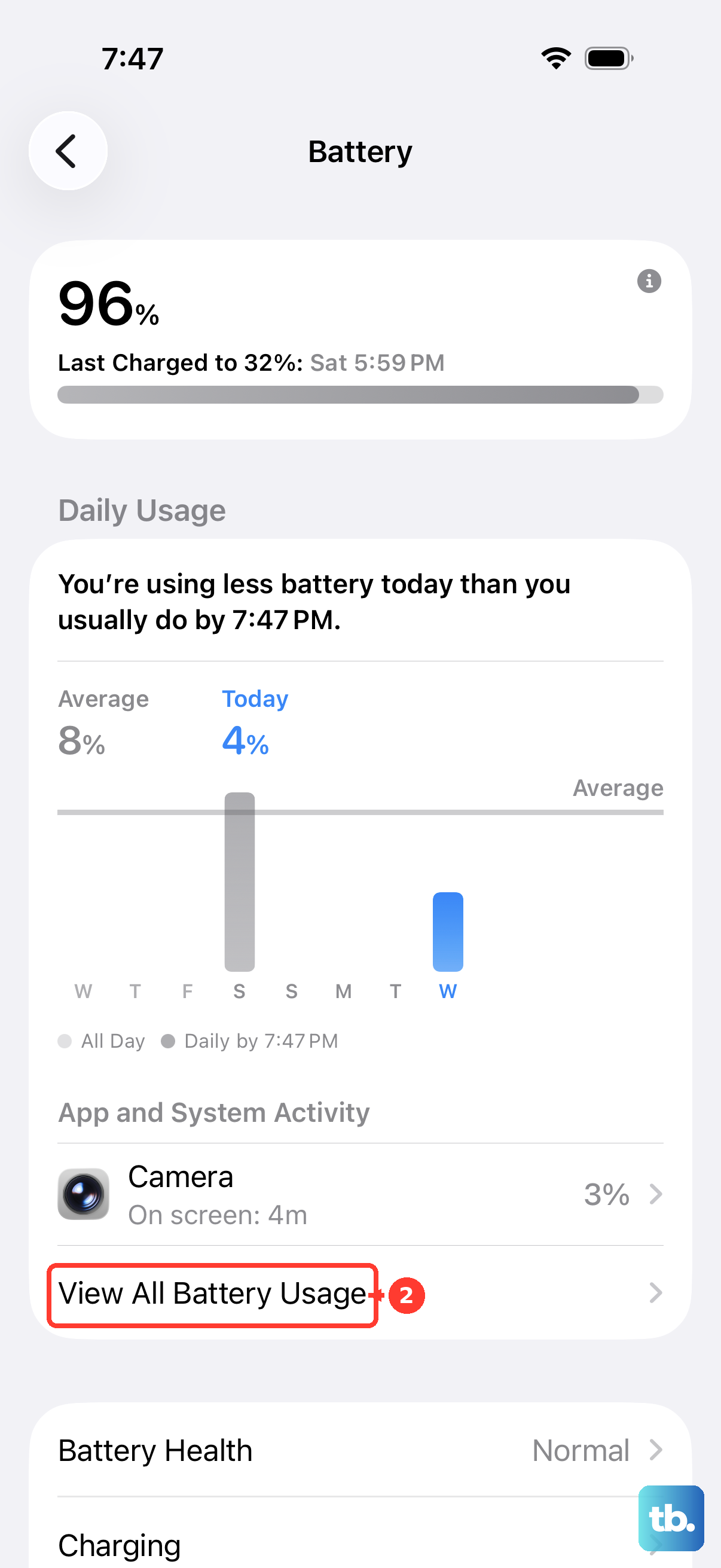
If you spot an app with surprisingly high background activity that you don't use often, it might be misbehaving. You can force close it or head to its settings to restrict background refresh, which can help save power.
Turn On Optimized Battery Charging
This is a crucial setting for long-term health. In Settings > Battery > Battery Health & Charging, ensure Optimized Battery Charging is enabled. Your iPhone 16 Pro will learn your daily routine and delay charging past 80% until you're about to need it.
Keeping a lithium-ion battery at 100% charge for prolonged periods can speed up wear. This feature helps mitigate that. You may also see an 80% Limit option, which is great if you primarily charge overnight and want to maximize battery longevity by never charging to full.
Use the Right Charging Gear
To get the fastest and safest charge for your iPhone 16 Pro, use its USB-C port with a certified 30W or higher power adapter and a high-quality USB-C cable. For wireless charging, MagSafe or Qi2 accessories will provide the fastest speeds, up to an estimated 25W.
I'd avoid cheap, uncertified chargers and cables. They can deliver inconsistent power, which generates excess heat and slowly damages the battery over time. Sticking with Apple-certified or reputable third-party brands is a simple way to protect your investment.
When a Battery Replacement Makes Sense
Once your Maximum Capacity dips below 80%, you'll likely find yourself charging your phone multiple times a day. This is the point where Apple officially considers the battery consumed, and performance management may be more active.
Replacing the battery through Apple or an authorized service provider will restore your iPhone 16 Pro's battery life and performance back to like-new condition. It's often a more cost-effective choice than upgrading, especially if you're otherwise happy with your phone.
Daily Habits for Battery Longevity
Extreme heat is a battery's worst enemy. Try not to leave your iPhone 16 Pro in a hot car or use intensive apps like gaming while it's sitting in direct sunlight. Similarly, very cold temperatures can temporarily reduce battery life.
For daily use, you don't need to obsess over perfect charging. But if you can, try to keep it between 20% and 80% most of the time instead of regularly draining it to zero. Also, make sure you keep iOS updated, as new versions often include advanced battery health optimizations tailored for your specific hardware.











