
Keeping your iPhone 13 on the latest iOS version is the best way to ensure it runs smoothly and securely. With your phone being a few years old now, these updates are crucial for maintaining performance and battery health. I'd start by checking for updates right away.
Head to Settings > General > Software Update. Your iPhone 13 will check for any available downloads. If you see an update, tap Download and Install. Make sure your phone is connected to Wi-Fi and has more than 50% battery, or just plug it in with a 20W charger to be safe.
Set Up Automatic Updates
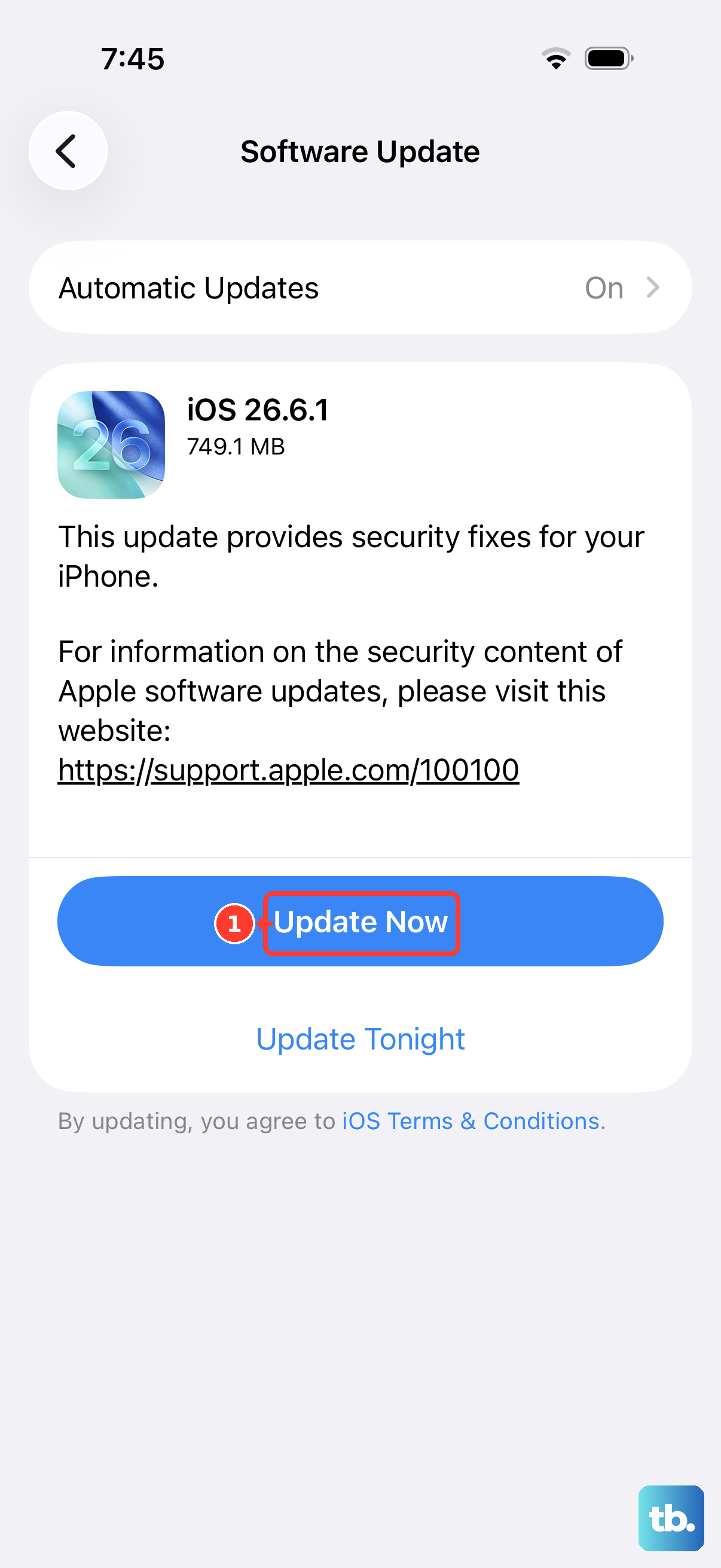
To make sure you never miss a security patch, enable automatic updates. Go back to Settings > General > Software Update > Automatic Updates. Toggle on both Download iOS Updates and Install iOS Updates.
With this on, your iPhone 13 will download updates in the background and install them overnight when it's charging on a MagSafe or Qi pad and connected to Wi-Fi. You'll still get a notification before it happens, so you can delay it if needed.
Update Using a Mac or PC
If the over-the-air update fails or you're short on storage, using a computer is a reliable alternative. Grab your Lightning cable and connect your iPhone 13 to your computer. On a Mac with macOS Catalina or later, open Finder. On a Windows PC or older Mac, open iTunes.
Select your device in the sidebar and click Check for Update. If one is found, click Download and Update. This method is great because the computer handles the download, bypassing any storage limitations on your phone itself.
If the Update Gets Stuck
Sometimes an update can freeze on the Apple logo or progress bar. The first fix is to force restart your iPhone 13. Quickly press and release the Volume Up button, then the Volume Down button, then press and hold the Side button until you see the Apple logo appear.
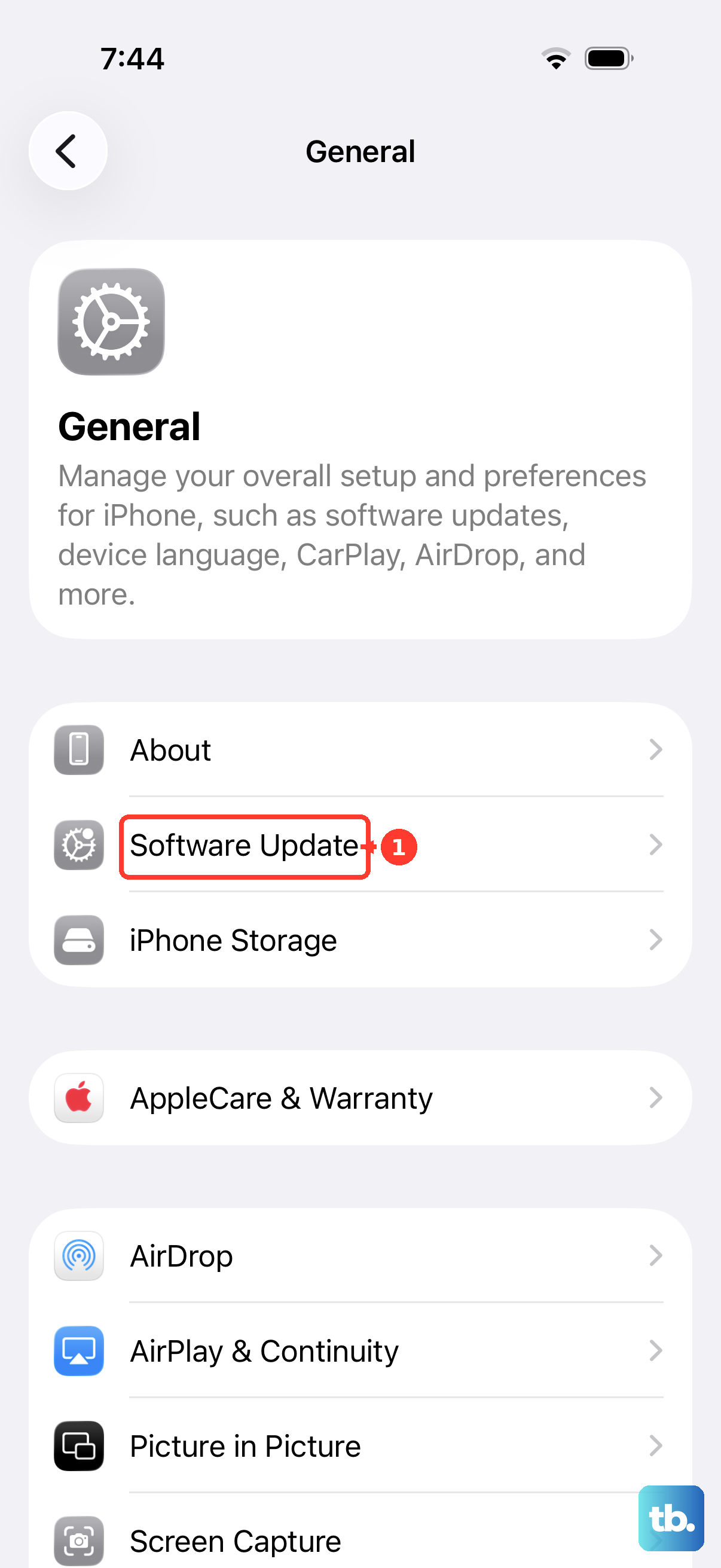
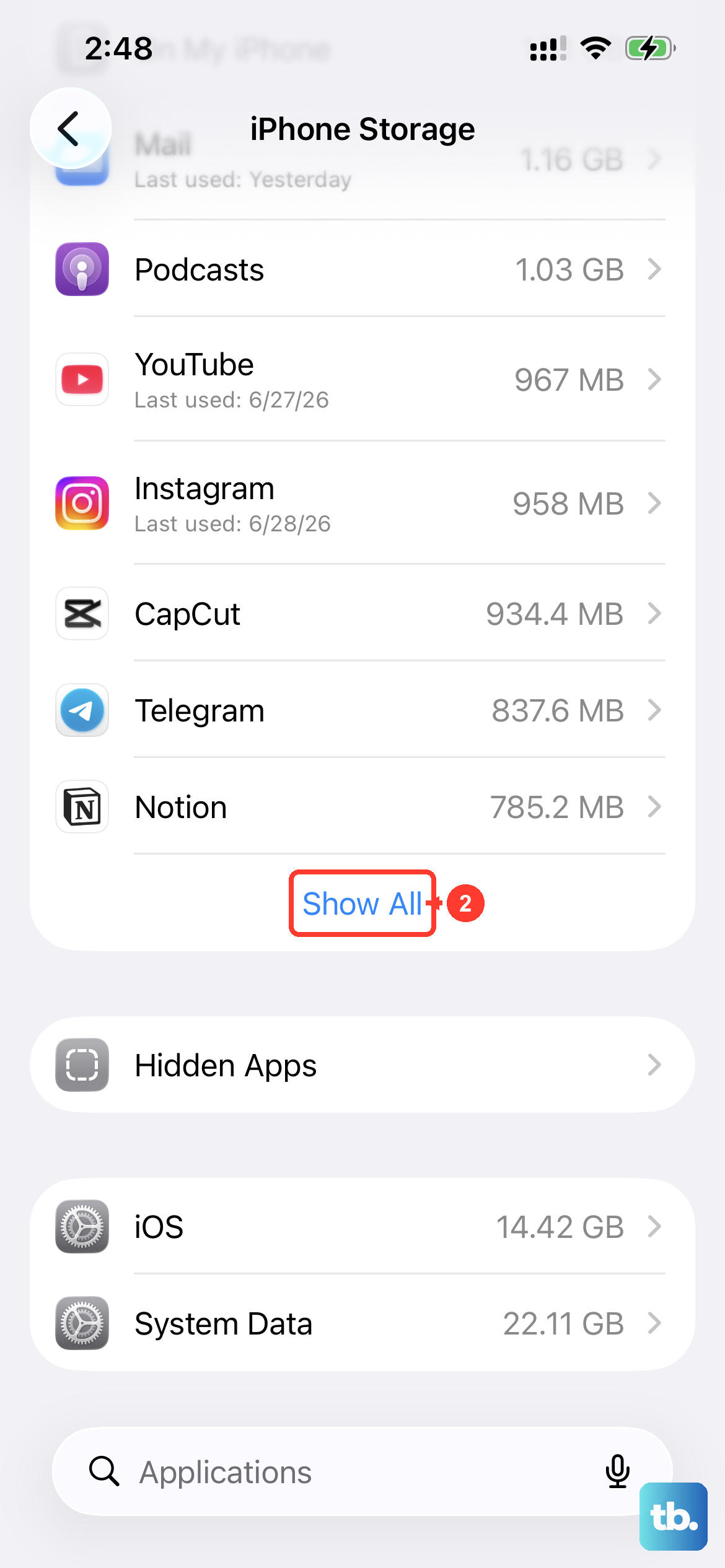
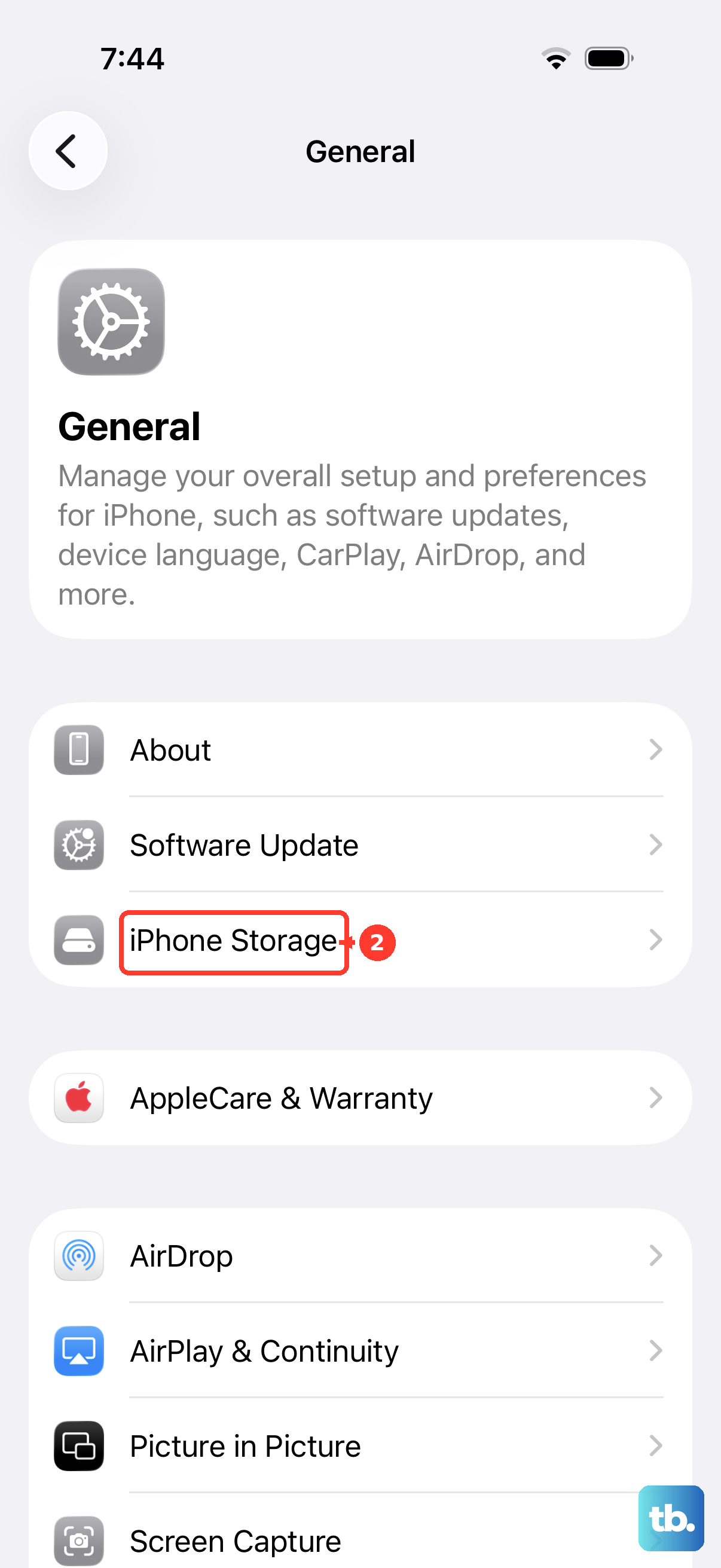
If that doesn't work, the computer method is your next best bet. Connect to Finder or iTunes and try the update from there. For errors like "Unable to Verify Update," try switching to a different Wi-Fi network. You can also delete the downloaded update file by going to Settings > General > iPhone Storage, finding the update, and tapping Delete Update, then trying again.
Check Your iOS Version and Prepare
It's good to know what you're currently running. Go to Settings > General > About to see your iOS version. Before any major update, like moving to a new version of iOS, I always recommend a backup. Go to Settings > [Your Name] > iCloud > iCloud Backup and tap Back Up Now.
This is especially important for an iPhone 13, as restoring from a backup can save a lot of time if you need to set up the phone again. Also, take a moment to check your battery health in Settings > Battery > Battery Health & Charging. If it's significantly degraded, a new battery can make a big difference in how the phone performs after an update.
Why Updates Matter for Your iPhone 13
Every update includes critical security patches that protect your personal data. For a device that's been out since 2021, staying updated is your best defense against new threats. Updates also bring performance tweaks and battery optimizations that can help counteract the natural degradation over time.
They often include new features that keep your phone feeling fresh, even if the 60Hz display or Lightning port feels dated compared to newer models. Using an original or MFi-certified Lightning cable for updates ensures a stable connection and prevents any charging-related interruptions during the process.











