
If your iPhone 13 is dying way too quickly, the first thing to do is check the battery's health. Head to Settings > Battery > Battery Health & Charging. You'll see a percentage for Maximum Capacity.
This number shows how much charge your battery can hold compared to when it was new. Apple suggests considering a replacement if it falls below 80%, but I've noticed many people start seeing faster drains once it dips under 85%.
While you're in the Battery menu, tap on "Battery Usage By App." This shows you exactly which apps have been using power over the last 24 hours or 10 days. It's the fastest way to spot a rogue app that's draining things in the background.
Update Your Software
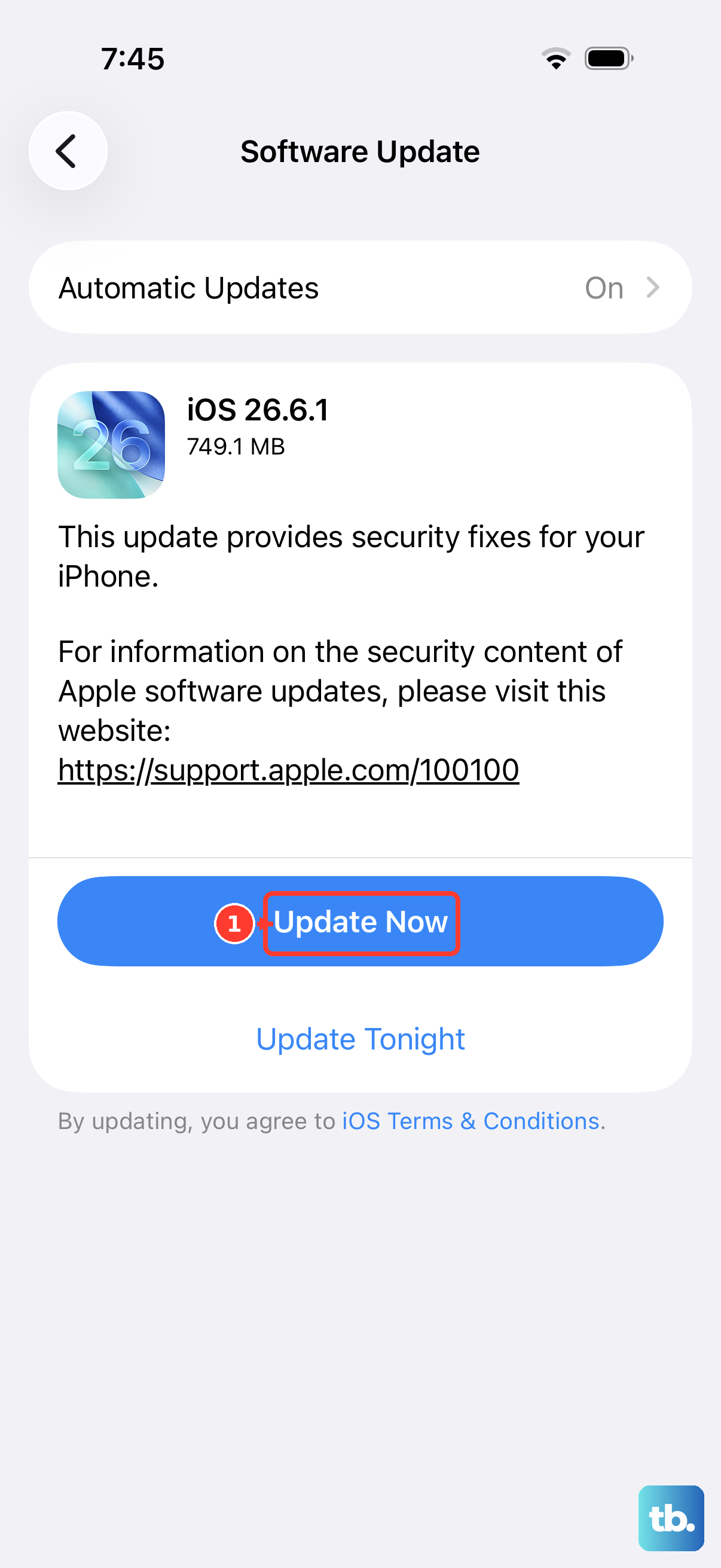
Before you start turning everything off, make sure your iPhone 13 is running the latest version of iOS. Software updates often include bug fixes and optimizations that can resolve mysterious battery drain issues.
Go to Settings > General > Software Update. If an update is available, plug your phone into power and install it. This is a simple fix that solves a lot of problems.
Manage Your Display Settings
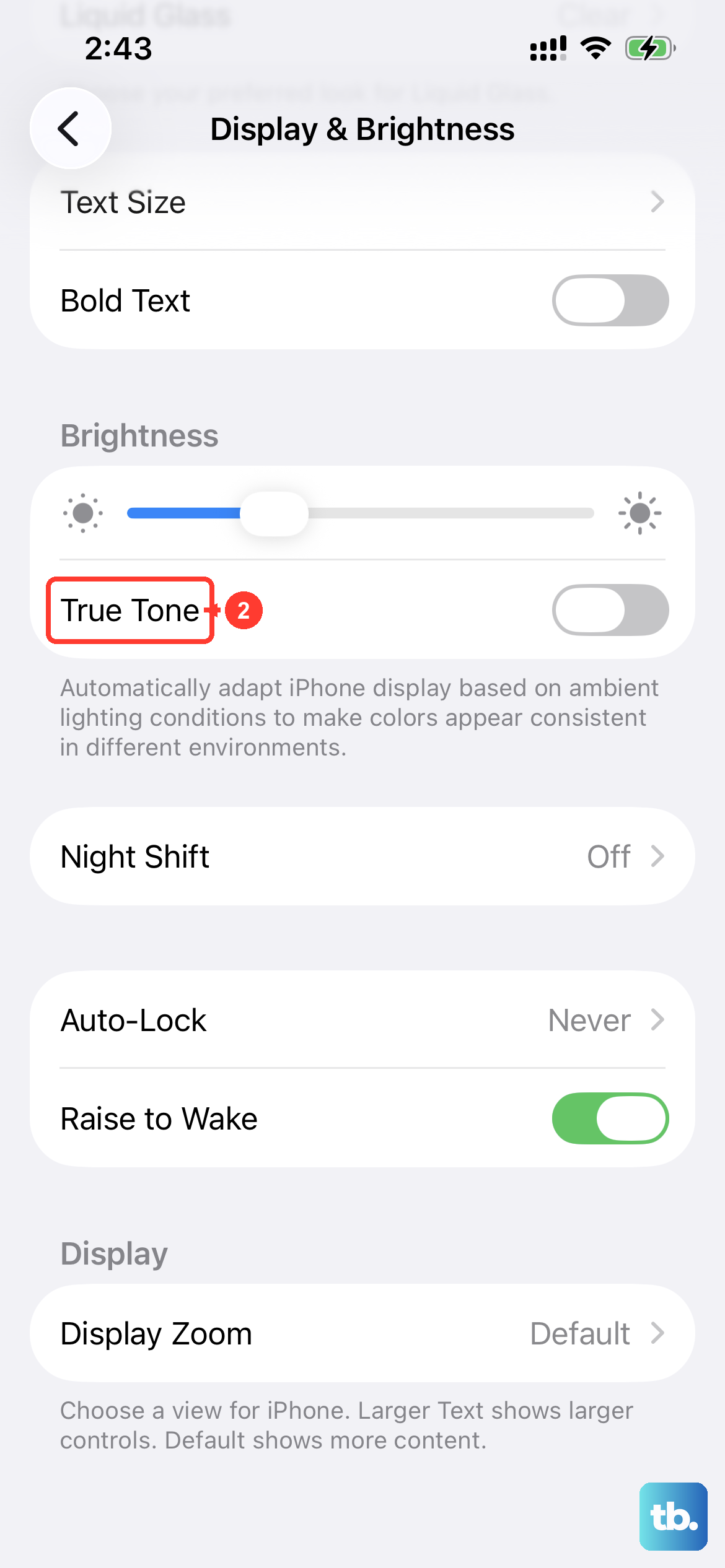
The display is one of the biggest battery users on any phone. On the iPhone 13, you have a few key settings to check. First, open Settings > Display & Brightness.
Consider reducing the screen brightness manually with the slider. Also, tap on "Auto-Lock" and set it to 30 seconds or 1 minute so the screen turns off quickly when you're not using it. You can also toggle off "Raise to Wake" to prevent the screen from lighting up every time you pick up the phone.
While you're there, try turning off True Tone. This feature adjusts the screen's color temperature based on your environment, and it uses a small amount of power to do so constantly. Turning it off can give you a tiny boost.
Control Background Activity
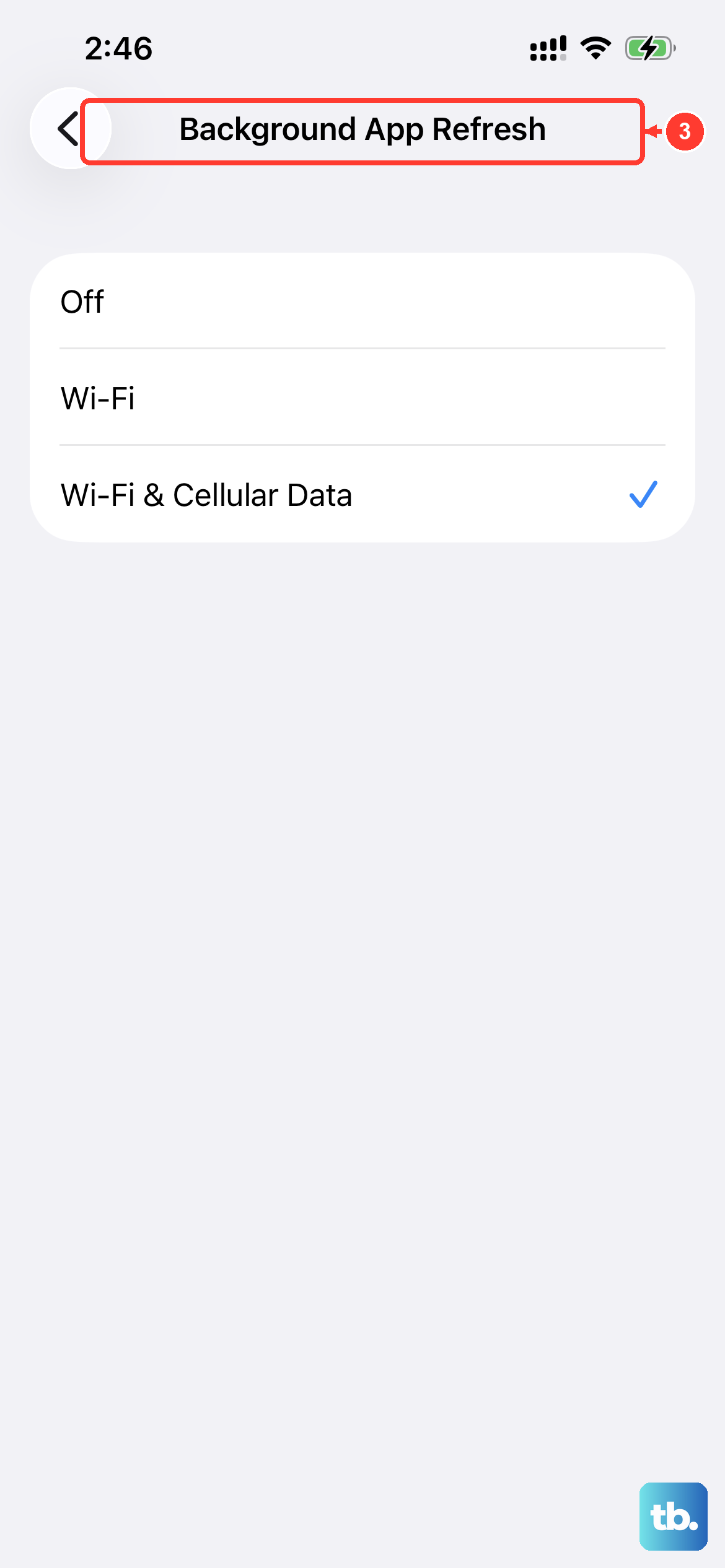
Apps refreshing in the background are a major cause of battery drain. You can control this in two places. Go to Settings > General > Background App Refresh.
You can turn this off entirely, or set it to "Wi-Fi" only. Even better, scroll through the list and disable it for specific apps that don't need to update constantly, like games or streaming apps you only use actively.
Next, check location services. Go to Settings > Privacy & Security > Location Services. Review the list and for any app that doesn't absolutely need to know where you are, tap on it and select "Never" or "While Using the App." Avoid "Always" unless it's critical.
Review Your Connectivity Features
Wireless radios searching for a signal can drain the battery. If you're in an area with poor cellular service, your iPhone 13 works harder to maintain a connection, which burns through power. Enabling Airplane Mode in these situations can help, but that's not always practical.
For a more nuanced approach, look at Bluetooth and Wi-Fi. If you're not using a Bluetooth accessory like headphones or your watch, you can turn Bluetooth off from the Control Center. The same goes for Wi-Fi if you're out and about and not connected to a network.
Also, consider your mail settings. Go to Settings > Mail > Accounts > Fetch New Data. If you have Push enabled, your phone is constantly checking for new messages. Switching to Fetch and setting it to every 30 minutes or even hourly can make a noticeable difference.
Use Low Power Mode Strategically
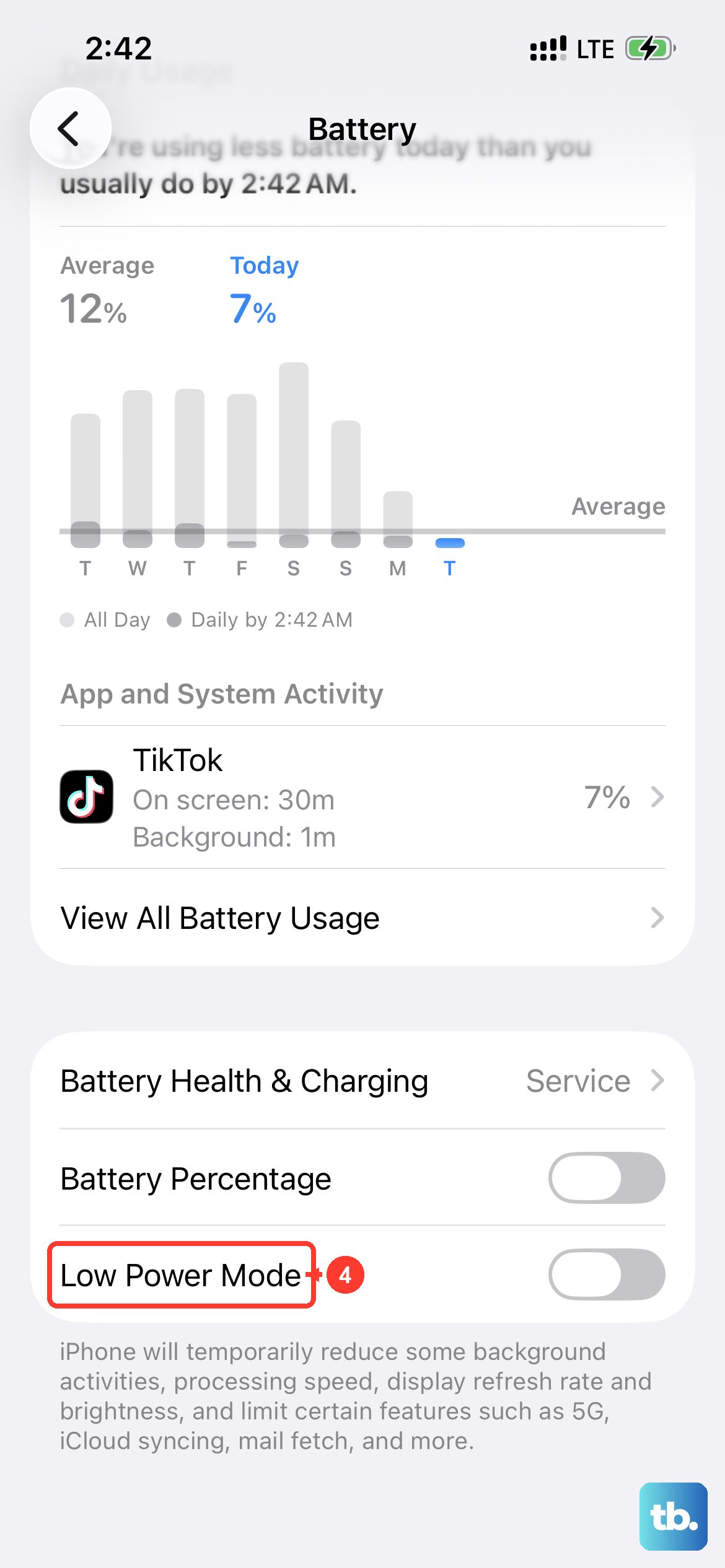
This is one of the most effective tools on your iPhone 13. You can turn it on manually by going to Settings > Battery and toggling on Low Power Mode. You can also add it to your Control Center for quick access.
When activated, it reduces background activity, disables automatic downloads, and pauses some visual effects. It's perfect for when you know you'll be away from a charger for a long time. Your phone will feel just a bit slower, but you'll gain several extra hours of use.
Check for Problematic Apps
Sometimes, a single app is the culprit. Go back to Settings > Battery and look at the usage breakdown. If you see an app using a disproportionate amount of background activity, it might be buggy.
The first step is to check the App Store for an update for that specific app. Developers often release patches for battery-draining bugs. If the problem persists after an update, try force-closing the app. Swipe up from the bottom of the screen and pause in the middle, then swipe up on the app's preview to close it.
As a last resort for a misbehaving app, you can delete and reinstall it. This often clears out any corrupted data that might be causing the excessive battery use.
Reset All Settings
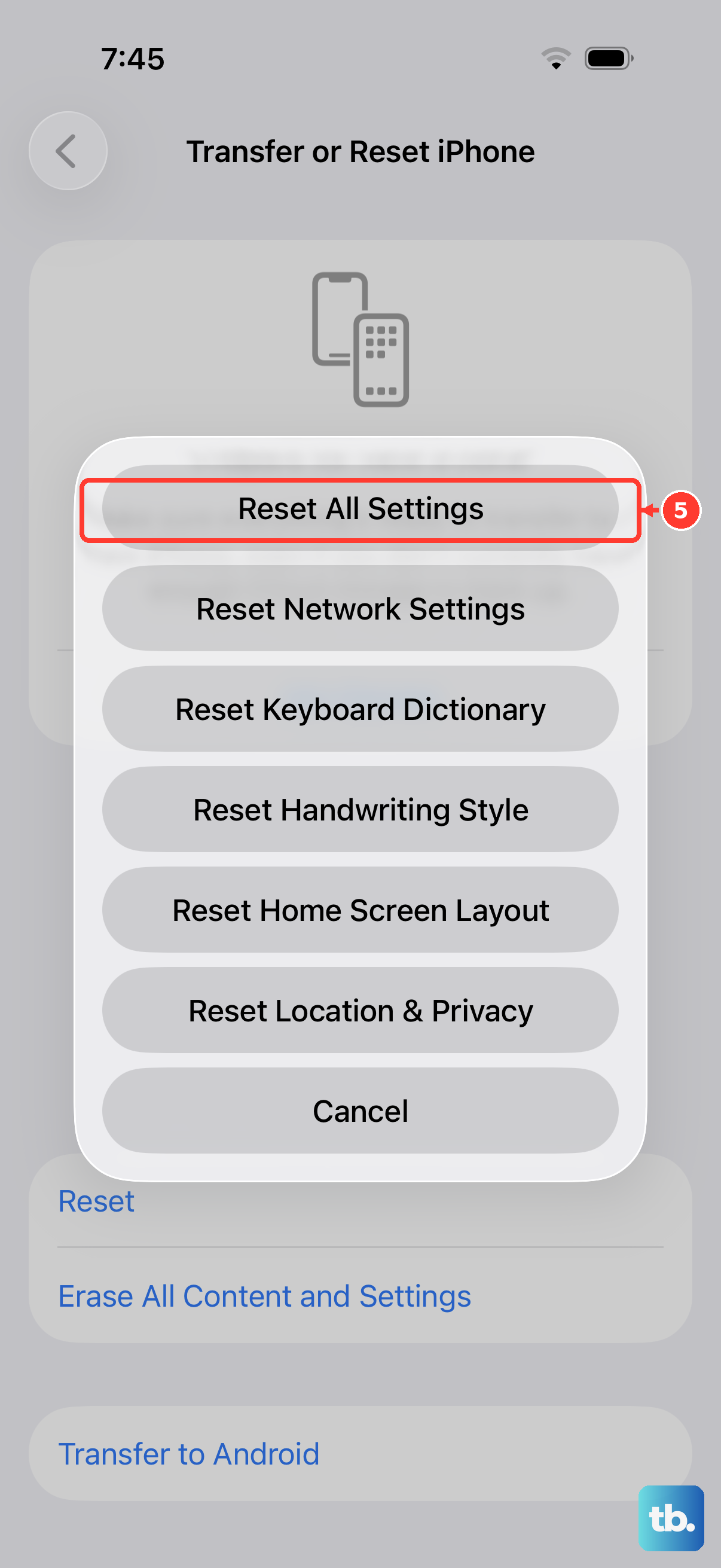
If you've tried everything and the battery is still draining fast, a settings reset can help. This won't delete any of your personal data like photos or messages, but it will reset all your system preferences to their defaults.
That means your Wi-Fi passwords, wallpaper, and display settings will be wiped, so you'll need to set those up again. To do this, go to Settings > General > Transfer or Reset iPhone > Reset, and then choose "Reset All Settings."
Consider Your Charging Habits and Hardware
The iPhone 13 is a few years old now, and its Lightning port is a bit outdated. For the fastest, most efficient charge, use a 20W or higher USB-C power adapter with an Apple or MFi-certified Lightning cable. Avoid cheap, uncertified cables, as they can charge inefficiently and even damage the battery over time.
Wireless charging is convenient, but it generates more heat, which isn't great for long-term battery health. If you use MagSafe, the 15W charging is great, but for overnight charging, a standard wired connection is gentler on the battery.
If your Battery Health is significantly degraded (consistently below 80%), no amount of software tweaking will fully restore your battery life. At that point, the most effective fix is a battery replacement from Apple or an authorized service provider.











