
You're staring at your iPhone 13, seeing the Wi-Fi icon but nothing loads, or maybe it just won't connect at all. It's a frustrating spot to be in, but I've found these connection issues are almost always something you can fix yourself. Let's get your phone back online.
Toggle Wi-Fi and Restart Your iPhone
Start with the simplest fix. Swipe down from the top-right corner to open Control Center and tap the Wi-Fi icon to turn it off. Wait about ten seconds, then tap it again to turn it back on. This forces your phone to drop the current connection and search for networks fresh.
If that doesn't do it, give your iPhone 13 a quick restart. Press and release the Volume Up button, press and release the Volume Down button, then press and hold the Side button until you see the Apple logo appear. This clears out any minor software glitches that might be blocking the connection.
Forget the Network and Rejoin
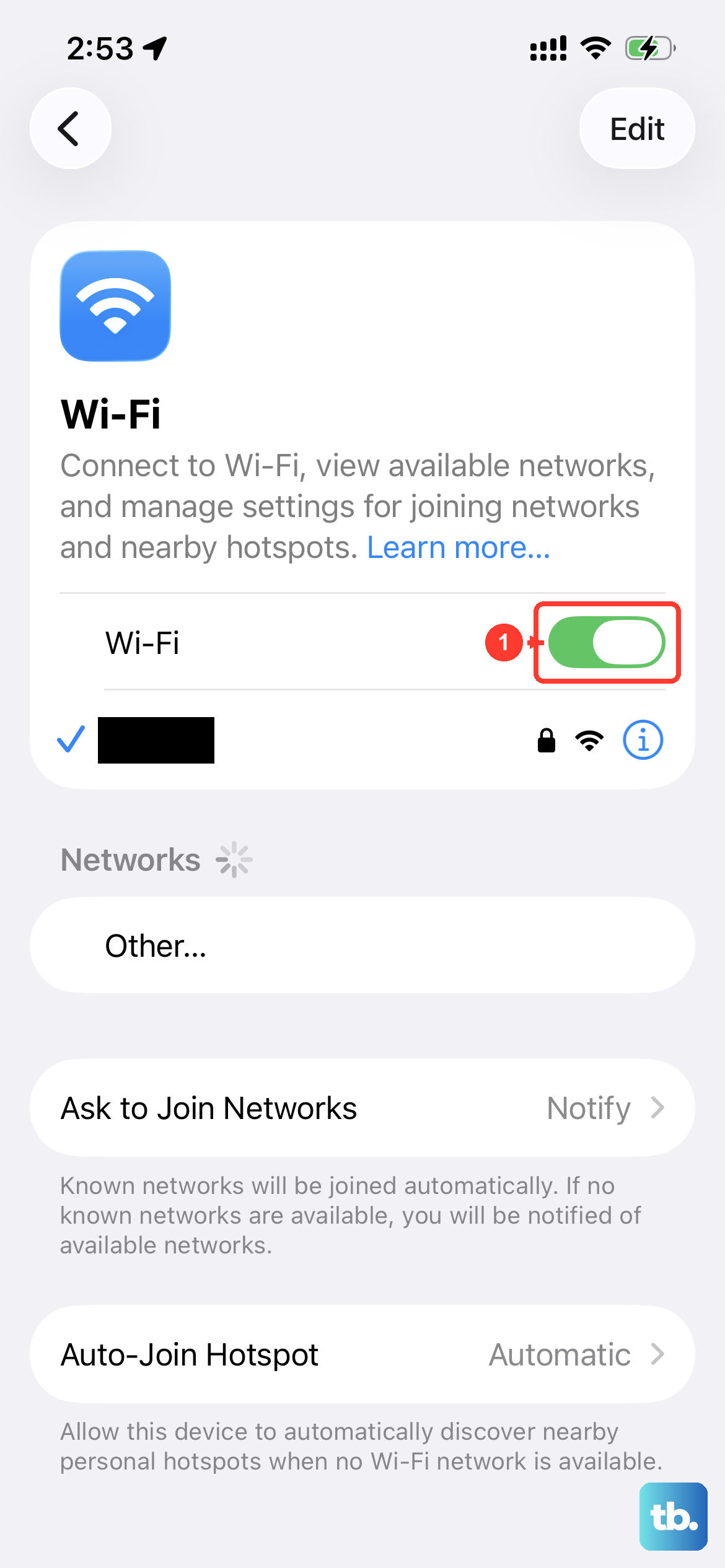
Your phone might be holding onto old or incorrect information for your Wi-Fi network. To clear it out, open the Settings app and tap Wi-Fi. Find the network you're trying to use and tap the information (i) icon next to it.
On the next screen, tap Forget This Network at the top. Confirm your choice. Now, go back to the main Wi-Fi list, select your network again, and re-enter the password. This is especially useful if you've recently changed your Wi-Fi password at home.
Check for a Router or Internet Issue
Sometimes the problem isn't your iPhone at all. Before you spend more time on phone settings, check if other devices in your home are also offline. If they are, the issue is with your internet provider or your router.
A quick router restart can work wonders. Unplug your router and modem from power, wait a full 60 seconds, then plug the modem back in. Wait for all its lights to stabilize, then plug the router back in. Give it another minute before trying to connect your iPhone again.
Turn Airplane Mode On and Off
This classic trick resets all the wireless radios in your phone at once. Open Control Center and tap the airplane icon to enable Airplane Mode. You'll see the airplane icon appear in your status bar.
Leave it on for about 15 to 20 seconds, then go back to Control Center and tap the airplane icon again to turn it off. Your iPhone will re-enable Wi-Fi and cellular, often establishing a cleaner connection.
Disable Wi-Fi Assist
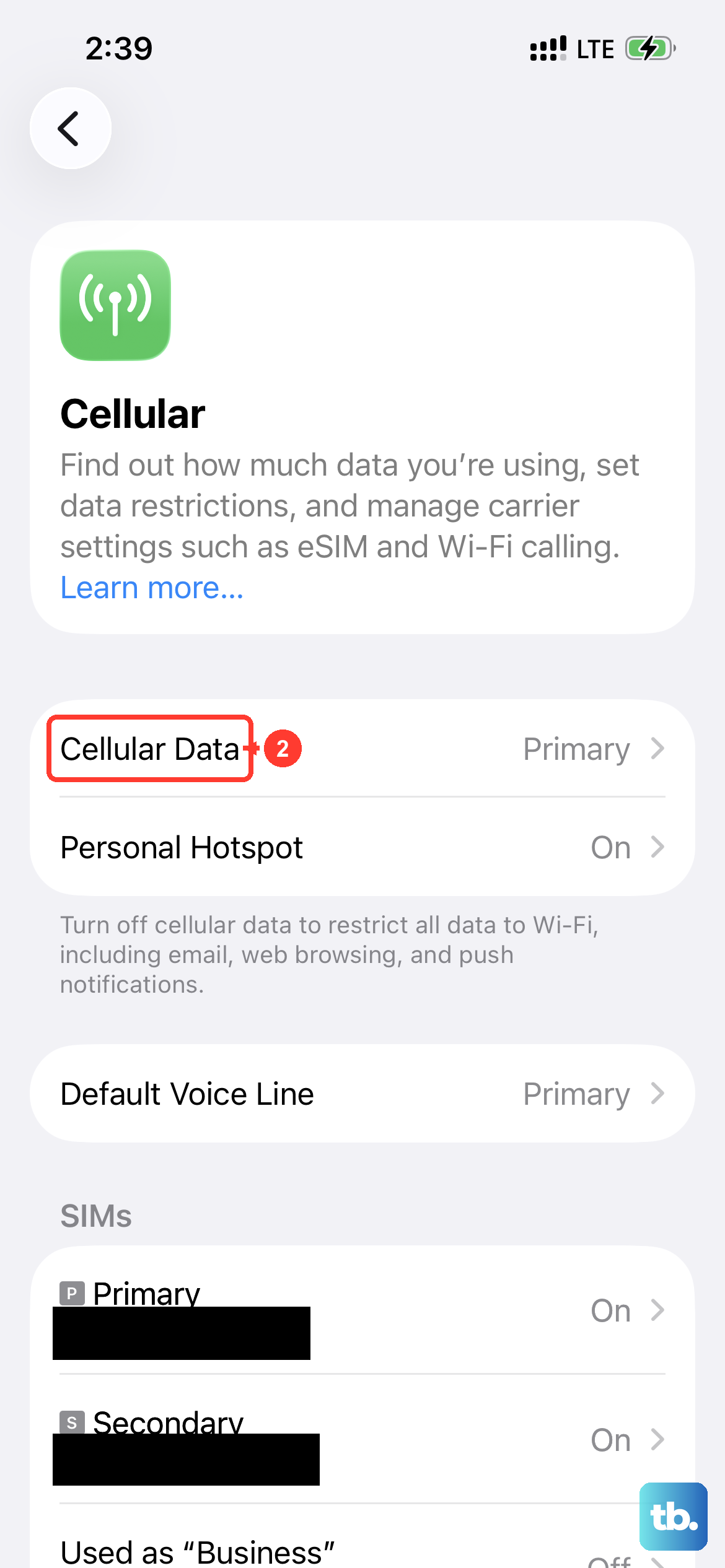
Your iPhone has a feature called Wi-Fi Assist that's supposed to help. When your Wi-Fi signal is weak, it automatically switches you to cellular data. The problem is, it can sometimes be too aggressive and kill your Wi-Fi connection prematurely.
To turn it off, go to Settings, then tap Cellular. Scroll all the way to the bottom and you'll find the Wi-Fi Assist toggle. Switch it off and see if your Wi-Fi connection becomes more stable.
Check Your iOS Software Version
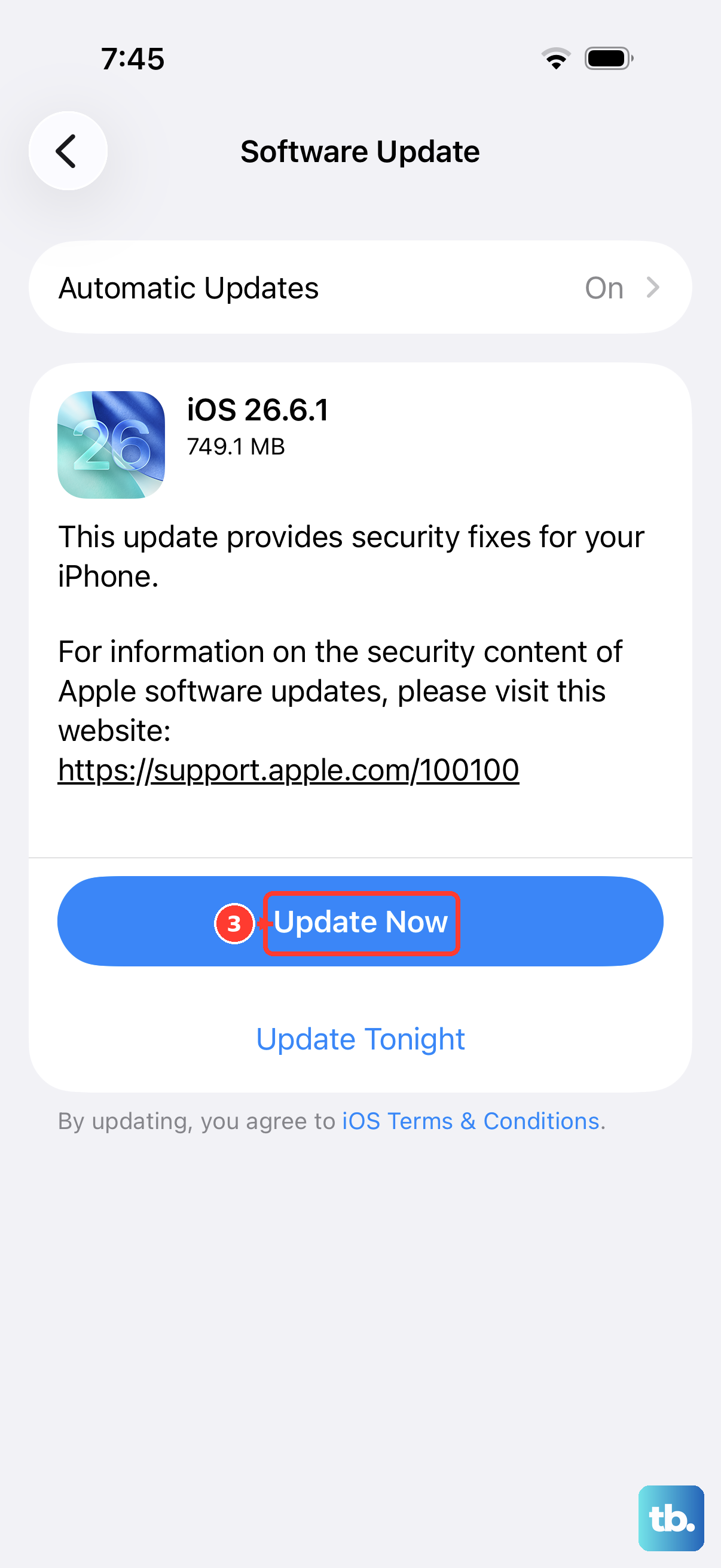
Running an old version of iOS can lead to connectivity bugs that newer updates have fixed. Apple has released several updates for iOS 26 that address network stability. Go to Settings, then General, and tap Software Update.
If an update is available, I'd recommend installing it. Make sure your iPhone 13 is plugged into power and connected to a strong cellular signal or a working Wi-Fi network (maybe from a neighbor or hotspot) to download it.
Reset Your Network Settings
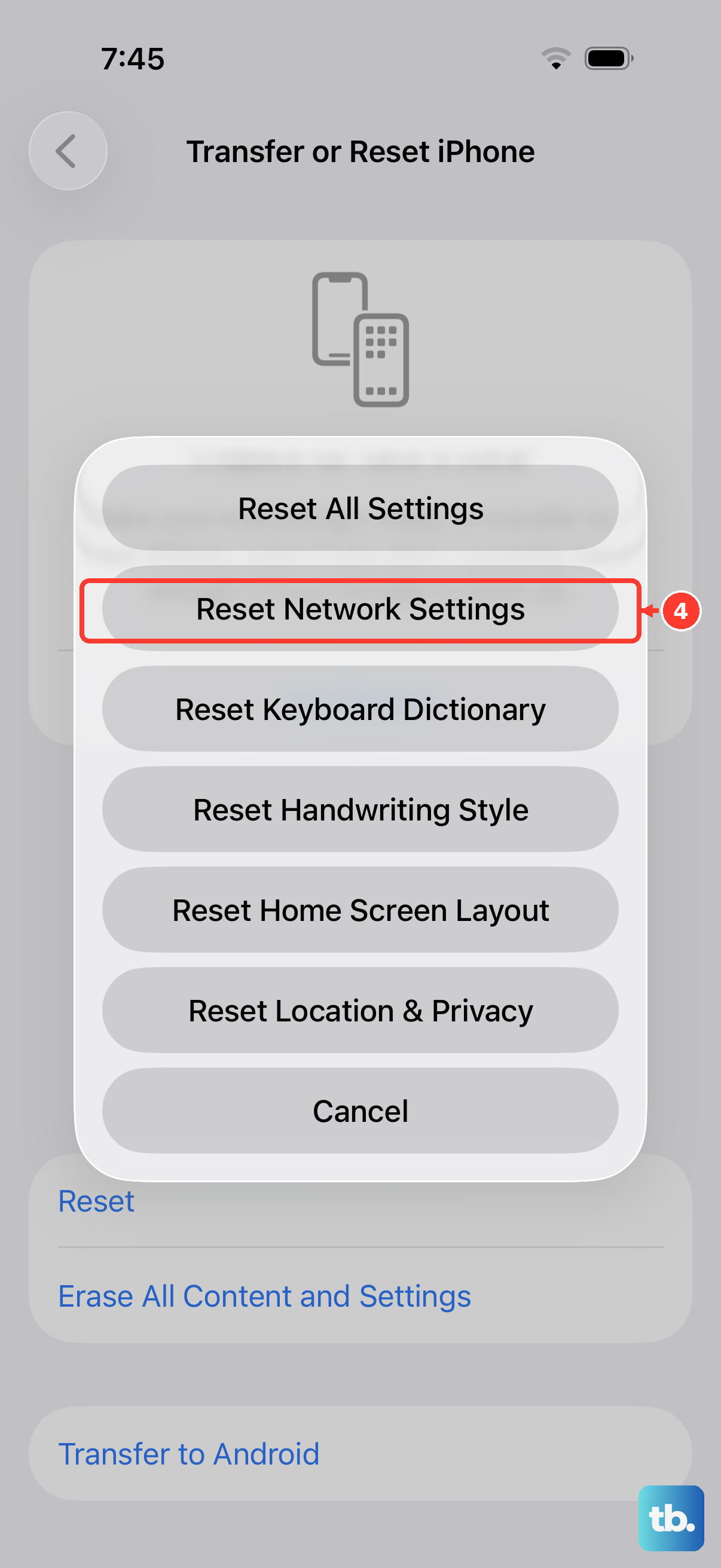
This is a more thorough step if the simpler ones haven't worked. Resetting network settings will erase all your saved Wi-Fi passwords, Bluetooth pairings, and VPN configurations, so you'll have to set them up again.
To do it, open Settings, go to General, then tap Transfer or Reset iPhone. Tap Reset at the bottom, and then choose Reset Network Settings. Enter your passcode if prompted and confirm. Your phone will restart and the network settings will be fresh.
Review Your Date and Time Settings
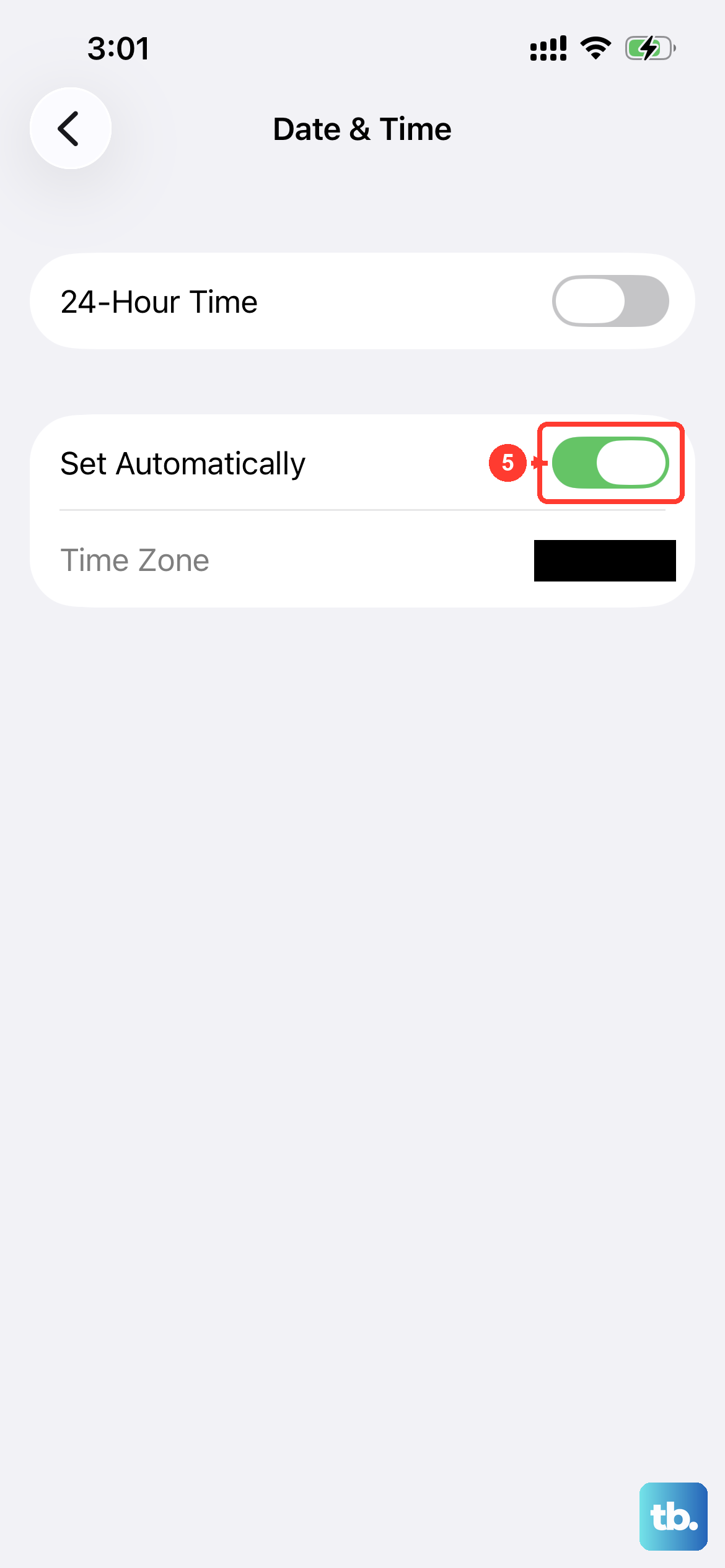
This seems unrelated, but it's critical for network security. If your phone's date and time are incorrect, it can fail to authenticate with secure Wi-Fi networks because the security certificates appear invalid.
Go to Settings, then General, and tap Date & Time. Make sure the switch for Set Automatically is turned on. This allows your iPhone to pull the correct time from the network.
Try Connecting to a Different Network
To rule out a hardware problem with your iPhone's antenna, try connecting to a completely different Wi-Fi source. This could be a public network at a coffee shop, a friend's hotspot, or even your own personal hotspot from another phone.
If your iPhone 13 connects to other networks without any issue, then the problem is likely specific to your home network's configuration or router. If it can't connect to any Wi-Fi network at all, it points more toward a phone setting or, less commonly, a hardware fault.
Check for VPN or Content Blocker Interference
Apps that manage your connection, like VPNs or Safari content blockers, can sometimes interfere with normal Wi-Fi. Try temporarily disabling any VPN apps you have running. You can usually do this from within the app itself or from the VPN section in Settings.
For content blockers, go to Settings, then Safari, and tap Extensions. If you have any content blockers listed, try turning them off to see if your connection improves.











