Steam takes different removal paths on Windows, Mac, Linux, mobile, and Steam Deck. The key is choosing the right one before deleting files, especially when you want to keep installed games. Start with the normal uninstall method for your device, then use the deeper cleanup steps only when the standard route fails.
1. Remove Steam on Windows
This fixes the standard Steam desktop uninstall on Windows 10 and Windows 11. Exit Steam. To keep installed games, move C:\Program Files (x86)\Steam\steamapps\ outside the Steam folder.
Select Start > Settings > Apps > Installed apps. Find Steam, then select More > Uninstall. In Steam’s uninstaller, select Automatic.
Select Next, then select Finish.
2. Try the Start menu or Control Panel
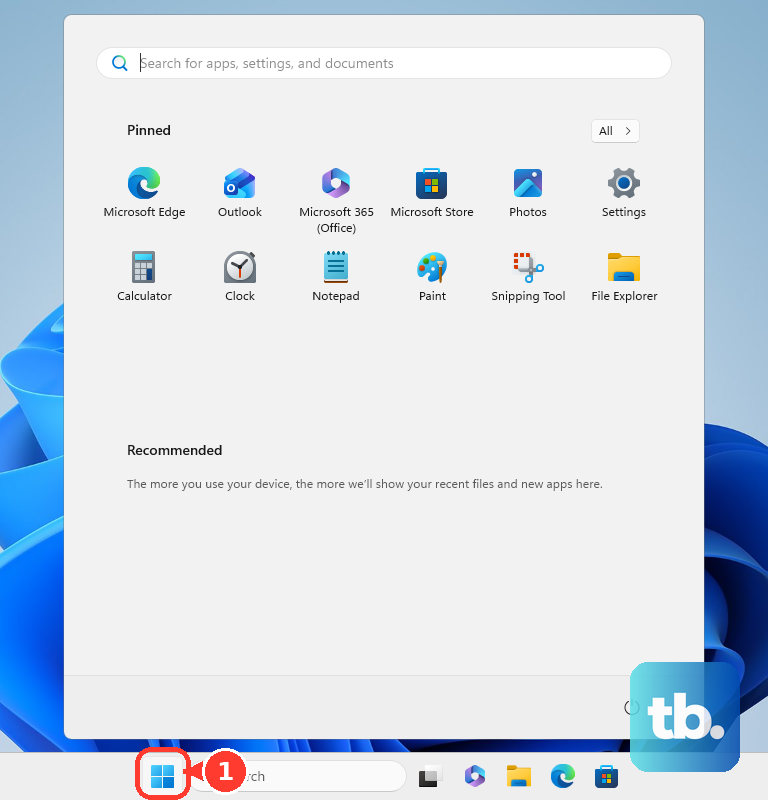
Select Start > All apps, then search for Steam. Press and hold or right-click Steam. Select Uninstall, then follow the Steam uninstall prompts.
For the Control Panel route, search the taskbar for Control Panel and open it. Select Programs > Programs and Features. Press and hold or right-click Steam.
Select Uninstall or Uninstall/Change, then follow the onscreen directions.
3. Run winget for a command line uninstall
- 1.Open Windows Terminal or Command Prompt.
- 2.Run winget list Steam to confirm the installed Steam entry.
- 3.Run winget uninstall --name Steam.
- 4.When winget shows an exact Steam package ID, run winget uninstall --id <Steam package id> instead.
- 5.Add --source winget when winget asks for Microsoft Store source agreements.
Use --silent only for a silent uninstall when the package supports it.
4. Repair a broken Windows uninstaller
Open the official Steam download page. Select Install Steam to reinstall Steam and repair the uninstaller. After that, exit Steam.
Run the Windows uninstall steps again from Start > Settings > Apps > Installed apps. When reinstalling does not repair the uninstaller, exit Steam. Open C:\Program Files (x86)\Steam\.
Copy steamapps outside the Steam directory to keep installed games. Delete all contents of the Steam directory. Then press Windows key + r, type regedit, then select OK.
On 64-bit Windows, delete HKEY_LOCAL_MACHINE\SOFTWARE\Wow6432Node\Valve\Steam. On 32-bit Windows, delete HKEY_LOCAL_MACHINE\SOFTWARE\Valve\Steam. Delete HKEY_CURRENT_USER\Software\Valve\Steam.
Delete HKEY_CURRENT_USER\Software\Valve\SteamService. Close Registry Editor.
5. Delete Steam on Mac
Quit Steam from Steam > Quit Steam. Open Applications and drag Steam to the Trash.
For the support files, open Finder. Select Go. Hold Option until Library appears.
Open Library > Application Support > Steam. To keep game data, delete everything in that Steam folder except SteamApps. To remove all Steam data, delete the entire Steam folder.
Finish with Finder > Empty Trash.
6. Pick the right Linux uninstall command
On Ubuntu, open the software or app store surface. Go to the installed apps view, select Steam, then select the remove or uninstall button and authenticate.
On Debian or Ubuntu, open Terminal and run apt list --installed 'steam*' to see which Steam package you actually have. Run sudo apt remove steam-installer for the distro package, since plain steam is now only a transitional package that pulls in steam-installer.
Run sudo apt remove steam-launcher instead when you installed Valve’s own .deb from the Steam website. Swap remove for purge, as in sudo apt purge steam-installer, to remove the package and its configuration files. Then run sudo apt autoremove to remove dependencies that apt identifies as no longer needed.
On Fedora or another DNF-based system, run sudo dnf remove steam and confirm the transaction. For Flatpak, run flatpak list, confirm the Steam app ID, then run flatpak uninstall com.valvesoftware.Steam.
To remove Flatpak app data too, run flatpak uninstall --delete-data com.valvesoftware.Steam. To remove unused Flatpak runtimes, run flatpak uninstall --unused. For Snap, run snap list steam, then run sudo snap remove steam.
Use the command that matches how Steam was installed: Debian package, RPM package, Flatpak, Snap, or a graphical software center.
7. Delete Steam Mobile on Android iPhone and iPad
On Android, open Google Play Store. Tap the Profile icon. Go to Manage apps & devices > Manage.
Select Steam. Tap Uninstall. On Android 15 and up, Settings > Apps > Steam > Archive removes app software while keeping the icon and user data, so it is not a full uninstall.
On iPhone or iPad, touch and hold Steam. Tap Remove App. Tap Delete App and Delete.
When Delete App is missing, set Settings > Screen Time > Content & Privacy Restrictions > iTunes & App Store Purchases > Deleting Apps to Allow. Delete Steam again.
If the option is still missing, check Settings > General > VPN & Device Management for a Mobile Device Management profile. Check any third-party app-blocking apps such as Opal, Freedom, or Screen Zen for a setting that blocks app deletion.
8. Reset Steam Deck the right way
Press the Steam button. Go to Settings > System. Scroll to Factory Reset.
Select Factory Reset. When a normal factory reset is not enough, use Valve’s SteamOS recovery instructions to create recovery media. Boot Steam Deck from the recovery media.
Choose Re-image Device.
9. Skip outdated Steam uninstall shortcuts
Skip third-party cleaner apps promoted by older Steam uninstall guides. Use Valve’s Windows uninstaller, the Mac Finder and support-folder cleanup, or your Linux package manager instead.
Skip direct Steam.exe /uninstall commands and silent uninstaller switches from third-party tutorials. Use Windows Settings, Control Panel, winget, organization management tools, or Valve’s manual removal instructions instead.
For a Steam account deletion, sign in to Steam Support’s account deletion request page. Provide proof of ownership when Steam Support asks for it. Wait through Valve’s 30-day restricted queue before deletion.
Account deletion removes the Steam account process from Steam Support; it does not uninstall Steam from any device.
Frequently Asked Questions
Will uninstalling Steam delete my games?
On Windows, move the steamapps folder out of the Steam folder before uninstalling. On Mac, keep SteamApps inside Library/Application Support/Steam when you want to preserve game data.
Can I uninstall Steam from inside Steam?
No. Steam’s in-app uninstall surfaces remove games, not the Steam desktop client.
Is archiving Steam on Android the same as uninstalling it?
No. Android app archiving removes app software, permissions, temporary files, and notifications, but keeps the app icon and user data.
Does deleting my Steam account remove Steam from my computer?
No. Steam account deletion is separate from uninstalling the app. It starts through Steam Support and puts the account in a 30-day restricted queue before deletion.