A website can be blocked by the browser, the operating system, a family-safety rule, a router filter, DNS, a VPN, a proxy, or a managed work or school policy. Start with the setting closest to the block, then move outward to the network and device controls. The steps below use current vendor-supported paths and skip old Internet Explorer fixes that no longer solve modern Chrome, Edge, Firefox, or Safari blocks.
1. Allow the site in your browser first
If the website opens but sign-in, checkout, video, downloads, pop-ups, or embedded content fails, fix the site permission before changing network settings.
In Chrome, open More, Settings, Privacy and security, then Site settings. Choose the blocked permission, or open the website, select the site information icon beside the address bar, choose Site settings, and change the needed permission to Allow.
For Chrome pop-ups, select Pop-up blocked in the address bar, choose the pop-up link, select Always allow pop-ups and redirects from this site, then select Done. You can also open Settings, Privacy and security, Site Settings, then Pop-ups and redirects.
For Chrome third-party cookies, open More, Settings, Privacy and security, Third-party cookies, then Add site exception. Enter the web address and select Add.
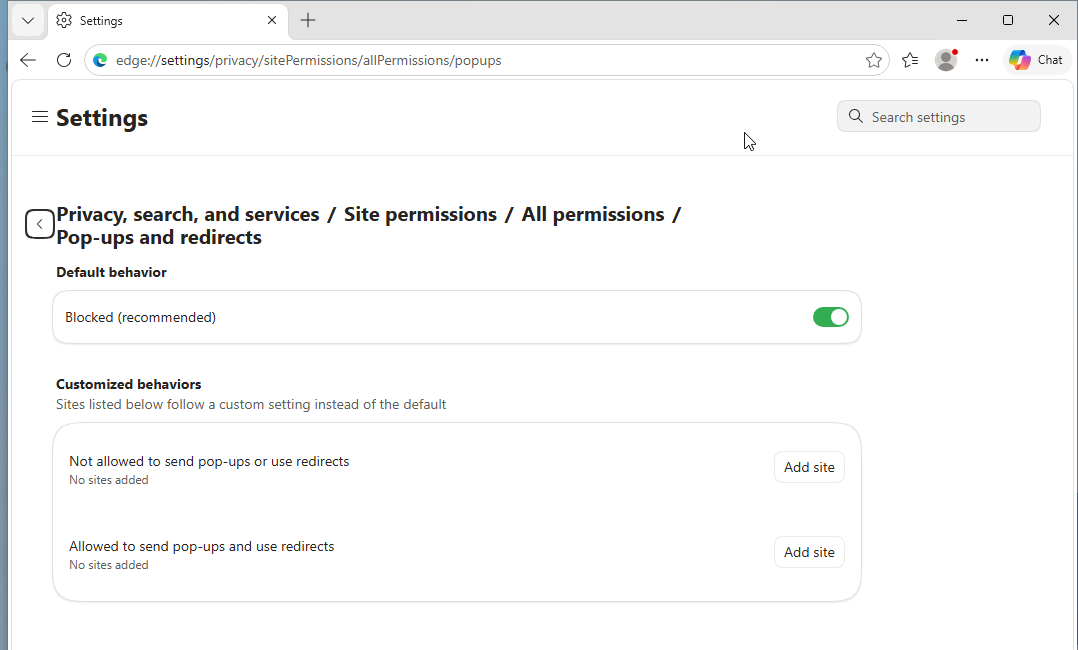
Edge uses the same idea, but the labels are different: open Settings and more, Settings, Privacy, search, and services, Site permissions, then All permissions. Use Pop-ups and redirects to add an allowed URL, or use Cookies to allow sites to save and read cookie data.
In Firefox, open the site and select the shield icon beside the address bar, then turn Enhanced Tracking Protection off for that site. For pop-ups, open Settings, Permissions and data, Permissions, Block pop-ups and third-party redirects, then Manage exceptions. Enter the site, select Allow, and finish with Save Changes.
In Safari on Mac, open the website, then choose Safari, Settings, and Websites. Pick the setting on the left, such as Pop-up Windows, Downloads, Camera, or Location, then set the website to Allow.
2. Switch off extensions that block pages
Ad blockers, content blockers, site blockers, VPN extensions, proxy extensions, and security extensions can block a site even when the browser itself is working. Turn them off one at a time, reload the page after each change, and remove the extension that causes the block.
In Chrome, open More, Extensions, then Manage extensions. Turn the extension off, or select Remove and confirm with Remove.
In Safari, open Safari, Settings, then Extensions. Clear the extension checkbox to turn it off, or select the extension and uninstall it through its uninstall controls or app removal path.
If Chrome settings were changed by unwanted software or an extension, reset them through More, Settings, Reset settings, Restore settings to their original defaults, then Reset settings.
3. Open family and parental controls
Use the parent or organizer account when the computer uses a child account or supervised profile. Random browser changes will not remove a Family Safety, Family Link, Chromebook supervision, or Screen Time rule.
For Microsoft Family Safety, open the Family Safety app, select the family member, open Content filters, then add or remove the site under allowed or blocked websites. On the web, sign in at account.microsoft.com/family, select Family Safety, find the family member, select More, then Go to overview. Select Edge, turn the Filter inappropriate websites and searches toggle on, then add URLs under Blocked Sites or Allowed sites.
To remove Microsoft Family Safety filtering completely, sign in as the organizer at account.microsoft.com/family, select More options next to the member, then choose Remove from family group. To leave yourself, select More options next to your name, then Leave family group and Remove.
For Google Family Link or Chromebook supervision, open the Family Link app, select the child, go to Controls, then Google Chrome and Web. Under Manage sites, use Approved sites and Blocked sites to add the website. A child can also choose Ask in person or Ask in a message, then the parent approves the request.
On a Mac, open Apple menu, System Settings, Screen Time, and Content & Privacy. Turn on Content & Privacy if needed, open App Store, Media, Web, & Games, then choose a web access level under Safari, such as Limit Adult Websites or Allowed Websites Only. For a family member, choose the family member first.
To remove a Screen Time website limit on Mac, open Apple menu, System Settings, Screen Time, then App Limits. Choose the family member if needed, select the limit, then turn the limit off or remove it.
4. Narrow security tools to a site exception
In Chrome, open More, Settings, Privacy and security, then Security. Choose Enhanced protection, Standard protection, or No protection only when Chrome is blocking a site as unsafe. For DNS lookup errors, open Advanced, then change or turn off Use secure DNS.
In Edge, open Settings and more, Settings, Privacy, search, and services, then Security. Turn Microsoft Defender SmartScreen on or off when Edge falsely flags a site as unsafe.
If Edge breaks a trusted site under stricter security, leave Enhance your security on the web on, then open Site preferences for enhanced security. Under Never use enhanced security for these sites, select Add site, enter the full URL, and choose Add.
In Safari with iCloud+ Private Relay, choose View, then Reload and Show IP Address for a temporary reload. To turn it off for a network on Mac, open Apple menu, System Settings, Network, select the active network service, open Details, then turn off Limit IP address tracking.
Use these changes when the browser says the site is unsafe, stricter protection breaks a trusted page, or Safari Private Relay changes how the site loads. Keep the change as narrow as the browser allows.
5. Correct VPN proxy and DNS settings
A VPN, proxy, or filtering DNS provider can send traffic through a block, especially after installing privacy, security, school, or work software. Check these settings after browser and family controls.
On Windows, open Settings, Network & internet, then VPN to connect, disconnect, or remove a VPN. For proxy settings, open Settings, Network & internet, then Proxy. Under Use setup script, select Set up and turn it off if it is not needed. Under Manual proxy setup, select Set up next to Use a proxy server, then turn it off or correct it.
On Mac, open Apple menu, System Settings, then VPN to connect, disconnect, or edit a VPN. For proxy settings, open Apple menu, System Settings, Network, select your network service, open Details, then Proxies. Turn off or correct proxy options such as Auto proxy discovery, Automatic proxy configuration, Web proxy, or Secure web proxy.
For DNS on Windows, open Settings, Network & internet, choose Wi-Fi or Ethernet, select the active network, then edit IP assignment. Choose Automatic (DHCP), or choose Manual and enter Preferred DNS server and Alternate DNS server.
For DNS on Mac, open Apple menu, System Settings, Network, select the network service, open Details, then DNS. Add, remove, or reorder DNS Servers, then choose OK or Apply when prompted.
If you control the DNS setting and it points to a filtering resolver, replace it with a non-filtering resolver. Google Public DNS uses 8.8.8.8 and 8.8.4.4. Cloudflare Families filtering uses 1.1.1.2 and 1.0.0.2, or 1.1.1.3 and 1.0.0.3; change those to standard 1.1.1.1 and 1.0.0.1 to stop Families category filtering.
After removing a DNS, hosts, or proxy block on Windows, flush the DNS cache. Search the taskbar for Command prompt, choose Run as administrator, approve with Yes, then run ipconfig /flushdns.
6. Check router and network app filters
If every browser on the computer hits the same block, or multiple devices on the same Wi-Fi are affected, check the router app and network-level filters.
For NETGEAR Armor, open the Nighthawk or Orbi app, go to Security, open the Threats or Threats Blocked card, tap the blocked URL, then choose Add to Unblocked or Unblock Access and OK.
For eero Plus, open the eero app and go to Home, Security & privacy, eero Plus, Network controls, then Block & Allow Sites. Switch to Allowed, choose Add Allowed Site, enter the domain, turn on the Network toggle for a network-wide rule, then select Save.
If eero Block Ads breaks a page, open Home, eero Plus or Security & privacy, Network controls, then Block Ads, and turn Block Ads off to test. If the site works, add the domain to the allow list.
If all websites are unavailable on eero, open the Devices tab, check Blocked, select the device, choose More Options, then Unblock device. For a paused profile, tap the paused profile name on Home and select Resume profile.
On TP-Link routers, sign in to the router web interface, open Advanced, then Parental Controls, and edit the profile, device, whitelist, blacklist, or content restriction that contains the site.
Router menus vary by model and firmware. Look for blocked sites, allowed sites, parental controls, ad blocking, and paused devices.
7. Remove a hosts file block
The hosts file can block a domain on one computer even when other devices open it normally. You need administrator rights to edit it.
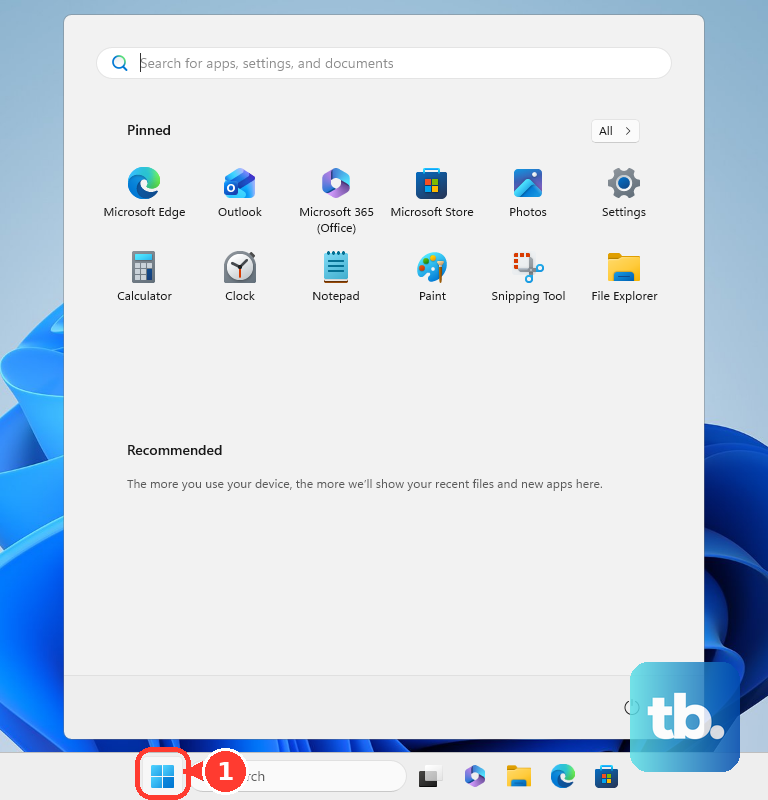
On Windows, open Start, type Notepad, right-click Notepad, then choose Run as administrator. Use File, Open, go to C:\Windows\System32\drivers\etc\, change the file type to All Files (*.*), open hosts, remove or comment out the site entry, then save. If you use Microsoft PowerToys, open Hosts File Editor and remove, disable, or edit the blocking entry there.
On Mac, open Finder, Go, Utilities, then Terminal. Run sudo nano /private/etc/hosts, enter your password, find the blocking line with the arrow keys, add # before the line or remove it, then press Control-O, Enter, and Control-X.
8. Escalate managed work or school blocks
On a work, school, or managed device, website blocks can come from Chrome, Edge, Firefox, ChromeOS, Microsoft Defender for Endpoint, Microsoft Defender for Business, or device-management policy. Consumer settings do not override those policies. Ask the administrator to allow the site or remove the policy.
Administrators have current allow-list routes. Chrome and ChromeOS use URLBlocklist and URLAllowlist. Edge uses URLBlocklist and URLAllowlist, with the allow list taking precedence over the block list. Firefox uses WebsiteFilter with a block list and exceptions list. Microsoft Defender uses the Defender portal path Settings, Endpoints, Indicators, URLs/Domains, Add Item, then Allow.
Do not use old Control Panel, Internet Options, Security, Restricted sites instructions as a current fix. Internet Explorer 11 desktop app support ended on June 15, 2022, and that route is not a reliable fix for Chrome, Edge, Firefox, or Safari. For a legacy site that needs IE compatibility, use Edge Internet Explorer mode through Settings, Default Browser, add the site to the Internet Explorer mode pages list, then reload the site.
Frequently Asked Questions
Why is only one website blocked on my computer?
The block is on that computer or browser. Check browser permissions, extensions, security settings, VPN, proxy, DNS, Screen Time, Family Safety, Family Link, the hosts file, and router allow/block rules for that domain.
Why does the website open on another device?
That rules out a site-wide outage and points to a local setting on the affected computer, browser, profile, or network path. Start with browser permissions and extensions, then check DNS, proxy, VPN, parental controls, and the hosts file.
Will changing DNS unblock every website?
No. DNS helps when the block comes from a filtering DNS provider or a bad DNS setting. It does not override parental controls, browser policy, router security rules, hosts file blocks, or work and school management.
Should I use a VPN to unblock websites?
Use a VPN only on networks and services where you are authorized to use one. A VPN can also cause website blocks, so disconnect it during troubleshooting when a site suddenly stops opening.