Bluetooth is off, so your device will not find or connect to nearby Bluetooth accessories. The switch is in a different place on each system, and the fastest path depends on whether you are using a phone, tablet, computer, Chromebook, or managed work device. Use the current steps below to turn Bluetooth on without digging through outdated menus.
1. Start with iPhone or iPad Settings
Open Settings.
Tap Bluetooth.
Turn on Bluetooth.
Use Settings when you want the full Bluetooth on and off control. The Control Center Bluetooth button reconnects accessories after you used Control Center to disconnect them temporarily.
If an app asks to use Bluetooth, tap OK. To change that later, open Settings, tap Privacy & Security, tap Bluetooth, then turn access on for that app.
2. Open Bluetooth on Android or Samsung Galaxy
On Android, open Settings, tap Connected devices, tap Connection preferences, tap Bluetooth, then turn on Use Bluetooth. Exact labels differ by manufacturer.
For the Android shortcut, swipe down from the top of the screen and tap Bluetooth.
Touch and hold Bluetooth to open Bluetooth settings.
On Samsung Galaxy, swipe down from the top of the screen, tap Settings, open Connections, tap Bluetooth, then tap the switch.
On One UI 7.0 and above, swipe down from the top right to open the Quick settings panel, then tap the Bluetooth icon. The icon is blue when Bluetooth is on and gray when Bluetooth is off.
On Pixel phones with supported Google Assistant setting controls, activate Assistant and say Turn on Bluetooth. Google documents that command in English.
3. Switch Bluetooth on in Windows 11
The fastest Windows 11 path is the taskbar. Select the Network, Sound, or Battery icon next to the time and date, then select the Bluetooth tile.
Open Start.
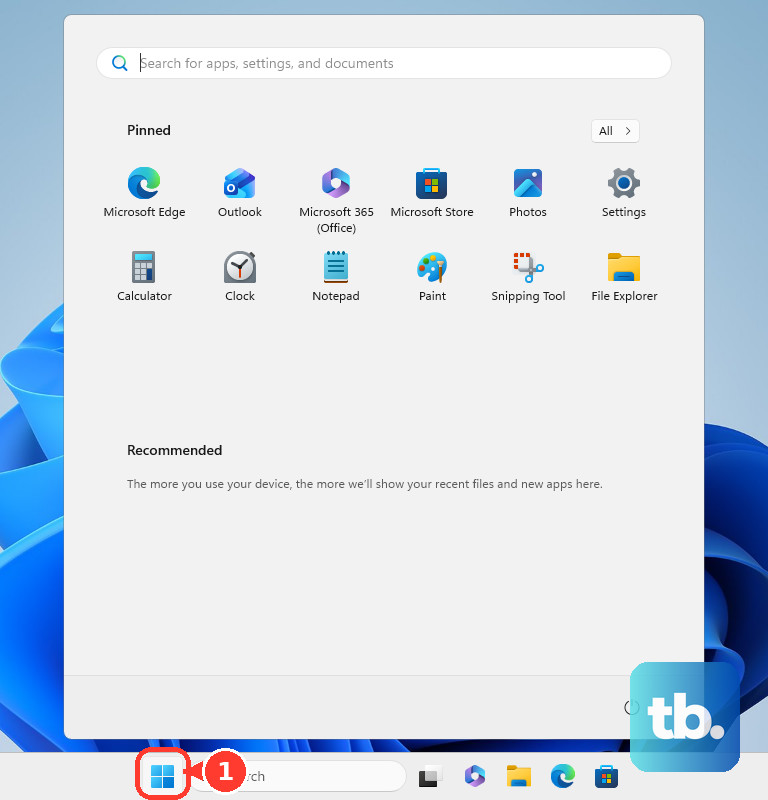
Select Settings.
Open Bluetooth & devices.
Next to Bluetooth, switch Bluetooth on.
If the Bluetooth tile is missing, add the Bluetooth action in Quick Settings customization.
On laptops with a physical Bluetooth switch, move that switch to On before using Windows settings.
To allow Bluetooth for Microsoft Store apps, open Start, select Settings, open Privacy & security, select the Bluetooth app permission, then choose which apps can access it.
4. Turn Bluetooth on from macOS
Open the Apple menu.
Select System Settings.
Click Bluetooth.
Turn Bluetooth on.
You can also click Control Center in the menu bar, then click Bluetooth or the Bluetooth switch.
No mouse or trackpad connected? Press Command-Space bar, type Bluetooth File Exchange in Spotlight, press Return or Enter, then press Return or Enter again to turn Bluetooth on.
5. Find Bluetooth on Chromebook and Ubuntu
On Chromebook, select the time at the bottom right, select Bluetooth, then turn on Bluetooth.
On Ubuntu Desktop, open the Activities overview and type Bluetooth. Click Bluetooth, then set the switch at the top to on.
Ubuntu also has a quick path. Open the system menu from the right side of the top bar, then use the Bluetooth Quick Settings button to switch Bluetooth on or off or choose Bluetooth devices.
6. Use Chrome website Bluetooth the current way
Chrome website Bluetooth access does not replace the system Bluetooth switch.
Turn on Bluetooth in your device settings first, then make the Bluetooth device discoverable.
- 1.Open the compatible webpage in Chrome.
- 2.Click or tap the page.
- 3.Choose the device from the list.
- 4.Select Pair or Connect.
Chrome supports website-to-Bluetooth-device connections on desktop computers and Android devices, and it currently connects only to Bluetooth Low Energy (BLE) devices. Chrome on iPhone and iPad does not support website-to-Bluetooth-device connections.
Skip old fixes that send you to chrome://flags or Experimental Web Platform features. Current Chrome Help uses the website pairing prompt instead.
7. Connect Apple Watch or Apple Vision Pro
Apple Watch uses Bluetooth to communicate with its paired iPhone.
On the paired iPhone, open Control Center and make sure Bluetooth is on.
On Apple Vision Pro, open Settings, tap Bluetooth, turn on Bluetooth, then tap the device name to pair.
8. Fix a blocked Bluetooth switch
A managed Windows device, Android Enterprise device, or Chromebook can block Bluetooth through organization policy. When that policy blocks Bluetooth, the setting stays unavailable or prevents the user from turning it on.
Contact your IT admin and ask whether Bluetooth is allowed on that device. Personal settings cannot override a management policy.
Frequently Asked Questions
Why is the Bluetooth button missing from Quick Settings?
On Windows 11, add the Bluetooth action in Quick Settings customization. On devices without Bluetooth hardware or blocked by organization policy, the Bluetooth control is unavailable.
Does Control Center fully turn off Bluetooth on iPhone or iPad?
No. Use Settings > Bluetooth for the full on and off control. Control Center reconnects accessories after a temporary disconnect.
Can Chrome turn on Bluetooth for a website?
No. System Bluetooth must already be on. Then a supported Chrome page can show a device list and ask you to Pair or Connect.
How do I let an app use Bluetooth?
On iPhone or iPad, open Settings > Privacy & Security > Bluetooth and turn access on for the app. On Windows 11, open Settings > Privacy & security > Bluetooth and choose which Microsoft Store apps can access it.
What should I do after Bluetooth is on?
Put the accessory in discoverable or pairing mode, then select it from your device’s Bluetooth screen. The exact pairing control depends on the accessory.