McAfee is not just one switch. It can mean real-time antivirus protection, firewall, VPN, browser extensions, popups, or renewal billing. Start with the part that is bothering you, and use the current McAfee, browser, and device settings below.
1. Pause real-time scanning on Windows
- 1.Open the McAfee app.
- 2.Click the My Protection Widgets icon on the left.
- 3.Under Device, click Real-Time Scanning.
- 4.Click Turn off.
- 5.Select when McAfee should resume Real-Time Scanning.
- 6.Click Turn off again.
Choose the shortest pause that gives you enough time to finish the task.
2. Switch off McAfee protection on a Mac
This fixes McAfee LiveSafe or Total Protection when it is actively scanning files on macOS. Click the McAfee icon in the macOS menu bar. Next, click your McAfee product Console.
Open Mac Security. In the left pane, click Real-Time Scanning. Turn Real-Time Scanning off. If McAfee prompts for permission, use a macOS administrator account.
3. Shut down McAfee Advanced Firewall
Open the McAfee app. Then click the My Protection Widgets icon on the left. Under Device, click Advanced Firewall.
Use the on-page control to turn Advanced Firewall off. Confirm the McAfee prompt. If Advanced Firewall is missing, that McAfee plan or installation does not include it.
4. Stop scheduled McAfee scans
Use McAfee app > My Protection Widgets > Scheduled Scans to check the scan schedule. If the page shows a blue Turn on button, scheduled scans are already off. Otherwise, use the available Turn off control for scheduled scanning.
5. Turn off McAfee Secure VPN
Open the McAfee app. After that, go to the Home tab. Find the Secure VPN tile. Toggle Secure VPN off.
Open Secure VPN settings. Find Auto Connect and set it to Never connect automatically. For Safe Reconnect, go to My Protection, then Secure VPN, then VPN settings, and turn off the Safe Reconnect slider.
On Android, open McAfee Security, go to Settings, then Split tunneling, and clear the checkbox next to any app that should bypass the VPN.
6. Disable McAfee WebAdvisor in your browser
In Chrome, click the three-dot menu, then Extensions, then Manage Extensions, find McAfee WebAdvisor, and turn its toggle off.
In Microsoft Edge, select Extensions, then Manage extensions, and turn off the toggle next to McAfee WebAdvisor.
In Firefox, click the menu button, then Add-ons and themes, then Extensions, find McAfee WebAdvisor, and turn off the blue toggle.
In Safari on Mac, open Safari, then Settings, then Extensions, and deselect the McAfee or WebAdvisor extension checkbox.
To remove WebAdvisor instead, use the browser's Remove or Uninstall option for McAfee WebAdvisor.
7. Stop McAfee popups and alerts
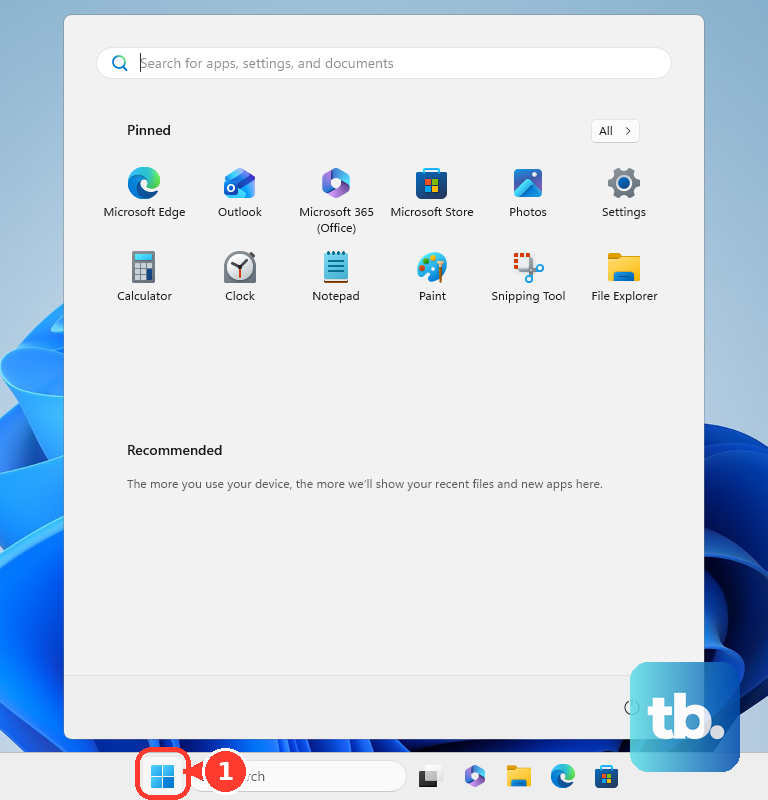
This fixes Windows notification banners, fake McAfee browser alerts, and McAfee PC Optimizer desktop messages. For Windows notifications, select Start, then Settings, then System, then Notifications, find McAfee, and turn the McAfee notification toggle off.
For fake McAfee alerts in Chrome, open Settings, then Privacy and security, then Site Settings, then Notifications, and use the three-dot menu to Remove or Block unfamiliar allowed sites.
For fake McAfee alerts in Edge, open Settings, then Cookies and site permissions, then Notifications, and remove or block suspicious allowed entries.
For fake McAfee alerts in Safari on Mac, open Safari, then Settings, then Websites, then Notifications, and block the unwanted site.
For iPhone or iPad popups in Safari, open Settings, tap Apps, then Safari, and turn on Block Pop-ups.
For McAfee PC Optimizer desktop messages, open PC Optimizer, select Settings, find Hints and tips, and clear Show tips or the desktop messaging checkbox.
8. Uninstall McAfee or stop renewal billing
To remove McAfee on Windows, use Start > Settings > Apps > Installed apps > McAfee > More > Uninstall, follow the McAfee uninstaller prompts, and restart when prompted.
If normal Windows removal fails, use McAfee's official MCPR tool from its removal article.
On Mac, use Finder > Go > Applications > McAfee Uninstaller.
On Android, use Settings > Apps > McAfee Security > Uninstall.
On iPhone or iPad, touch and hold the McAfee app, then tap Remove App, Delete App, and Delete.
To stop future renewal billing, sign in at myaccount.mcafee.com, open Subscriptions, choose the subscription, and turn off auto-renewal.
9. Know what older and managed-device guides mean
Skip old McAfee SecurityCenter paths such as Home Page, Navigation Center, and older real-time scanning menus. Use current consumer paths such as My Protection Widgets, Real-Time Scanning, Advanced Firewall, and the feature pages above.
Skip old alert instructions that use an Informational Alerts drawer. Use current Windows notification settings, browser notification permissions, and feature-specific McAfee settings instead.
If a Chrome, Edge, or Firefox McAfee extension says it is managed by an organization, contact the device or browser administrator. User controls cannot disable or uninstall a force-installed organization extension.
10. Stop McAfee notifications on iPhone or Android
On iPhone, open Settings > Apps > McAfee Security > Notifications, then turn Allow Notifications off. On older iPhone layouts, use Settings > Notifications > McAfee Security > Allow Notifications off.
To silence alerts temporarily on iPhone or iPad, open Control Center, touch and hold the button showing Focus, Do Not Disturb, or another Focus option, then tap Do Not Disturb in the menu. When it is already on, a single tap on that Do Not Disturb icon turns it back off.
On Android, open Settings > Notifications > App notifications, find McAfee Security, then turn notifications off.
From an Android notification, swipe down, touch and hold the notification, tap Settings, then turn off all notifications or selected categories.
To silence alerts temporarily on Android, swipe down from the top of the screen and tap Do Not Disturb, or use Settings > Modes > Do Not Disturb > Turn on now.
Mobile notification controls stop alerts from appearing; they do not uninstall the McAfee Security app.
Frequently Asked Questions
Is turning off McAfee the same as uninstalling it?
No. Turning off a feature pauses or disables that part of McAfee. Uninstalling removes the McAfee app from the device.
Why does McAfee turn itself back on?
Real-Time Scanning asks you to choose a time to resume protection when you turn it off. Secure VPN can also reconnect when Auto Connect or Safe Reconnect is enabled.
Why am I still seeing McAfee popups after uninstalling McAfee?
They are usually browser notifications from websites pretending to be McAfee. Remove suspicious sites from the browser notification allow list.
Does turning off auto-renewal remove McAfee from my device?
No. Auto-renewal stops future subscription billing, but it also ends the benefits McAfee ties to auto-renewal enrollment, such as the Virus Protection Pledge, so check what your plan includes before you switch it off. Use the device uninstall steps to remove the software.











