Your Windows microphone stops working when the wrong input is selected, the mic is muted, privacy access is blocked, or the app is listening to a different device. Start with the quick hardware checks, then move through Windows settings, app permissions, and drivers until the mic records cleanly again.
1. Start With the Mic Hardware
Check the physical mic before changing Windows settings. A loose USB plug, muted headset, or disconnected Bluetooth device stops audio before Windows gets involved.
Plug the microphone, headset, webcam, or USB mic fully into the correct port.
Turn off the physical mute switch on the microphone, headset cable, keyboard, or webcam.
Move a headset boom microphone down toward your mouth.
For Bluetooth microphones, turn the device on, charge it, and confirm it is connected.
In supported meeting apps on Windows 11, select the microphone icon in the taskbar or press Windows logo key + Alt + K to mute or unmute.
2. Choose the Correct Windows Input
Open Start > Settings > System > Sound.
Under Input, open Choose a device for speaking or recording.
Select the microphone you want Windows to use.
For a Bluetooth microphone that is not listed, select Add device and follow the prompts.
Select the > button next to the microphone.
Under Input settings, select Start test, speak, select Stop test, then select Play.
Raise the Input volume slider if the recording is too quiet.
If the volume control shows the mic as muted, unmute it on the same microphone properties page and test again.
3. Turn On Microphone Access
Windows privacy controls block apps even when the microphone is connected and selected. Open Start > Settings > Privacy & security > Microphone, then turn on Microphone access and Let apps access your microphone.
For Microsoft Store apps, turn on the app under Choose which apps can access your microphone. For desktop apps such as browsers, Microsoft Teams, Zoom, and apps installed outside the Microsoft Store, turn on Let desktop apps access your microphone.
4. Fix the App That Cannot Hear You
The mic can pass the Windows test and still fail inside one calling app. Check the app's own microphone picker and mute controls.
Microsoft Teams: Open Settings and more > Settings > Devices.
Under Audio settings, select the right device from Microphone, then select Make a test call (available in the Teams desktop app for Windows and Mac, not in Teams for web).
During a meeting, select the arrow next to Mic, open More audio settings, and choose the correct microphone.
Select Unmute mic if the mic icon has a line through it, or press Ctrl + Shift + M.
Zoom: Open your profile picture > Settings > Audio.
Under Microphone, select Test microphone, choose the microphone from the drop-down menu, and adjust Input Volume.
In a meeting, select the up arrow beside Mute to switch microphones.
If the host muted you on entry, unmute yourself with Unmute.
A host cannot unmute you without your consent, so if self-unmute is turned off, ask the host to send an Ask to Unmute prompt and accept it.
5. Allow the Mic in Your Browser
For web meetings and browser apps, give the site microphone access in the browser as well as in Windows.
Microsoft Edge: Open Settings and more > Settings > Cookies and site permissions > Microphone, then turn on Ask before accessing.
For one website, go to Privacy, search, and services > Site Permissions > All sites, select the site, and set Microphone to Allow.
Google Chrome: Open More > Settings > Privacy and security > Site settings > Microphone.
Choose the default microphone and move the blocked site to the allowed list.
Firefox: Open the menu button > Settings > Privacy & Security.
Under Permissions, select Settings... next to Microphone, then change the site's saved permission to Allow.
From a blocked web app, use the browser address bar too. Select the lock icon or the microphone/camera permission icon, then set microphone access for that site to Allow.
6. Run the Troubleshooter and Re Enable the Device
Use Windows' built-in troubleshooter after the mic is selected, unmuted, and allowed but still records no sound.
- 1.Open Start > Settings > System > Sound.
- 2.Scroll to Advanced.
- 3.Under Troubleshoot common sound problems, choose Input devices.
You can also open Start > Settings > System > Troubleshoot > Other troubleshooters, go to Audio, and select Run.
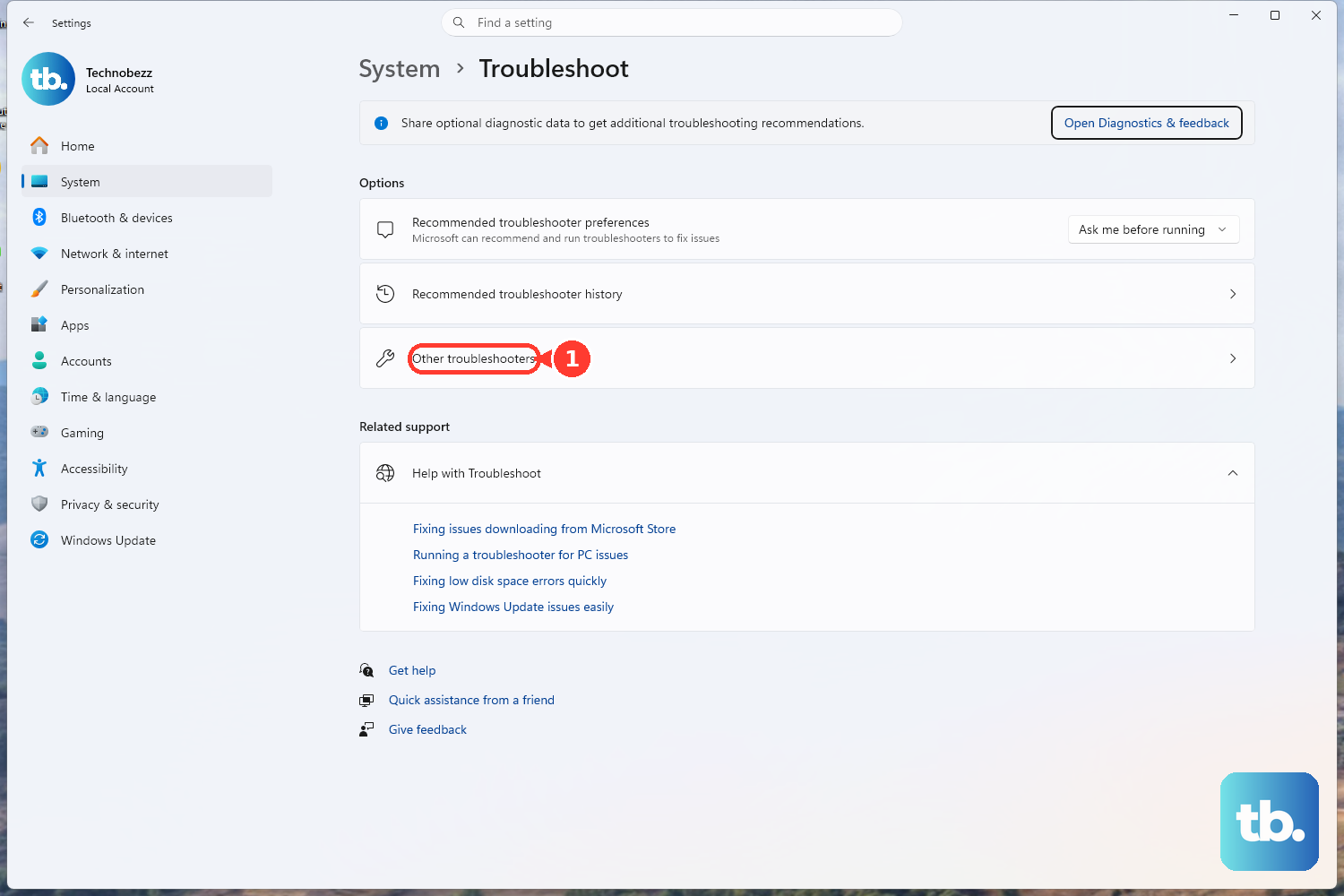
If the microphone is disabled, open Start > Settings > System > Sound > Advanced > More sound settings. On the Recording tab, right-click your microphone and select Enable.
7. Repair Audio and Bluetooth Drivers
Driver fixes belong after the faster checks, especially when the microphone disappeared from Windows settings or stopped working after an update.
Right-click Start and select Device Manager.
Expand Sound, video and game controllers.
Right-click the audio device and select Update driver.
Select Search automatically for drivers.
If updating fails, right-click the audio device in Device Manager, select Uninstall device, select Attempt to remove the driver for this device when shown, select Uninstall, and restart the PC.
If Windows does not reinstall it, open Device Manager, right-click Sound, video and game controllers, and select Scan for hardware changes.
When the mic stops working right after a driver or Windows update, open the audio device's Properties, select the Driver tab, select Roll Back Driver, and restart if prompted.
For Bluetooth headsets, open Device Manager, expand Bluetooth, right-click the Bluetooth adapter, and select Update driver > Search automatically for drivers.
If that fails, select Uninstall device for the Bluetooth adapter and restart, or use Properties > Driver > Roll Back Driver after a bad update.
8. Install Official PC Updates
Use official update sources for audio, chipset, Bluetooth, BIOS, and firmware updates.
Open Start > Settings > Windows Update > Advanced options.
Open Optional updates if it appears.
Select relevant audio, microphone, chipset, Bluetooth, BIOS, or firmware updates.
Install the updates and restart if Windows asks.
For Surface devices, use Microsoft's Surface drivers and firmware page or the Surface app.
For Dell, HP, and Lenovo PCs, use the official support pages from that manufacturer and search by service tag, serial number, product model, or the vendor's detect tool.
9. Check Security Apps and Remote Desktop
Security suites with webcam and microphone shields block recording until the app is allowed. In Kaspersky Standard, Plus, or Premium, open Settings > Privacy settings > Webcam and Mic Control.
In Norton 360, open Privacy > SafeCam and turn on Protect your microphone (microphone protection excludes Windows in S mode and ARM-based PCs).
In Avast Premium Security, open Privacy > Webcam Shield or Menu > Settings > General > Blocked & Allowed apps, then allow the affected app.
For Remote Desktop microphone problems, search Remote Desktop Connection from Start, open Local Resources, select Settings... under Remote audio, set Remote audio playback to Play on this computer, set Remote audio recording to Record from this computer, then select OK.
On work or school PCs, organization policy controls microphone access. If Windows shows that settings are managed by your organization, ask your IT administrator to check the microphone privacy policy.
Skip older instructions that send you through the Windows 10 privacy layout or Internet Explorer. Windows 10 Home and Pro reached end of support on October 14, 2025, and Internet Explorer 11 desktop app support ended June 15, 2022. Use Windows 11 microphone privacy settings and modern browser permissions instead.
Frequently Asked Questions
Why is my microphone detected but silent on Windows 11?
The input device is selected, but the mic is muted, the input volume is too low, Windows microphone access is off, or the app is using a different microphone. Check Sound settings first, then privacy permissions, then the app's own audio menu.
What should I do when Windows voice typing says it needs microphone access?
Open Start > Settings > Privacy & security > Microphone and turn on Microphone access. If voice typing says the current language is unavailable, install or switch to a supported language.
How do I fix a microphone inside a Remote Desktop session?
Open Remote Desktop Connection, go to Local Resources, open Remote audio settings, set playback to Play on this computer, and set recording to Record from this computer.
Should I use an old Windows 10 or Internet Explorer microphone fix?
No. Windows 10 Home and Pro reached end of support on October 14, 2025, and Internet Explorer 11 desktop app support ended June 15, 2022. Use the Windows 11 and modern browser steps instead.