You just got a new Samsung Galaxy A26 5G. Now comes the part that feels a little tedious: moving everything from your old phone over to it. Whether you're coming from another Android or an iPhone, the process is smoother than you think.
Samsung has its own transfer tool called Smart Switch, and it handles most of the heavy lifting. I'll walk you through the best ways to get your data onto the A26 5G without losing anything important.
Start with Smart Switch (The Fastest Way)
Smart Switch is pre-installed on your A26 5G. You can find it by going to Settings > Accounts and backup > Bring data from old device and tapping the method you prefer. It transfers apps, contacts, messages, photos, and just about everything else.
For the fastest transfer, grab a USB-C to USB-C cable. You can even use the charging cable that came with your A26 5G. Plug both phones together, and Smart Switch will detect the connection automatically, no Wi-Fi needed.
Select what you want to move over and hit Transfer. This is much quicker than wireless, especially if you have a lot of photos or large files. Keep your old phone plugged into a power source so it doesn't die halfway through the process.
If you don't have a cable handy, the wireless option works fine. Just install Smart Switch on your old phone, choose Send data, and scan the QR code on your A26. Both methods use the same thorough selection screens.
Transferring from an iPhone? No Problem
Smart Switch works with iPhones too, which is handy if you are switching ecosystems. On your A26, open Smart Switch and select iPhone/iPad as the source device. You have two solid options here.
The easiest is to use a Lightning to USB-C cable. Connect your iPhone directly to the A26, and Smart Switch will pull over your contacts, messages, photos, and videos in one go. It keeps everything organized just like it was on your iPhone.
If you prefer a cable-free approach, you can transfer straight from your iCloud backup. Sign into your Apple ID inside Smart Switch, and it will grab your most recent backup file. Some apps won't transfer directly and will need a fresh download from the Play Store, but your core data will be there.
Use Your Google Account
A lot of your important data already lives on Google's servers, so syncing it to your A26 is almost automatic. Your contacts, calendar events, Chrome bookmarks, and even some app data sync when you sign into your Google account.
Just sign into the same Google account on your A26 during the initial setup. You can double-check what is syncing by going to Settings > Accounts and backup > Manage accounts > Google. This method is perfect for getting things moved quickly without needing a cable.
Move Your WhatsApp Chats
WhatsApp has its own built-in transfer tool that works well between phones. On your old phone, open WhatsApp and go to Settings > Chats > Transfer chats. Follow the prompts to generate a QR code.
Use your new A26 5G to scan that QR code through the same menu option. Make sure both phones are on the same Wi-Fi network before you start. This moves all your messages, photos, and voice notes over cleanly, keeping your chat history intact.
Check That Everything Arrived
Once the transfer finishes, take a few minutes to make sure everything landed where it should. Browse through your home screen, check your contacts app, and open your photo gallery. Some apps might ask you to log in again, which is normal.
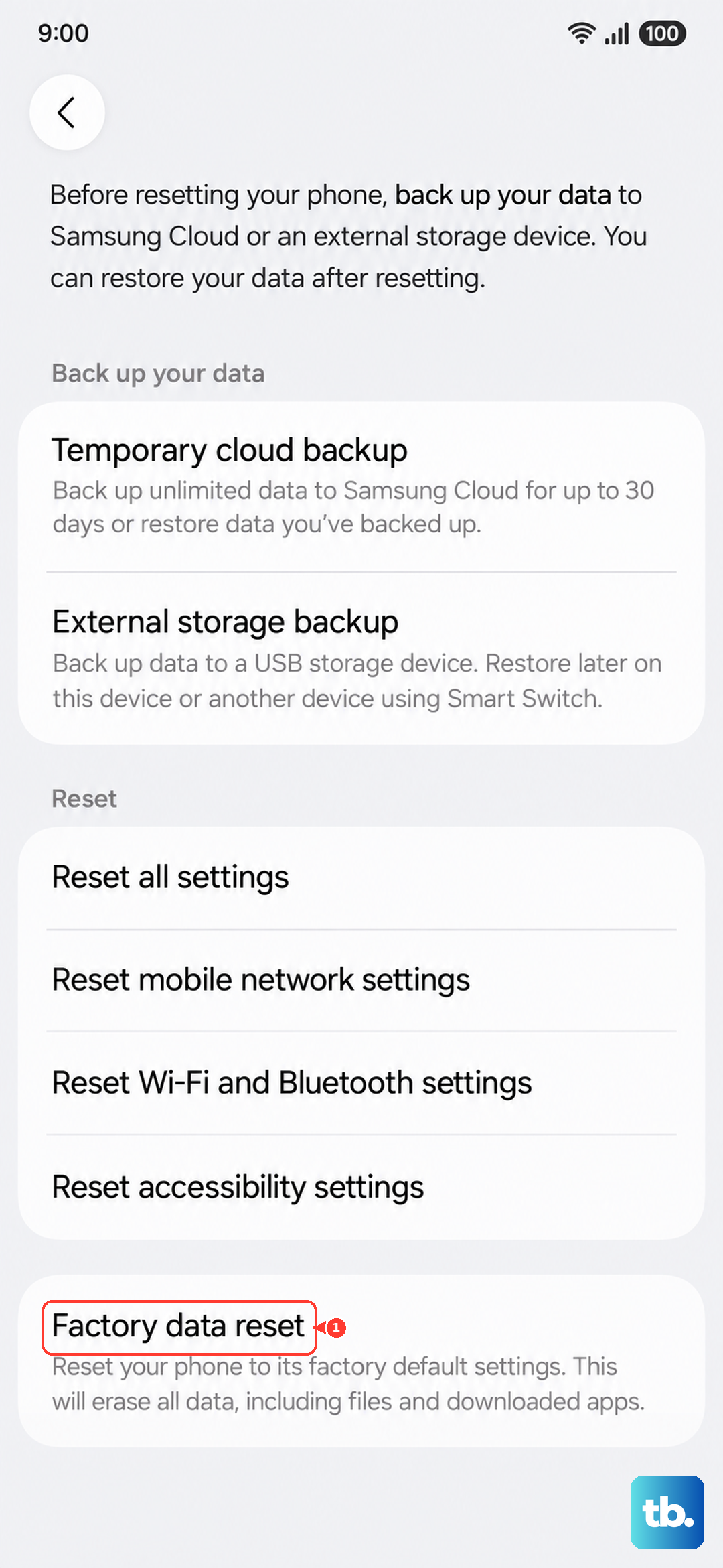
After you've confirmed your data is safe on the A26 5G, you can wipe your old phone clean. Go to Settings > General management > Reset > Factory data reset to erase your personal data. This gets it ready for trade-in or a fresh start.