Switching to the new iPad mini should be a smooth experience, and thankfully, Apple has designed iPadOS 26 to make moving your digital life over as painless as possible. Whether you're upgrading from an older iPad or coming from a completely different device, you can get your new mini set up with all your apps, photos, and settings without starting from scratch.
Start with Quick Start for a Direct Transfer
If you have your old iPad nearby, this is the method I'd start with. Turn on your new iPad mini and place it next to your old device. You should see a pop-up on your old iPad's screen asking if you want to set up your new one. Tap Continue and then hold your old iPad over the animation on the new mini's screen to scan it.
You'll be prompted to enter your old iPad's passcode on the new one. After setting up Face ID or Touch ID, choose Transfer from iPad. The two devices will need to stay close to each other and, ideally, connected to power via their USB-C ports for the duration. With a 30W Apple charger, you can keep them topped up while the transfer happens, which can take from 20 minutes to a couple of hours depending on your data.
Restore Everything from an iCloud Backup
This is the way to go if your old iPad isn't with you or is already erased. First, double-check that a recent iCloud backup exists. On your old device, go to Settings > [Your Name] > iCloud > iCloud Backup and verify the last backup time.
On your new iPad mini, follow the setup assistant until you reach the Apps & Data screen. Select Restore from iCloud Backup, sign in with your Apple ID, and pick the most recent backup. Your new mini will then download all your apps, photos, messages, and home screen layout over Wi-Fi. Keep it plugged in and connected to Wi-Fi until everything is finished.
Use a Mac or PC for a Faster, Local Transfer
For the quickest and most reliable transfer, using a computer is your best bet. Connect your old iPad to your Mac or Windows PC using a USB-C cable. On a Mac with macOS or a PC with iTunes, find your device and select Back Up Now. I always recommend choosing Encrypt local backup to ensure all your passwords and health data are included.
Once that backup is complete, disconnect your old iPad and connect your new iPad mini. Select Restore Backup and choose the backup file you just created. This method is significantly faster than iCloud because it moves data directly over the cable instead of through your internet connection.
Moving Your Data from an Android Tablet or Phone
Switching from Android? You can bring your core data over easily. First, download the Move to iOS app from the Google Play Store on your Android device. On your new iPad mini, during the initial setup, tap Move Data from Android when you get to the Apps & Data screen.
A numeric code will appear on your iPad. Enter that code into the Move to iOS app on your Android device. You can then select what to transfer, including contacts, message history, photos, videos, and your mail accounts. Keep both devices plugged in and on the same Wi-Fi network until the process is complete.
Manually Moving Specific Files and Services
Sometimes you only need to bring over certain things. For your photos and videos, make sure iCloud Photos is enabled on your old device, and they'll sync automatically when you sign in on the new mini. Documents stored in iCloud Drive, Google Drive, or Dropbox will be accessible as soon as you install those apps and log in.
For app-specific data like game progress, check if the app supports iCloud sync or has its own account system. Social media and streaming apps just require you to log in again on the new device, and all your content and preferences will load from their servers.
What to Check After the Transfer is Complete
Once your new iPad mini is up and running, take a few minutes to verify everything came across. Open your key apps to ensure they're working and that your data is present. You'll likely need to re-enter passwords for banking apps and re-authorize any two-factor authentication apps.
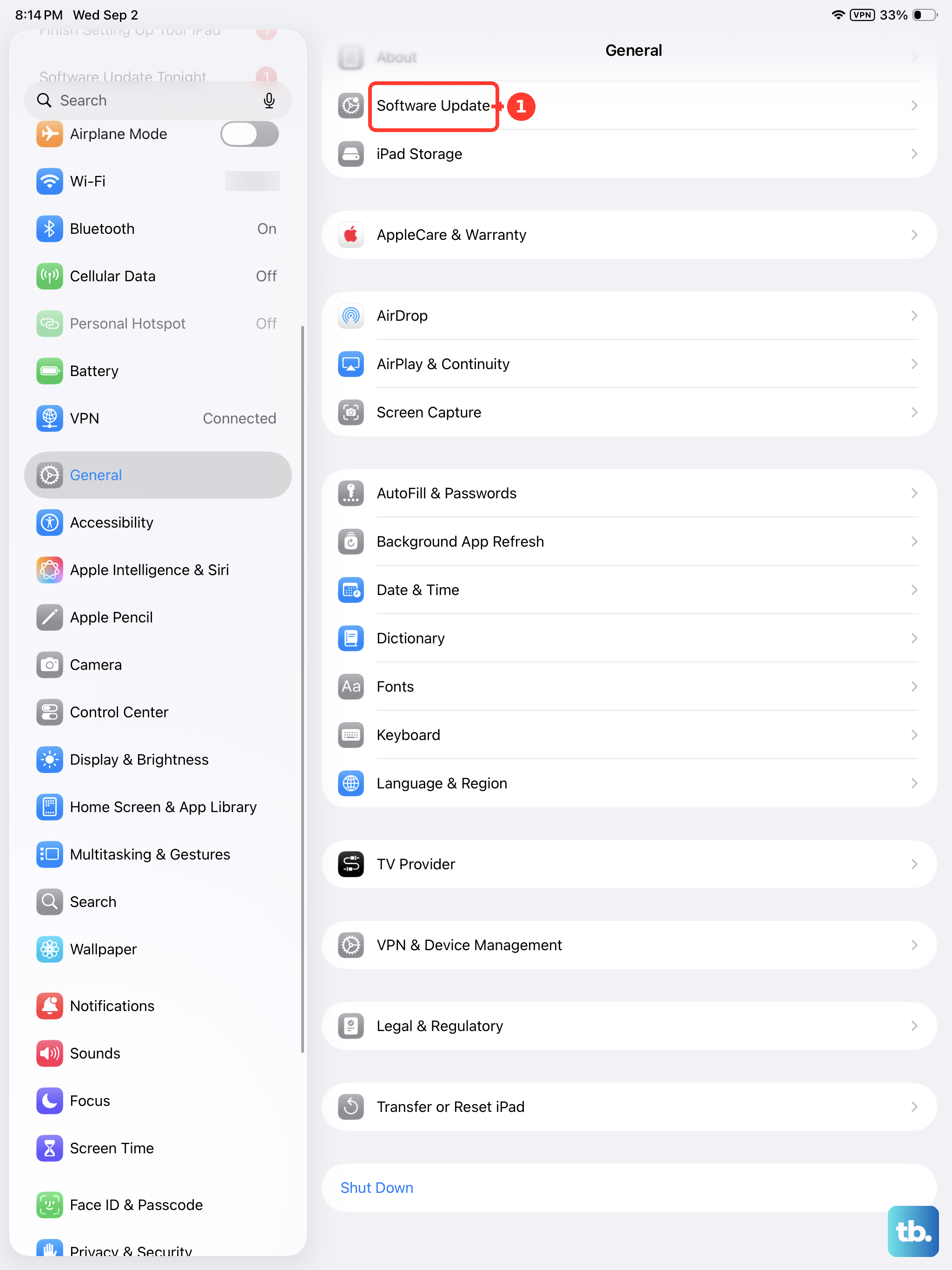
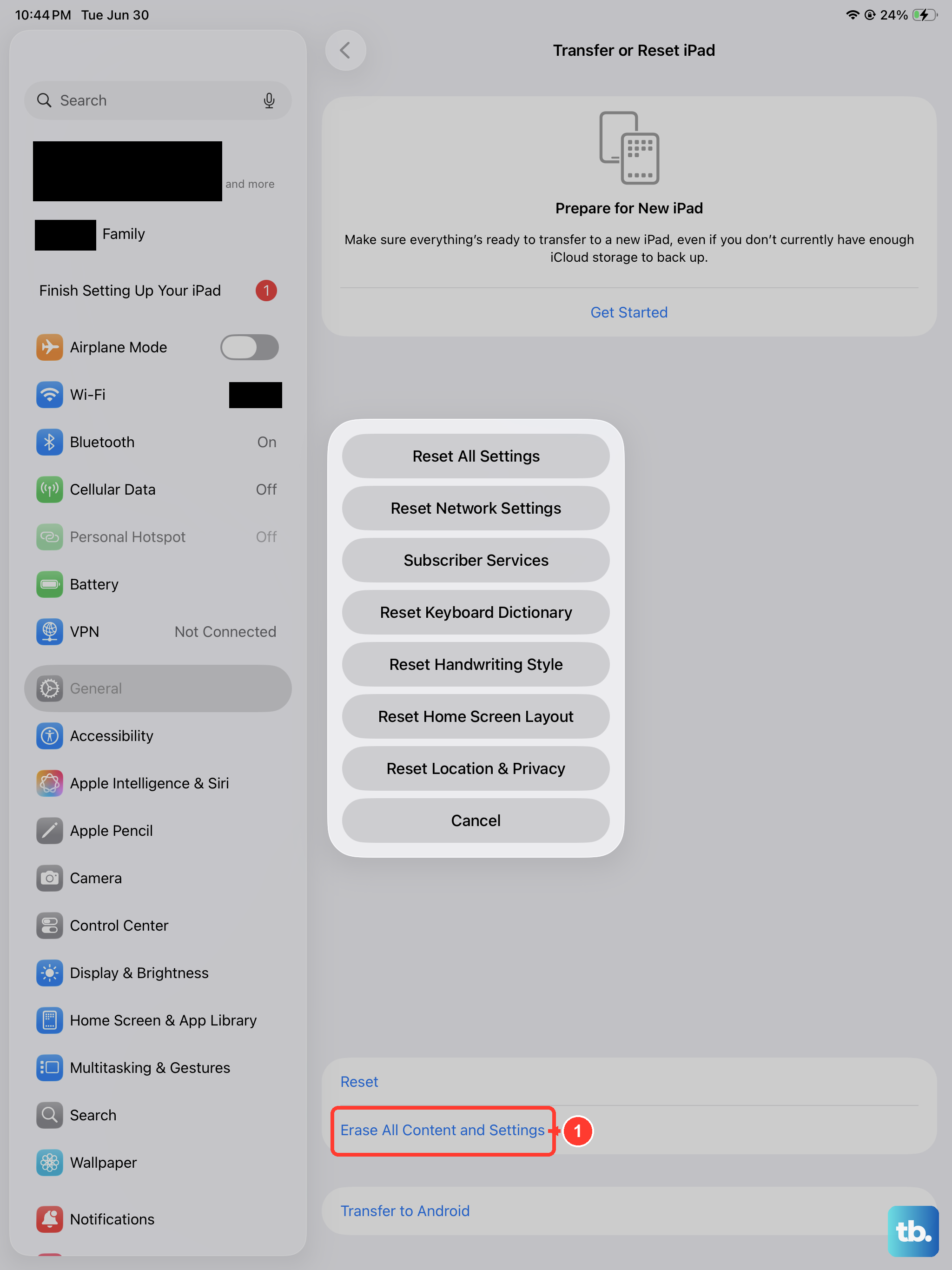
It's also a good time to update to the latest version of iPadOS 26 for any performance improvements. Go to Settings > General > Software Update. When you're completely confident everything is set up on your new mini, you can securely erase your old iPad by going to Settings > General > Transfer or Reset iPad > Erase All Content and Settings.