A fake Windows update usually arrives with pressure: a full-screen warning, a support phone number, a download button, or a message that claims your PC is already infected. Real Windows updates are handled through Windows Settings or Microsoft’s official download pages, not random browser pop-ups. Start with the safest move first, then clean up anything the scam left behind.
1. Spot the fake update before you touch it
Treat surprise Windows update warnings as suspicious when they arrive outside Windows Settings or Microsoft’s official pages.
A page says your PC is infected and tells you to call a number.
A browser tab imitates an update screen and pushes you into full-screen mode.
A website tells you to download a Windows update tool outside Microsoft’s site.
A person contacts you first and says they are Microsoft support.
Microsoft says it does not proactively contact users to provide unsolicited PC or technical support. Do not select links, call the number, enter personal information, or allow remote access to the PC.
2. Confirm real updates in Windows Settings
- 1.On Windows 11, select Start > Settings > Windows Update > Check for Windows updates.
- 2.If Windows offers an update, select Download & install.
- 3.Restart only when Windows prompts you to restart.
The real Windows update path is inside Windows. On Windows 10, use Start > Settings > Update & Security > Windows Update > Check for Windows updates. Microsoft still lists that path, but Windows 10 general support ended on October 14, 2025 unless an extension or exception applies.
For Windows 11 installation media or the Installation Assistant, use Microsoft’s official Software Download page at microsoft.com/software-download/windows11. For other official Windows downloads, start at microsoft.com/software-download. Skip third-party download portals and direct file links from pop-ups.
3. Escape the fake screen without clicking
Close the scam with browser or Windows controls, not buttons inside the page.
In Microsoft Edge, press Esc to stop the page from loading or close a dialog.
Press F11 to leave full-screen mode.
Press Ctrl + F4 to close the current tab.
Press Alt + F4 to close the browser window.
In Chrome, press Shift + Esc to open Chrome Task Manager when a tab is abusive.
When the browser opens again, do not restore the same tab. Move straight to the protection and cleanup checks below.
4. Turn on Windows protection before scanning
Before scanning, open Windows Security > App & browser control > Reputation-based protection. Keep SmartScreen for Microsoft Edge on, then review Check apps and files, Phishing protection, and SmartScreen for Microsoft Store apps. Phishing protection is not available in Windows 10.
On eligible Windows 11 PCs, open Windows Security > App & browser control > Smart App Control settings and set it to On. Smart App Control is Windows 11 only, and Microsoft limits it to new installs, resets, or eligible systems.
5. Scan the PC and act on detections
Use Microsoft Defender first because it is built into Windows Security.
Open Windows Security > Virus & threat protection.
Select Quick scan.
For a deeper check, select Scan options, then choose Full scan, Custom scan, or Microsoft Defender Antivirus offline scan.
Use Microsoft Defender Antivirus offline scan when the infection keeps coming back, because Windows restarts and scans without loading Windows normally.
To scan a specific downloaded file, open File Explorer, right-click the file or folder, select Show more options, then choose Scan with Microsoft Defender.

After the scan, open Windows Security > Protection history. For a red or yellow card marked action needed, select Actions, then choose Quarantine. Once the item moves to Threat quarantined, open it and choose Actions > Remove to delete it or Restore to put it back.
Use Allow on device only when you are certain the item is a false positive. Protection history keeps events for two weeks.
For a second opinion, download Microsoft Safety Scanner only from Microsoft’s Safety Scanner page, run the 32-bit or 64-bit scanner that matches your PC, choose a scan type, and review the results.
6. Remove suspicious apps and startup entries
Open Start > Settings > Apps > Installed apps.
Find the suspicious app, select More, then select Uninstall.
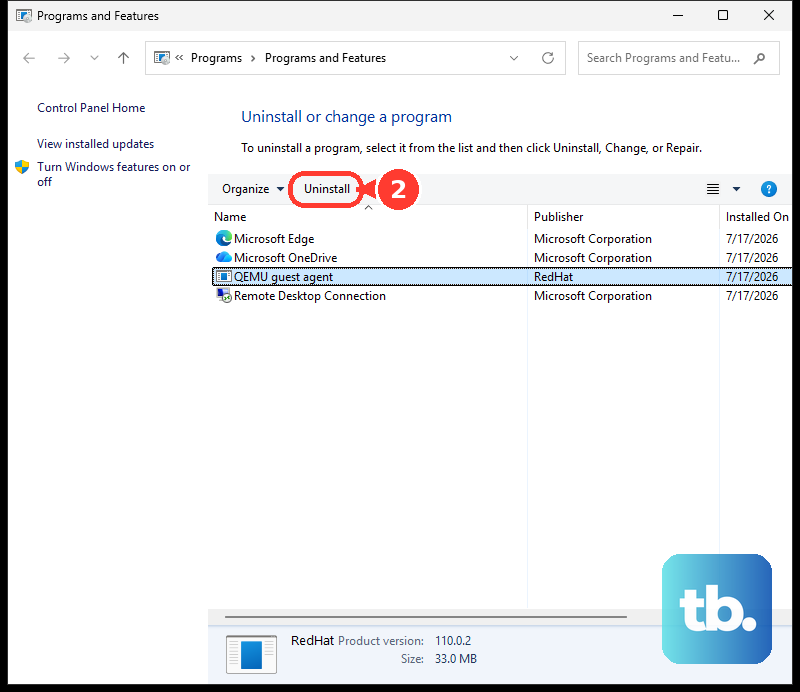
If the app is not removable there, open Control Panel > Programs > Programs and Features, right-click the program, then select Uninstall or Uninstall/Change.
Open Start > Settings > Apps > Startup, then set the unwanted app toggle to Off.
To check Task Manager, right-click Start, select Task Manager, open Startup apps, select the suspicious app, then select Disable.
To remove startup shortcuts, right-click Start, select Run, type shell:startup or shell:common startup, press Enter, then delete unwanted shortcut links.
A fake update can leave behind an app, startup item, browser extension, or installed web app. Remove the obvious leftovers before using heavier recovery tools.
Do not follow older Windows Update instructions that send you to Control Panel, Internet Explorer, ActiveX update checks, or legacy browser-extension workflows. Use Windows Settings, Windows Security, and current Edge, Chrome, or Firefox settings.
7. Clean the browser that showed the scam
In Microsoft Edge, block scam notifications through Settings and more > Settings > Privacy, search, and services > Site permissions > All sites. Select the suspicious website, find Notifications, then choose Block.
You can also select View site information beside the address bar, open Permissions for this site, set Notifications to Block, and block pop-ups at Settings and more > Settings > Cookies and site permissions > Pop-ups and redirects.
Still in Edge, remove extensions through Settings and more > Extensions > Manage extensions, then use Remove from Microsoft Edge.
To remove a fake update web app installed through Edge, open edge://apps, select Details on the app card, select Uninstall, and confirm with Uninstall.
To clear site data, use Settings and more > Settings > Privacy, search, and services > Clear browsing data > Choose what to clear, choose a Time range, select the data types, then select Clear now.
In Chrome, open More > Settings > Privacy and security > Site settings to manage notifications and pop-ups.
Remove extensions through More > Extensions > Manage extensions > Remove.
To remove a Chrome web app, open the app, select More > Uninstall [app name] > Remove, or manage web apps at chrome://apps.
If the browser still behaves badly, use More > Settings > Reset settings > Restore settings to their original defaults > Reset settings.
In Firefox, open Menu > Settings > Permissions and data (labeled Privacy & Security in Firefox 151 and earlier), scroll to Permissions, then select Settings next to Notifications. Select the website, choose Block or Remove Website, then select Save Changes.
To refresh Firefox, open Menu > Help > More troubleshooting information > Refresh Firefox > Refresh Firefox, then follow the restart prompts.
8. Use recovery tools for stubborn infections
Move into Windows recovery when scans and browser cleanup do not stop the behavior.
Open Windows Recovery Environment from Settings > System > Recovery > Advanced startup > Restart now. On Windows 10, use Settings > Update & Security > Recovery.
You can also hold Shift while selecting Power > Restart.
For Safe Mode, select Troubleshoot > Advanced options > Startup Settings > Restart, then select 4 or F4 for Enable Safe Mode, 5 or F5 for Safe Mode with Networking, or 6 or F6 for Safe Mode with Command Prompt.
For System Restore from Windows, open Control Panel > Recovery > Open System Restore, or press Windows key + R, type rstrui.exe, and press Enter.
Select Next, choose a restore point, optionally select Scan for affected programs, then select Next > Finish.
For System Restore from WinRE, select Troubleshoot > Advanced options > System Restore.
Use Reset or reinstall Windows after remote access, serious persistence, or repeated scam behavior. Back up important files first. Reset can keep personal files but removes apps and settings, while reinstalling with installation media usually removes files, apps, and settings.
BitLocker devices may require the BitLocker recovery key in recovery mode.
9. Secure accounts and report the scam
Go to your Microsoft account Security basics page and select Review activity.
Expand suspicious entries.
For activity that was not yours, choose This wasn't me in Unusual activity or Secure your account in Recent activity.
Change your Microsoft account password at account.microsoft.com/security by selecting Change password.
To sign out other sessions, open Advanced security options on the Microsoft account security dashboard, then select Sign out everywhere > Sign out. Microsoft says this can take up to 24 hours.
Report the Microsoft-impersonation support scam through Microsoft’s support scam reporting page after you are away from the scam page.
If you gave a password, code, payment details, or remote access to someone pretending to run a Windows update, treat it as an account-security incident.
For a work or school device, contact your IT team. Managed computers can use organization-level browser and Defender policies, including notification blocking, URL blocking, Defender cloud protection, and potentially unwanted app protection.
Frequently Asked Questions
Can a fake Windows update page install malware by itself?
The verified sources support treating these pages as dangerous prompts that can push pop-ups, notifications, downloads, web apps, extensions, or support scams. Close the page, avoid its links, scan any downloaded file, and clean the browser permissions.
Is Microsoft Safety Scanner the same as Microsoft Defender?
No. Microsoft Defender is built into Windows Security for regular protection and scans. Microsoft Safety Scanner is an official on-demand tool you download from Microsoft and run as a second-opinion scanner.
Should I use the Malicious Software Removal Tool for a fake update scam?
Use it only as a limited extra check for specific prevalent malware. Microsoft says Microsoft Safety Scanner or Defender Offline is the better choice for comprehensive malware detection and removal.
What should I do if a scammer had remote access to my PC?
End the session, scan with Microsoft Defender, review Microsoft account activity, change your password, sign out everywhere, and consider Reset or reinstall Windows after backing up important files.