You want to turn off your ASUS laptop, but an unfamiliar keyboard or a frozen Start menu gets in the way. Start with the normal Windows shutdown steps below, then choose the keyboard or power-button route that fits your situation. For an ASUS Chromebook, jump to the ChromeOS instructions at the end.
Shut down from the Windows Start menu
Save your work.
Select Start on your Windows 11 or Windows 10 laptop.
Open Power.
Choose Shut down.
Check that you selected shutdown, because sleep, hibernation, signing out, and turning off the display are different actions.
Reach the shutdown controls with your keyboard
On Windows 11, open the Quick Link menu with Windows+X. Select Shut down or sign out > Shut down.
For the English-interface shortcut, press Windows+X, release both keys, then press U twice. The letter shortcuts depend on your interface language.
For the desktop method on Windows 11 or Windows 10, first save your work. Press Windows+D to focus the desktop. Press Alt+F4 to open Shut Down Windows.
Select Shut down, then select OK. Keep the desktop in focus for this method: Alt+F4 closes the active application otherwise. Your keyboard configuration determines function-key behavior.
Open the security screen when Start stops responding
On Windows 11, press Ctrl+Alt+Delete to reach the security screen.
Select the Power icon at the lower right.
Choose Shut down.
For keyboard-only operation from the security screen, press Tab until Power is focused.
Press Enter to open the power menu.
Use the arrow keys to select Shut down.
Press Enter to confirm.
If Windows does not respond to Ctrl+Alt+Delete and a normal shutdown is impossible, use the forced power-button shutdown below. If your work laptop hides Power, ask your administrator about the restriction.
Force off a frozen ASUS laptop
A forced shutdown turns off an unresponsive laptop and risks losing unsaved work.
Check your model’s manual for the required power-button hold time. The ExpertBook B5405/B5605 manual specifies at least 10 seconds; that is not a universal timing for ASUS laptops.
Hold the physical power button until the power light goes out, following your model’s instructions.
Make a brief power-button press shut down Windows
On Windows 11 or Windows 10 with these controls available, configure the button before using a short press to shut down.
- 1.On Windows 11, search Windows for Choose a power plan and open it. On Windows 10, search for Power & sleep settings, open it, and select Additional power settings.
- 2.Select Choose what the power button does.
- 3.Set When I press the power button to Shut down under both On battery and Plugged in.
- 4.For shutdown when you close the lid too, set When I close the lid to Shut down in both columns, if that setting is available.
- 5.Select Save changes.
- 6.Press the physical power button briefly to shut down, or close the lid if you configured that action.
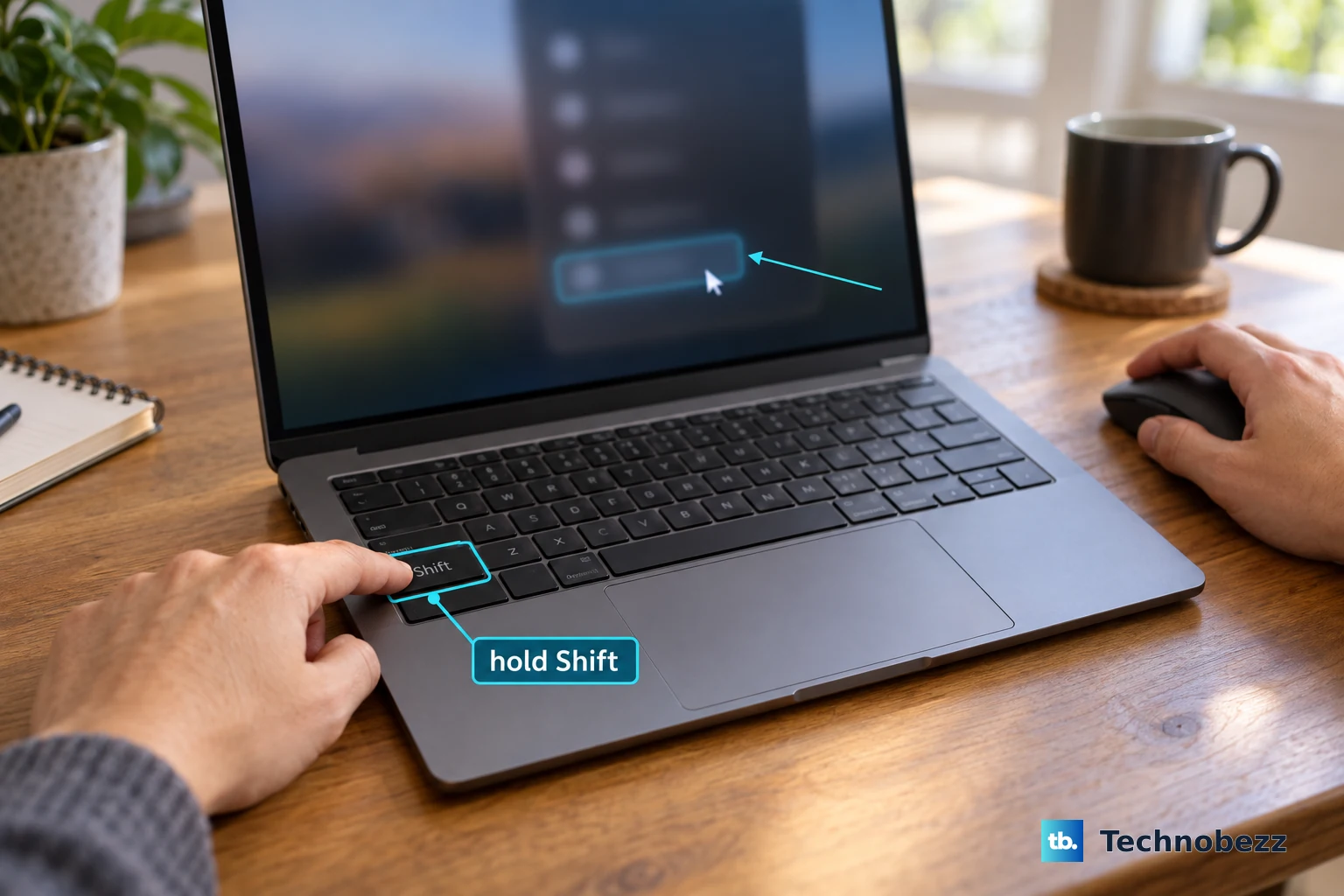
Use Shift for a one-time full shutdown
This gives Windows 11 or Windows 10 a one-time full shutdown.
Save your open work.
Open Start.
Select Power.
Hold Shift while selecting Shut down.
Turn off an ASUS Chromebook
On ChromeOS, select the time at the bottom right to open the system menu. Select Power, then choose Shut down.
For the Power-key method, hold the physical Power key for three seconds to turn off the Chromebook.
On models with a physical-button power menu, hold the Power button until the menu appears. Select Power off.
Frequently Asked Questions
Can I shut down my ASUS laptop without signing in?
Yes. On the Windows sign-in screen, select Power > Shut down. On managed laptops, your organization controls whether this option is available.
What command shuts down an ASUS Windows laptop?
Save your work. Press Windows+R to open Run. Enter shutdown.exe /s /t 0 and press Enter. The same command works in Command Prompt or PowerShell, and your account needs permission to shut down Windows.
What should I choose when Windows offers Update and shut down?
Select Start > Power > Update and shut down, then allow the update process to finish. In older Windows 11 installations, a bug could stop Update and shut down from actually shutting down the PC after updating. Microsoft documented a correction in KB5067036 for versions 24H2 and 25H2.
Can I shut down my ASUS laptop from a failed Startup Repair screen?
Yes. If Startup Repair reports that it could not repair your PC, select Shut down on that screen.