Your iPhone’s screen can look too cool or bright when you use it at night. Night Shift reduces blue light by shifting the display toward warmer colors, though it does not eliminate blue light completely. Here’s how to turn it on, adjust the warmth, and schedule it for your evenings.
Turn on Night Shift in Control Center
When Night Shift is off, your iPhone keeps its usual display colors instead of applying a warmer tint. Open Control Center by swiping down from the top-right corner on a Face ID iPhone, or swiping up from the bottom on an iPhone with a Home button.
Touch and hold the brightness slider to expand its controls. Next, tap Night Shift to turn it on. If an introductory prompt appears, select Turn On Until 7 AM for temporary activation.
Increase the warmth if the screen still looks too cool
Use the color temperature adjustment when Night Shift is on but its effect feels too subtle. Go to Settings > Display & Brightness > Night Shift. Move the Color Temperature slider toward the warmer end.
If Night Shift is off, activate Night Shift through Control Center to apply the warmer setting. Your schedule also activates it automatically during the hours you choose.
Set hours that fit your routine
Open Settings > Display & Brightness > Night Shift. Turn on Scheduled. Tap From, then select Custom Schedule.
Set the start time for when you want the warmer display to begin. Set the end time for when it should return to its usual colors. Choose hours that cover your evening phone use so you do not have to turn Night Shift on manually each night.
Let sunset control the schedule
A sunset-to-sunrise schedule adjusts Night Shift’s timing automatically using your location. Go to Settings > Display & Brightness > Night Shift. Enable Scheduled. Tap From and select Sunset to Sunrise.
If that option is unavailable, enable Location Services under Settings > Privacy & Security > Location Services. Open System Services within Location Services. Enable Setting Time Zone.
Return to Settings > Display & Brightness > Night Shift > From. Select Sunset to Sunrise.
Dim the screen when warmth is not enough
When the color looks right but the screen still feels intense, adjust its brightness alongside Night Shift. Dimming the display and reducing bright colors serve a different purpose from changing its color temperature.
Drag the brightness slider downward in Control Center to dim the screen. For another adjustment, open Settings > Accessibility > Display & Text Size. Enable Reduce White Point. This reduces the intensity of bright colors; it is not a blue-light-specific filter.
Check display settings that can turn off Night Shift
Apple notes that some display accessibility settings, including Invert Colors, Grayscale, and Increase Contrast, might turn off Night Shift or True Tone.
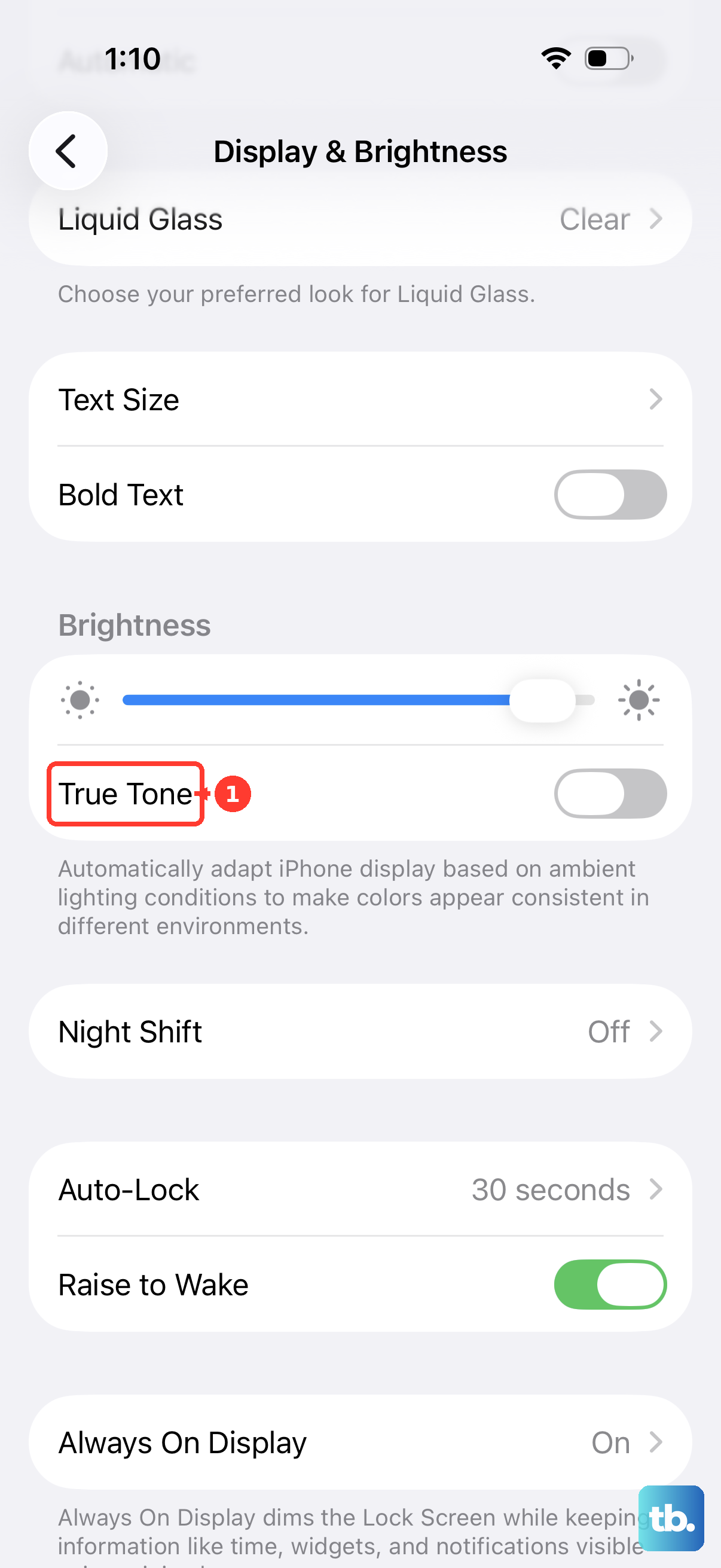
Turn off Invert Colors if you use it. Disable Grayscale if it is active. Turn off Increase Contrast if it is enabled.
Open Control Center by swiping down from the top-right corner on a Face ID iPhone, or swiping up from the bottom on an iPhone with a Home button. Touch and hold the brightness slider. Tap Night Shift to turn it on again.
Frequently Asked Questions
Does Color Tint guarantee complete blue-light blocking?
No. Apple provides hue and intensity controls for Color Tint but specifies no setting that eliminates blue light. Color Tint is a separate accessibility setting from Night Shift, and Apple notes that some display accessibility settings, including Grayscale, might turn off Night Shift.
Do Dark Mode and True Tone do the same thing as Night Shift?
No. Dark Mode changes the display’s appearance to a dark theme, while True Tone adapts display colors to ambient light. Neither is an equivalent blue-light filter.
Do I need an app to use Night Shift?
No. Night Shift is built into iOS and requires no download. Apple lists hardware support starting with iPhone 5s, although hardware support does not mean an older model can run current iOS versions.
Can I apply Night Shift to just one app?
Night Shift changes the display system-wide. An app-triggered shortcut automation can activate it when you open an app, but the resulting color change is not limited to that app.