Need to reboot an Acer laptop without guessing which button to press? Most Acer laptops use Windows, so the normal restart runs through the Windows power menu instead of a special Acer app.
On Windows 11, select Start, choose Power, then select Restart. The same path works on Windows 10, although Windows 10 support ended on October 14, 2025.
Use this first when the laptop responds normally, after installing apps, after changing settings, or when Windows feels sluggish. A restart closes the current session and starts Windows again cleanly.
Restart From the Sign-In Screen
You do not have to sign in before restarting. On the Windows sign-in screen, select Power, then choose Restart.
This helps when the laptop reaches the password or PIN screen but the desktop will not load, your account is not opening correctly, or you need a clean restart before trying again.
If this method fails, press Ctrl + Alt + Del, select the Power button, then choose Restart. If Windows is frozen, use the forced shutdown method instead.
Use a Keyboard Restart When Menus Are Stuck
This method applies when the mouse, touchpad, or Start menu stops cooperating but the keyboard still responds. Windows gives you several keyboard routes to the same restart command.
Press Ctrl + Alt + Del. Then select the Power button and choose Restart.
Or press the Windows logo key + X. Open Shut down or sign out, then select Restart.
When you are already on the desktop with no active app window selected, press Alt + F4. Choose Restart in the shutdown prompt, then select OK.
Restart After a Windows Update
This fixes update installs that are waiting for Windows to restart. Select Start.
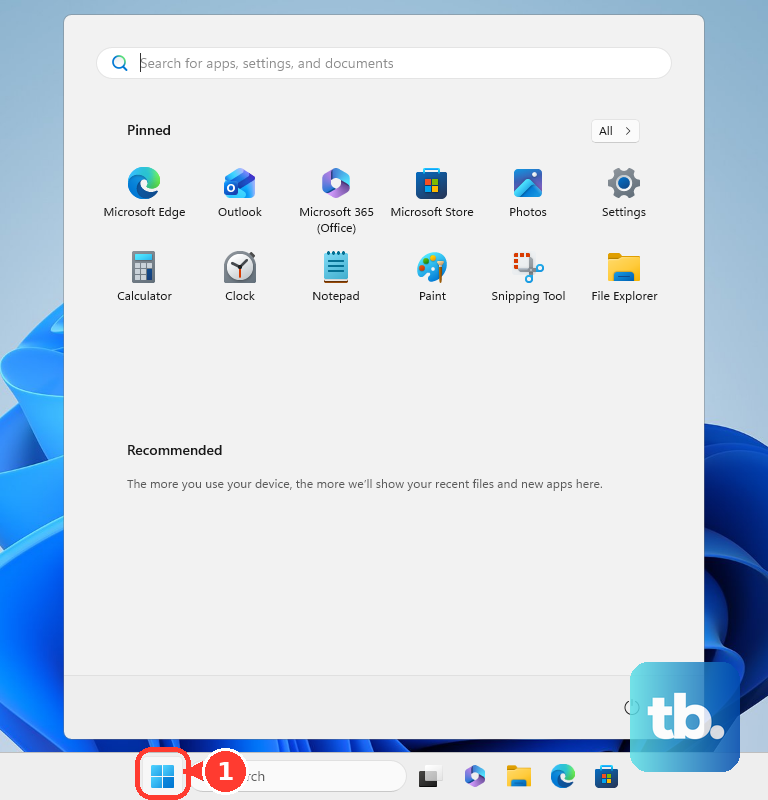
Open Settings, then select Windows Update. Choose Restart now when Windows shows a pending restart.
To restart later, open Schedule the restart from Windows Update. Choose a time that works for you.
Force Restart a Frozen Acer Laptop
The most common cause is that Windows has stopped responding before it can process the normal restart command. Press and hold the physical Power button for 10 seconds, or until the laptop shuts off completely. Unplug the power adapter after the computer is off.
Disconnect accessories such as USB devices and other peripherals. Press and hold the Power button for at least 30 seconds. Reconnect the power adapter. Press Power to turn the Acer laptop back on.
Use the Acer Battery Reset Pinhole
This fixes Acer laptops with an internal battery reset button when a normal power-button restart does not clear a startup, power, or battery-reset problem. Turn off the laptop, unplug the charger, then flip the laptop over.
Look for a tiny reset hole labeled Battery Reset. Gently insert a paperclip until you feel the button inside the hole press down. Hold it for 10 to 15 seconds. Remove the paperclip.
Press Power to start the laptop again. Confirm support on the bottom of the laptop or in Acer's user guide section titled Your Acer Notebook Computer tour, because not every Acer laptop has this reset hole.
Reboot Into Windows Recovery
Use this when Windows will not start normally or you need the Windows Recovery Environment. It is for troubleshooting startup problems, not for an everyday reboot.
From Windows 11, open Settings. Select System, then choose Recovery. Under Recovery options, select Restart now next to Advanced startup.
You can also hold Shift while selecting Power and Restart. That restarts the laptop into the Windows Recovery Environment.
If Windows will not boot, start the device and wait for the Windows logo or Acer logo. As soon as the logo appears, press and hold Power until the laptop shuts down. Repeat that process.
Turn it on a third time so Windows displays Automatic Repair. Select Advanced options.
Once you are in recovery, select Troubleshoot. Choose Advanced options, then open Startup Settings.
Select Restart. After the laptop reboots, choose an option or press Enter to boot Windows normally.
Restart an Acer Chromebook
Click the Time in the lower-right corner. Click the Power icon to shut down the Chromebook. Press the Power button on the keyboard to start it again.
When the Chrome browser is still available, type chrome://restart in the address bar and press Enter for Acer's documented soft restart.
When the normal menu is unavailable but the power menu still opens, press and hold Power for five seconds. Select Shut down, then press Power again.
Back up anything important first: a hardware reset restarts the Chromebook's hardware, such as the keyboard and touchpad, and might delete some files in your Downloads folder. For a hardware reset, turn off the Chromebook. Press and hold Refresh. Tap Power.
On some Chromebook hardware, hold Back + Refresh + Power for at least 10 seconds. Use the standard Time and Power menu first, because hardware reset steps vary by Chromebook model and form factor.
Manage Work or School Restart Rules
The most common cause of limited restart choices on managed devices is that an organization controls restart behavior for updates. On managed Windows Acer laptops, IT can set automatic update behavior that restarts at maintenance time, at a scheduled time, or without end-user control.
On managed Acer Chromebooks in Chrome Enterprise or Education, administrators can configure update restart settings and force devices to restart automatically after the specified time has passed. If restart timing is locked down, use the visible Restart now or scheduled restart option when it is available. Contact the organization that manages the laptop when the restart controls stay locked.
Older Windows guides mention legacy restart Group Policy settings such as automatic scheduled restart prompts. Several of those settings are not applicable to Windows 11, not implemented on Windows 10, or marked for possible removal, so current managed devices use current Windows update management instead.
Frequently Asked Questions
What is the easiest way to reboot an Acer laptop?
On Windows, select Start, choose Power, then select Restart. On an Acer Chromebook, click the Time, select the Power icon, then press Power again to start it.
How do I reboot my Acer laptop when it is frozen?
Hold the physical Power button for 10 seconds until it shuts off. Unplug the adapter, disconnect peripherals, hold Power for at least 30 seconds, reconnect power, and turn it back on.
Can I restart an Acer laptop without signing in?
Yes. From the Windows sign-in screen, select Power, then Restart.
What does the Acer battery reset pinhole do?
It resets supported Acer laptops with internal batteries when startup, power, or battery-reset problems persist. Look for a hole labeled Battery Reset on the bottom of the laptop or confirm it in the user guide.