Need to check whether your PC has TPM 2.0, but keep finding instructions for the older TPM Management console? Windows Security shows your TPM version and status through the current Windows interface. Start there, then check device detection, errors, or firmware settings if something isn't right.
Check your TPM in Windows Security
On Windows 11 or Windows 10, start with the built-in security app.
- 1.Search Start for Windows Security and open the matching app.
- 2.Select Device security.
- 3.Under Security processor, select Security processor details.
- 4.Read Specification version. A value of 2.0 identifies TPM 2.0; the manufacturer's firmware version is a different value.
- 5.Review Status for the security processor's reported state.
Replace the older TPM Management route
If older instructions point you to tpm.msc, they're referring to the TPM Management console. Microsoft still documents it, but lists it as deprecated.
Open Windows Security for the current consumer TPM check.
Select Device security.
Open Security processor details to inspect your TPM information.
Find out whether Windows detects your TPM
No Security processor section? That doesn't prove your PC lacks TPM hardware. Firmware settings can disable or hide the TPM from Windows.
Open Device Manager.
Expand Security devices.
Look for a Trusted Platform Module entry and its displayed version. This confirms device detection; Windows Security provides fuller readiness information.
If Device Manager doesn't show a TPM either, try checking your PC's firmware settings using the firmware steps below.
Read TPM errors before considering a reset
If Windows detects the TPM but reports a problem, open Windows Security > Device security > Security processor details > Security processor troubleshooting.
Read the reported errors and suggested remedies before making changes.
Leave Clear TPM alone when you're only checking status or version, Windows initializes the TPM automatically. Clearing removes TPM-held keys and can cause data loss. A reset requires a data backup and available recovery credentials first.
Look for a disabled TPM in firmware
On PCs that expose firmware access through Windows Recovery Environment, inspect the TPM controls here.
Hold Shift while selecting Power > Restart.
Choose Troubleshoot > Advanced options > UEFI Firmware Settings.
Select Restart to enter the firmware interface.
Locate the TPM controls using your manufacturer's instructions. On Dell models with the documented layout, open Settings > Security > TPM 2.0 Security or TPM 1.2 Security.
Inspect the TPM settings. In that Dell layout, check TPM On and Enabled.
Menu names and controls vary by model, so follow the manufacturer's instructions before enabling a disabled TPM. Don't change the selected TPM merely to check its state.
Use PowerShell for another status check
Prefer a command? Windows PowerShell reports TPM presence and readiness on Windows 11 and Windows 10.
Open Windows PowerShell using Run as administrator.
Run Get-Tpm.
Read TpmPresent, TpmReady, TpmEnabled, and TpmActivated, along with the manufacturer information. ManufacturerVersion is not the TPM specification version; check Specification version in Windows Security for TPM 2.0.
If Get-Tpm fails, open Command Prompt using Run as administrator.
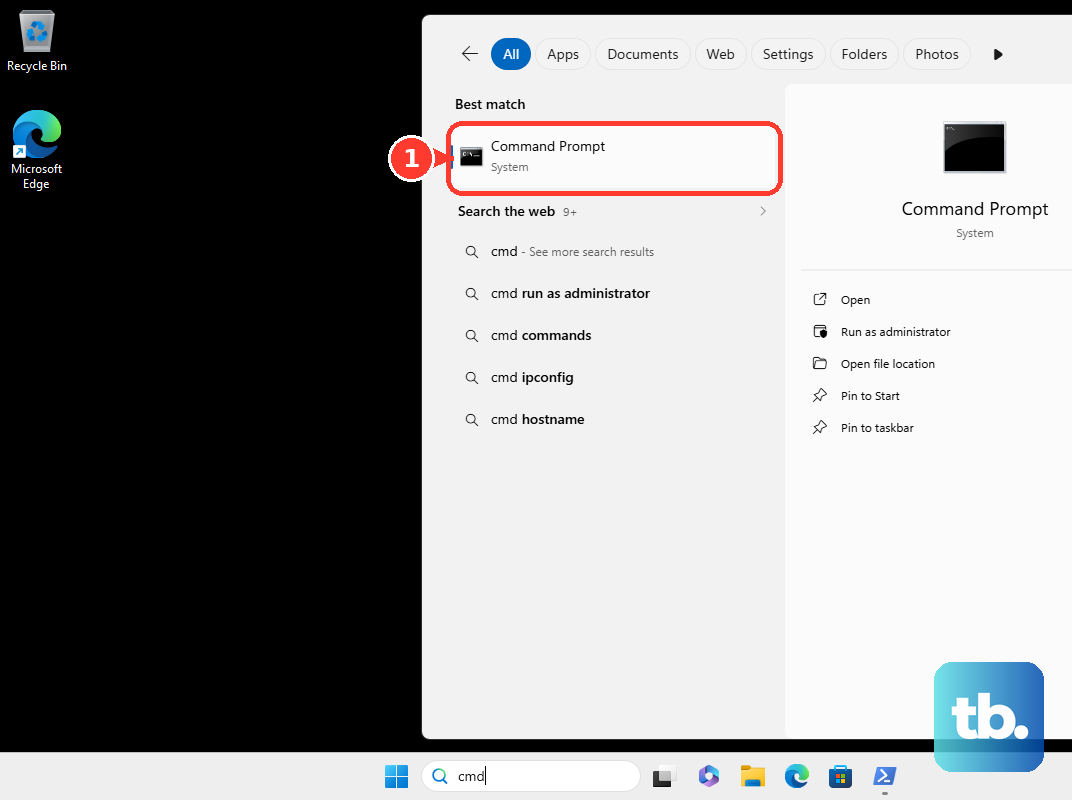
For that failed PowerShell check, try tpmtool getdeviceinformation instead. It reports TPM information and readiness indicators.
Frequently Asked Questions
Do I need to download TPM Management?
No. TPM Management and Windows Security require no separate download. Windows Security provides the current TPM details interface.
Does having TPM 2.0 mean my PC qualifies for Windows 11?
TPM 2.0 alone does not establish full eligibility. On a Windows 10 PC, open PC Health Check and select Check now to review Windows 11 eligibility and any failed requirements.
Why is TPM troubleshooting missing on my work or school PC?
Administrative policy can hide the TPM troubleshooting page. Ask your IT team about access, and only clear an organization-managed device's TPM under the organization's direction.
Can a Microsoft support webpage check my TPM directly?
No. Microsoft's support-page shortcuts open the corresponding local Windows Security pages. The website does not remotely inspect your TPM.