

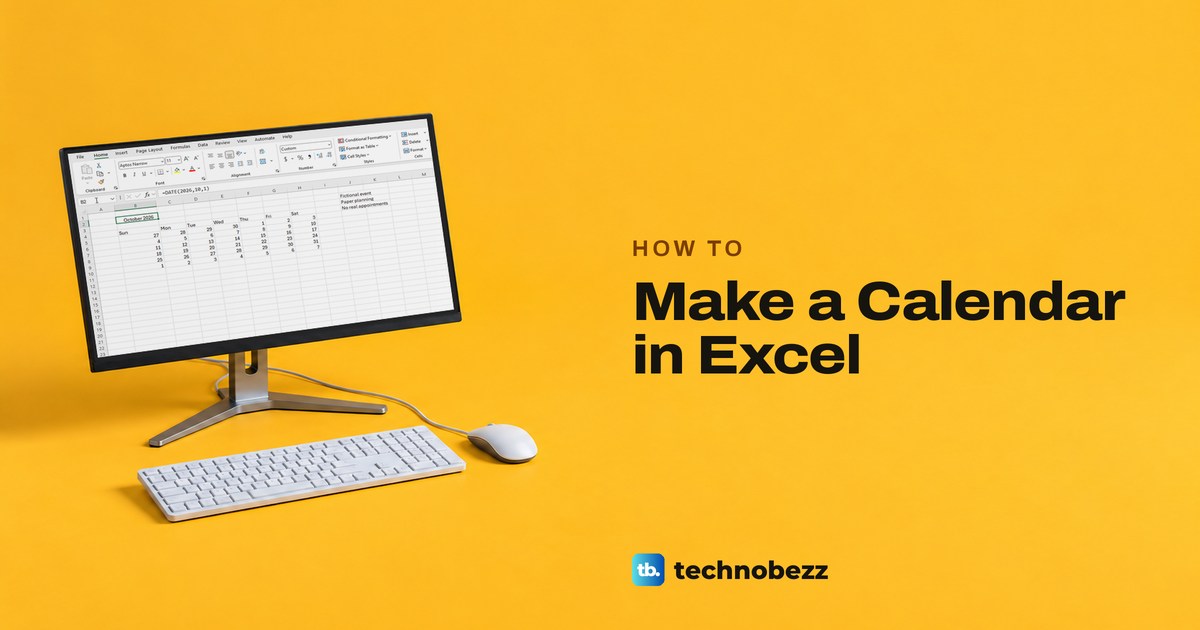
To make a calendar in Excel, choose File > New, type calendar in the Search for online templates box, pick a Microsoft calendar such as Any year one-month calendar and select Create. To build one yourself, put the first day of the month in B2 with =DATE(2026,10,1) and type =SEQUENCE(6,7,$B$2-WEEKDAY($B$2,1)+1,1) in B5. That fills a six-week grid, Sunday first, which redraws itself whenever you change the date in B2.
Pick the template if you want boxes to write appointments in, because it leaves a notes row under every date. Pick the formula for a clean monthly grid you reuse, and expect it to show serial numbers such as 46292 until you format the cells to show day numbers.
We made both kinds in Excel for Microsoft 365 on Windows 11, version 25H2, then built them again in Excel for the web in Microsoft Edge. The notes in our pictures are made up, and the Mac steps further down are Microsoft's own.
The short version
- Fastest: File > New, search for calendar, pick a template and select Create.
- Change the month: in Any year one-month calendar, pick it from the list in C1 and type the year in B1.
- Build your own:
=DATE(2026,10,1)in B2, Sun to Sat in B4:H4 and the SEQUENCE formula in B5. - Show day numbers: select the grid, press Ctrl + 1, choose Custom and type d.
- Print one page: select the calendar, press Ctrl + P, choose Print Selection and check the preview; if it runs past one page, set Fit to 1 page wide by 1 tall in Page Setup.
Choose the calendar method that fits your work
These are four ways to make a basic calendar in Excel. The table shows what each one suits and whether it can change month from a single cell.
| Method | Best for | How to start | Changes month from one cell |
|---|---|---|---|
| Microsoft template | A month with room for notes | File > New, search for calendar, Create | Yes, from its month and year cells |
| Fill handle | A fixed week or a one-off month | Type one real date and drag the fill handle | No |
| SEQUENCE formula | A plain grid you reuse every month | Formula in B5, then Ctrl + 1 and Custom format d | Yes, from B2 |
| Excel for the web template | Working in a browser | File > New > Browse templates | Yes, from the cells its tip names |
If several people need to add their own events to one calendar, a worksheet is the wrong tool, and a shared calendar in Outlook handles that far better. An Excel calendar suits a printed month plan or a schedule you keep yourself.
Make a calendar in Excel from a Microsoft template
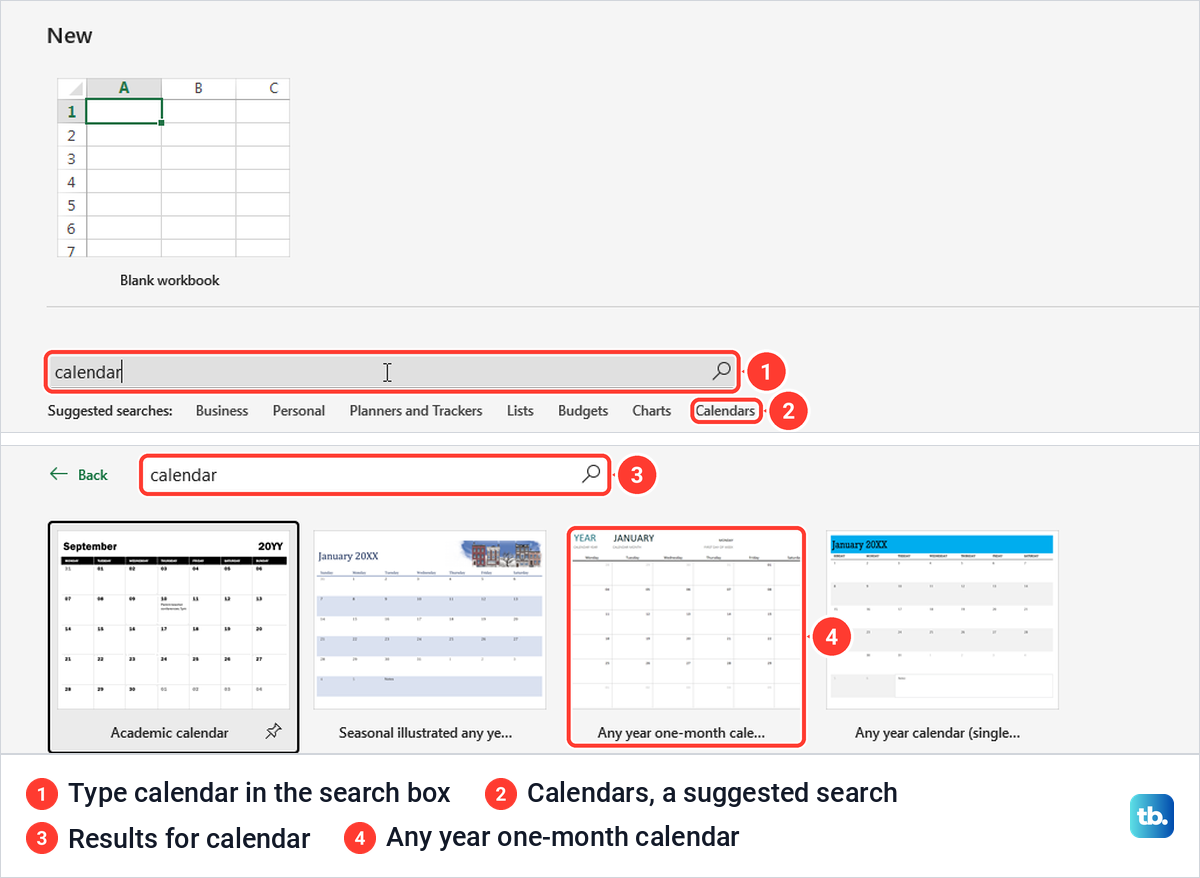
Open Excel and select File, then New. On our PC the New page showed a Search for online templates box with a magnifying glass, and Calendars was one of the suggested searches under it. If File > New and worksheet cells are new to you, our guide to using Excel for beginners covers the basics first.
Type calendar in the box and select the magnifying glass. Excel listed a page of calendar templates, including Academic calendar, Any year one-month calendar and Family event calendar, without asking us to sign in.
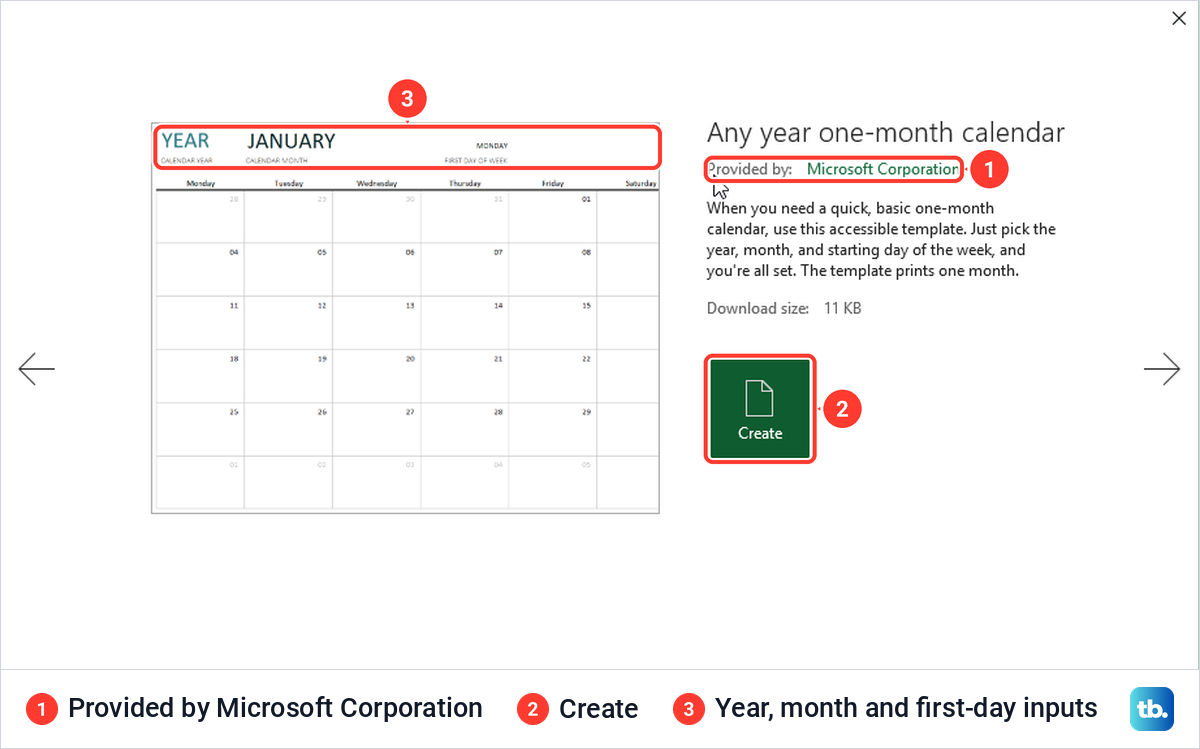
Select a template to open its preview. We chose Any year one-month calendar, which the preview says is provided by Microsoft Corporation and describes as a basic one-month calendar where you pick the year, month and starting day of the week. Select Create, and Excel opens the calendar as a new workbook of its own, ours named Any year one-month calendar1, leaving the workbook you started in untouched.
Give the new workbook a name with Ctrl + S before you fill it in, and if Excel closes before you do, try recovering an unsaved Excel file. After the first use, File > New on our PC showed the same template next to Blank workbook, and selecting it opened the preview with Create again.
Change the month, start day and colours of the template
The template runs from three cells in its top row, and a tip on cell A1 names them. B1 holds the year, C1 the month and E1 the first day of the week. The tip adds that daily notes go in rows 5, 7, 9, 11, 13 and 15, the rows under the dates.
Click C1 and press Alt + Down arrow to open a list from JANUARY to DECEMBER, or type the month name. When we chose OCTOBER, the grid redrew at once with 01 under Thursday and the last days of September in grey before it. In our copy E1 was set to MONDAY, so each week ran from Monday to Sunday, and the tip on A1 says to select a different starting day in E1 to change that.
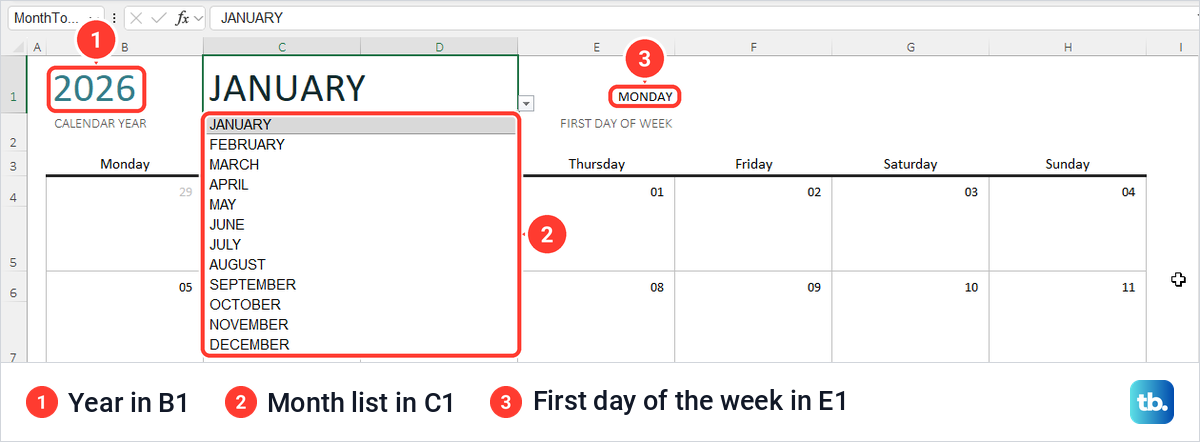
The year cell holds =YEAR(TODAY()) by default, so it shows the current year until you type a different one. The month cell is a drop-down list, the same control you can add to your own sheets with our guide to create a drop-down list in Excel.
To change the look, open Page Layout > Themes and pick a theme. Berlin turned our year and month orange and brown and changed the fonts across the calendar, while every date stayed where it was. The same tab showed Width set to 1 page under Scale to Fit, so the template is already set up to print one page wide.
Before you change a template you want to keep as it is, make a copy of the Excel file and work on the copy. That keeps the original for next year.
Write in the notes rows, not over the dates
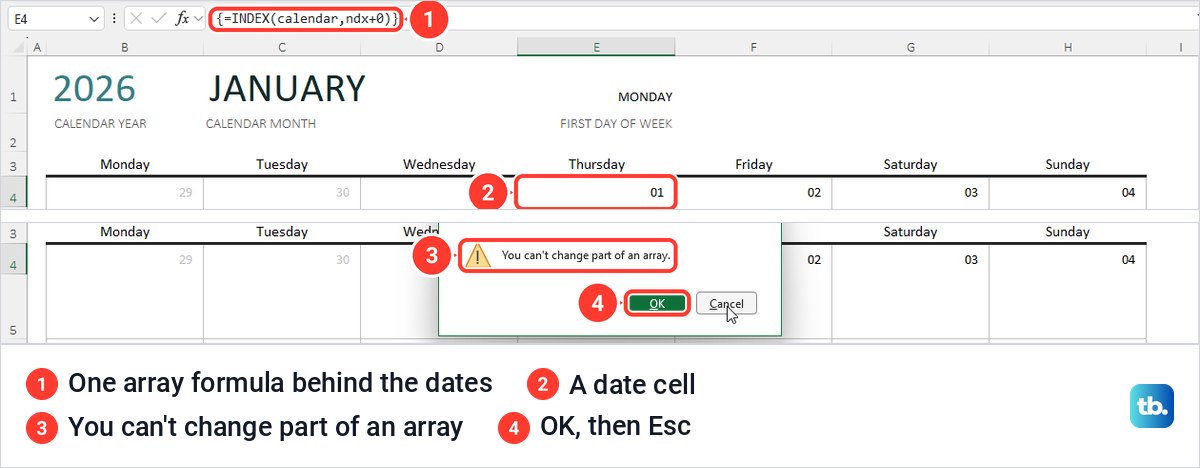
Microsoft warns that formulas sit in every cell that shows a date, and in the blank-looking cells of the date rows, and that typing over them stops the calendar updating. In the template we used, the dates come from one array formula, {=INDEX(calendar,ndx+0)}, and Excel guarded it. When we typed 99 over a date, Excel refused with the message You can't change part of an array.
Select OK and press Esc to back out. Our formula was intact afterwards, and the month still changed when we typed OCTOBER into C1. Other templates can be built differently, so put appointments in the empty rows under the dates, which in our copy held no formula at all.
Make a week of dates with the fill handle
For a calendar you lay out by hand, Excel needs only one real date to start the pattern. We typed 9/27/2026 in B5, pointed at the small square at the cell's lower right corner, which is the fill handle, and dragged it to H5. Excel filled seven days, 9/27/2026 to 10/3/2026, one per cell.
Let go over the last cell you want. Our first drag stopped one column short and filled only six days, so press Ctrl + Z and drag again if that happens to you.
If you prefer a menu, type the first date of the next week, select it with the six cells beside it, then open Home > Fill > Series. The Series box opened with Rows, Date and Day already selected and a Step value of 1, so we only selected OK, and B7:H7 filled with 10/4/2026 to 10/10/2026.
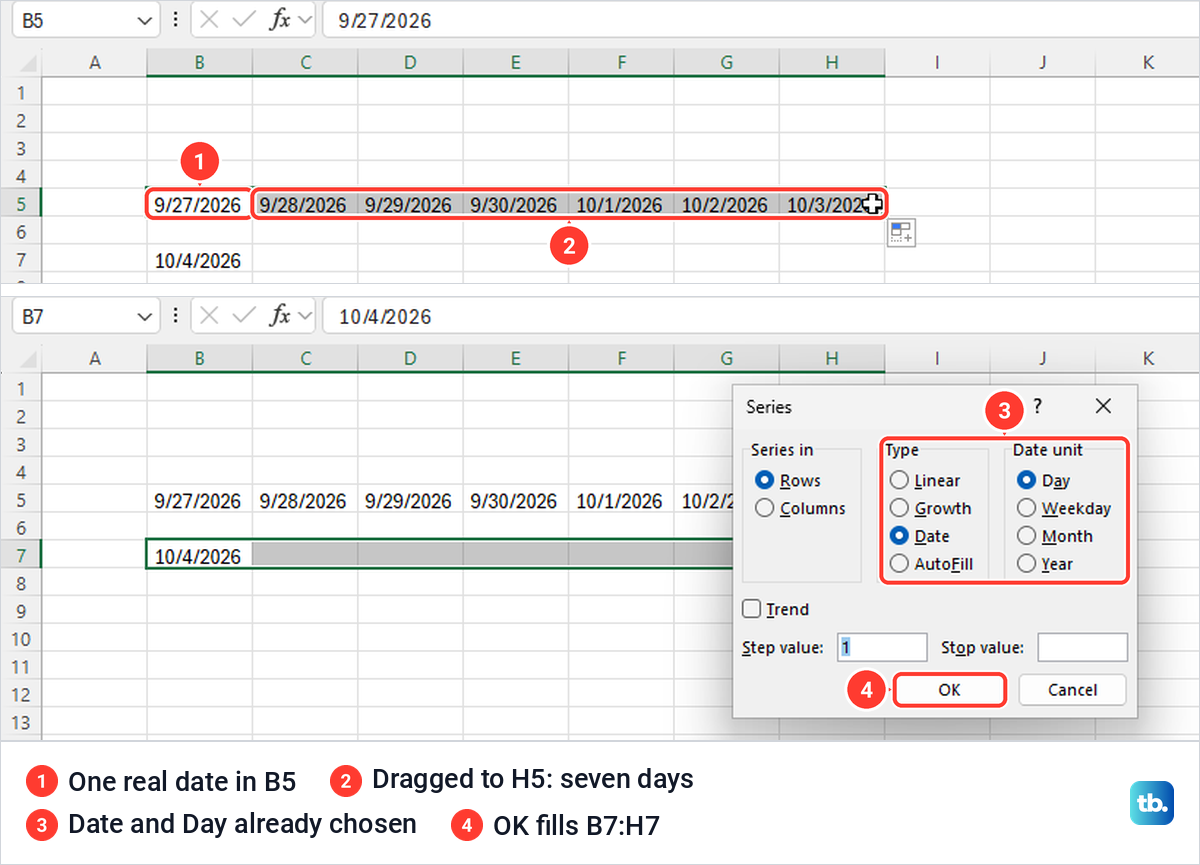
H7 showed hash marks instead of 10/10/2026, because the longer date did not fit the column, and widening the column brings it back. Repeat the rows for the rest of the month and give them the custom d format from the next sections if you only want day numbers. This kind of calendar never changes month by itself, and if dragging or Fill > Series does nothing, work through the fixes for Fill Series in Excel.
Build a calendar that changes with the month
This version uses one date and one formula, and every day in the grid follows the date you type. Click B2 and type =DATE(2026,10,1) for the first day of the month you want, then type Sun, Mon, Tue, Wed, Thu, Fri and Sat across B4:H4. DATE gives Excel a real date rather than text, which matters for the formula.
Click B5 and type =SEQUENCE(6,7,$B$2-WEEKDAY($B$2,1)+1,1). As we typed WEEKDAY, Excel listed its return types, and the first one, 1, numbers the days from Sunday through Saturday, which matches the headings. Press Enter and the formula spills into B5:H10, six rows of seven days.
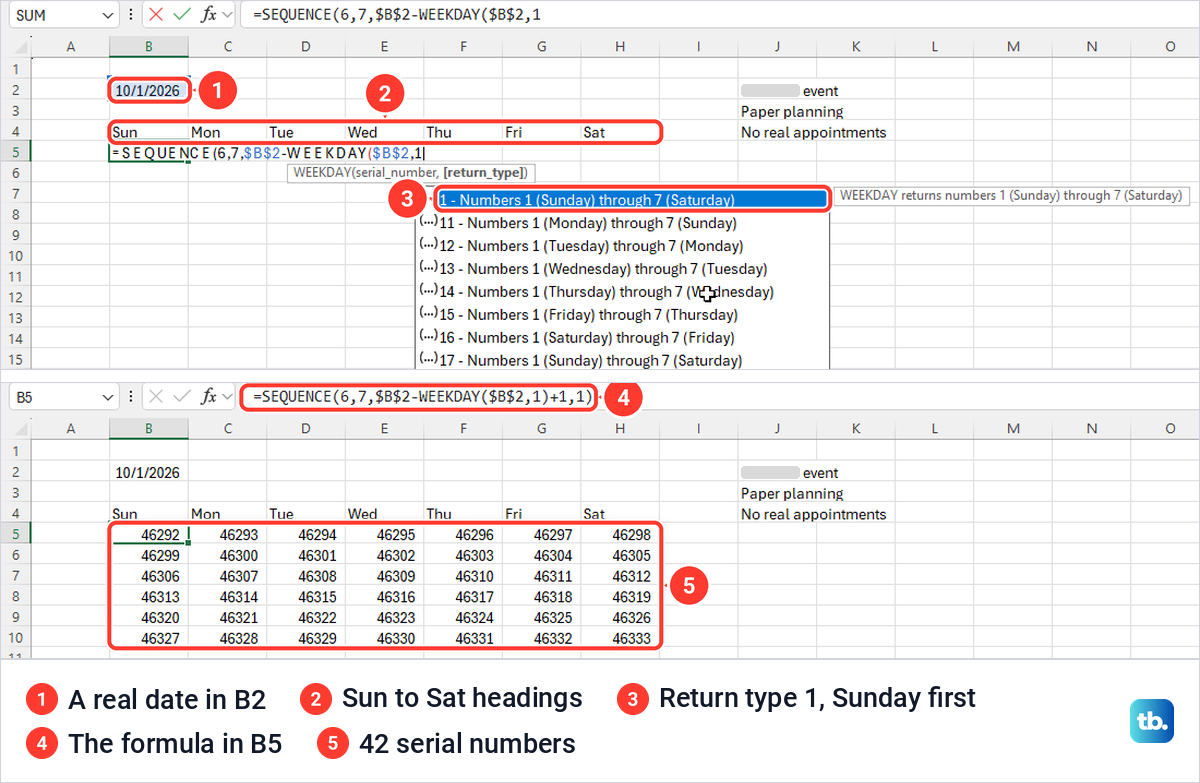
WEEKDAY($B$2,1) gives 5 for a Thursday, so B2 minus 5 plus 1 lands on the Sunday on or before the 1st, which was September 27 for October 2026. SEQUENCE then counts 42 days from that Sunday, so the grid always holds the whole month, plus days from the month before or after to fill the six weeks.
For weeks that start on Monday, Excel's list and Microsoft's WEEKDAY page give return type 11, Numbers 1 (Monday) through 7 (Sunday). Change the 1 inside WEEKDAY to 11 and type the headings from Mon to Sun.
Our grid first showed numbers from 46292 to 46333 instead of dates. That is normal, because Excel stores every date as a serial number, and on our blank sheet the spilled cells started in the General format. If B5 shows the formula itself rather than numbers, see how to fix Excel formulas showing as text.
Microsoft lists SEQUENCE for Excel for Microsoft 365, Excel 2024 and Excel 2021, on Windows and on a Mac. In an older copy of Excel, use a template or the fill handle instead.
Show day numbers instead of serial numbers
Select B5:H10 and press Ctrl + 1 to open Format Cells. With the whole grid selected, our Name Box read B5#, Excel's name for a spill range, and the status bar counted 42 cells. On the Number tab choose Custom, replace the text in the Type box with d and select OK.
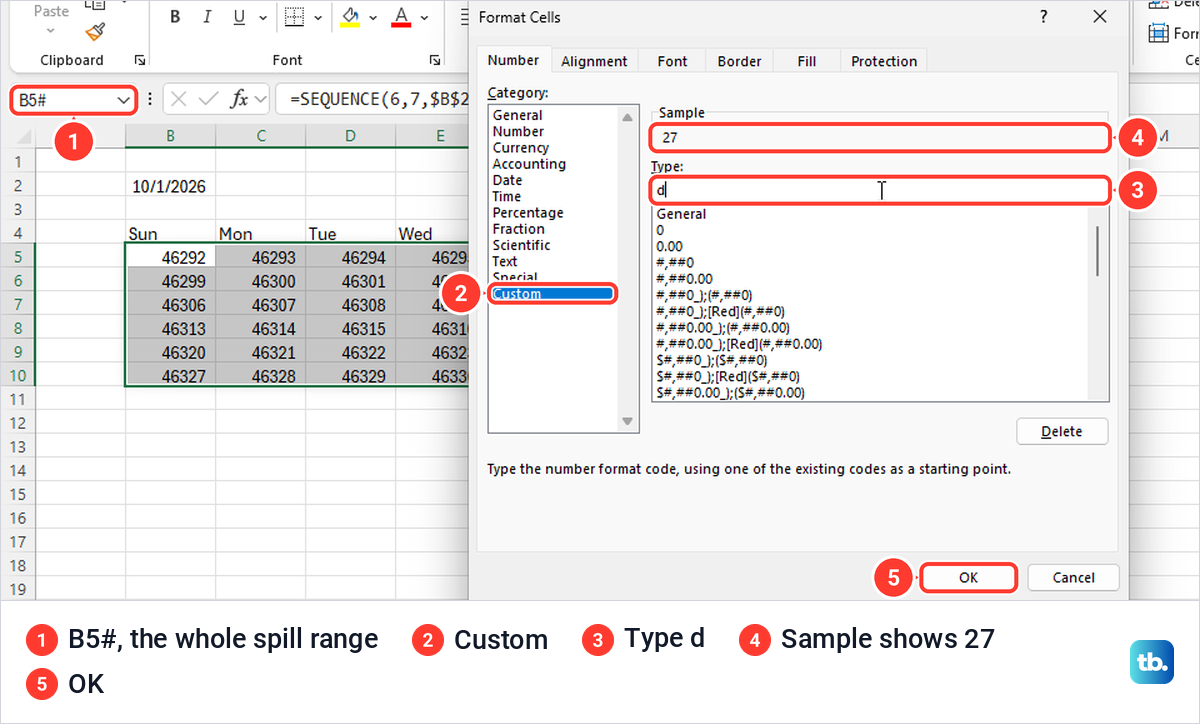
The Sample line showed 27 before we selected OK, and the grid then turned into day numbers. The cells still hold full dates, so anything that reads them keeps working. For the heading, select B2, press Ctrl + 1 again, choose Custom and type mmmm yyyy, which showed October 2026, and Excel widened column B by itself to fit it.
Now change the month. We replaced B2 with =DATE(2026,11,1), and the grid became November as soon as we pressed Enter, with 1 under Sun and the first days of December filling the last rows. Keep B2 on the first day of a month, because the grid always starts from the Sunday on or before whatever date B2 holds.
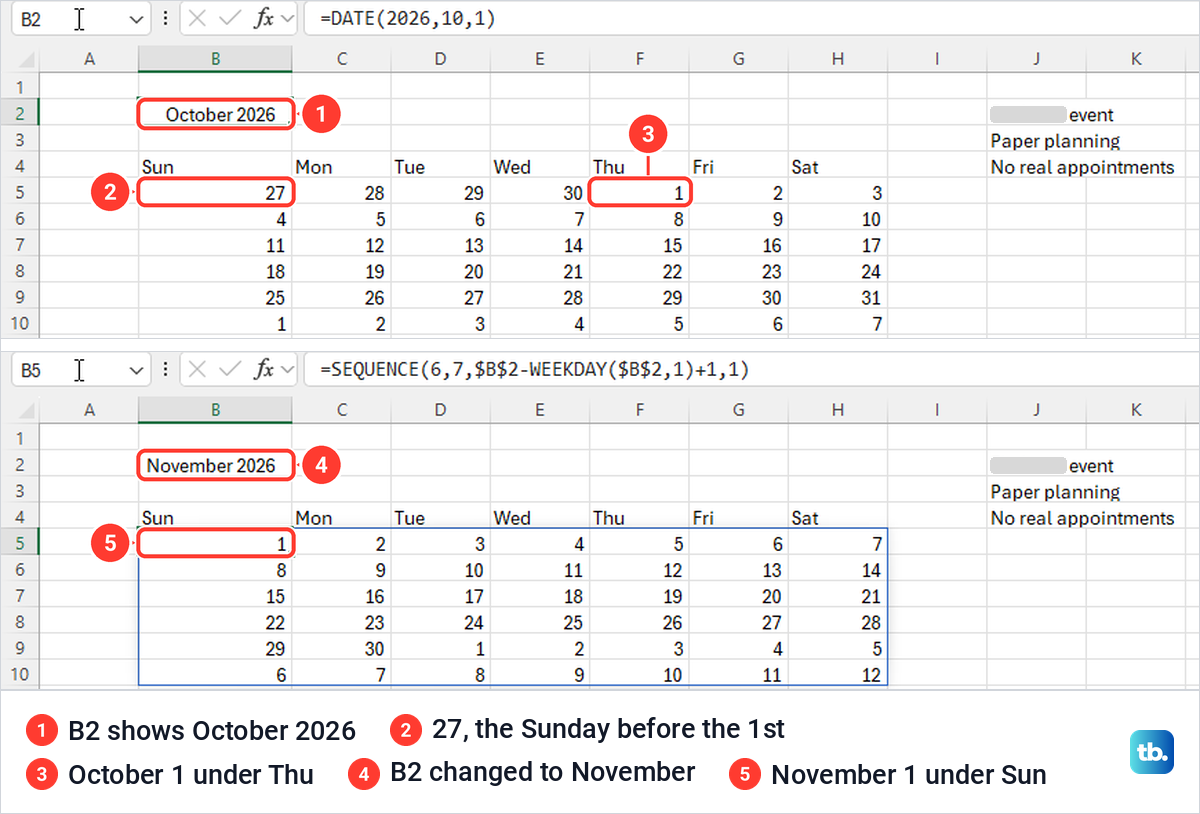
Leave the spilled cells free of notes. Anything typed inside B5:H10 blocks the formula with #SPILL!, as the repair section shows, so keep appointments in a column beside the calendar, as we did with our notes in column J. If changing B2 does not update the grid at all, check why Excel formulas are not working.
Print the calendar on one page
Select the calendar first, B2:H10 on our sheet, then press Ctrl + P. By default our print screen was set to Print Active Sheets and No Scaling, and the preview read 1 of 2 even though the calendar sat on page 1.
Under Settings, open the first list and choose Print Selection. The preview dropped to 1 of 1 and showed only the month heading and the grid. When the preview looks right, select Print.
For a calendar that runs past one page, open Page Layout, select the small launcher at the corner of the Page Setup group, and on the Page tab choose Fit to 1 page(s) wide by 1 tall. After OK, the print screen read Fit Sheet on One Page and still showed 1 of 1.
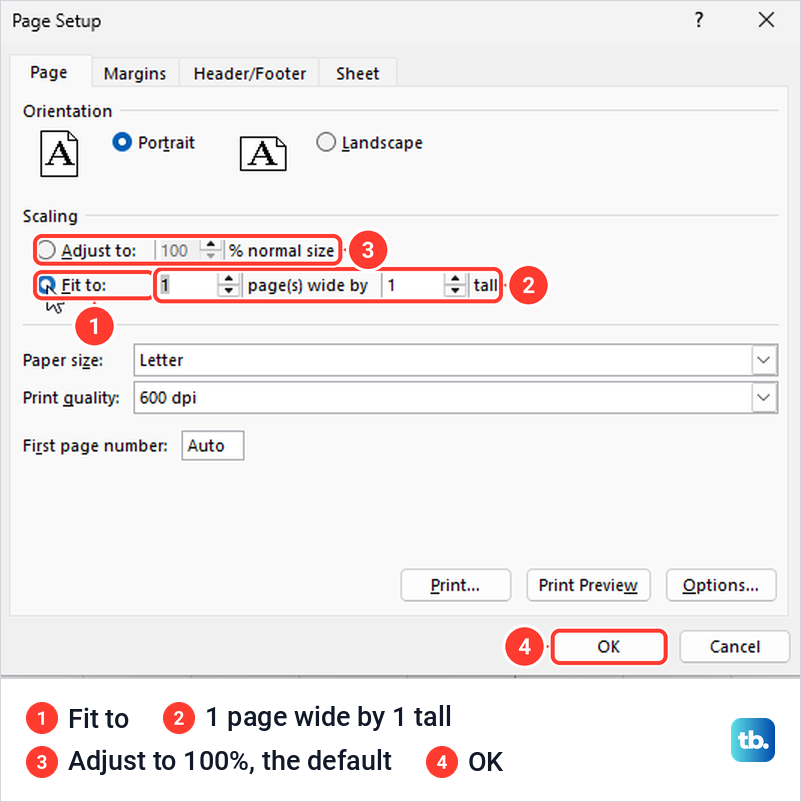
Fit to never makes a calendar bigger. Microsoft says Excel shrinks your data to fit the number of pages you set, and our small calendar stayed the same size in the preview, in the top part of the page rather than filling it. To fill more of the sheet, make the columns wider and the rows taller before you print.
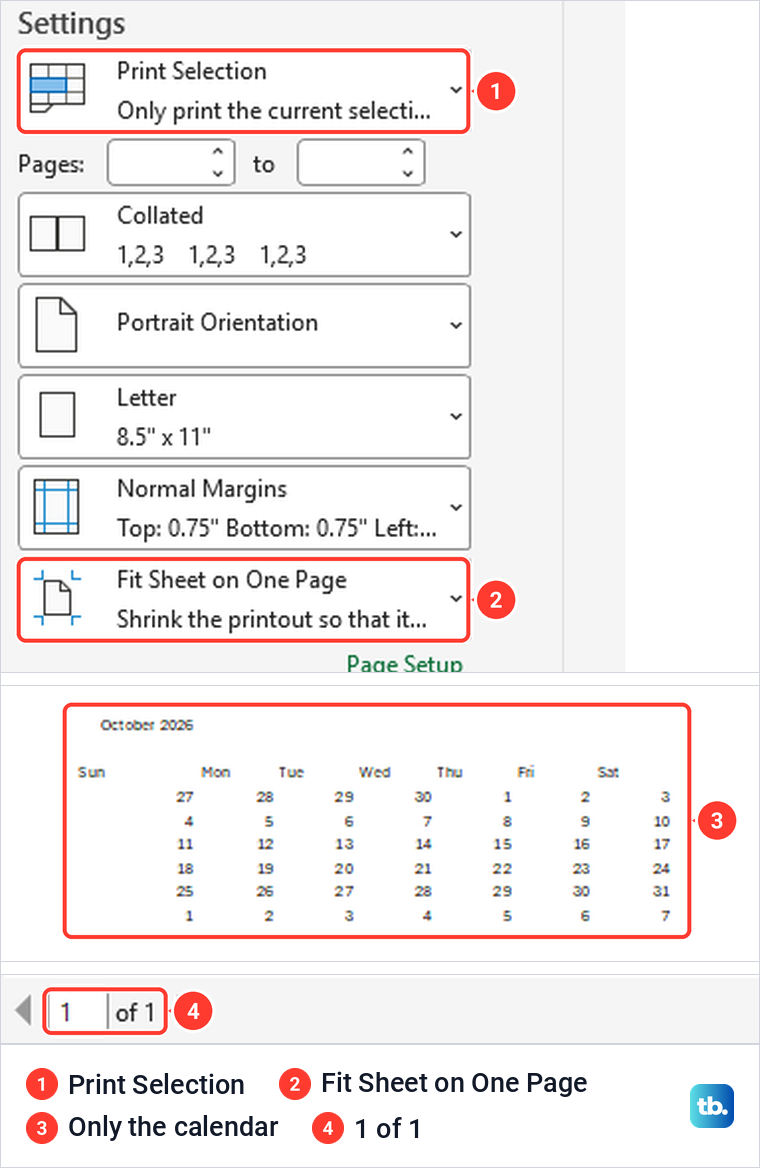
Check the headings in the preview too. Ours showed Sun at the far left of its column while the dates sat at the right, because typed headings line up on the left and numbers on the right. To line them up, select B4:H10 and choose Center in the Alignment group on the Home tab before you print.
If the preview splits the calendar in the wrong place, check Excel page breaks that are not working. When the preview looks right but no page comes out, use our fixes for printing from Excel.
Make a calendar in Excel for the web
Excel for the web has the templates and the formula too, with different clicks. In a workbook, select File > New > Browse templates. For us that opened a new browser tab called Create with templates, with buttons for Recommended, Lists, Invoices, Project management, Budgets and Calendars, and a Search templates box.
Select Calendars, or type calendar in the search box. We searched, picked the 20XX Year-at-a-glance template, and Excel opened an editable copy at once, with no preview and no Create button. If you see an Explore all templates link or an Edit button instead, select it to open your copy.
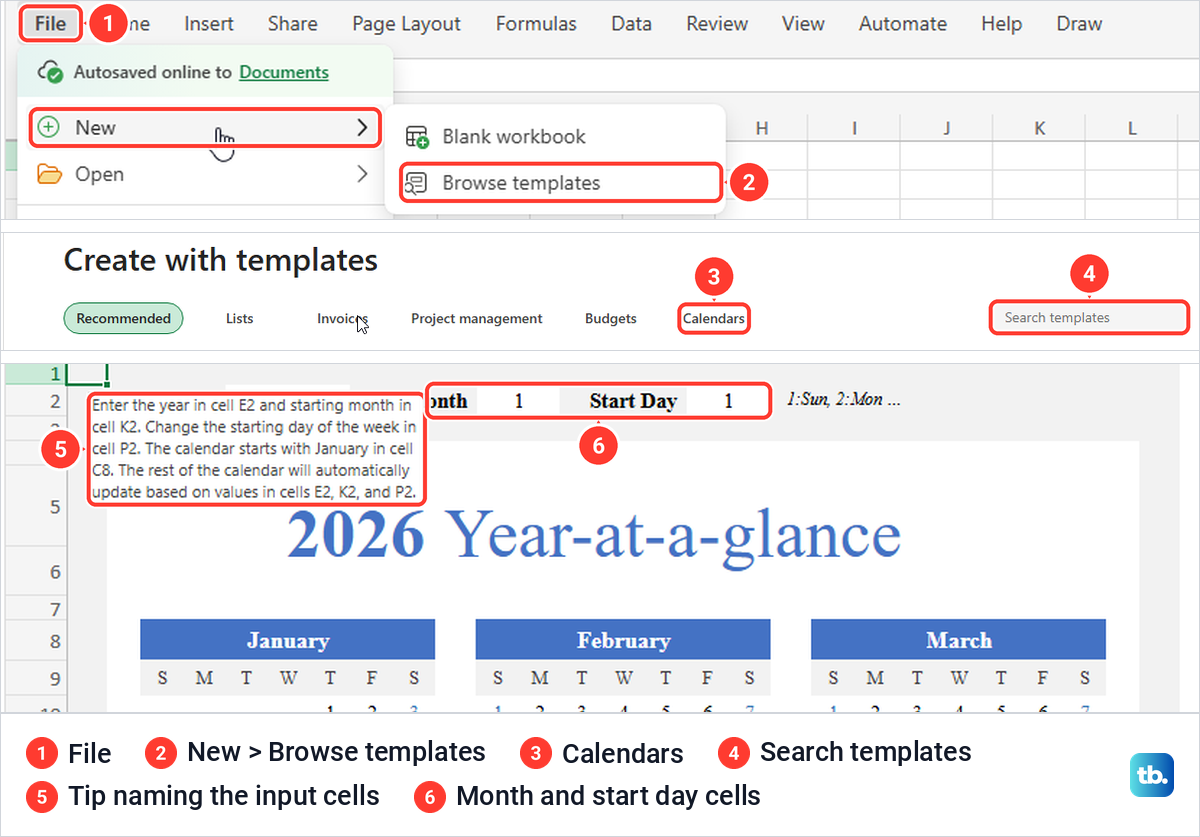
The copy opened under a generic name, Book 19 for us, so give it a proper name with Rename on the File menu. Its tip on A1 says to enter the year in E2, the starting month in K2 and the first day of the week in P2, and the rest of the calendar updates from those three cells.
Use the formula in Excel for the web
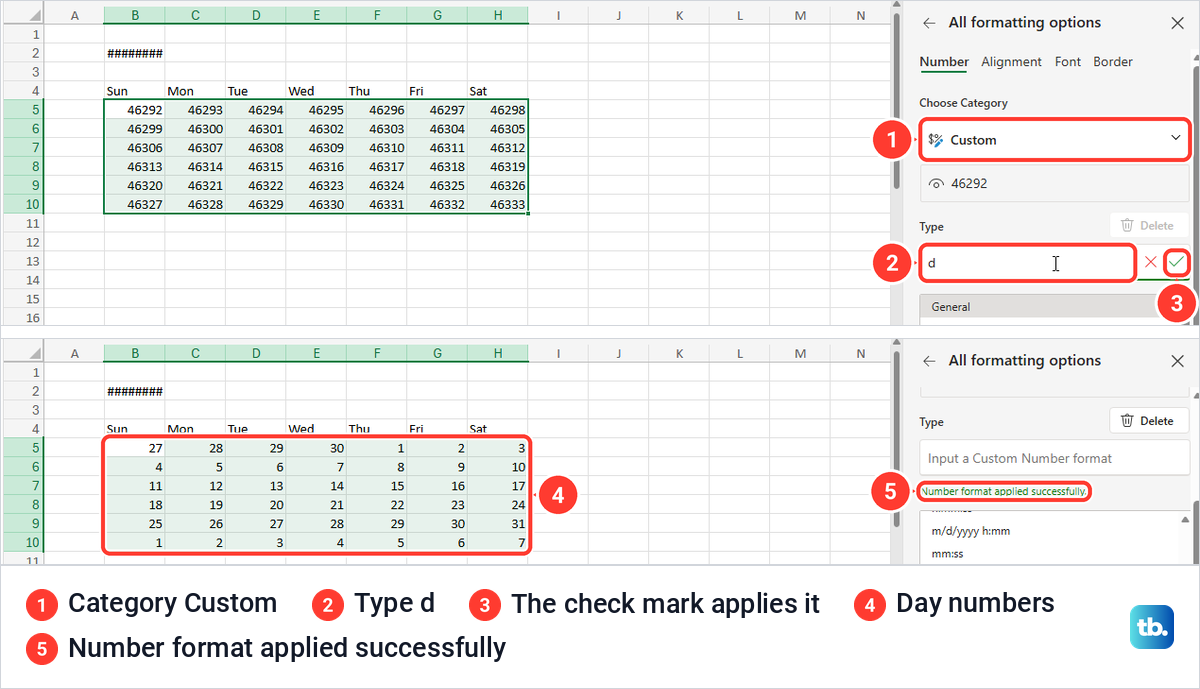
In a blank web workbook, the same DATE formula in B2 and SEQUENCE formula in B5 spilled the same 42 serial numbers, and changing B2 to November redrew the grid at once. Two things differ from the desktop. B2 showed hash marks, because the web did not widen the column for the date, and the custom format takes an extra click.
Select B5:H10, open Home, open the Number Format list and choose More Number Formats. In the All formatting options pane, set the category to Custom and type d in the Type box. Pressing Enter or Tab did not apply it for us, so select the check mark at the right end of the box, and the pane confirms Number format applied successfully.
Press Ctrl + P to open the web print page. Ours previewed the calendar on 1 page, set by default to Active sheet, Landscape and Fit all columns on one page. Its Scaling list also has No scaling, Fit sheet on one page, Fit all rows on one page and Custom scaling.
Make a calendar in Excel on a Mac
In Excel for Mac, Microsoft's steps start from a different menu. Choose File > New from Template, type Calendar in the Search All Templates box at the right, pick a calendar and select Create. Microsoft also lists SEQUENCE for Excel for Microsoft 365 for Mac, Excel 2024 for Mac and Excel 2021 for Mac, so the formula calendar can be built there as well.
Fix dates that show numbers or hash marks
A five-digit number where a date should be is the date's serial value, shown because the cell does not have a date format, not because the formula is broken. Excel counts dates as serial numbers, and 46292 is September 27, 2026, so apply a date format or the custom d code and the date shows again.
Hash marks usually mean the column is too narrow. When we applied Long Date to B2, which showed Thursday, October 1, 2026, Excel widened the column itself, but dragging it narrower turned the date into #### while the formula bar still read =DATE(2026,10,1). Double-clicking the right edge of the column heading brought the date back.
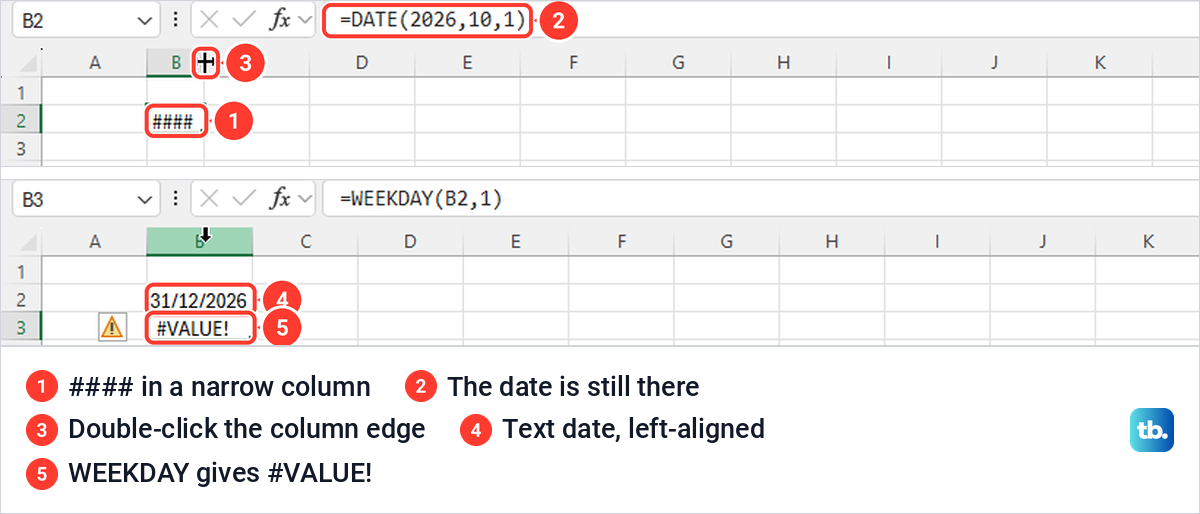
A date typed as text is a different problem. We entered '31/12/2026 as text, and it sat on the left of its cell while =WEEKDAY(B2,1) beside it returned #VALUE! instead of a day. Replacing it with =DATE(2026,12,31) gave 5, a Thursday, which is why the calendar uses DATE in B2 rather than typed text.
Fix a calendar formula that shows #SPILL!
#SPILL! means the 42 dates have nowhere to go. Click the warning button beside the cell to see the reason Excel gives, because each one has its own fix.
With a word in D6, our formula showed #SPILL! and a dashed outline around B5:H10, and the menu read Spill range isn't blank. Select Obstructing Cells jumped straight to D6, and once we cleared its contents the dates spilled again.
When we merged D7:E7 with Home > Merge & Center, the menu read Spill range has merged cell instead. Open the arrow beside Merge & Center and choose Unmerge Cells, or unmerge the cells in Excel another way, and the grid spills again.
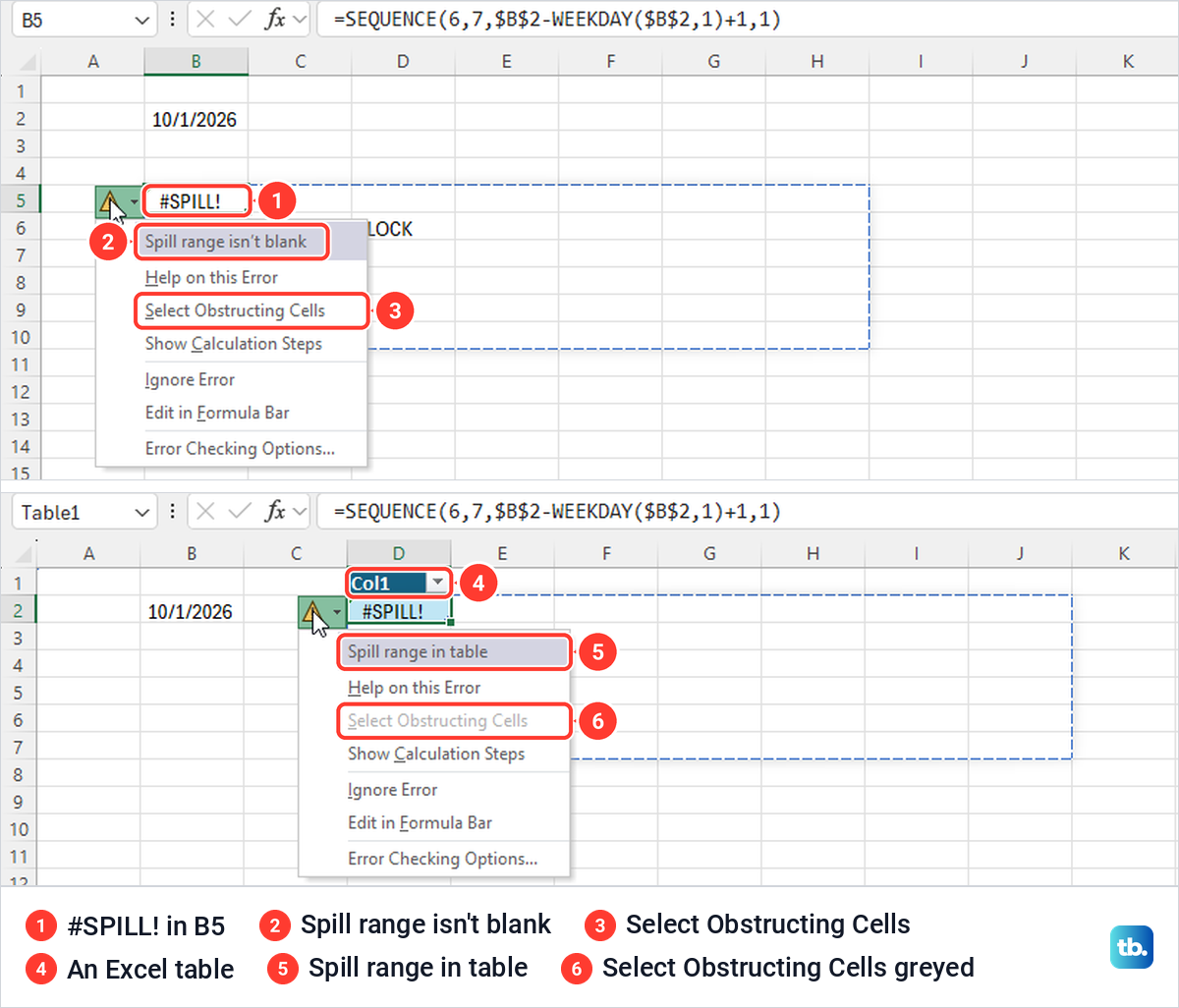
Inside an Excel table the menu read Spill range in table, and Select Obstructing Cells was greyed out. Microsoft says spilled array formulas aren't supported in Excel tables, so move the formula to ordinary cells outside the table, where ours spilled normally. Microsoft also suggests converting the table to a range with Table Design > Convert to range, which keeps the formula where it is.
Fix a calendar that will not update or accept edits
In a template, change the month and year only in the cells its tip names, never in the date cells. If a date cell has been typed over in a template that allows it, Microsoft says the calendar stops updating, so the quickest fix is a fresh copy from File > New.
If the fill handle is missing, open File > Options > Advanced and tick Enable fill handle and cell drag-and-drop under Editing options. It was ticked by default on our PC. When we cleared it, the square vanished only after we clicked another cell and then back, and ticking it again brought it back the same way.
A sheet that refuses every edit may be protected. Ours showed The cell or chart you're trying to change is on a protected sheet, and the Review tab offered Unprotect Sheet, which opened it straight away because no password had been set. If yours asks for one, you need the password from whoever protected it, and our guide to unprotect an Excel worksheet covers the steps.
Microsoft says every cell is locked once a sheet is protected, so to let people change the month in B2 but not type over the grid, unlock B2 first. Select it, press Ctrl + 1 and clear Locked on the Protection tab, as our guide to lock cells in Excel explains, then protect the sheet.
How we tested this guide
We tested this in Excel for Microsoft 365 on Windows 11, version 25H2, building an October calendar from a Microsoft template and from one SEQUENCE formula.
Frequently Asked Questions
What is the fastest way to make a calendar in Excel?
Choose File > New, type calendar in the search box, pick a template and select Create. Then choose the month in the template's month cell and type the year.
How do I make an Excel calendar change months automatically?
Put the first day of the month in B2 with a DATE formula and type =SEQUENCE(6,7,$B$2-WEEKDAY($B$2,1)+1,1) in B5. Change B2 and the whole grid redraws, as ours did from October to November.
Why does my calendar show 46292 instead of a date?
Excel stores dates as serial numbers, and on our blank sheet the formula's results started in the General format. Select the grid, press Ctrl + 1, choose Custom and type d to show day numbers.
Why does the calendar formula show #SPILL!?
Something is in the way, such as an entry inside B5:H10, a merged cell or an Excel table. Click the warning button, read the reason, then clear the cell, unmerge it or move the formula outside the table.
Can I print only the calendar on one page?
Yes. Select the calendar, press Ctrl + P and choose Print Selection, which took our preview from 2 pages to 1. For a larger calendar, also choose Fit to 1 page wide by 1 tall in Page Setup.
Can I make a calendar in Excel for the web?
Yes. Use File > New > Browse templates and search for calendar, or type the same formula into a blank web workbook. Apply the custom d format with the check mark beside the Type box.
Can an Excel calendar fill in events from another sheet?
Not on its own. The grids above hold dates only, so keep events in a column beside the calendar or write them in a template's notes rows.