A routerlogin.net login opens your NETGEAR router admin page, not your MyNETGEAR account page. The address works only when your phone, tablet, or computer is connected to the router's WiFi or LAN network. On an iPhone, connect from Settings > Wi-Fi > your NETGEAR network name, then use the steps below.
1. Join the router network first
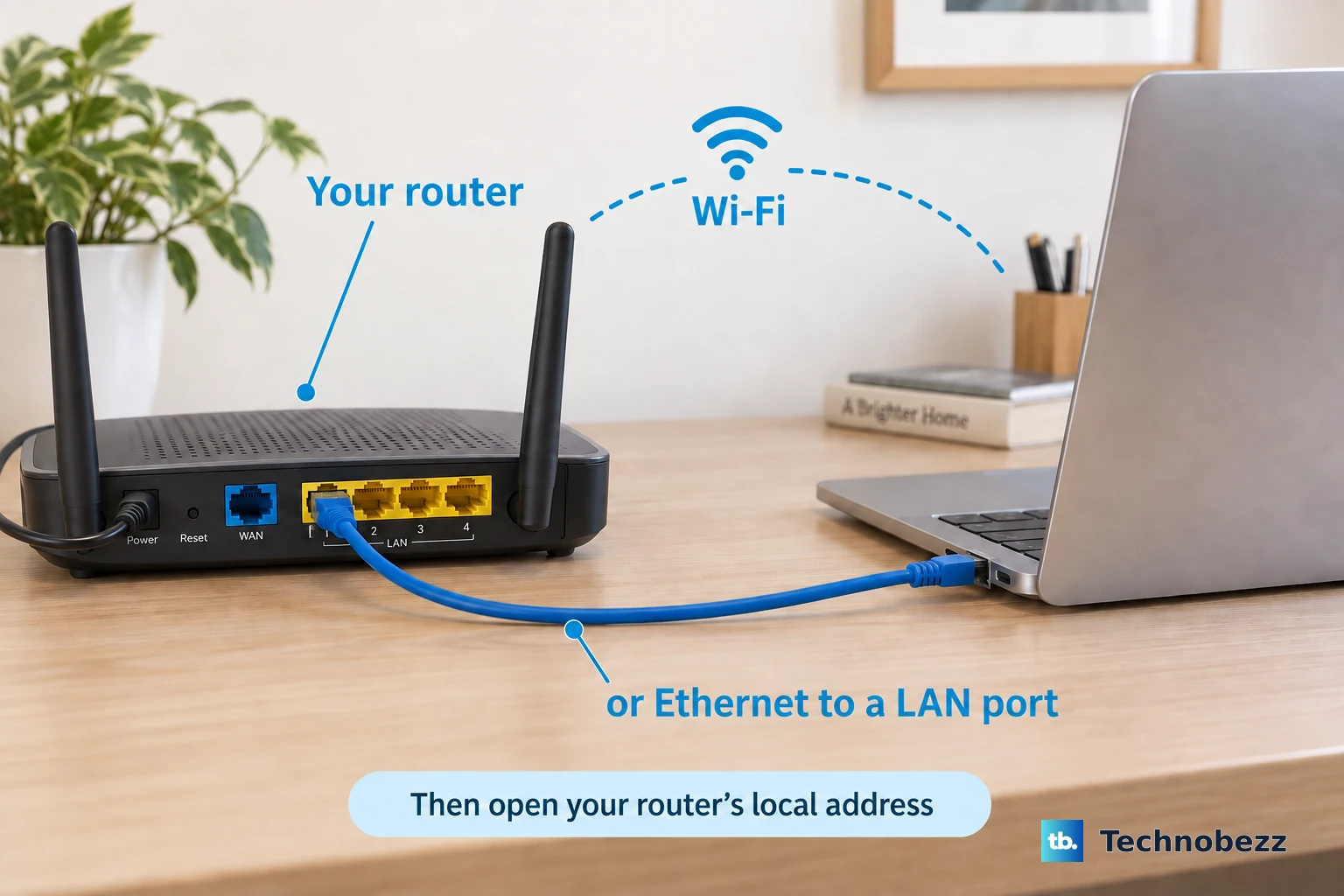
Connect your computer, phone, or tablet to the NETGEAR router's WiFi, or plug a computer into a LAN port.
For a new router, use the SSID and password printed on the router QR code label.
On an iPhone, the path is Settings > Wi-Fi > your NETGEAR network name.
2. Sign in at routerlogin.net
- 1.Open a web browser.
- 2.Type routerlogin.net or www.routerlogin.net in the address bar.
- 3.Enter admin as the user name.
- 4.Enter the router admin password you specified during setup.
- 5.Wait for the BASIC Home page or Dashboard to appear.
Keep the logins straight: routerlogin.net uses admin plus the router admin password, while your WiFi password and MyNETGEAR account are separate.
3. Open a backup address when routerlogin.net will not load
Stay connected to the NETGEAR router's WiFi or LAN network.
Enter www.routerlogin.com in the browser address bar.
If that does not open the router page, enter http://192.168.1.1.
If that IP address does not work, enter 192.168.0.1.
Sign in with admin and the router admin password chosen during setup.
4. Use the Nighthawk app for supported routers
Install the Nighthawk app from nighthawk-app.com or from the official App Store or Google Play links on NETGEAR's Nighthawk App page.
Connect the mobile device to the NETGEAR router's WiFi network.
Launch the Nighthawk app.
Sign in with your NETGEAR account.
Enter the router admin credentials when the app asks for them.
Use NETGEAR's official app links so you install the current Nighthawk app for supported iOS and Android devices.
5. Complete new router setup in the browser
New NETGEAR routers can be installed from the web interface.
Connect to the router WiFi with the SSID and password on the router QR code label, or connect Ethernet to a LAN port, then open routerlogin.net.
When the page recommends the Nighthawk app, use routerlogin.net > If you don't have a compatible smartphone, click here and follow the onscreen instructions.
6. Recover a forgotten admin password
Launch a web browser from a computer connected to the router WiFi.
Enter routerlogin.net.
When the login window appears, enter incorrect credentials three times.
On Router Password Reset, enter the router serial number and click CONTINUE.
Answer the two security questions and click CONTINUE.
Choose a new admin password and security questions, then click NEXT.
Password recovery works when it was enabled and security questions were configured during setup.
7. Reset the router when recovery is unavailable
This fixes a lost router admin password when password recovery is unavailable.
Verify that the router Power light is on.
On the back of the router, locate Restore Factory Settings or Reset.
Use a paper clip or similar object to press and hold Restore Factory Settings or Reset for seven seconds.
Release the button.
After the reset, log in with User Name set to admin and Password set to password.
8. Manage the router from away from home
Launch the Nighthawk app away from home.
Sign in with the NETGEAR single sign-on account associated with the router.
To change the setting while local, connect to the router WiFi and launch the Nighthawk app.
Tap the Menu icon.
Tap SETTINGS > Anywhere Access.
Tap the Enable Anywhere Access toggle.
Tap the back button.
For supported routers, use Nighthawk or Orbi Anywhere Access; NETGEAR says router web-interface Remote Management is off by default and is being removed from most routers with firmware updates.
9. Fix iPhone access in the Nighthawk app
Open Settings on the iPhone.
Tap Privacy & Security > Local Network.
Turn on access for the Nighthawk app. The same switch also sits in the app's own entry at Settings > Apps > Nighthawk > Local Network.
Reopen the Nighthawk app while connected to the router's WiFi.
On iOS 15 or newer, if the app only connects through Anywhere Access, disable Private Relay at Settings > [your name] (the Apple Account row at the top of Settings) > iCloud > Private Relay.
Open Settings > Wi-Fi.
Tap the More Info button next to the NETGEAR router WiFi network name.
Disable Limit IP Address Tracking.
After local app access works, enter router admin credentials only when the Nighthawk app prompts for them.
Frequently Asked Questions
Can I change the routerlogin.net user name from admin?
No. The router web-interface user name cannot be changed to something other than admin. Use admin plus the router admin password chosen during setup.
Is my MyNETGEAR account the same as the router admin login?
No. Routerlogin.net uses admin plus the router admin password. Your MyNETGEAR account is for NETGEAR apps and services, product registration, community, support, and offers.
Can I log in when I am away from home?
Use the Nighthawk app with Anywhere Access and sign in with the NETGEAR single sign-on account associated with the router. The local browser addresses are for devices connected to the router network.
Can I enable HTTPS for routerlogin.net?
Yes. From the local router page, go to ADVANCED > Advanced Setup > Web Services Management, or Settings > Advanced Settings > Web Services Management, select Always Use HTTPS to Access Router, and click Apply.