

To fix an Xbox that won’t connect to Wi-Fi with the correct password, forget its saved network, restart the console and router, then reconnect with the current password. If that fails, use the console’s connection test to identify whether you need a wireless, IP address, or DNS fix. These steps apply to Xbox Series X|S and the Xbox One family.
The short version
- Reconnect first: Forget the saved wireless network and enter its current password again.
- Restart your equipment: Restart the Xbox, modem, and router before changing advanced settings.
- Follow the error: IP address and DNS fixes apply after wireless authentication and cannot fix a rejected password.
- Isolate the cause: Try another wireless network or Ethernet before resetting the console.
| Fix | When to use it |
|---|---|
| Check the current password | Credentials or network name may be wrong |
| Forget and reconnect | The saved wireless connection fails |
| Run the connection diagnostic | You need the exact failure to troubleshoot |
| Restart or power cycle Xbox | Reconnecting has not helped |
| Restart the modem and router | The connection still fails after restarting Xbox |
| Improve placement and remove interference | The wireless signal is weak or unreliable |
| Try the other wireless band | One band will not connect reliably |
| Remove a router access block | MAC filtering blocks the console |
| Enable the radio and network broadcasting | Your network does not appear |
| Check wireless security | WPA3 causes mobile-assisted setup trouble |
| Change the channel or channel width | Only the Xbox cannot connect |
| Restore automatic IP or DNS assignment | Custom network settings cause errors |
| Enable router DHCP | The console cannot obtain an IP address |
| Enter working DNS addresses | The diagnostic identifies a DNS failure |
| Clear a custom alternate MAC address | You previously entered one for another network |
| Try another wireless network | You need to isolate the console from the router |
| Connect by Ethernet | You need a wired test or temporary connection |
| Temporarily bypass the router | Ethernet through the router also fails |
| Update Xbox software | You have a working temporary connection |
| Update router firmware | The Xbox works on another network |
| Reset Xbox while keeping installed games | Simpler fixes fail across working networks |
| Arrange repair or contact your provider | You receive a hardware error or upstream tests fail |
| Replace the router | Router troubleshooting fails but Xbox works elsewhere |
Forget the saved network and reconnect
Confirm that your password belongs to the exact network name you select. Your router’s administrator password is separate from its Wi-Fi password, and capitalization matters. You can check the wireless password on a connected Windows 11 PC.
On that PC, open Settings > Network & internet > Properties, then select Show beside Wi-Fi network password. For a saved network, select it under Manage known networks and choose Show. Use that password when reconnecting the Xbox.
On your console, open Settings > General > Network settings > Manage wireless networks > Manage my networks. Select the affected network and use its option to forget it. Return to wireless setup, choose Set up wireless network, select the correct network name, and enter its password. Depending on your dashboard, Set up wireless network may appear directly under Network settings.
If connecting still fails, press the controller’s Xbox button and open Profile & system > Settings > General > Network settings > Test network connection. Write down the exact error before choosing your next fix. If you see Unplug the network cable, disconnect Ethernet from the console before configuring Wi-Fi.
Restart the Xbox and your network equipment
Hold the controller’s Xbox button, then select Restart console > Restart. After the console starts again, retry the wireless connection. If your console is frozen, hold its physical Xbox button for approximately 10 seconds until it shuts down, then press it again to start.
For a full console power cycle, shut it down with that 10-second hold and unplug its power for at least 10 seconds. Reconnect power, then press the console’s Xbox button to turn it on. Test the connection again before changing router settings.
Next, unplug the modem and router for five minutes. Reconnect the modem first and wait for its normal lights, then reconnect the router. Once your network equipment is back on, restart the Xbox and run Test network connection again.
Improve the signal and try the other band
Move the Xbox and router closer together, keeping both outside cabinets and away from metal or interfering electronics. Keep rear cables away from the console, and disconnect power from a nearby third-party wireless headset’s base station before retesting. You can also adjust placement to fix a weak Wi-Fi signal.
Try the router’s other wireless band, switching between its 2.4 GHz and 5 GHz networks. The bands involve a tradeoff between range and congestion, so compare both from the console’s usual location. When your Xbox is connected well enough to run the test, open Network settings > Test network speed & statistics and compare Wireless strength before and after moving equipment.
If both bands share one network name, separate them using your router’s supported controls. On supported TP-Link routers, open Advanced > Wireless > Wireless Settings, disable Smart Connect, give the bands different names, and select Save. Connect the Xbox to each separately. Other models require their own instructions, and some managed or mesh networks do not let you separate bands.
Check router security and connection restrictions
A correct password cannot overcome a router rule blocking your console. On the Xbox, open Network settings > Advanced settings and find Wireless MAC. If your router uses MAC filtering or access controls, add that address to its allowed devices or remove its block, then restart the router.
If your network does not appear, check that its wireless radio and network-name broadcasting are enabled. On supported TP-Link routers, open Advanced > Wireless > Wireless Settings, clear Hide SSID, and enable the needed band using Enable or Enable Wireless Radio. Select Save and look for the network again.
Microsoft recommends trying WPA2/WPA or Ethernet when WPA3 causes trouble during mobile-assisted console setup. Choose a WPA2 security mode with AES encryption on a router that offers it, then reconnect with that network’s password. This recommendation concerns mobile-assisted setup and does not mean every Xbox console rejects WPA3. Keep wireless security enabled instead of switching to WEP or an unsecured network.
If only your Xbox cannot connect, use your router’s controls to test a different Channel or set Channel Width to 20 MHz on a band that supports it. Change one setting at a time and restore the previous value if it does not help. Microsoft includes 20 MHz as a compatibility test, so treat it as troubleshooting rather than a general performance setting.
Follow IP address and DNS errors separately
If the connection test reports an address-assignment or DNS failure, follow that error instead of repeatedly entering your Wi-Fi password. Open Network settings > Advanced settings, then use IP settings or DNS settings to restore automatic assignment if you previously entered custom values. Run the connection test again after the change.
If your Xbox cannot obtain an IP address, check the router’s DHCP service. On supported TP-Link home routers, open Advanced > Network > DHCP server and enable DHCP Server. This addresses IP assignment after wireless authentication and cannot fix a rejected passphrase.
For DNS isn’t resolving Xbox server names, obtain working DNS addresses from a Windows PC on the same network. Open Command Prompt, run the following command, and note the DNS Servers entries:
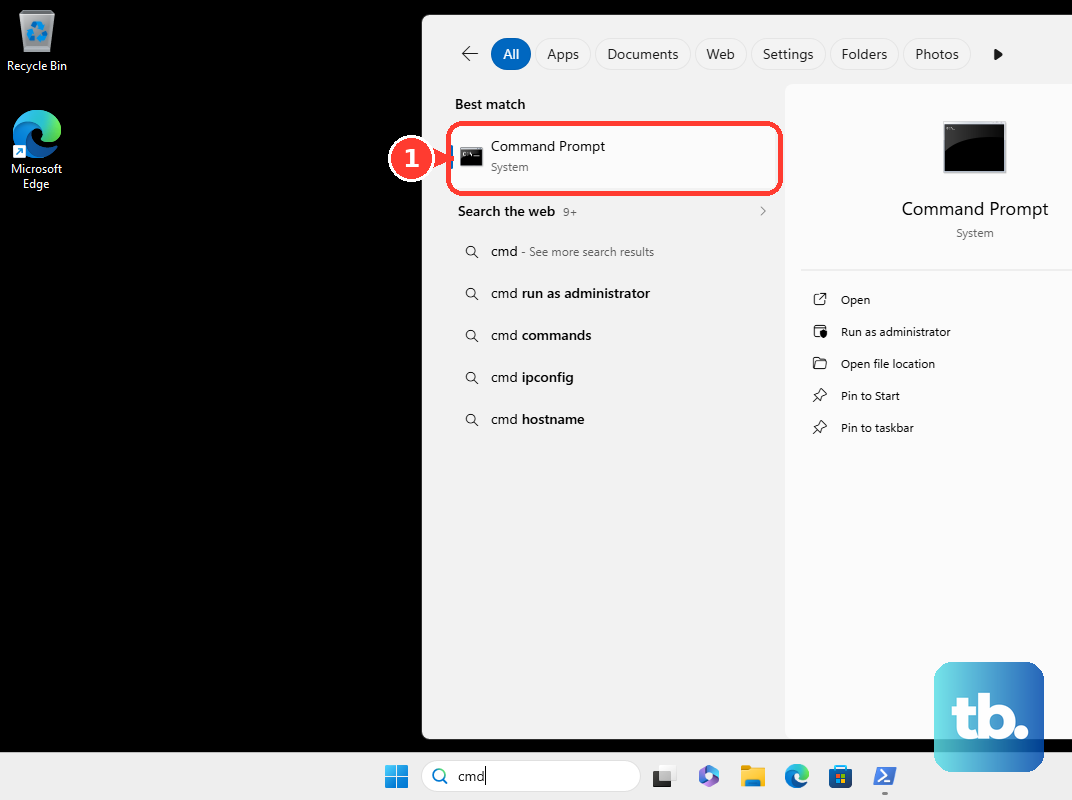
ipconfig /allOn your Xbox, select Network settings > Advanced settings > DNS settings > Manual. Enter the addresses under Primary DNS Server and Secondary DNS Server, press B, and retest. Use this change for a DNS error rather than password rejection.
Clear an alternate MAC address you previously entered
If you configured a custom alternate MAC address for another network, clear it before trying your home connection again. Open Settings > General > Network settings > Advanced settings > Alternate MAC address, then select Clear > Restart. After the restart, reconnect and run the network test.
Skip this step if you never entered an alternate address. Microsoft says clearing an empty field changes nothing except forcing a restart, so use a normal restart in that case.
Try another wireless network or Ethernet
Connect your Xbox to a different known-working wireless network to narrow down the cause. A phone hotspot can serve as a test network, subject to its compatibility and your data plan. If the console connects there, focus on your home router; failure on multiple working networks points toward the console.
For a wired test, connect a router LAN port to the Xbox’s Ethernet port and run Test network connection. Ethernet provides a temporary connection without repairing Wi-Fi. You can use it to update the console before trying wireless again.
If Ethernet also fails and you have a separate modem supporting a direct connection, temporarily connect the Xbox directly to it by Ethernet. Turn off the console, unplug the modem for one minute, reconnect it, wait for normal lights, then start the Xbox and test. Restore your normal network afterward, and contact your internet provider if the modem or internet test still fails.
Update the console and router
Use Ethernet or another working network to check your Xbox for a system update. Press Xbox, then open Profile & system > Settings > System > Updates. Select Console update available when offered, then retry your original wireless network after the update finishes.
Check router firmware next, especially if your Xbox works on another network. On a TP-Link router supporting online updates through Tether, sign in to the router in the app and open More > System > Firmware Update > Update. Keep power connected and wait for the router to finish restarting before testing again.
For a manual TP-Link update, download firmware from the TP-Link Download Center, matching your exact model, hardware revision, and purchase region. Extract it, then open Advanced > System > Firmware Upgrade > BROWSE, select the file, and choose Upgrade on supported models. Keep the router powered throughout the update. Other brands require their own firmware and update instructions.
Reset the console only after isolating the problem
Consider a console reset only after simpler fixes and tests on other working networks fail. Have your account credentials ready, because you will need to complete setup again. The option that preserves installed games and apps still resets the operating system and settings, and unsynchronized local data can be lost.
Open Profile & system > Settings > System > Console info > Reset console, then choose Reset and keep my games & apps. Complete setup and test your wireless connection again. Avoid Reset and remove everything for this attempt, because it also deletes installed content, accounts, and local data.
If the diagnostic reports There’s a hardware problem, use Microsoft’s device-repair process for your console. If your Xbox consistently works on another network but router updates and reconfiguration do not help at home, consider replacing the router. For an unresolved internet-provider issue, supply the exact error, equipment model, and results of your connection tests.
Frequently Asked Questions
Does Disconnect wireless delete my Xbox’s saved Wi-Fi password?
No, Disconnect wireless ends the current wireless session without forgetting its saved profile. Updated Xbox consoles can remember up to ten wireless networks.
Can an Xbox service outage cause my Wi-Fi password to be rejected?
No, an Xbox service outage does not explain rejection of a local Wi-Fi password. If Test network connection passes but Xbox sign-in or setup still fails, check Xbox service status.
Can I use the Xbox phone app to fix the console’s Wi-Fi connection?
You can configure Wi-Fi through the app during console setup, when you choose your network on the Let’s get your console on the internet screen. If mobile-assisted setup fails, close and reopen the app, restart your phone, and power cycle the Xbox. You can also finish setup with the controller on your TV.
How do I connect to a hidden network during Xbox setup?
At the Which one’s yours? screen during digital setup, select Add wireless network. Enter the network’s exact SSID, Security type, and Password.
Why does my Xbox join Wi-Fi but have no internet on Xfinity?
Your console may be paused in the Xfinity app. Open WiFi, select your Xbox, and choose Unpause Device. For a paused person, use Unpause All Devices; for a scheduled pause, select the person and choose Wake Up.
What if my hotel or dorm network requires more than a password?
If your Xbox detects a captive portal and opens a browser window, complete the network’s sign-in or accept its terms. If the network requires device registration, open Network settings > Advanced settings and record the console’s IP and MAC addresses. Ask the network administrator to register your console as a permitted device.